Why Didn’t My Automated Payment Get Processed?
How Automatic Payments Work (Simplified Workflow)
- Scheduled Payments Job Runs (default is nightly at 9 pm)
- A batch is created in paymentplanbatch (no screen for this) to track payments
- The system gathers all payments due on the day
- Calculates amounts owed, including voluntary contributions (if recorded)
- Adds items to paymentplanbatchitems linked to the batch (no screen for this)
- Batch enters Processing status
- Each item is matched to a payment method and Stripe customer
- Online Receipts List is updated
- Payments are submitted to Stripe
- Later, Stripe confirms success/failure, and finance records are created (in the same way as ad hoc payments)
Checking for upcoming scheduled payments
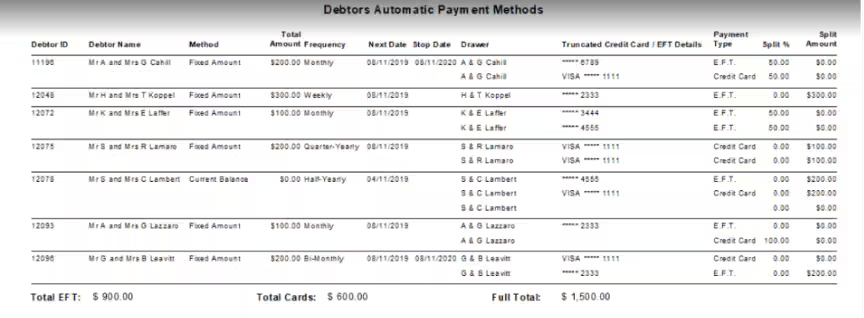
To check when automatic payments are due, run the Debtor Automatic Payment Methods (DEBAPM) report
Payments due (“Next Date”) on the batch run date will be included.

Checking in advance if payments may be filtered out of a future run
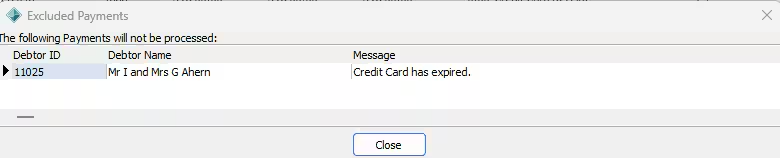
- Go to Debtors -> Electronic Banking
- Select “Scheduled Payment Maintenance”
- Click “View Excluded Payments” to see the list of excluded payments for the next run or change the date to look into the future.
Why Might a Payment Be Missing?
There are five main reasons why a payment may not have been processed.
Reason | Action Required |
The payment did not meet matching rules to be included in the scheduled payments job |
|
The payment met matching rules, but was filtered out of the batch before submitting to Stripe |
|
The payment was submitted to Stripe, but is still pending | If Stripe dashboard shows “pending”, await status from Stripe If Stripe dashboard shows “failed”, see “The payment was submitted to Stripe, but failed” If Stripe dashboard shows “succeeded”, create receipt manually and contact Support. NB: Update “Next Date” to schedule the next payment. |
The payment was submitted to Stripe, but failed | Follow up with the debtor, as per the failure message on Online Receipts List or Stripe Dashboard. Update “Next Date” to schedule next attempt. Once next attempt is successful check new “next date” and update as required. |
The scheduled payments job did not run at all | Contact IT. All overdue automatic payments will be processed in the next successful run. |
The payment met matching rules, but was filtered out of the batch before submitting to Stripe
- The payment was submitted to Stripe, but is still pending
- The scheduled process did not execute at all
Check 1: Is the Debtor Eligible?
If you were expecting a specific payment to be processed for a specific debtor, you should check if the debtor meets the eligibility criteria to be processed.
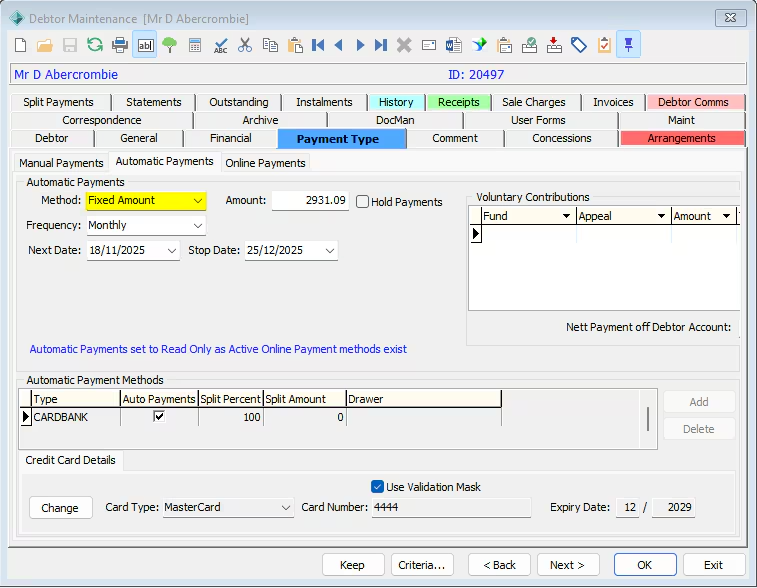
In the Debtor Maintenance Automatic Payments tab:
- Next Payment Date must be the expected payment date
- Hold Payments flag must not be selected
- Debtor must be active
- The debtor’s payment method type (Fixed, Current, or Notified Balance) is enabled
- The Automatic Payments Methods table is read only and includes a Stripe card or EFT record
Checking which Payment Method Types are enabled for the Automatic Payments job:
- Go to Debtors -> Electronic Banking
- Select “Scheduled Payment Maintenance”
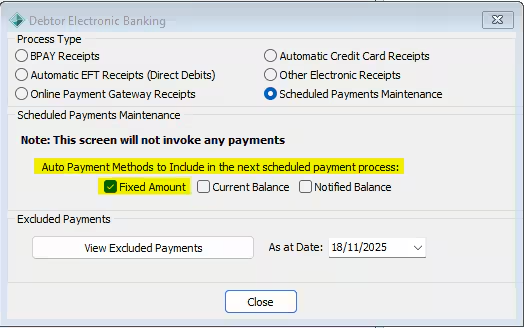
- Note which “Auto Payment Methods to include” are selected. These correspond with the Method selected in Debtor Maintenance -> Payment Type -> Automatic Payments tab
Check 2: Was the payment filtered out of the schedule payment job by Synergetic rules?
Checking whether a payment was filtered out of a scheduled payment job
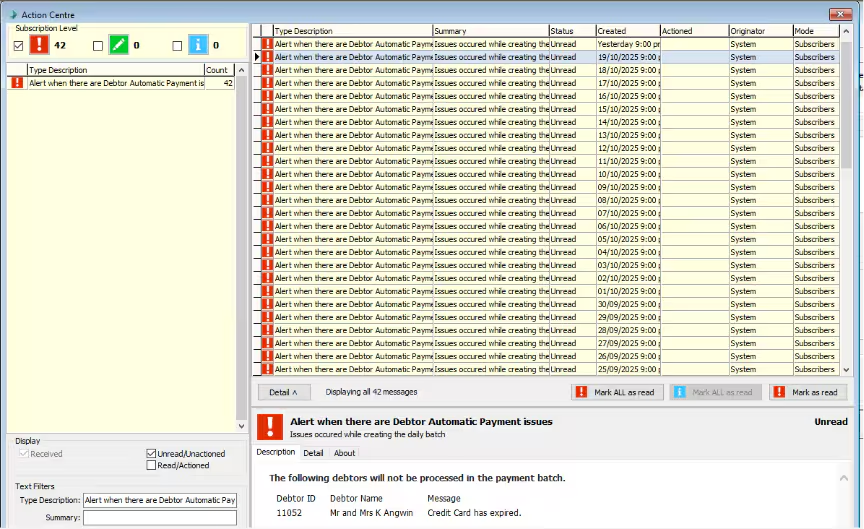
- Finance users responsible for monitoring automatic payments should ensure they are subscribed to Action Centre alerts for "Debtor Automatic Payment Issues”
- If the debtor appears in the Action Centre alert (DEBT_PaymentPlans_A), Synergetic blocked the payment before it reached Stripe
Common reasons:
- Payment on hold
- Expired or invalid payment details
- Inactive debtor
- Disabled payment method type
Check 3: Is the scheduling job configured, and did it run as expected?
Is the scheduled job configured correctly?
If this is the first time you are running automatic payments with Stripe payment methods, you may need to ensure that the jobs are configured correctly. For example:
- Stripe feature flags in SynergeticServiceSuite.xml must be enabled, e.g., <SynStripePullerEnabledFlag>, <SynStripePaymentPlanProcessingEnabledFlag>
- Synergetic Service Suite must be installed
- Stripe account and integration connectivity settings have been configured
If the jobs have run successfully in the past, or you can see that other automatic payments were processed yesterday, configuration is unlikely to be the issue. However, you can ask your IT team to check:
- Is the Synergetic Service Suite running?
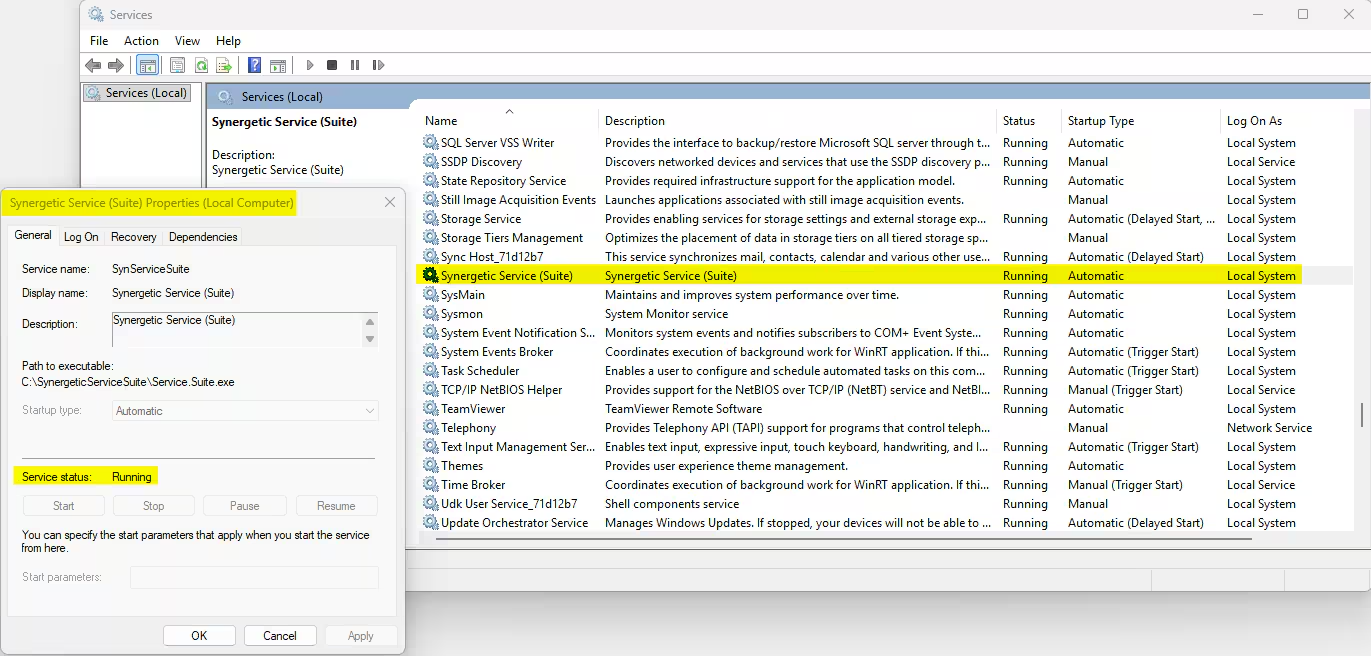
- Was the Service Suite down when the job was supposed to run?
- Check the “PaymentPlanBatch” table and “PaymentPlanBatchItems” table to see if there are entries for the expected payment batch.
Check 4: Was the Payment Blocked Internally?
If the debtor appears in the Action Centre alert (DEBT_PaymentPlans_A), Synergetic blocked the payment before it reached Stripe.
Common reasons:
- Payment on hold
- Expired or invalid payment details
- Inactive debtor
- Disabled payment method type
How to Investigate Specific Scenarios
- Will a debtor’s payment be in tonight’s batch? Run DEBAPM report and check Next Date.
- What payments will be captured tonight? Use DEBAPM report for all debtors with Next Date= today.
- What payments will be captured for a future date? Run DEBAPM for that date; note overdue payments may also appear.
- Was a batch job attempted for a payment? Check batch logs and Action Centre alerts.
- What payments were in last night’s batch? Review paymentplanbatchitems linked to the batch.
- Did the batch complete successfully? Check batch status and whether all items were submitted to Stripe.
- Has a debtor’s payment failed in Stripe? Look in Online Receipts List or Stripe dashboard for failed status.
- Is a payment stuck in Stripe (pending)? Check Online Receipts List; pending means wait before follow-up.
- Was a payment skipped entirely (not submitted)? Check Action Centre alert for internal validation failures.
How to Check Upcoming Payments
Run the Debtor Automatic Payments report (DEBAPM):
- Navigate to Reports → Debtors → Automatic Payments.
- Payment Type: EFT vs Credit Card.
- Totals at the bottom show EFT and card amounts for quick reference.
What Happens After Stripe Submission?
Payment appears in Online Receipts List as pending.
Do NOT update Next Payment Date unless:
- Stripe confirms success
- Stripe confirms failure.
If payment fails, manually update Next Payment Date so the system retries.
If payment is pending, wait, do not update Next Payment Date until confirmed.
Check status in:
- Online Receipts List report
- Stripe dashboard
Tips for Finance Users
- Subscribe to Action Centre alerts for skipped payments.
- Use Debtor Maintenance to fix expired cards or payment holds.
- Use DEBAPM report for visibility on upcoming payments.
Was this article helpful?
That’s Great!
Thank you for your feedback
Sorry! We couldn't be helpful
Thank you for your feedback
Feedback sent
We appreciate your effort and will try to fix the article