Getting Started with Synergetic Stripe Automated Payout Posting
This guide outlines the critical steps involved in utilising and verifying the new Automated Stripe Payout Reconciliation feature, which automates the creation and reconciliation of Cash Receipt Postings upon detection of a new Stripe payout.
Why did we implement Automated Payout Posting for Synergetic Stripe Payments?
Historically, reconciliation for Stripe payments required finance staff to manually monitor the Stripe dashboard, download payout reports, and manually match these payouts (which often included multiple transactions from different dates) against corresponding Cash Receipt Postings in Synergetic.
This feature automates this crucial step. When a new Stripe payout is detected, Synergetic automatically performs the following:
- Detects the new payout, including its total expected deposit, fees, charges, and constituent transactions.
- Creates a single Cash Receipt Posting for that payout (the “Payout Posting”).
- Inserts and consolidates all individual Synergetic transactions belonging to that payout into the Payout Posting.
- Inserts a transaction into the Payout Posting to represent the Stripe Fees for the matching transactions.
- Automatically closes the Payout Posting if the total matches the net payout amount.
This automation significantly reduces the manual matching time required to reconcile Stripe deposits against bank statements.
Configuring Automated Payout Postings
Prerequisites
Prerequisite | Details |
Stripe Integration | The school must be configured for online payments with Stripe as their payment gateway and online payments activated. This may include any or all of: Automatic Payments, Payment Plans, Community Portal Payments, Event Portal Payments and PayNow. |
Feature Toggle | For this first release the feature needs to be enabled. In System > Configuration File Maintenance > Search for Stripe and enable: AutomatedStripeTransactionFeeConsumption and StripeReconciliationImprovements The purpose of the feature toggle is to allow for quick service restoration in case of unexpected behaviour. It should not be disabled unless you are explicitly instructed to do so by the Support team. In future releases the feature toggle for Automated Payout Postings will be enabled upon release. |
Configuration Steps
As a Finance User, you must configure the General Ledger (GL) account where Stripe transaction fees will be automatically allocated. If you do not configure this setting, fees will not be recorded in Synergetic and will have to be manually journaled as a separate (negative) receipt or expense transaction. NB: The General Ledger code must have a tax treatment recorded.
- Navigate to System -> Banking Configuration Maintenance
- Select the “Bank Code” for the Bank related to your Stripe Merchant
(This can be verified in Online Payments Maintenance -> Merchants tab)
- Under “Payment Gateway Fees G/L Code”, select the GL Code where you would like Stripe fees to be allocated in your General Ledger. NB this GL Code must have a tax treatment recorded.
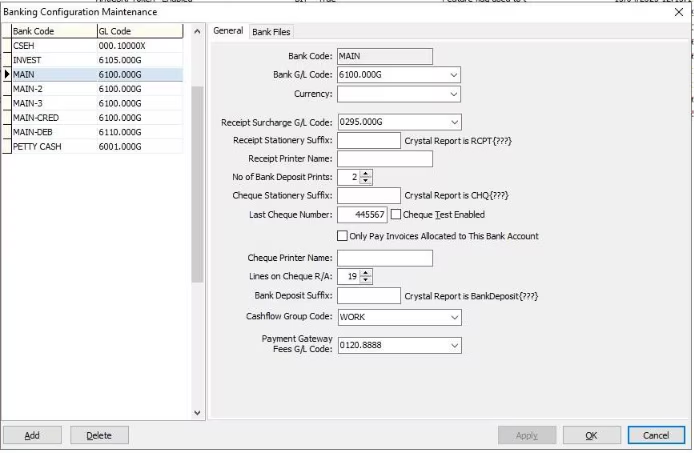
- Click OK
Note: “Stripe fees” are distinct from “Stripe Surcharges”. If your school charges surcharges for online payments, these are allocated to the GL configured in “Receipt Surcharge G/L Code”. Surcharges are optionally charged by the school to debtors and are treated as income for the school. Stripe fees are charged to the school and are treated as an expense.
What’s changed?
Description Change for daily Stripe Cash Receipt Postings
Upon upgrade, the daily Cash Receipt Postings for Stripe Card Payments and Stripe EFT Payments will continue to be created as before. However, these Postings are now considered to be “holding” batches only. The description of these postings was previously “Online Receipts Import – STRIPE” for card payments and “Online Receipts Import” for EFT payments. The postings will now have the description of “Stripe Card Receipts - Successful - Pending Payout" and “Stripe EFT Receipts - Successful - Pending Payout".
Payout Detection and creation of Cash Receipt Posting
The system now automatically detects new Stripe payouts using a polling process. In other words, Synergetic regularly checks Stripe to see if any payouts have been created.
This detection initiates the creation of a new Cash Receipt Posting, for that payout.
The newly created posting will have the following characteristics:
- Posting Date/Summary Date: The date reflects the expected payout date, as determined by the Stripe at the time of detection.
- Posting Description/Summary Description: The description will be formatted as "Stripe Payout – Card Payments expected on dd/mm/yyyy" and “Stripe Payout – Au Becs Debit Payments expected on dd/mm/yyyy”
Inclusion of Transactions in Payout Posting
The Cash Receipt posting will contain each Synergetic financial record (receipts and allocations) associated with that specific Stripe Payout.
To observe this:
- Access a Cash Receipt Posting for a Stripe Payout (Debtors → Cash Receipts Entry).
- Select Posting Action → Audit Print → Preview
- Access the corresponding Stripe Payout in the Stripe Dashboard
- Note the transactions listed on the Audit Print precisely match the constituent transactions detailed in the Stripe Payout Reconciliation screen/dashboard
Only transactions initiated from within Synergetic modules will be automatically included. Some types of Stripe transactions such as refunds, fees not related to Synergetic transactions, or payments made through a Stripe “payment link” are not known to Synergetic and cannot be automatically matched to the Payout Posting. Transactions created manually in Synergetic will also not be matched.
Automatic Creation of a Fee Expense transaction
The system automatically journals the fees related to Synergetic transactions, when the Payout is processed by the Synergetic Stripe integration.
The Stripe transaction fees (also known as Application Fees) (including GST, if configured for the selected GL) are automatically journaled as a debit to the configured GL account.
If surcharges are also configured, then the surcharge will appear as a separate line item on the debtor receipt, as it has been paid by the debtor but is not deducted from their debtor account. Surcharges can be configured to be allocated to the same GL account as the fees, or a separate one.
The fee transaction can be observed in Synergetic, in the following screens / reports.
Cash Receipt Posting Audit Print
- Navigate to Debtors → Cash Receipts Entry.
- Open the relevant Payout Posting (or view a copy of the Audit Print for a closed posting).
- Select Posting Action → Audit Print → Preview.
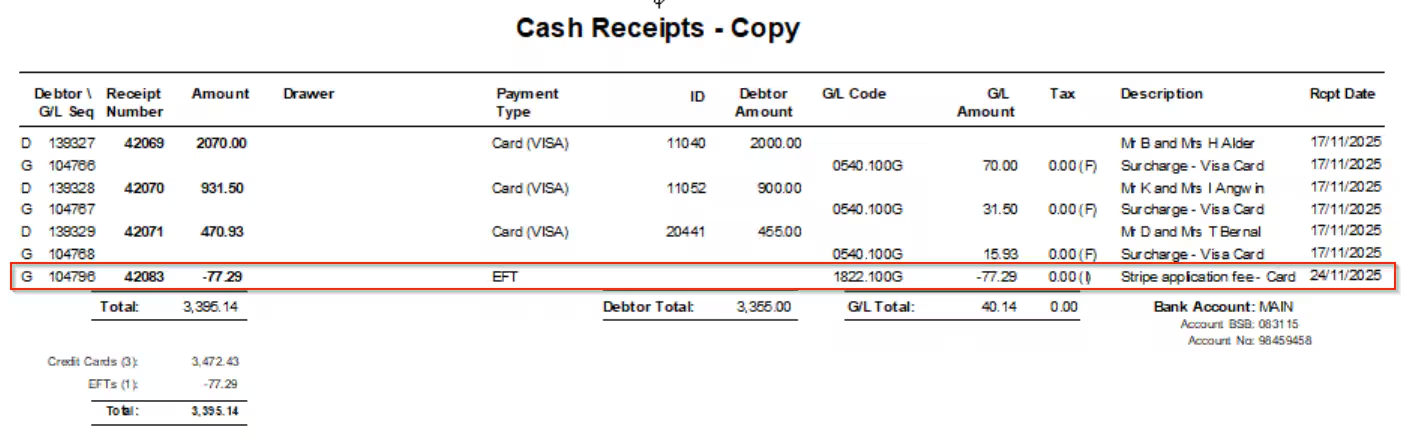
- Note the following details in the Audit Print:
- There is a line item for the Application Fee.
- The GL code used is the configured GL code.
- The amounts are displayed as NEGATIVE, because this represents an expense.
- If the configured GL has a tax code associated with it, the corresponding tax amount will be populated (e.g., a 10% GST rate results in 10% of the fee being marked as a debit amount).
Handling Empty Cash Receipt Postings
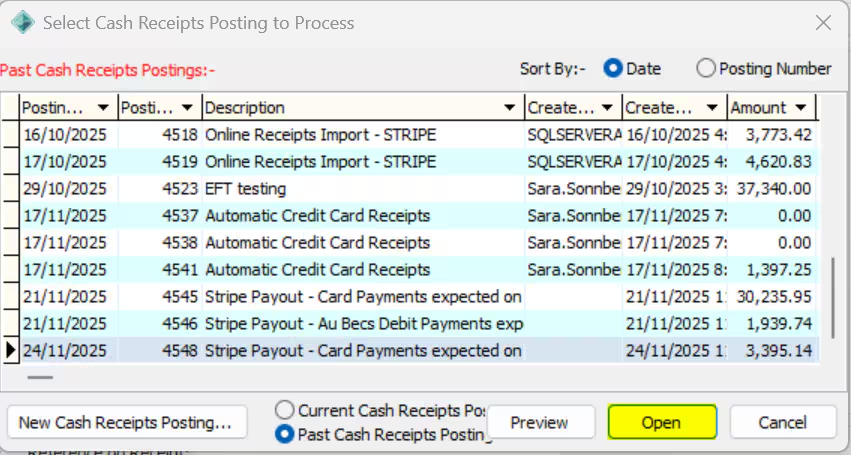
As previously described, Synergetic will continue to create daily Cash Receipt postings for “holding” transactions prior to their payout. As part of the Payout Posting process, transactions are automatically transferred from their initial Cash Receipt Posting (the “pending payout” Posting), to the Payout Posting.
The result of this transfer means the original Cash Receipts Posting will be empty. From v71.87 these empty postings will automatically close at the same time as the Payout Posting is created.
Prior to v71.87 finance users will need to either close or abandon the empty postings.
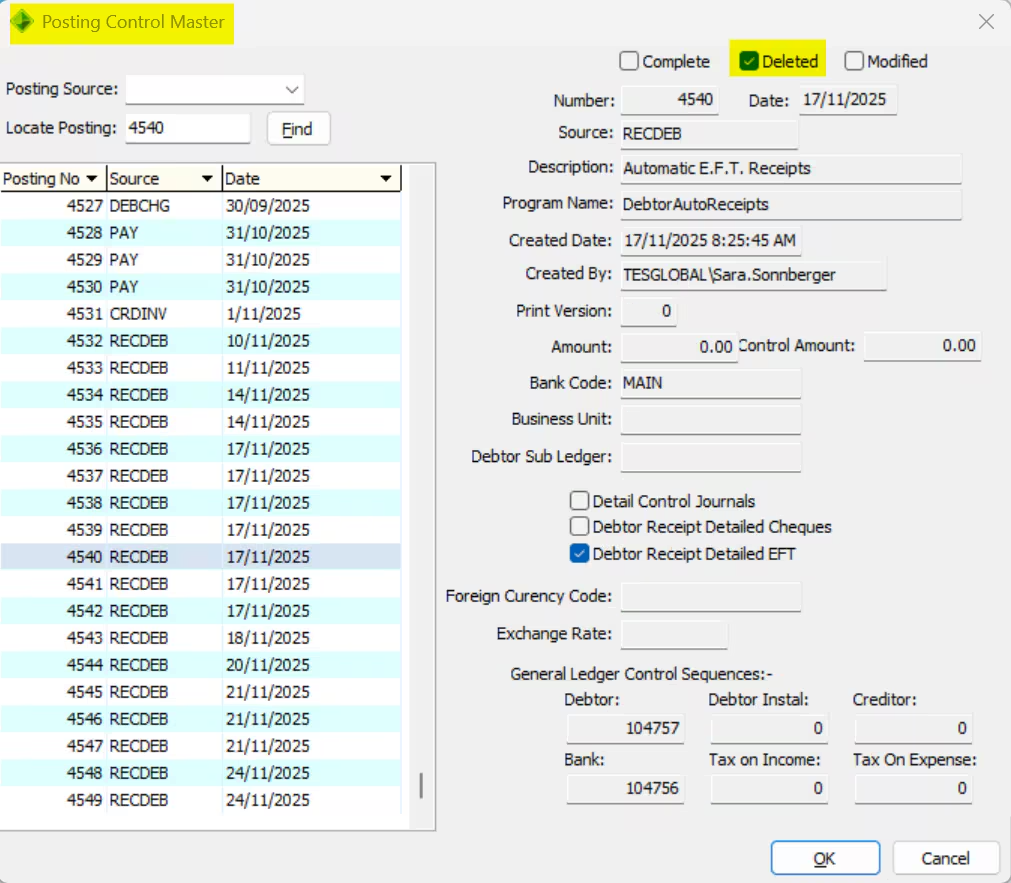
Note: If the empty posting is abandoned it will remain visible in the “Posting Control Master” list. To access the list, select Shift + Open when the Open button is Active in the Posting to Process Screen.
Automatic closure of Payout Postings
When the Payout Posting is created, and the transactions consolidated, Synergetic will then check the transactions in the Posting exactly match the transactions in the Payout. If this is the case, Synergetic will automatically close the posting because it is now ready for bank reconciliation. The payout posting details will exactly match the bank deposit on the school’s bank statement with no manual intervention required.
Postings are expected to successfully balance and close automatically, in most cases. Exceptions include:
- Refunds or adjustments in the Payout. These are not automatically created in Synergetic so need to be journaled manually
- Missing receipts due to processing errors (see section “What about missing receipts?”, below)
- Payments processed via the school’s Stripe account, that are not initiated in Synergetic (e.g., Stripe Payment Link payments)
Cutting over to the new Payout Posting process
Synergetic will begin polling Stripe for Payouts from the time that Synergetic is upgraded to the new version. However, during the initial period following the activation of the automated reconciliation feature, you may notice that some transactions remain in older, open Cash Receipt Postings (CRPs), even after a Stripe payout is processed.
To avoid any unexpected changes to Cash Receipt Postings that may have already been manually modified, closed, or reconciled, this feature has been designed to only consolidate and move post-upgrade ("v2") transactions into the new automated "Payout Postings". If a Stripe payout contains a mix of older (v1) and newer (v2) transactions, the v1 transactions will not be moved, and no new Payout Posting will be created for that mixed batch.
Therefore, any existing CRPs containing these older transactions (generally dated before the upgrade date) must be reconciled using your previous, manual reconciliation process. This means manually matching the receipts in the open posting against the net Stripe payout and recording fees if necessary. Once you have processed all “v1” receipts, all future Synergetic Stripe transactions will flow into the new process, and manual interventions for balancing will no longer be required in most instances.
What about missing receipts?
Occasionally, schools have reported scenarios where Stripe receipts have not been created by Synergetic upon Success as expected. If this occurs, you should report this to Support so that it can be investigated or linked to known issues that occur from time to time.
Usually, the resolution to missing receipts is to verify the receipt has succeeded in Stripe and manually create the receipt so that reconciliation can occur promptly.
For the simplest reconciliation outcome, we recommend that you identify the correct Payout Posting for the missing receipt (based on expected Payout Date), and add the receipt into that posting, rather than create another posting or adding it to the “Pending” posting. This will ensure the Payout Posting accurately matches the bank deposit from the Payout.
Was this article helpful?
That’s Great!
Thank you for your feedback
Sorry! We couldn't be helpful
Thank you for your feedback
Feedback sent
We appreciate your effort and will try to fix the article