Setting Up Surcharges with Stripe and Synergetic: A Step-by-Step Guide
The Stripe Surcharges feature allows you to manage payment processing costs efficiently while offering a variety of payment options. This guide will help you configure surcharges for Stripe using the Synergetic system, ensuring transparency and flexibility. As always, passing costs to your community is entirely optional and this feature is offered to provide flexibility for our schools.
Why Configure Surcharges?
Implementing surcharges helps you offset transaction fees and provide a range of payment methods. You can set different surcharge rates based on payment methods, such as offering debit card payments for free and applying a small surcharge for credit card transactions. This ensures that costs are managed effectively and transparently.
1.) Access settings in Lookup Table Maintenance
In Synergetic Select System -> Lookup Table Maintenance.
Select luStripeSurcharges table for configuring surcharges.
2.) Populate luStripeSurcharges Table
Note : This lookup table provides a simplified way to configure surcharges. Fields such as SurchargePercent and SurchargeFixed in luStripeSurcharges correspond to CashReceiptsSurchargePercent and CashReceiptsSurchargeAmount in the luCreditCard table.
Enter your surcharge rates based on the payment methods. SurchargePercent will charge as a percentage of the transaction fee. SurchargeFixed charges a flat fee per transaction. Currently, only one of these options can be used at a time. Be sure to activate the surcharges you wish to apply by ticking the ActiveFlag.

The system will automatically combine the surcharge values from luStripeSurcharges with the pre-populated values in luStripeSurchargesDetails to populate the luCreditCard table
3.) Verify and Test
Review Configurations: Check the configured surcharges to ensure they are accurate.
luCreditCard will appear similar to the image below (at your school, the “Country” for domestic card codes will be your own country). Ensure theSurchargePercentandSurchargeFixedvalues are set correctly to reflect your surcharge policy.
Note : It is not necessary or recommended for schools to update luCreditCard directly, once they have populated luStripeSurcharges
The Lookup table luCreditCard can only work with one type of cash receipt surcharge it is either a percentage or an amount.
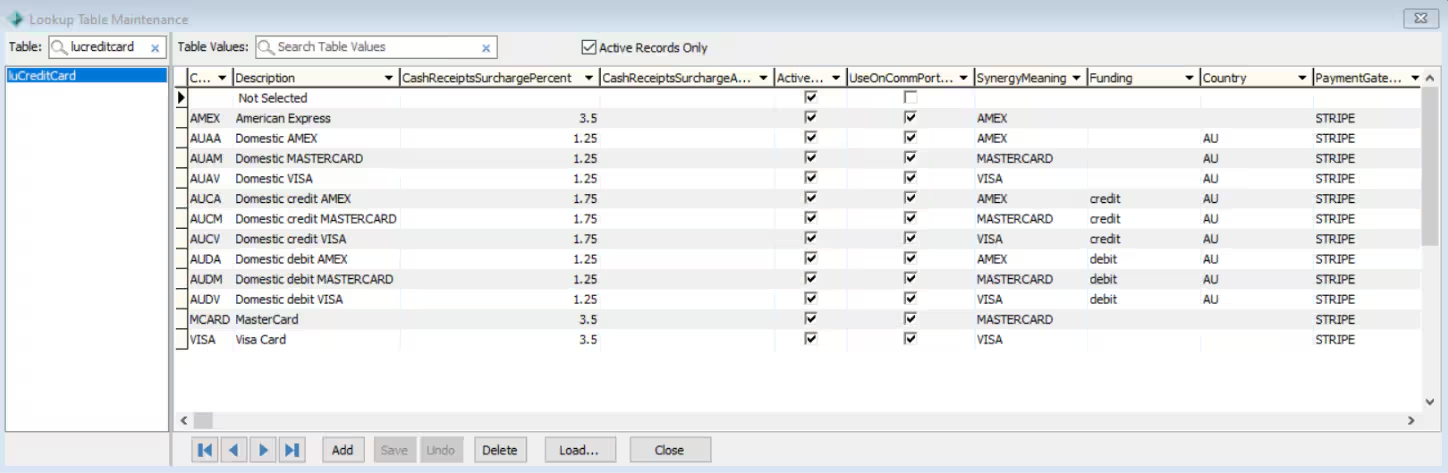
Test Payments: Perform test transactions to verify that surcharges are applied correctly and displayed as intended
Note : Schools / users should not modify luStripeSurchargesDetails and luStripeSurchargeType.These tables are pre-populated with values required to synchronise your configuration with luCreditCard. Please contact support if you believe the values in these tables are incorrect.
4.) Communicate with Your Community
Inform parents about the surcharge structure and how it affects their payments. Transparency helps in maintaining trust and ensuring a smooth payment process.
Enjoy the Benefits
With surcharges, you can offer diverse payment methods while keeping costs in check and maintaining financial clarity. Embrace this feature to streamline payment management and enhance convenience for your community.
For further assistance or detailed instructions, please contact our support team.
To use Stripe Surcharges, you must be on Synergetic version 71.25+
Was this article helpful?
That’s Great!
Thank you for your feedback
Sorry! We couldn't be helpful
Thank you for your feedback
Feedback sent
We appreciate your effort and will try to fix the article