Purpose
This guide is designed for Finance Users (such as Accounts Receivable Officers or Finance Managers) to understand and resolve the critical Action Centre message regarding scheduled payments.
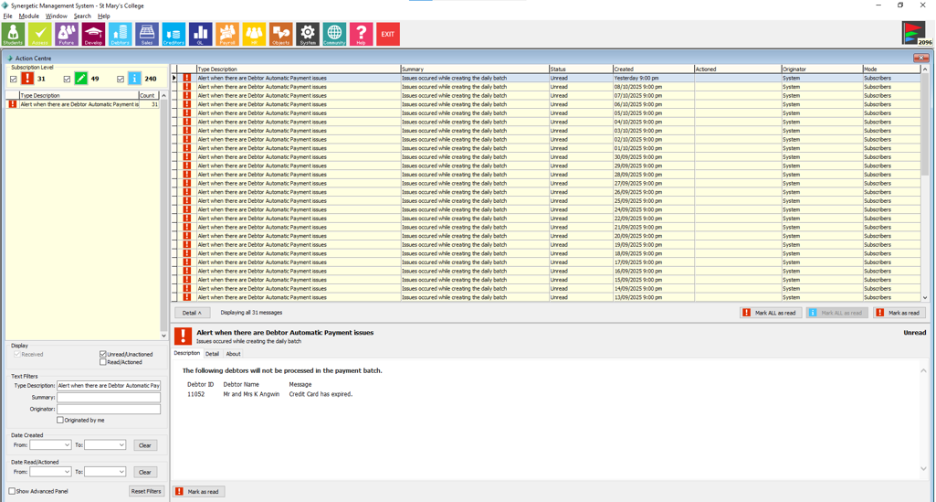
The message "Issues occurred while creating the daily batch" means that your automated daily payment job successfully ran, but it encountered errors for specific debtors and blocked those payments from being processed by Stripe. This message is essential because it flags money that was scheduled to be collected but was stopped internally by Synergetic due to a rule or configuration error on the debtor's file.
Understanding the Message and Its Impact
The automated process attempts to gather all payments that are due today. If a debtor is listed in this Action Centre message, it means their payment failed during the internal validation phase and was excluded from the batch.
- Payment Status: The scheduled automatic payment was not sent to Stripe for processing. No attempt to collect funds was made.
- Reporting Impact: Because the payment was blocked inside Synergetic, it will not appear in the Online Receipts List report. That report only tracks payments that were attempted by Synergetic.
- Action Required: This payment will remain missing until you correct the error identified in the message. The system will continue to attempt the payment until it is successful. You do not need to modify the “next payment date” for the debtor.
What Does the Message Tell Me?
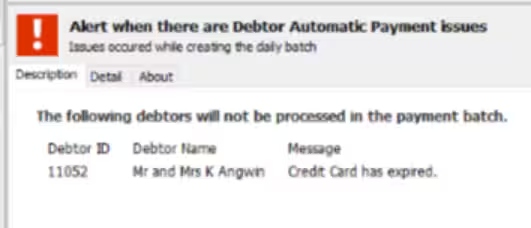
When you open the alert in the Action Centre (Message Type Code: DEBT_PaymentPlans_A), the content provides a table listing the specific debtors who were skipped, along with the precise reason:
Information Provided | Importance |
Debtor ID and Name | Identifies the customer whose payment failed. |
[Message] | The specific internal error message explaining why the payment was skipped (e.g., card expired, account inactive, payment on hold). |
Common Reasons a Debtor Is Skipped
The errors that trigger this alert are related to checks performed by the system before it generates the payment item:
Error Type | How to Verify / Resolve |
Payment is on Hold | Check Debtor Maintenance -> Payment Type tab -> Automatic Payments sub-tab. If the Hold Payments flag is selected, the electronic banking program skips this debtor. You must clear the hold. |
Payment Details Expired/Invalid | If the error message indicates an issue with the credit card or bank details (e.g., "Credit Card has expired"), you must contact the debtor to update their information. |
Incorrect Payment Date | Verify the Next Date field on the debtor's Automatic Payments sub-tab. The system only picks up payments where the Next Date is on the current processing date. |
Debtor is Inactive | The underlying payment process avoids processing inactive debtor accounts. Ensure the debtor is marked as active. |
Payment Method Type Disabled | The system relies on centralised settings (dbo.StripeConfig). If the debtor is set up for Fixed Amount, Notified Balance, or Current Balance payment methods, and your system administrator has temporarily disabled that option in the configuration, the payment will be skipped. |
How to Ensure Appropriate Staff Receive This Alert (Subscription)
This message is classified as a Subscriber-based Alert. This means the alert is only automatically sent to staff members who have been specifically set up to receive it.
If you are not receiving this message, you need to contact your System Administrator (or the person who manages security) to ensure your user account or your security group is subscribed to Action Centre messages related to Debtors and Payment Plans.
- Access Security: Subscription access is managed under System -> Group/User Security Maintenance.
- Locate Action Centre Types: The administrator must select Action Centre Types from the resource list.
- Subscribe: Ensure your user account or the relevant Finance/Accounts Receivable security group is subscribed via the check boxes for the relevant Debtor notification folder or the specific alert type (DEBT_PaymentPlans_A).
Note: If no user is subscribed to this alert, the notification detailing the error will usually be routed to the nominated System Administrator defined in the system settings.
Was this article helpful?
That’s Great!
Thank you for your feedback
Sorry! We couldn't be helpful
Thank you for your feedback
Feedback sent
We appreciate your effort and will try to fix the article