TABLE OF CONTENTS
This list is not exhaustive of third party providers nor is it showing recommendations or support providers by Synergetic. Please consider a provider based on your own needs and commercial requirements.
SendGrid
Login into Sendgrid https://app.sendgrid.com/
Click on Settings and then select API Keys
Now click on Create API Key
In the Creation screen, give it an appropriate name (i.e. Synergetic)
Under Permissions, select Restricted and then scroll down to Mail Send, expand Mail Send and and swipe the sub Mail Send permission to Full Access.
Now click on Create & View, take note of the API Key as this becomes the SMTP password and should be treated/protected as one.
Synergetic Configuration
Open up Synergetic and login as a System Administrator, go to Systems > E-Mail/SMS/Fax Configuration Maintenance
Begin to configure Synergetic with the following details
| Key Name | Key Value |
|---|---|
| Mail Server Name | smtp.sendgrid.net |
| Mail Server Port | 587 |
| TLS/SSL Support | Required |
| Authentication | Login |
| Proxy Username | apikey |
| Proxy Password | <key generated in Sendgrid> |
Your settings window should look similar to the one below.
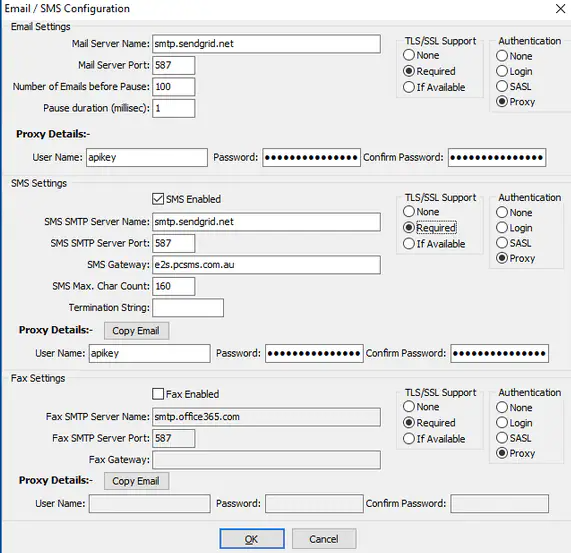
If you need to adjust your e-mail settings for SynWeb and Community Portal you'll need to do this under System > Configuration Maintenance as they are all configured separately.
SynWeb
Search for SynWeb|Email then locate and modify the following keys;
| Key1 | Key2 | Key3 | Key4 | Value |
|---|---|---|---|---|
| SynWeb | Password | <key generated in Sendgrid> | ||
| SynWeb | PortNumber | 587 | ||
| SynWeb | Server | TLS | 1 | |
| SynWeb | ServerName | smtp.sendgrid.net | ||
| SynWeb | UserName | apikey |
Community Portal
Search for Portal|SMTP then locate and modify the following keys;
| Key1 | Key2 | Key3 | Key4 | Value |
|---|---|---|---|---|
| CommunityPortal | SMTP | ServerName | smtp.sendgrid.net | |
| CommunityPortal | SMTP | ServerPassword | <key generated in Sendgrid> | |
| CommunityPortal | SMTP | ServerPort | TLS | 587 |
| CommunityPortal | SMTP | ServerTLSMode | 1 | |
| CommunityPortal | SMTP | ServerUserName | apikey |
Script
You can also use the below script to bulk change your e-mail settings to the new provider. Change the variables to suit your environment and then run it against your Synergetic database.
declare @servername varchar(8000) declare @port int declare @tls int declare @auth int declare @username varchar(8000) declare @password varchar(8000) -- Update email server settings below set @servername='smtp.sendgrid.net' set @port=587 set @tls=1 -- 0=Disabled 1=Enabled set @auth=3 -- 0=Disabled 1=Login 2=SASL 3=Proxy set @username='apikey' set @password='' -- MUST be encrypted not plain text -- System email settings update config set config.Value=@servername where config.Key1='System' and config.key2='Email' and config.key3='Server' and config.key4='Name' update config set config.Value=@port where config.Key1='System' and config.key2='Email' and config.key3='Server' and config.key4='Port' update config set config.Value=@tls where config.Key1='System' and config.key2='Email' and config.key3='Server' and config.key4='TLS' update config set config.Value=@auth where config.Key1='System' and config.key2='Email' and config.key3='Server' and config.key4='Auth' update config set config.Value=@username where config.Key1='System' and config.key2='Email' and config.key3='Proxy' and config.key4='Username' update config set config.Value=@password where config.Key1='System' and config.key2='Email' and config.key3='Proxy' and config.key4='Password' -- SMS email settings update config set config.Value=@servername where config.Key1='System' and config.key2='SMS' and config.key3='Server' and config.key4='Name' update config set config.Value=@port where config.Key1='System' and config.key2='SMS' and config.key3='Server' and config.key4='Port' update config set config.Value=@tls where config.Key1='System' and config.key2='SMS' and config.key3='Server' and config.key4='TLS' update config set config.Value=@auth where config.Key1='System' and config.key2='SMS' and config.key3='Server' and config.key4='Auth' update config set config.Value=@username where config.Key1='System' and config.key2='SMS' and config.key3='Proxy' and config.key4='Username' update config set config.Value=@password where config.Key1='System' and config.key2='SMS' and config.key3='Proxy' and config.key4='Password' -- FAX email settings update config set config.Value=@servername where config.Key1='System' and config.key2='Fax' and config.key3='Server' and config.key4='Name' update config set config.Value=@port where config.Key1='System' and config.key2='Fax' and config.key3='Server' and config.key4='Port' update config set config.Value=@tls where config.Key1='System' and config.key2='Fax' and config.key3='Server' and config.key4='TLS' update config set config.Value=@auth where config.Key1='System' and config.key2='Fax' and config.key3='Server' and config.key4='Auth' update config set config.Value=@username where config.Key1='System' and config.key2='Fax' and config.key3='Proxy' and config.key4='Username' update config set config.Value=@password where config.Key1='System' and config.key2='Fax' and config.key3='Proxy' and config.key4='Password' -- SynWeb email settings update config set config.Value=@servername where config.Key1='SynWeb' and config.key2='Email' and config.key3='ServerName' update config set config.Value=@port where config.Key1='SynWeb' and config.key2='Email' and config.key3='PortNumber' update config set config.Value=@tls where config.Key1='SynWeb' and config.key2='Email' and config.key3='Server' and config.key4='TLS' update config set config.Value=@auth where config.Key1='SynWeb' and config.key2='Email' and config.key3='Auth' update config set config.Value=@username where config.Key1='SynWeb' and config.key2='Email' and config.key3='UserName' update config set config.Value=@password where config.Key1='SynWeb' and config.key2='Email' and config.key3='Password' -- Community Portal email settings update config set config.Value=@servername where config.Key1='CommunityPortal' and config.key2='SMTP' and config.key3='ServerName' update config set config.Value=@port where config.Key1='CommunityPortal' and config.key2='SMTP' and config.key3='ServerPort' update config set config.Value=@tls where config.Key1='CommunityPortal' and config.key2='SMTP' and config.key3='ServerTLSMode' update config set config.Value=@auth where config.Key1='CommunityPortal' and config.key2='SMTP' and config.key3='ServerAuth' update config set config.Value=@username where config.Key1='CommunityPortal' and config.key2='SMTP' and config.key3='ServerUserName' update config set config.Value=@password where config.Key1='CommunityPortal' and config.key2='SMTP' and config. |
Office 365
Office 365 requires encryption and authentication for all email and requires creating a 'proxy' user to send email on behalf of all users.
- Login into your Office 365 administration console and create a new user (to use as a proxy)
- Update send-as permissions for the user to send email from all users
Synergetic Configuration
Open up Synergetic and login as a System Administrator, go to Systems > E-Mail/SMS/Fax Configuration Maintenance
Begin to configure Synergetic with the following details
| Key Name | Key Value |
|---|---|
| Mail Server Name | smtp.office365.com |
| Mail Server Port | 587 |
| TLS/SSL Support | Required |
| Authentication | Login |
| Proxy Username | <username for new proxy user> |
| Proxy Password | <password for new proxy user> |
Your settings window should look similar to the one below.
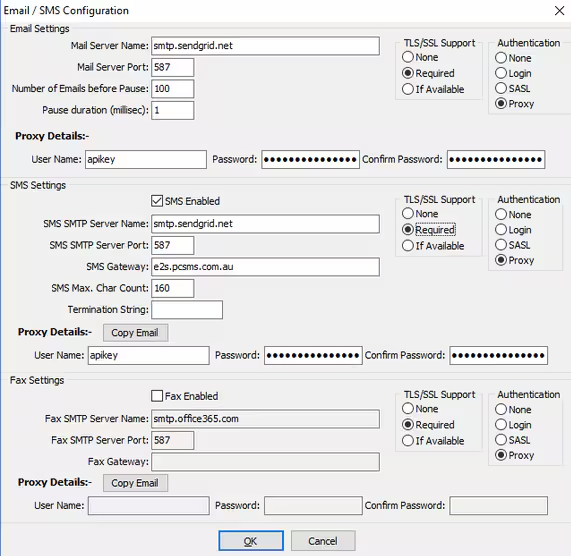
If you need to adjust your e-mail settings for SynWeb and Community Portal you'll need to do this under System > Configuration Maintenance as they are all configured separately.
Under 'System > Configuration Maintenance', with key1='System' and key2='Email' and key3='Proxy' and key4='Password', copy the encrypted password text. This will be required for the sections following.
SynWeb
Search for SynWeb|Email then locate and modify the following keys;
| Key1 | Key2 | Key3 | Key4 | Value |
|---|---|---|---|---|
| SynWeb | Password | <encrypted password for new proxy user> | ||
| SynWeb | PortNumber | 587 | ||
| SynWeb | Server | TLS | 1 | |
| SynWeb | ServerName | smtp.office365.com | ||
| SynWeb | UserName | <username for new proxy user> |
Community Portal
Search for Portal|SMTP then locate and modify the following keys;
| Key1 | Key2 | Key3 | Key4 | Value |
|---|---|---|---|---|
| CommunityPortal | SMTP | ServerName | smtp.office365.com | |
| CommunityPortal | SMTP | ServerPassword | <encrypted password for new proxy user> | |
| CommunityPortal | SMTP | ServerPort | TLS | 587 |
| CommunityPortal | SMTP | ServerTLSMode | 1 | |
| CommunityPortal | SMTP | ServerUserName | <username for new proxy user> |
Script
You can also use the below script to bulk change your e-mail settings to the new provider. Change the variables to suit your environment and then run it against your Synergetic database.
Gmail
Gmail requires encryption and authentication for all email and requires creating a 'proxy' user to send email on behalf of all users.
- Login into your Gmail administration console and create a new user (to use as a proxy)
- Update send-as permissions for the user to send email from all users
Synergetic Configuration
Open up Synergetic and login as a System Administrator, go to Systems > E-Mail/SMS/Fax Configuration Maintenance
Begin to configure Synergetic with the following details
| Key Name | Key Value |
|---|---|
| Mail Server Name | smtp.gmail.com |
| Mail Server Port | 587 |
| TLS/SSL Support | Required |
| Authentication | Login |
| Proxy Username | <username for new proxy user> |
| Proxy Password | <password for new proxy user> |
Your settings window should look similar to the one below.
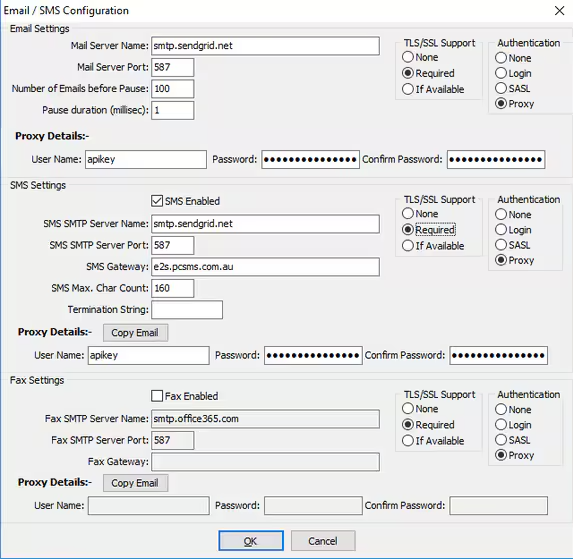
If you need to adjust your e-mail settings for SynWeb and Community Portal you'll need to do this under System > Configuration Maintenance as they are all configured separately.
Under 'System > Configuration Maintenance', with key1='System' and key2='Email' and key3='Proxy' and key4='Password', copy the encrypted password text. This will be required for the sections following.
SynWeb
Search for SynWeb|Email then locate and modify the following keys;
| Key1 | Key2 | Key3 | Key4 | Value |
|---|---|---|---|---|
| SynWeb | Password | <encrypted password for new proxy user> | ||
| SynWeb | PortNumber | 587 | ||
| SynWeb | Server | TLS | 1 | |
| SynWeb | ServerName | smtp.gmail.com | ||
| SynWeb | UserName | <username for new proxy user> |
Community Portal
Search for Portal|SMTP then locate and modify the following keys;
| Key1 | Key2 | Key3 | Key4 | Value |
|---|---|---|---|---|
| CommunityPortal | SMTP | ServerName | smtp.gmail.com | |
| CommunityPortal | SMTP | ServerPassword | <encrypted password for new proxy user> | |
| CommunityPortal | SMTP | ServerPort | TLS | 587 |
| CommunityPortal | SMTP | ServerTLSMode | 1 | |
| CommunityPortal | SMTP | ServerUserName | <username for new proxy user> |
Script
You can also use the below script to bulk change your e-mail settings to the new provider. Change the variables to suit your environment and then run it against your Synergetic database.
Troubleshooting
It is recommended to install and configure the local SMTP service as a workaround for any email delivery issues such as timeouts or dropouts when delivering bulk-email. This also has the added benefit of faster initial delivery freeing up the application to continue. Further information on installing the SMTP service is available here: Email Service Configuration
Was this article helpful?
That’s Great!
Thank you for your feedback
Sorry! We couldn't be helpful
Thank you for your feedback
Feedback sent
We appreciate your effort and will try to fix the article