Synergetic uses email as one of the communication methods. Outbound email will be generated and securely submitted to an email service installed on the Application server role, before forwarding to your email server. Synergetic fully supports on-premise Exchange as well as external hosted email services such as Office 365 and Gmail.
It is recommended to install and configure the local SMTP service as a workaround for any email delivery issues such as timeouts or dropouts when delivering bulk-email. This also has the added benefit of faster initial delivery freeing up the application to continue.
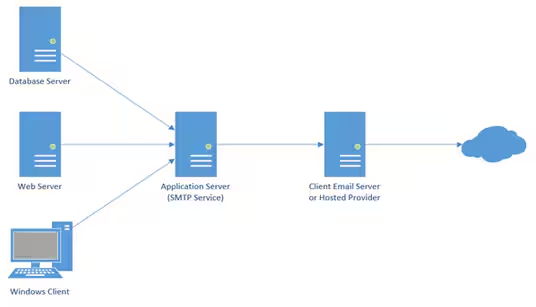
Configure the SMTP service
Prerequisites:
- Local user account 'zSMTP' created on the Application role server and password set. A domain account can also be used if preferred - ie: 'domain\zSMTP'
- Domain certificate installed on the Application role server.
- 'Update Synergetic email settings' script. (Available to download from this page.)
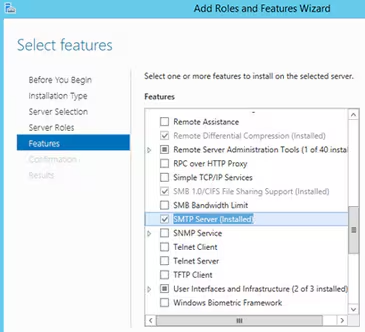
Log in to the server hosting the Application role. Run the ‘Add roles and Features Wizard’. Under ‘Features’, select ‘SMTP Server’. Click ‘OK’ to install the service.
The SMTP service is managed through IIS 6 Manager. This is the case regardless if a newer version of IIS is installed.
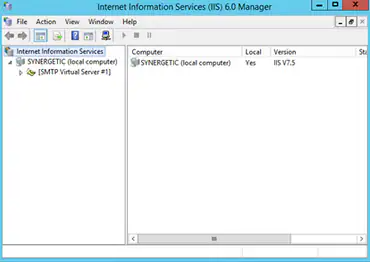
Run ‘IIS 6 Manager’. Right-click on the server name and select ‘Properties’.
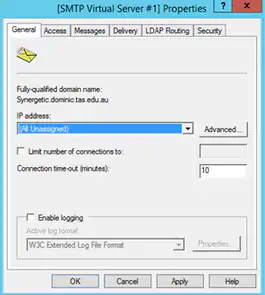
Under the ‘General’ tab, set ‘IP address’ to ‘all Unassigned’. Default port ‘25’
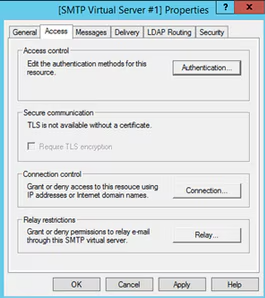
Under the ‘Access’ tab -> ‘Access Control’, click ‘Authentication’ button.
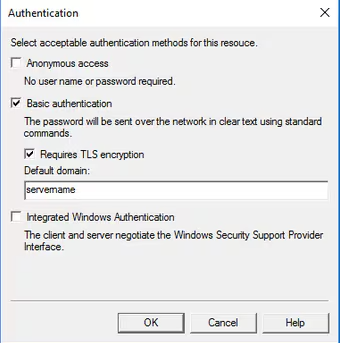
Tick ‘Basic authentication’ and tick **'Requires TLS encryption'. Set 'Default domain' to the name of the Application role server. Click 'OK' to return to the previous options page.
**Important Note: As of v68/v69 the Synergetic Service Suite does not support TLS encryption so if this software is utilised (eg. VSN/Crystal Reports Scheduler/Notifications Service) then the above setting will need to be made optional rather than mandatory.
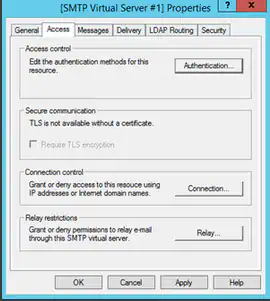
Under ‘Connection control’ -> click ‘Connection’ button and select ‘All except the list below’. Under ‘Relay restrictions’ -> click ‘Relay’ button and restrict access to the subnet of staff workstations, Synergetic servers, and Synergetic web servers. If this is not possible, tick ‘Allow all computers which successfully authenticate’ but this is less secure.
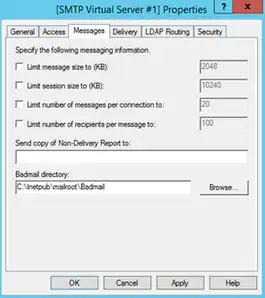
Under ‘Messages’ tab -> untick all limit boxes.
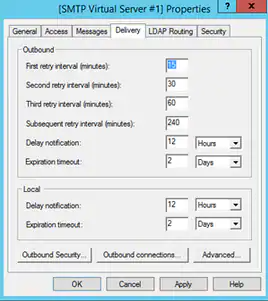
Under ‘Delivery’ tab, leave all options as default.
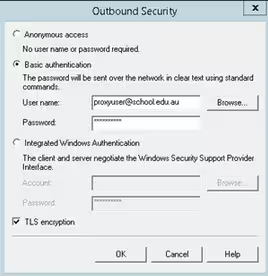
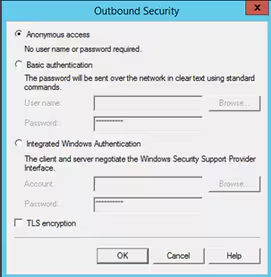
Under ‘Delivery’ tab and click ‘Outbound Security’. If your email server requires authentication, select 'Basic authentication' and enter a username and password with permissions . This user account will need permissions to **send of behalf of other users - refer to your email server administrator to confirm this. Also make sure 'TLS encryption' is ticked. Authentication and encryptions is required for use with Office 365 and Gmail email servers.
**Important Note: Please note that whilst most emails in Synergetic will originate from a local domain account (eg. a staff member or service account) the Community Portal > Contacts.aspx page sends emails on behalf of the parent's email address by default. The above setup will often block emails of this type as they have not originated from the domain and therefore the service account will not be able to 'send as' the external account. If the Community Portal > Contacts page is not used then it is recommended to change the email mode to disable emailing or use MAPI client or an alternative less secure relay service option can otherwise be carefully considered for the Community Portal, for example anonymous internal relay but restricted by IP address.
Alternatively, if your email server allows anonymous connections, select 'Anonymous access'.
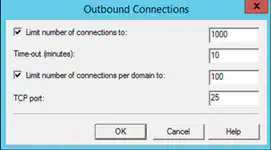
Under ‘Delivery’ tab, click ‘Outbound Connections’ and enter the port number if different from port ‘25’. Leave the limit boxes as default. If using Office 365 or Gmail, set the port to ‘587’.
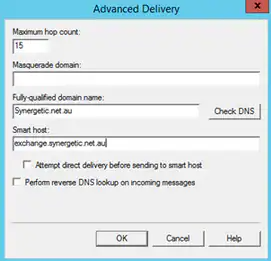
Under ‘Delivery’ tab, click ‘Advanced’. Under ‘Smart host’, enter the name of the outbound email server. The server name is the name of your email server to deliver email to email to. If using Office 365, set this to 'smtp.office365.com'. If using Gmail, set this to 'smtp.gmail.com'.
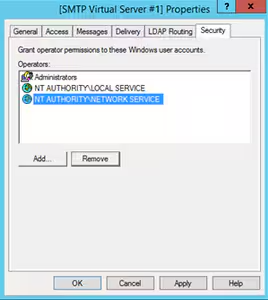
Under 'LDAP Routing' and 'Security' tabs – leave as default.
Click ‘OK’ to accept and close the configuration.
After the SMTP service is installed and configured, run 'services.msc', locate 'Simple Mail Transport Service' and set to run automatic delayed start.
Configure SQL Server
Configure SQL Server to use the SMTP service.
- Log in to SQL Server Management Studio and connect to the Synergetic database hosted on the Database role server.
- Under ‘Management’ -> ‘Database Mail’, select ‘Manage Database Mail accounts and profiles’ -> ‘View, change, or delete an existing account’.
- Change ‘Server name’ to the name of the Application role server and set the port.
- Tick 'This server requires secure connection (SSL).
- Set ‘SMTP Authentication’ to ‘Basic authentication’ and enter the zSMTP username and password.
- Repeat for all database mail profiles used by Synergetic.
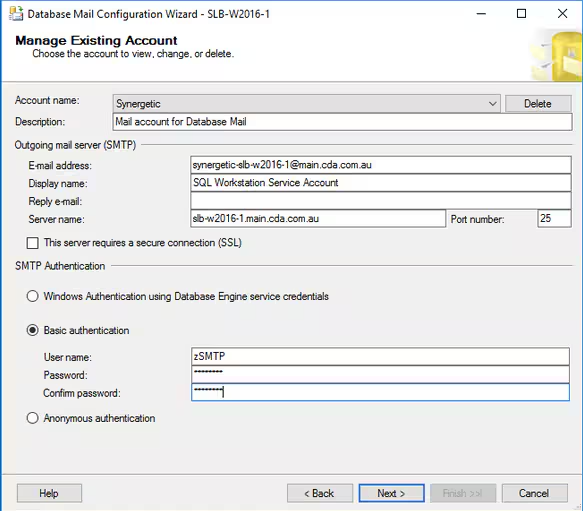
(Email-address = reply email, server name = smtp relay server)
Configure Synergetic
Configure Synergetic to use the SMTP service.
- Log in to SQL Server Management Studio
- Copy script ‘Update all Synergetic email settings.sql’ and edit the server parameters.
- @servername - set this to the fully qualified domain of the Application role server. ie: 'appserver.school.local'
- @port - set this to the port define in the SMTP service configuration ie: '25'
- @tls - set this to '1' for use with the SMTP service.
- @auth - set this to '3' (Proxy) for use with the SMTP service.
- @username - set this to the 'zSMTP' username.
- @password - set this to the encrypted password for the 'zSMTP' username (not plain text). Contact Synergetic for details on how to encrypt the password.
- Execute the script to update all of the Synergetic applications to use the email settings.
Troubleshooting
To enable logging, run ‘IIS 6 Manager’. Right-click on the server name and select ‘Properties’.
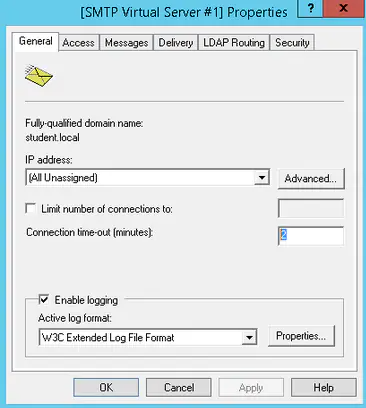
Tick ‘Enable logging’ and click ‘Properties’.
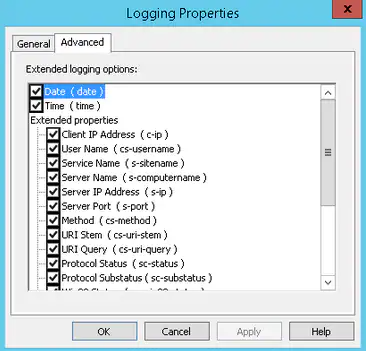
Tick the information required to log and click 'OK'.
The log files will be written to ‘C:\Windows\System32\LogFiles\SMTPSVC1’ folder. Check the logs to determine where errors are being generated.
Download and run 'TESTASMTP'. (Refer main Downloads section (must be logged in)
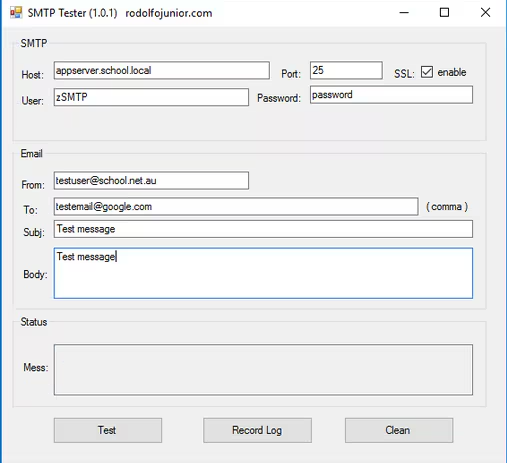
Enter the SMTP service connection details above and send a test message. If the message is successful, 'Status' will dsiplay 'Successo!'.
If 'Status' displays 'Failure sending mail', view the SMTP service logs located in ‘C:\Windows\System32\LogFiles\SMTPSVC1' for further information.
Resources
SMTP Tester - Refer downloads section of this Customer Portal
Update Email configuration Script - Refer Files section of this page
Was this article helpful?
That’s Great!
Thank you for your feedback
Sorry! We couldn't be helpful
Thank you for your feedback
Feedback sent
We appreciate your effort and will try to fix the article