TABLE OF CONTENTS
Affects
Can affect all users.
Error
Resolution
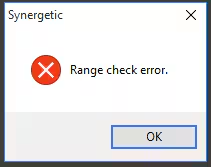
These are some of the known contributors to Range Check Errors in Crystal Reports.
1. Within Crystal, you will need to access Database > Set Datasource Location, drill into the properties listed underneath SynergyOne and update the following:
- Use DSN Default Properties: TRUE
This will allow the report to use the relevant workstations ODBC settings (Use DSN) as can be seen within Data Sources (ODBC). Sometimes the Database setting is set to OLE. Be wary of this as it should be using ODBC.
2. Unless needing this report to print on a specific printer, will need to access File > Page Setup and set 'No Printer'. Also access File > Summary Info and type 'SetDefaultPrinter' within the Keywords section.
3. Synergetic Setup Version (The Can be checked under Help > About > located just under the build number)
Usually if a certain user is receiving range check errors on a workstation the issue could be due to the setup version the user has got installed. For example if they are using the 2009 setup version it is best to update this. Our most recent version is 20131114CR11R2.
This should provide the necessary run-times needed to run the report.
Was this article helpful?
That’s Great!
Thank you for your feedback
Sorry! We couldn't be helpful
Thank you for your feedback
Feedback sent
We appreciate your effort and will try to fix the article