TABLE OF CONTENTS
Please Note:
These steps are provided as a courtesy and are intended as a general guideline for users creating Crystal site reports. Any issues encountered as a result of following the above steps may not be supported by Synergetic Support. If you require assistance with your site report, help may be available as a chargeable task through our Customisations Team.
Summary
How to add a Tagged ID check box on a Crystal site report
End Result
Be able to run the Crystal report based on the records stored in Tagged List
Method
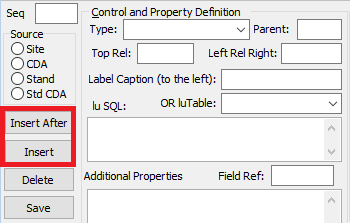
Go to System > User Report/Form Editor, select the report you want to add the TaggedIDs field to and do the following on the bottom rights section: ( see attached picture for more clarity )
1. Use the Insert/Insert After button to add a report parameter.
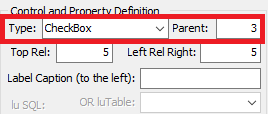
2. Choose type: 'Checkbox'
3.Choose the Parent field depending on which area on the report you want the tagged ID checkbox shown in.
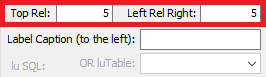
4. Use the Top Rel and Left Rel Right fields to adjust the position of the tagged IDs check box.
5. Choose a field Name ( ID ).
6. Choose field type as "Bit".
7. Choose Select Join as "AND".
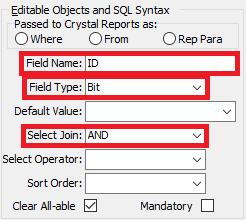
8. Most Important - Choose the Select Operator as IDTag.
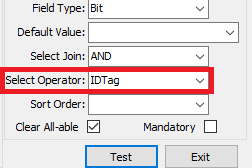
9. Type in the Additional Properties as shown in the picture ( you may change the values to suit your needs )
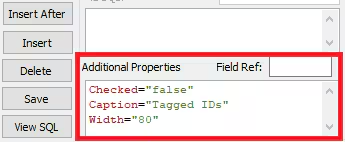
10. Click Save to Save the Changes.
Was this article helpful?
That’s Great!
Thank you for your feedback
Sorry! We couldn't be helpful
Thank you for your feedback
Feedback sent
We appreciate your effort and will try to fix the article