Problem
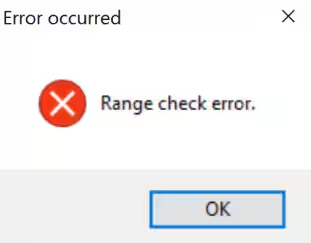
When viewing a Crystal Report a "Range Check Error" occurs:
Solution
This error is more likely to be environmental, and related to settings on the specific workstation, or for a specific user. The printing is not actually a function of Synergetic as it simply calls Crystal Reports which does the preview and then it is Crystal Reports which also does the printing. The Synergetic application does not have direct control over the printing of a crystal report.
Some of the areas that can contribute to Range Check Errors are.
- Synergetic requires the build installed on the local workstation to be at least 20131114CR11R2. To check, go to Help > About > Setup Version
If this field is blank Synergetic has not been locally installed on the machine. This needs to be done as there are other changes/settings/runtimes deployed upon installation - Within Crystal Reports Editor
- Database > Set Datasource Location and ensure the DSN Default Properties: TRUE.
This will allow the report to use the relevant workstations ODBC settings (Use DSN) as can be seen within Data Sources (ODBC). Sometimes the Database setting is set to OLE. Be wary of this as it should be using ODBC - File > Page Setup
"No Printer" should always be checked (then the report uses the default printer to get/set margins) - File > Summary Info > Keywords
- If Portrait oriented report, type "SetDefaultPrinter" in Keywords field
- If Landscape oriented report, type "SetDefaultOrientationPrinter" in Keywords field
- Database > Set Datasource Location and ensure the DSN Default Properties: TRUE.
Was this article helpful?
That’s Great!
Thank you for your feedback
Sorry! We couldn't be helpful
Thank you for your feedback
Feedback sent
We appreciate your effort and will try to fix the article