TABLE OF CONTENTS
Synergetic SMS service provides a complete fully integrated communication solution to allow schools to quickly and efficiently engage with the whole school community.
SMS is designed to allow schools to improve communications with parents, staff and students. Allowing custom messages to individuals, groups or the entire school in seconds.
- Non Attendance
- School excursions
- Sporting Events
- Alerts
- Parent teacher interviews
- Weather cancellations
- Fundraising events
- Emergency Shutdown or evacuation
Schools can send real time messages with reliable uptime SMS guarantees, allowing improved student punctuality and attendance. SMS is faster and simpler than traditional communication methods and more effective than email allowing schools huge costs saving in time and money.
Synergetic supports efficient SMS automation, seamlessly linking with the attendance systems to notify parents daily of all non-attendance and allowing two way response to capture and record all reasons to meet the school reporting requirements.
SMS is quickly and easily setup and installed on the school Synergetic database, allowing SMS communications to all community members but adhering to school security configurations.
Clients who would like to utilise this service will need to execute an SMS Agreement through an engagement with the Client Success Manager (CSM).
**IMPORTANT**
If you think you may need assistance with configuration and user training (recommended!), please request this as it does not form part of the MessageMedia product agreement.
Service Information
NOTE: Message Media have updated their User Hub interface design - Refer link for a video on the design changes : MessageMedia Video
Overview
Synergetic creates an SMS message for the selected users. Synergetic then uses the nominated mail server to generate an SMTP email message that is sent to an external email-to-SMS gateway, through your organisation's firewall. The email-to-SMS gateway sends an SMS text message to the mobile phones of the selected users.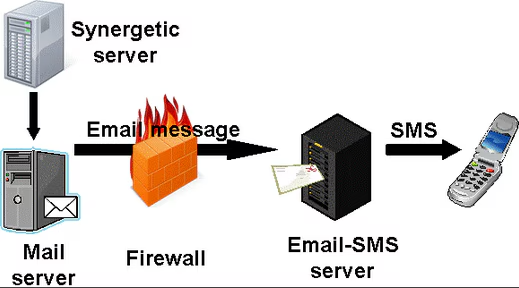 This document is aimed at Synergetic System Administrators or Network Administrators with super user access to Synergetic. It provides information on setting up Synergetic and provisioning users in the SMS gateway.
Provisioning New Users
When purchasing use of the SMS gateway from Synergetic, you will need to nominate users who will be permitted to use the SMS service.
The nominated users do not need to hold a Synergetic supported user license and can be any one of your staff. The only requirement for a user is that they have access to Synergetic and an email account on your domain.
Initial setup includes 1 Administrator plus standard SMS users The Synergetic System Administrator will need to set up and test the SMS provisioning using this Administrator guide. Admins can then add additional or make adjustments to existing users.
Credit Limits
Each nominated user has a daily SMS credit limit which is the maximum number of allowed SMS credits per day. The default credit limit is 50 per day. This limit can by increased. If you are a Messagemedia school then your School Admin can make this change via the MessageMedia User Hub.
One credit = 1 SMS with 160 or less characters. If the SMS is longer, an extra credit is used for every additional 153 characters. Each extra message concatenation allows 160 chars but takes off 7 chars which are used to tell the mobile provider that it is part of a concatenated message.
NOTE: You can't use Alpha tag and Dedicated number at the same time- you only have one option for sender ID.
Dedicated Phone Number
To request a dedicated number please reach out to your CSM who can discuss the process and associated costs for this.
When sending an SMS through our gateway provider, the message will be sent from a random phone number out of a pool of numbers. Recipients will not know who the messages are from, unless you identify yourself as the sender in the SMS body.
We have an option for our clients to use a dedicated number which is leased from the gateway provider for an additional monthly cost. This will ensure that all messages come from the same mobile number. Parents can also add the dedicated number to their Mobile Phone Contacts
If a parent sends an SMS to the dedicated number then an assigned school staff member will receive the message as an email.
Alpha Tags
Source: https://messagemedia.com/au/feature/alpha-tag/
Alpha tags are a way for you to give your SMS messages a unique 'sender' name, which can include digits, text, and some special characters.
By assigning a unique alphanumeric sender ID, you add value to your messaging by letting the customer know who the SMS is from, what it's about, or any other information you'd like to convey within the space of 11 characters.
The ability to send from an SMS name instead of number isn't all that well known at this stage, which is one of the reasons email is thought to be more flexible as a marketing and communications tool. However, being able to specify a sender ID gives SMS the flexibility of email, but with all the immediacy of an instant message.
See FAQ section for more information.
Synergetic Accounts
Each school or organisation is set up in MessageMedia as its own account. The account is in the format of the school name and state "School Name (VIC)".
Each school has their allocated MessageMedia SysAdmin who is allocated a messagemedia login with Admin rights for their school.
This Admin User has the ability to create and modify their own users and view usage reports. The Administrator can also create other admin or general users for their school.
To access MessageMedia login to https://hub.messagemedia.com/login
A login name will be your registered email address.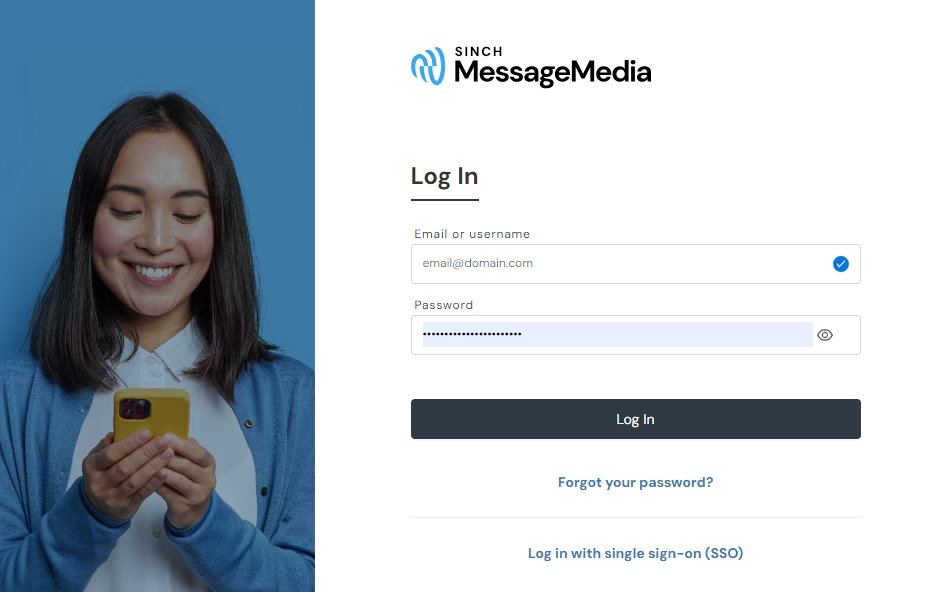
This will take you to the MessageMedia Hub for your school.
Your Account name is displayed on hover over the first icon in the left hand menu.
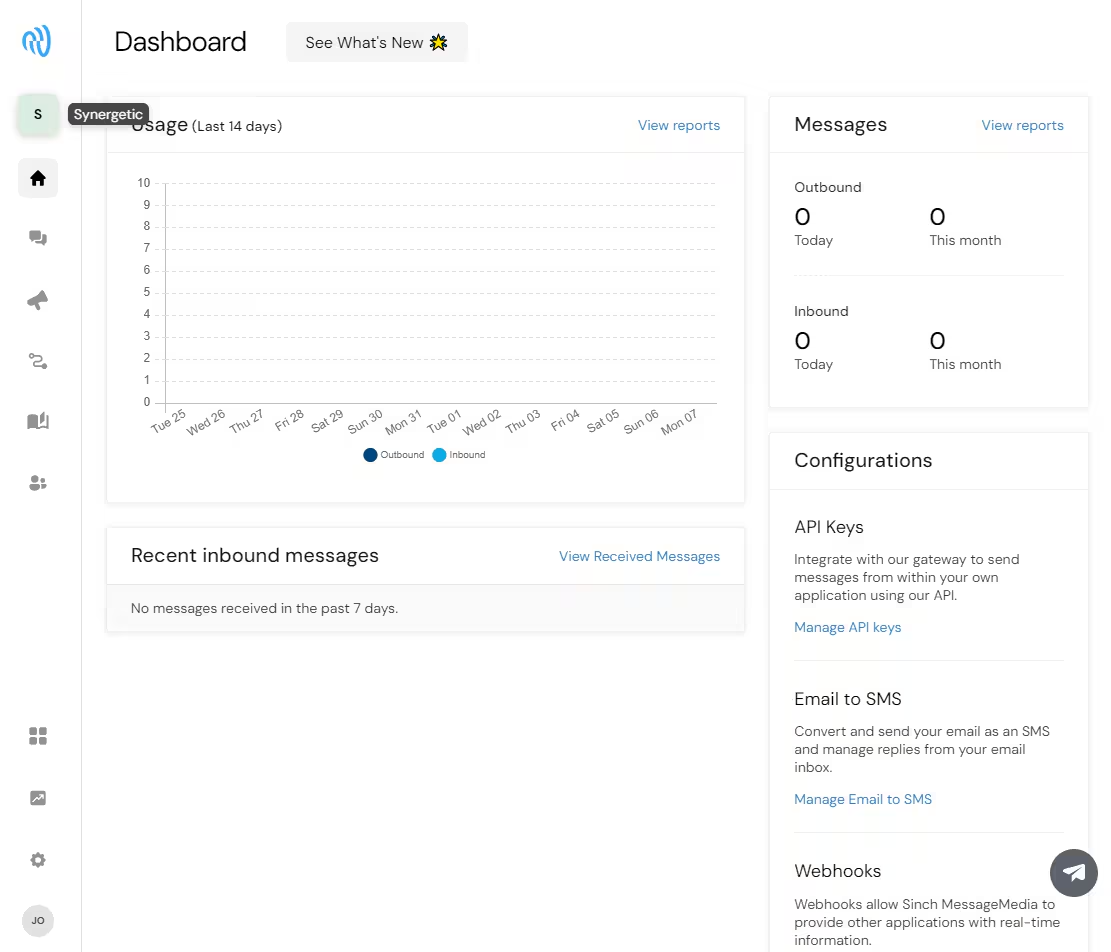
- To provision users select Settings
 > Users sub menu
The Users Sub Menu is to create new Users for your school to login to the MessageMedia user hub.
- These users can view reports and/or perform other SMS admin tasks
- Please review the 'Advanced' And 'Admin' privilages to ensure these are not over-privilaged.
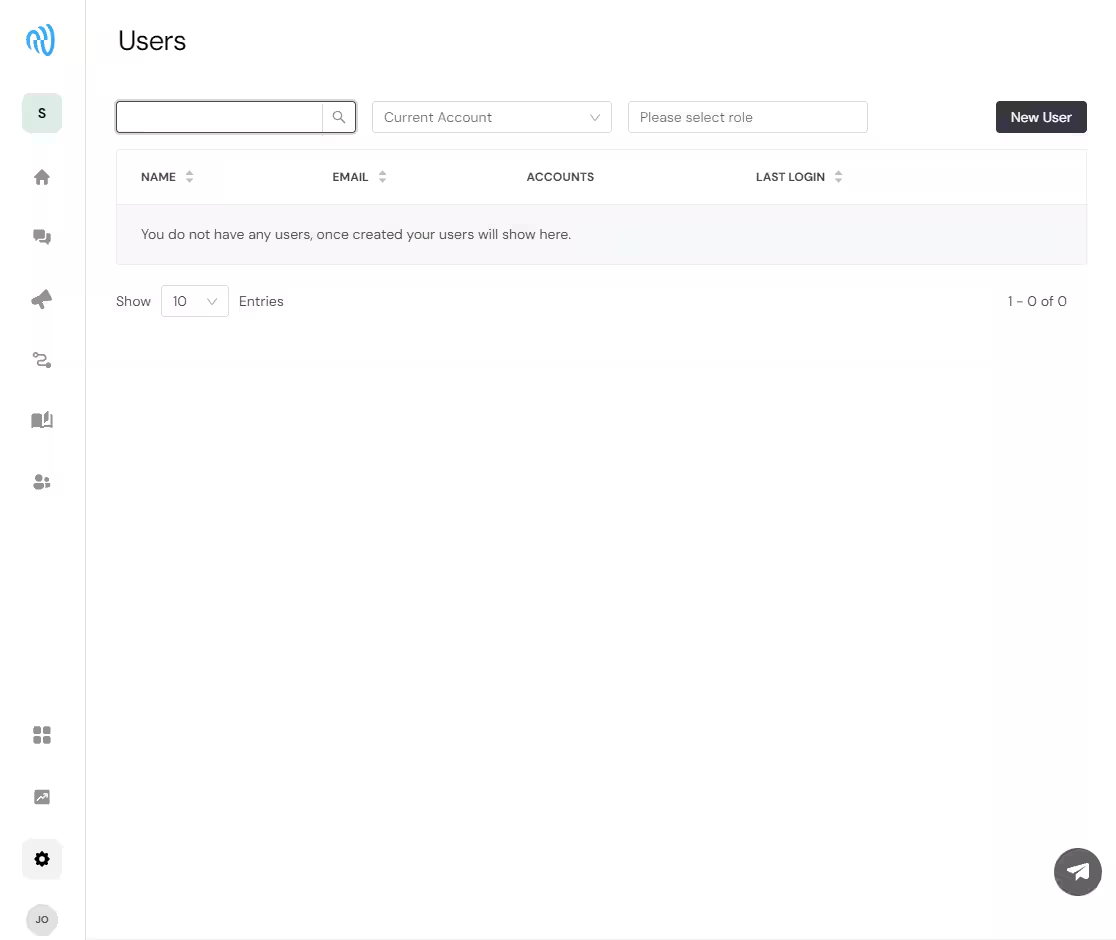
User Administration
How to Configure a User Access to Send SMS's from Synergetic
MessageMedia uses Email2SMS capability. SMS's are submitted from Synergetic in the format 0400123456@e2s.messagemedia.com
To provision users select Settings  > Numbers > Settings sub menu, go to Email to SMS, and select Update
In Allowed email addresses and domains enter each email address to be authorized to send SMS's. You can also enter a domain
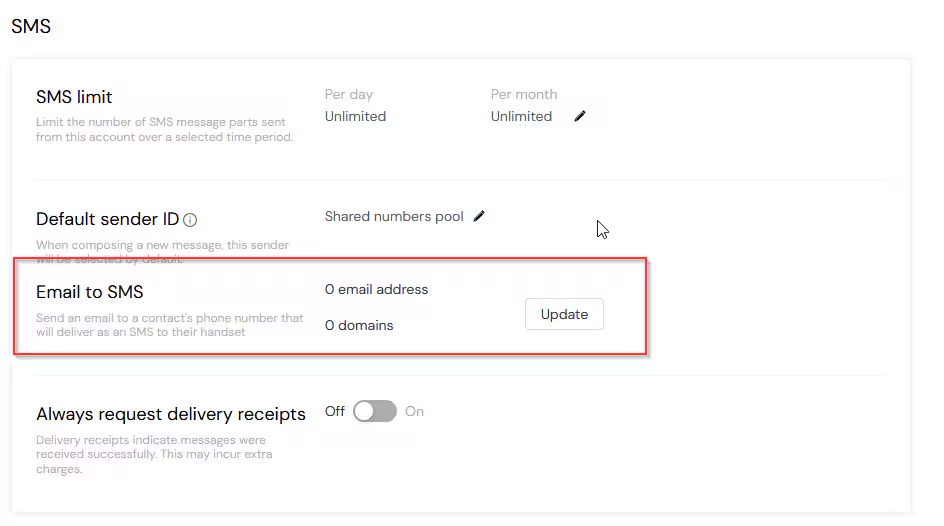 From here you can add (whitelist) individual emails to SMS from key users, or enable a school domain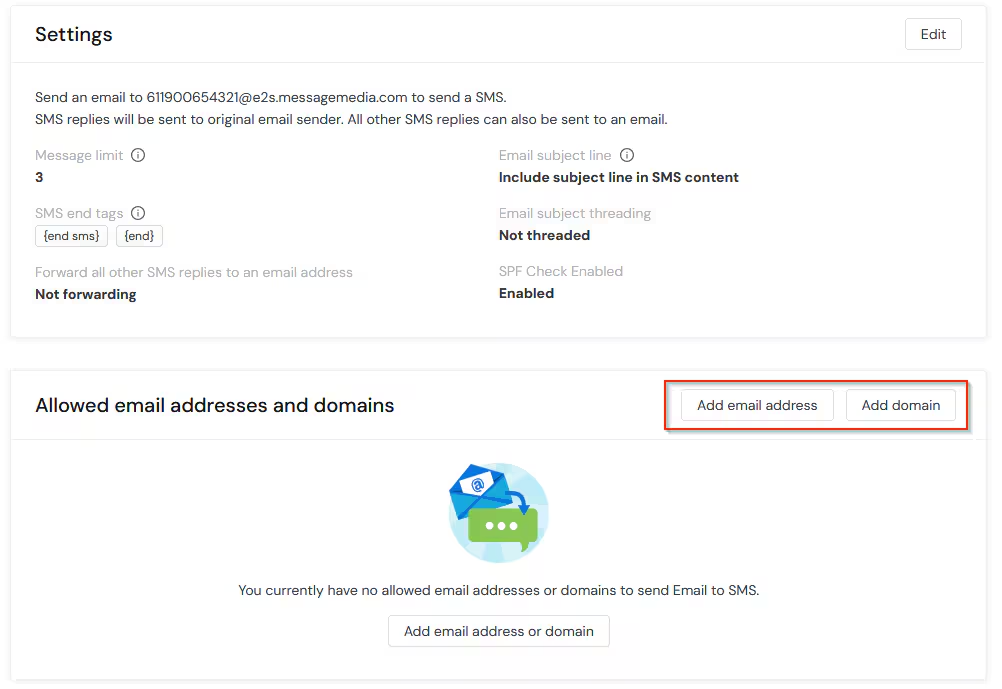
**IMPORTANT**
Please note, if you plan to use SMS for notifications you will need to have the appropriate database mail profile email address added here. More info on this can be found at Database MailProfile
Other SMS Settings
Under Settings  > Numbers & Channels > Settings sub menu
- SMS Daily Credit Limit
- Theis is where you can view and modify the daily credit limit. You may have require additional sub account/s where a different limit is in play.
- https://support.messagemedia.com/hc/en-us/articles/4413635014671-How-do-I-set-an-SMS-limit-
- Dedicated phone number
- Refer the MessageMedia UserHub link for requesting and accessing dedicated numbers
- https://support.messagemedia.com/hc/en-us/articles/4413569313039-Dedicated-Numbers
- Delivery reports
- This is disabled by default as additional costs apply for each receipt.
- https://support.messagemedia.com/hc/en-us/articles/4413562098831-Delivery-Receipts
Admin Reports
Users now have the option to run usage reports for any accounts linked to their school.
https://support.messagemedia.com/hc/en-us/articles/4413634717327-Detailed-Reports
Setting your registered Alpha Tag as your Default Sender ID
Once your request for an Alpha Tag has been approved, you can set it as the default sender ID so that all future messages will be sent from this name.
https://support.messagemedia.com/hc/en-us/articles/4413576822415-Alpha-Tags
Default Country
The Education Horizons default country is Australia. If you are originating communications from a country outside of Australia we will need to raise a case with MessageMedia to configure the default country as required for your MessageMedia sub account as this is not configurable via the user interface.
https://support.messagemedia.com/hc/en-us/articles/4413626197647-Changing-the-Default-Country
Sending to countries outside of Australia
For most countries you can send international SMS with no issue as long as they have been prefixed with the appropriate country code.
However some countries have legislation restricting this, such as Thailand and New Zealand.
In the event you require to send SMS to these countries we may be able to configure this for your MessageMedia account.
While we can currently enable this for New Zealand, please contact us to discuss if any other countries are required.
Understanding SPF, DKIM, and DMARC
Email is an essential communication tool, but it can be misused for spam, phishing, and spoofing. To protect against these threats, three key email authentication protocols are used: SPF, DKIM, and DMARC.
Other Configurations
SPF (Sender Policy Framework)
Purpose: Verifies that an email is sent from an authorized server.
How it works: A domain owner publishes an SPF record in DNS listing the servers allowed to send emails for that domain. When an email is received, the recipient’s server checks this list.
Why it matters: Helps prevent email spoofing and improves the chances that legitimate emails are delivered successfully.
DKIM (DomainKeys Identified Mail)
Purpose: Ensures the email content hasn’t been altered and confirms the sender’s identity.
How it works: The sender’s server adds a digital signature to the email header using a private key. The recipient’s server uses a public key (published in DNS) to verify the signature.
Why it matters: Protects against tampering and builds trust in the sender’s domain.
Why Use These?
SPF checks if the email is from an approved server.
DKIM verifies the message hasn’t been changed.
Together, they form a strong defense against email-based threats and help ensure safe, reliable communication—especially important for schools and educational institutions.
Synergetic Configuration
Configuring the SMS Gateway in Synergetic
To configure the SMS gateway in Synergetic.
- Select System > Email/SMS/Fax Configuration Maintenance
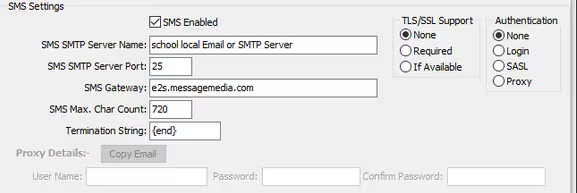
- There are several configuration options under the SMS section:-
- SMS Enabled – Set this to "True" to enable SMS from Synergetic.
- SMS SMTP Server Name / Port – This is the email server and port that will relay SMS messages from Synergetic to the gateway.
- TLS/SSL and Authentication – change settings to match your mail server receive connector.
- SMS Gateway – Change this to e2s.messagemedia.com for both Australian and New Zealand clients. Note : - Older gateways e2s.pcsms.com.au and beta.pcsms.com.au are being phased out and wont work for newer Messagemedia users.
- SMS Max. Char Count – Maximum number of characters that can be sent in a single SMS. The default is 160 as this is the length of a single SMS credit. Multiple credits will then be incurred.
- Termination String – Use to avoid standard company email disclaimers from also being included in the SMS. If using our standard gateway, this should be set to "{end}".
- Proxy Details – Allows login capability to your email server using a central account. This avoids staff members having to type their credentials each time they want to send an SMS. This account needs to have "Send As permissions" set up on your mail server.
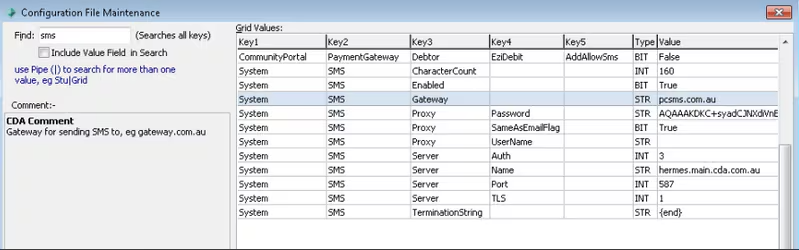
Refer to help documentation under the Further Reading section of this document for the most current information on SMS features in Synergetic.
Grant Permissions for Users to Send SMS
Permissions need to be granted for users to be able to send SMS from a grid.
In Synergetic go to System > Group/User Security Maintenance.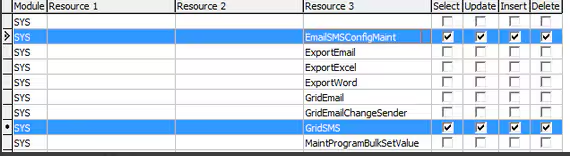
The following permissions exist for SMS functionality under the SYS module:-
- EmailSMSConfigMaint – give this to the system administrator or network tech so that the SMS and email gateway can be configured as per the school Exchange server settings
- GridSMS – allows a user to send an individual or group SMS from any grid in Synergetic that contains people.
Send a test Message
Sending an SMS in Synergetic is a simple as right-clicking a person and selecting SMS > Selected Record.
- Go to Community Maintenance or Staff Maintenance, find your own record.
- Right click the name in the grid and select "SMS > Selected Record"
Type a Subject and message that will be sent in the tSMS Providers - Message Media set upest.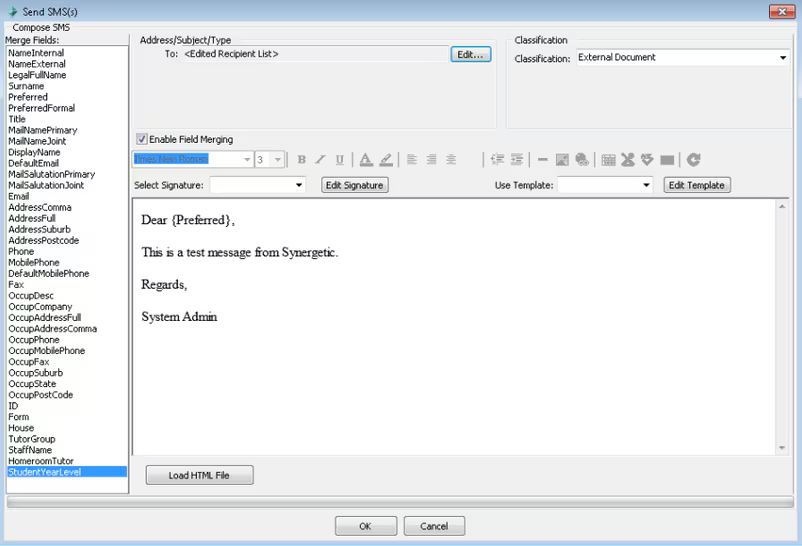 Press OK to continue…
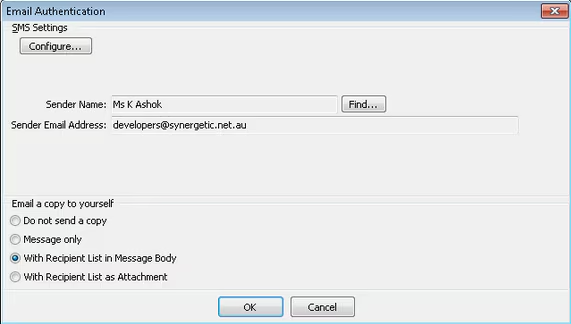
Press OK to send the SMS
Note : the sender email address is what is authenticated in MessageMedia → Emailto SMS settings
Check your sender email address then press OK to send the message. This account needs to have SMTP relay permissions on your exchange server which can either be via IP subnet anonymous relaying, login authentication or utilisation of a proxy account.
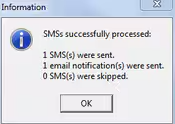
Once happy with the settings, press OK to continue sending an SMS.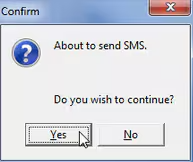
For 2-way messaging more information can be found at SMS Providers - Message Media set up
**IMPORTANT**
At this time there is no way to test SMS notifications generated through the automatic absence notifications set up. Please contact us with any questions around this.
Frequently Asked Questions
How long does the provisioning process take?
Upon receipt of the completed application form, we can have your site provisioned within 3 business days and can be done faster upon request.
We will set up the users you request and then there is some slight configuration in your database to get it working. A network tech may also be required in some cases if mail relaying is not current set up. If you can currently send emails via Synergetic to external addresses then this will not be an issue.
How often can the user 'max SMS setting' be changed and who can make the change?
The daily Credit Limit is controlled and can be changed by the MessageMedia Administrator of each school. Each school can have its own overall maximum daily limit and all Administrators must be set to this limit. Other users can have their limit adjusted accordingly. If you would like to increase the overall Max limit then contact Synergetic support as this can only be done by the MessageMedia support team.
How are SMS replies handled?
Note that with the standard setup, the parent will receive the message from a random pool of mobile numbers. It is important to reference your school name and sender. There is an option on the application form to use a dedicated phone number so that parents will always receive the messages from one number.
An email will be sent back to the original sender and it will come from {RecipientMobile}@e2s.messagemedia.com
Here is a sample response:-
----Original Message----
From: 0417518000@e2s.messagemedia.com [mailto:61417518000@e2s.messagemedia.com]
Sent: Thursday, 23 September 2022 11:15 AM
To: Adam Adamski
Subject: SMS received from 0417 518 598
---Original Message---
From: aadamski@synergetic.net.au
To: "0417518000@e2s.messagemedia.com" <61417518000@e2s.messagemedia.com>
Date: Thu, 23 Sep 2022 11:12:32
Student Absent from School Hi Adam, Your child Mary was absent from school today. Reply:- 1 - you knew about this 2 - you were unaware of the absence. Regards, Absences Officer National Grammar School.
If an SMS reply is received, will it be important for them to identify themselves in the response message?
The person is only identifiable by their mobile number unless they put their name in the message.
If a number needs to be quickly looked up then this can be done by either an MS Query, Crystal Report or custom search user form lookup. Our current recommendation would be to use a custom user-form lookup facility in Community or Student Maintenance that references the parent's mobile phone numbers.
What happens if the daily maximum message credits limit is exceeded?
If Daily Credit Limit is set to 50 then the first 50 messages will send and then the sender will receive an "out of credit" auto reply email. The credit limit is for the day and not a total and will reset each new day.
If this happens, it will be difficult to isolate the messages that have sent from the ones that didn't. Our recommendation is to use a higher initial credit limit to allow for sending to larger groups if required.
School Administrators can log into your message media account and view sent messages in the Admin Reports section.
Why does a bulk SMS takes a long time to send and sometimes I get a timeout error message?
An SMS sent in Synergetic is done through the same method as an email. In ideal situations, emails will be queued at your mail server the sent through to our gateway provider. It is commonly able to handle 20 SMS/second.
If you experience speed issues with sending an SMS to a large group or even in some cases if it times out, please check your email server and antivirus settings.
There is a tester app on our website which will allow simulation of a bulk email. Please also test the performance of your current email server using an SMTP Email Tester - Refer downloads section of Customer Portal.
Try running this and send an email from yourself to an outside address (eg. Gmail) with 100-200 copies, this will test the mail delivery speed and also identify any possible timeouts.
One client also reported this:
The delays were caused by two 5 second Tarpit delays which are enabled by default for Anonymous Relays in Exchange 2010. These are primarily designed to slow down spammers.
Can we contact MessageMedia Support?
MessageMedia support can assist in any SMS User setup enquiries.
Sub account users can contact MessageMedia support after logging into the MessageMedia User Hub link at https://hub.messagemedia.com
Can we use our own SMS provider?
You can use any SMS provider which provides Email2SMS capability. The provider should also be based in the country of residence. ie some providers require the SMS to sent in international format ( eg. +61401001000 or +001161401001001) which means the mobile number would need to be stored in Synergetic in that format. There is no international code append capability in Synergetic
To configure Synergetic follow the same steps in this guide with the following exceptions.
The SMS provider may also have different dedicated number, Alpha Tag and Admin tool capabilities.
In System → SMS/Email Configuration
| SMS GateWay | Provider Gateway |
| Termination String | Provider Termination String |
Clients who use the Notification Service can use any SMS provider however 2WaySMS can only be used with MessageMedia as the 2 Way SMS component of the notification service is programmed to interface with the MessageMedia API.
Are we billed additional costs for sending an international SMS?
Scenario 1 – A recipient mobile has an Australian number but is temporarily located overseas. Is there any additional cost to the sender to send a SMS to this mobile?
This does depend on the carrier. While most messages should go through, it depends a lot on the handset's location and the carrier in those countries. There could be an additional charge to receive the messages, however again this depends on the carrier.
Scenario 2 – A recipient mobile has a number in a different country and is permanently located there. Are SMS messages capable of being sent through the system and is there any additional cost to the sender?
As long as the number is entered in international format to our system, the message will be sent to the phone. There usually is not an extra charge to receive however, it will depend on the recipient's carrier as to whether they are charged.
Q&A for Alpha Tags
Is alpha tagging a static setting per sending user account or is it set per message?
Per user account, you can remove and add in Manager but you would need to ensure the Alpha-tag is attached to at least one user for it to remain on your account
How does the alpha tag get applied and is it set by account, can the school control which account(s) it's linked to?
MessageMedia needs to set it on the account. The school can control which users it is attached to
Yes
What is the monthly cost for alpha tags?
Please contact your Customer Success Manager for pricing details
Can clients use a combination of dedicated numbers and Alpha Tags?
Yes, this is a per user setting and can be configured by account / sub-account
TABLE OF CONTENTS
Was this article helpful?
That’s Great!
Thank you for your feedback
Sorry! We couldn't be helpful
Thank you for your feedback
Feedback sent
We appreciate your effort and will try to fix the article