Marking a Current Student as Deceased
In the unfortunate event that a Current Student has passed, there are essentially two ways to record this within the system; whereby you can transfer the CURRENT student to PAST students, thereby removing all student information from your students system and placing them in past students, OR you can leave them in CURRENT students thereby allowing census and other reports to still process against this student if required.
Transferring to past students
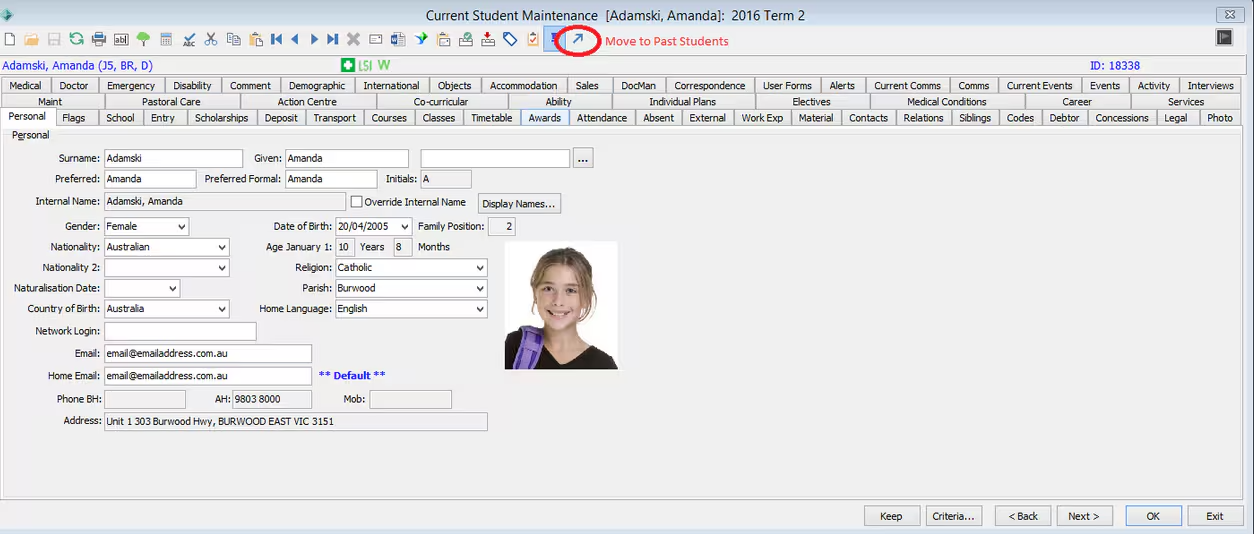
- From Current Student Maintenance, transfer to Past Students (press the arrow in the toolbar or select from the 'Action' menu). This will give the student their own address ID.
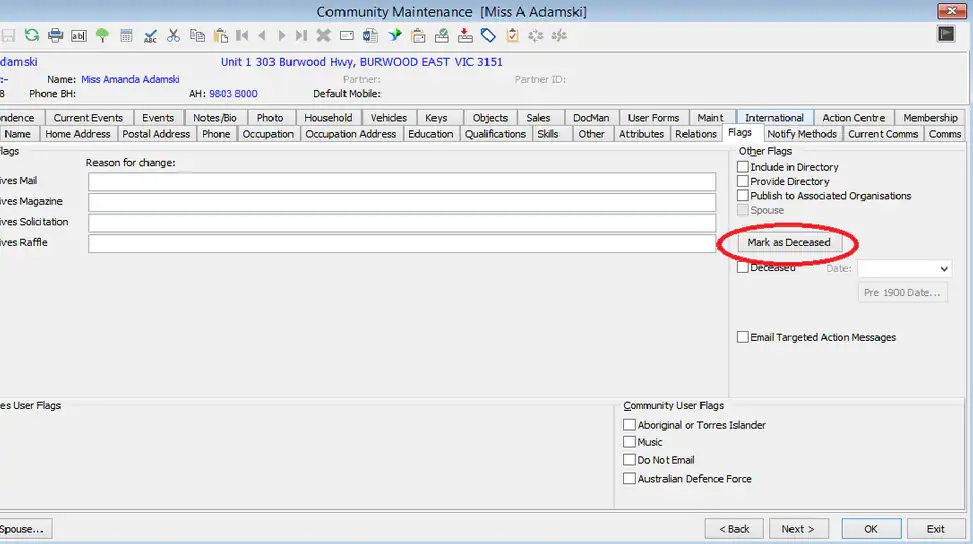
- Access Community Maintenance > Flags tab and press the 'Mark as Deceased' button, enter the deceased date.
Keeping in the current students area
- From Current Student Maintenance, access the 'School' tab and select a status of ‘Left’, then enter the deceased date in the 'Leaving Date' field (Press Save).
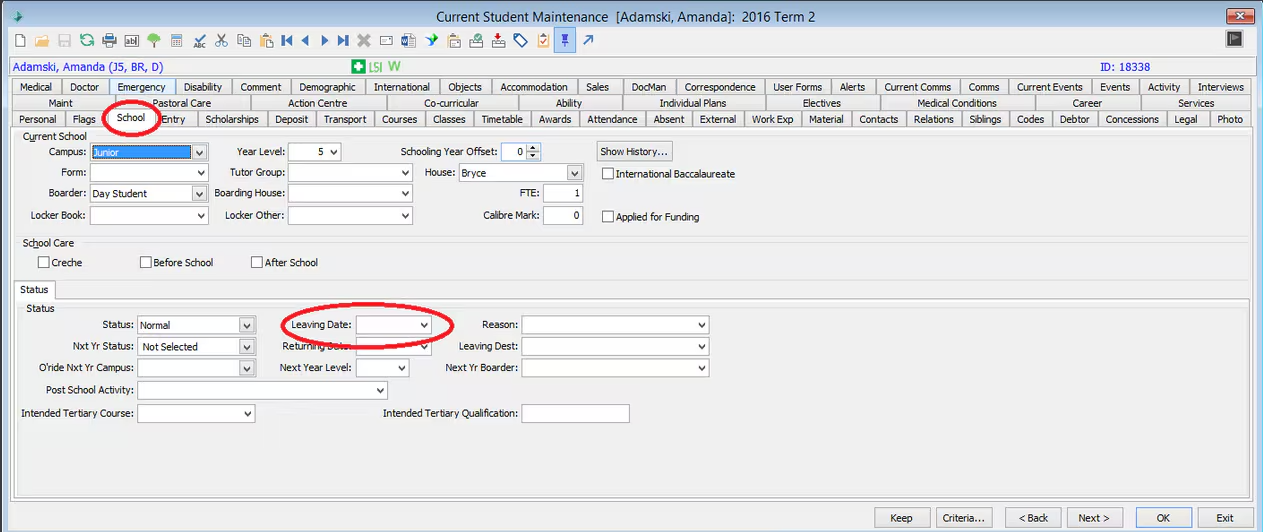
NOTE: It is critical that you modify the students status and enter the leaving date as the deceased date.
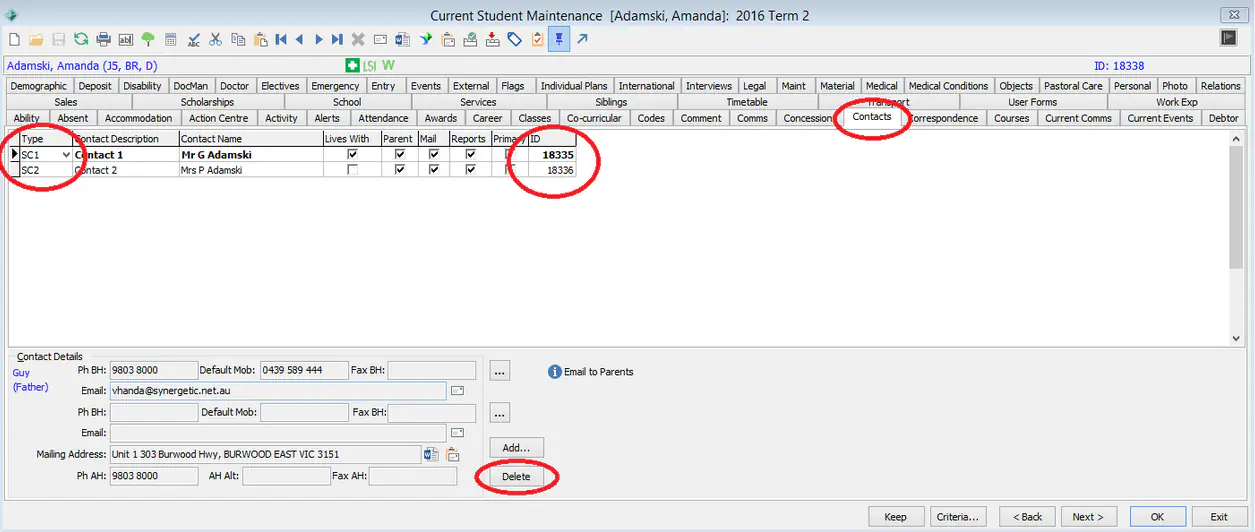
- Go to the 'Contacts' tab and delete the current students contacts IE; SC1, SC2 etc...(First take note of who the contacts were as we will re-enter them later)
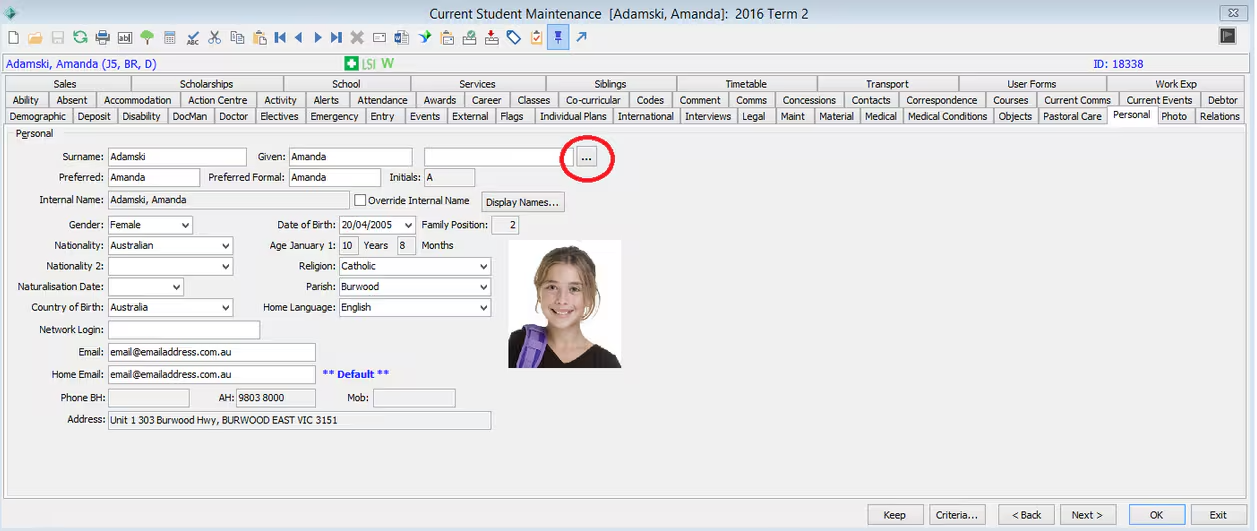
- On the 'Personal' tab press the Launch Community Maintenance button (...).
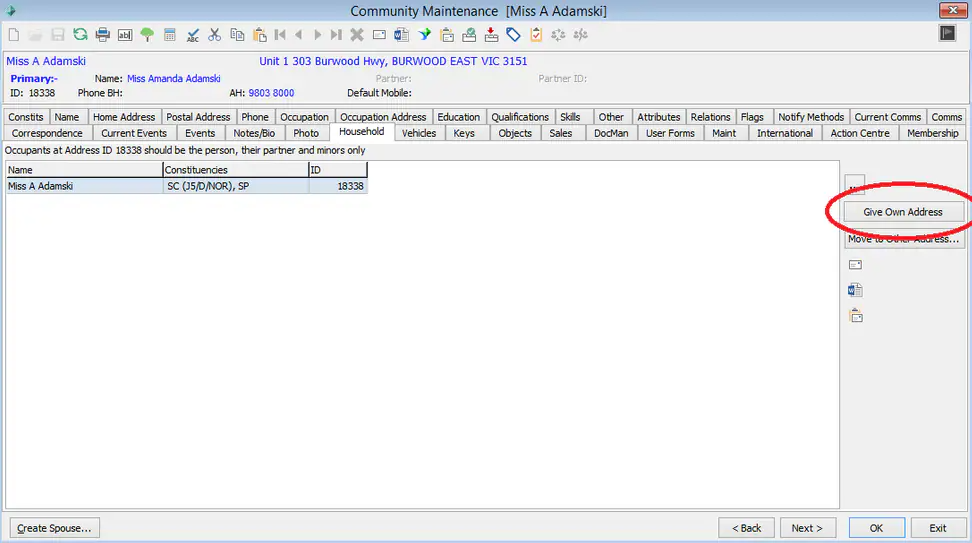
- In community maintenance access the 'Household' tab, select the deceased student from the grid and press the 'Give Own Address' button (when message asks if you want to load record now select 'No').
- Whilst still in Community Maintenance program, access the 'Flags' tab and press the 'Mark as Deceased' button making sure to enter the deceased date.
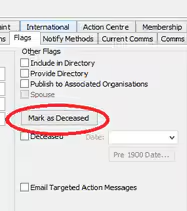 NOTE: If you are unable to decease the record still add the student as a contact and remove them to assist in the process.
 - Exit Community Maintenance and go back into Current Student Maintenance.
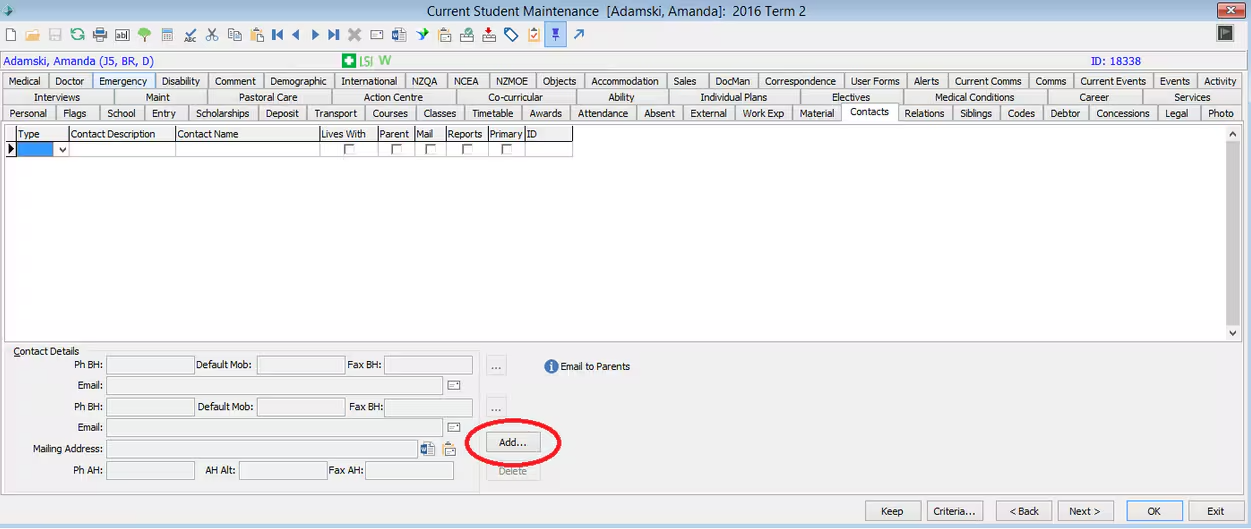
- Access the 'contacts' tab and ADD the student as their own contact making them a SC2 (Contact 2) or (Contact 3) depending on what contacts the student already had (eg, if they previously only had one contact then select 'Contact 2'. You MUST tick the 'Student lives them' check box during this process and then remove the 'Parent' flag once created.
- Re-add the existing contacts via the 'Contacts' tab as per the contacts we deleted earlier
NOTE: DO NOT select the 'Student lives with them' check box as this will cause confusion between the links and will cause issues.
Whichever method you decide upon will be at your discretion and at this stage you should find that the student now has a (DEC) against their description, via other relations description within the 'Relations' tab, and that the students address is blanked out with the word * Deceased * thus preventing any accidental mailings to be processed against them.
Was this article helpful?
That’s Great!
Thank you for your feedback
Sorry! We couldn't be helpful
Thank you for your feedback
Feedback sent
We appreciate your effort and will try to fix the article