TABLE OF CONTENTS
- Overview
- Customisation
- Config.xml Settings
- Config Setting Name
- Description
- Default Value
- Lookup table – luAbsenceEventsTerminalDefinition
- Column Name
- Description
- Lookup table – luAbsenceEventsTerminalReasonDefinition
- Column Name
- Description
- Customise Images, Email Template and Reports
- Filter extra characters on ID cards
- Running/Closing Terminal
- Setting Up Email
Overview
This video provides a demonstration of the Synergetic Arrival Departure Terminal (SADT). Click here to watch:
Student Arrival Departure Terminal Demonstration Video
This document provides information about how to customise the Synergetic Arrival / Departure Terminal application.
Requirements
- Synergetic Arrival Departure Terminal installed
- Populate values under following columns, currently values are entered as '<REPLACE>'
Lookup table – luAbsenceEventsTerminalReasonDefinition
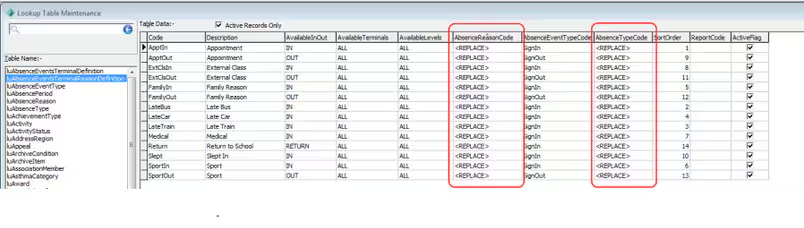 Populate values under following columns, The default values are entered as '<REPLACE>' and must be updated with a valid AbsenceReasonCode and AbsenceTypeCode
Column Name | Description |
AbsenceReasonCode | Absence Reason Code, linked to luAbsenceReason lookup table |
AbsenceTypeCode | Absence Type Code, linked to luAbsenceType |
Customisation
Config.xml Settings
The Config.xml file is located under c:\SynergeticArrivalDepartureTerminal\Site\Config folder.
To modify this file use the tool Synergetic.Application.SynArrivalDepartureTerminalCreateConfig.exe located under C:\SynergeticArrivalDepartureTerminal\binConfig\
folder.
Right click Synergetic.Application.CreateConfig.exe and run as Administrator.
Config Setting Name | Description | Default Value |
DatabaseServer | Synergetic Database Instance | Localhost |
DatabaseName | Synergetic database name |
|
DatabaseschemaFinance | Not used for SADT | finance |
TerminalID | Computer Name – linked to luAbsenceEventsTerminalDefinition | Installer will automatically get the computername |
DatabaseUserName | Database username to run this terminal – must be zSynergetic_ArrivalDeparture_dbo | zSynergetic_ArrivalDeparture_dbo |
DatabasePassword | Database password for zSynArrivalDepartureTerminal |
|
CrystalDatabaseDSN | DSN to run reports | Synergetic |
CrystalDatabaseName | Database to point crystal reports query | Same as DatabaseName |
CrystalDatabaseUserName | Database username to run crystal reports | zSynergetic_ArrivalDeparture_dbo |
CrystalDatabasePassword | Database password for crystal report username |
|
ReceiptPrinter | Shared printer name to print all receipts |
|
LinePrinter | Shared printer name to print absence events line entry |
|
SMTPServerName | SMTP server name to send all emails |
|
SMTPServerUserName | SMTP Server username if required |
|
SMTPServerPassword | SMTP Server user password if username required |
|
SMTPPortNumber | SMTP Port number | 25 |
SMTPMailPriority | Email Priority – High, Medium or Low | High |
FromEmailAddress | From email address to send all emails – e.g. attendance@schools.edu.au |
|
CcEmailAddress | Email address to Cc all email correspondence |
|
BccEmailAddress | Email address to Bcc all email correspondence |
|
SendErrorsToEmailAddress | Email address to send all application errors to. This is very useful to get alerts of any system errors |
|
TerminalHeaderText | Header text displayed on top right hand side of the application | Arrival / Departure Terminal |
WelcomeMessageText | Message displayed on initial screen where students scan / enter ID or barcode | Welcome, please scan your Student ID card... |
SignInOrOutMessageText | Message displayed on step 2 where system asks for Sign In or Sign Out | {GoodMorningOrAfternoonGreetings} {StudentName}. Please indicate whether you would like to Sign In or Out? |
SignInBackMessageText | Message displayed on step 2 when student return to school after initial sign out. | {GoodMorningOrAfternoonGreetings} {StudentName}. Welcome Back! |
SignInReasonMessageText | Message displayed when student selects Sign In from step 2 | {StudentName}, please select your reason for late arrival. |
SignOutReasonMessageText | Message displayed when student selects Sign Out from step 2 | {StudentName}, please select your reason for early departure. |
SignInBackReasonMessageText | Message displayed when student Signs Back In after initial sign out. This message will only be displayed if there are multiple RETURN reasons specified in lookup table | {StudentName}, please select your reason for return from absence. |
SignInOrOutCompletedMessageText | Message displayed on final step after student Sign In / Out process is completed | Please don't forget to collect your receipt {StudentName}. Have a nice day! |
InvalidIDMessageText | Message displayed when student enter invalid student ID | The information scanned is invalid. Please try again shortly. |
SystemErrorMessageText | Message displayed if any unexpected application error occurs. If value for setting SendErrorsToEmailAddress is specified then system will also send an email to specified email address. | Unfortunately the system has encountered an error. Please try again later. |
HeaderFontName | Header font name – displayed on top right hand side corner | Verdana |
HeaderFontSizePoint | Header font size – displayed on top right hand side corner | 14.25 |
HeaderFontColour | Header font colour – displayed on top right hand side corner | White |
HeaderFontStyleBoldFlag | Header font style bold flag – displayed on top right hand side corner, specify True or False | True |
HeaderFontStyleItalicFlag | Header font style italic flag – displayed on top right hand side corner, specify True or False | False |
FooterFontName | Footer font name – Terminal Description displayed on bottom right hand side corner | Verdana |
FooterFontSizePoint | Footer font size – Terminal Description displayed on bottom right hand side corner | 14.25 |
FooterFontColour | Footer font colour – Terminal Description displayed on bottom right hand side corner | White |
FooterFontStyleBoldFlag | Footer font bold flag – Terminal Description displayed on bottom right hand side corner | True |
FooterFontStyleItalicFlag | Footer font italic flag – Terminal Description displayed on bottom right hand side corner | False |
MessageFontName | Messages font name – student messages displayed on each step. | Verdana |
MessageFontSizePoint | Messages font size – student messages displayed on each step. | 14.25 |
MessageFontColour | Messages font colour – student messages displayed on each step. | Black |
MessageFontStyleBoldFlag | Messages font style bold flag – student messages displayed on each steps. | True |
MessageFontStyleItalicFlag | Messages font style italic flag – student messages displayed on each step. | False |
ClockFontName | Clock font name – displayed on top right hand side corner under header text. | Verdana |
ClockFontSizePoint | Clock font size – displayed on top right hand side corner under header text. | 14.25 |
ClockFontColour | Clock font colour – displayed on top right hand side corner under header text. | Black |
ClockFontStyleBoldFlag | Clock font style bold flag – displayed on top right hand side corner under header text. | True |
ClockFontStyleItalicFlag | Clock font style italic flag – displayed on top right hand side corner under header text. | False |
ButtonFontName | All button font name, e.g. Sign In / Sign Out buttons | Verdana |
ButtonFontSizePoint | All button font size, e.g. Sign In / Sign Out buttons | 12 |
ButtonFontColour | All button font colour, e.g. Sign In / Sign Out buttons | White |
ButtonFontStyleBoldFlag | All button font style bold flag, e.g. Sign In / Sign Out buttons | True |
ButtonFontStyleItalicFlag | All button font style italic flag, e.g. Sign In / Sign Out buttons | False |
BackgroundColour | Application background colour | SteelBlue |
ShowSchoolLogoFlag | Display Logo | True |
DebugFlag | Record application activity – only useful for troubleshooting purpose. Do not activate if don't need as this will keep adding values to text file under site folder. | False |
ButtonFontColourInitialisedFlag |
| True |
To update the correct Database Name, Schema and reports password when the config wizard is running
1 – Double click inside the Database Name value(this will load the Database Selection Wizard)
2 - Enter the correct Database Server Name, Admin User ID and password
3 – Select the correct Database
Lookup table – luAbsenceEventsTerminalDefinition
Table contains all Synergetic Arrival / Departure terminal computer names. Code column linked to TerminalID in config.xml file from terminal application.
Column Name | Description |
Code | Terminal / Computer name. |
Description | Terminal Description – Displayed on bottom right hand side of the application. |
TerminalLocation | Location information. |
ActiveFlag | Record can be marked as inactive if the terminal is no longer active on this machine |
TerminalRestrictedSignOutFlag | Stop students from signing out without authorisation from administrator. Admin person must enter password to authorise Sign Out event, password can be defined in TerminalRestrictedPassword column |
TerminalRestrictedPassword | Password to allow Sign Out event if TerminalRestrictedSignOutFlag column value set to true. |
EmailStudentFlag | Email student when they sign in, if EmailSignInFlag set to true and sign out, if EmailSignOutFlag set to true. |
EmailTutorFlag | Email tutor when student sign in, if EmailSignInFlag set to true and sign out, if EmailSignOutFlag set to true |
EmailParentFlag | Email parent when student sign in, if EmailSignInFlag set to true and sign out, if EmailSignOutFlag set to true |
EmailSignInFlag | Send email during Sign In event to selected people when set to true |
EmailSignOutFlag | Send email during Sign Out event to selected people when set to true |
EmailOther | Email to specified email address when student signs in, if EmailSignInFlag set to true and sign out, if EmailSignOutFlag set to true. Specify multiple email address separated by semicolons ';' |
EmailHOLorHOHFlag | Email HOH(from luHouse - Note : HOL not configurable) when student signs in, if EmailSignInFlag set to true and sign out, if EmailSignOutFlag set to true |
DatabasePollingInterval | Interval in seconds to poll the database and pull lookuptable changes or pull absence events entries from the database. Default value: 30 seconds |
PrintReceiptFlag | Print receipts when student Sign In / Out (Note printer must be shared and enter the shared printer name here) |
SignInandOutSelectionTimeoutSeconds | Interval in seconds to timeout from Signin screen |
ReasonSelectionTimeoutSeconds | Interval in seconds to timeout from Absence Reason screen |
AdminPasswordEntryTimeoutSeconds | Interval in seconds to timeout from Password Entry screen |
LinePrinterCampusCodeCSV | Only Line Print Signin/Sign Out for the selected Campus |
LinePrinterSubschoolCodeCSV | Only Line Print Signin/Sign Out for the selected SubSchool |
PrintTutorGroup | Print Tutor Group on Receipt |
Lookup table – luAbsenceEventsTerminalReasonDefinition
Lookup Table containing all Synergetic Arrival / Departure terminal reasons displayed when student select Sign In or Sign Out option after scanning / entering student ID or Barcode.
Column Name | Description |
Code | Reason Code |
Description | Reason Description |
AvailableInOut | Available for Sign In or Sign Out. Specify |
AvailableTerminals | Available terminals where this reason will be displayed. |
AvailableLevels | Do Not Use |
AbsenceReasonCode | Absence Reason Code, linked to luAbsenceReason lookup table |
AbsenceEventTypeCode | Absence Event Type Code, linked to luAbsenceEventType |
AbsenceTypeCode | Absence Type Code, linked to luAbsenceType |
SortOrder | Display reasons in specified order number |
ReportCode | Enter report name if you want to override crystal report for the student Sign In / Out receipt. Specified report must be located in c:\SynergeticArrivalDepartureTerminal\Site\Reports folder |
EnableReceiptPrinter | Ability to turn off receipt printing for specific reasons. Default value is True – enable receipt printing for all reasons. |
ActiveFlag | Record can be marked as inactive if this reason is no longer being used |
Customise Images, Email Template and Reports
- Customise Images
Default images can be customised by adding custom images in C:\SynergeticArrivalDepartureTerminal\Site\Images folder.
Custom background images need to match the dimensions of the default ones. We recommend trying to stick as closely to the sizes of the original images for the others but it is not necessary.
You can override the following images:
- SchoolLogo.jpg
School logo displayed on step 1 where user enter / scan their ID or barcode
(Default image dimensions: 140x160)
- SchoolWebBG1.jpg to SchoolWebBG5.jpg
There are five random background images displayed on terminal application, which rotate during every 30 seconds (DatabasePollingInterval time specified under luAbsenceEventsTerminalDefinition table)
(Default image dimensions: 976x587)
- UnknownUser.jpg
Image displayed if student photo is not found from the database
(Default image dimensions: 180x240)
- GoodWork.jpg
Image displayed on final step after Sign In / Sign Out completion
(Default image dimensions: 284x423)
- AttendantWait.jpg
Image displayed if password acknowledgement require for Sign Out event or to close the application
(Default image dimensions: 425x282)
- Error.jpg
Image displayed if any unknown error occur in application
(Default image dimensions: 347x346)
- Customise Reports
There are couple of ways to customise default report 'Receipt.rpt'
- Add custom report with same name in C:\SynergeticArrivalDepartureTerminal\Site\Reports folder
- Specify 'ReportCode' value under luAbsenceEventsTerminalReasonDefinition table and add all reports to C:\SynergeticArrivalDepartureTerminal\Site\Reports folder
- Customise Email Template
Default email template EmailTemplate.txt is located under C:\SynergeticArrivalDepartureTerminal\Site\Config folder. You can change content of this template based on your requirement.
Filter extra characters on ID cards
\\ Some cards have a leading and/or trailing character in addition to any identifying information stored in Synergetic community table. Program allows removing additional characters from the card when reading ID card via barcode scanner. New configuration key 'Community|Barcode|Pattern' is added to specify barcode pattern on Student ID card. E.g. If Community.Barcode = '12345' and value on the card is '%12345 ?' then pattern should be '%\[BARCODE\] ?' \\ |
Running/Closing Terminal
To run Terminal
- Either place in Startup programs to execute automatically when system is started or run Terminal program shortcut
To Close Terminal
- Press ALT + F4 or
- Define password in luAbsenceEventsTerminalDefinition -> TerminalRestrictedPassword to close the terminal
- Type 'close' or 'shutdown' in student name textbox and enter password defined in previous step to close the terminal
Setting Up Email
In the SADT config file ensure the following fields are correctly set
SMTPServerName
SMTPServerUserName (if email authentication is used)
SMTPServerPassword (if email authentication is used)
SMTPPortNumber
SMTPMailPriority (default = High)
FromEmailAddress (requires a valid from email address)
CcEmailAddress (not required)
BccEmailAddress (not required)
In luAbsenceEventsTerminalDefinition select the following :
EmailStudentFlag to email the student
EmailTutorFlag to email the Students Tutor (Set ID field in luTutor)
EmailParentFlag to Email the Students Parent (Use Current StudentMaintenance -> Contact Tab to select the correct parent to Email)
EmailSignInFlag If an Email is to be generated for a late Signin
EmailSignOutFlag If an Email is to be generated for an Early SignOut
EmailOther to email a generic email address
EmailHOLorHOH to Email the Students HeadofHouse (Set ID field in luHouse)
To modify the Email Template
On the SADT Terminal go to c:\SynergeticArrivalDepartureTerminal\Site\Config
Edit emailTemplate.txt. This requires HTML programming knowledge to make modifications
Was this article helpful?
That’s Great!
Thank you for your feedback
Sorry! We couldn't be helpful
Thank you for your feedback
Feedback sent
We appreciate your effort and will try to fix the article