Synergetic Arrival Departure sign in and sign out has the capability to email a notification to a recipient advising of the early departure or late arrival
This help page covers troubleshooting emails not being received originating from an SADT sign in or sign out.
The assumption is the Arrival Departure Terminal is configured correctly and an absence event is generated for a sign in or sign out.
1 - Lookup Table maintenance LuAbsenceEventsTerminalDefinition
Enable the following field values depending on your sign in/sign out email requirements
| EmailSignInFlag | Email triggered by a student sign in |
| EmailSignOutFlag | Email triggered by a student sign out |
| EmailStudentFlag | Email recipient is the student |
| EmailTutorFlag | Email recipient is the student's tutor (as configured in luTutor) |
| EmailParentFlag | Email recipient is the student's parent (as configured in Student Maintenance -> Relations tab (Use Email: Field)) |
| EmailOtherFlag | Email recipient is a valid email address |
| EmailHOLorHOHFlag | Email recipient is the student's Head of House(as configured in luHouse) Note: HOL not configurable |

2 - SADT Terminal Email Configuration
Log into the SADT terminal
Run Windows Explore
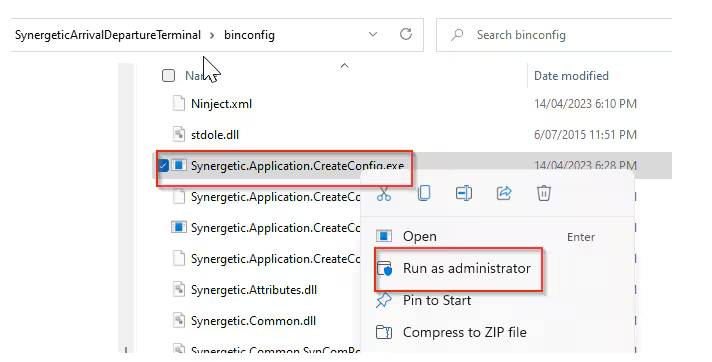
Navigate to the install directory usually c:\\SynergeticArrivalDepartureTerminal
Run (as Administrator) binconfig\Synergetic.Application.CreateConfig.exe
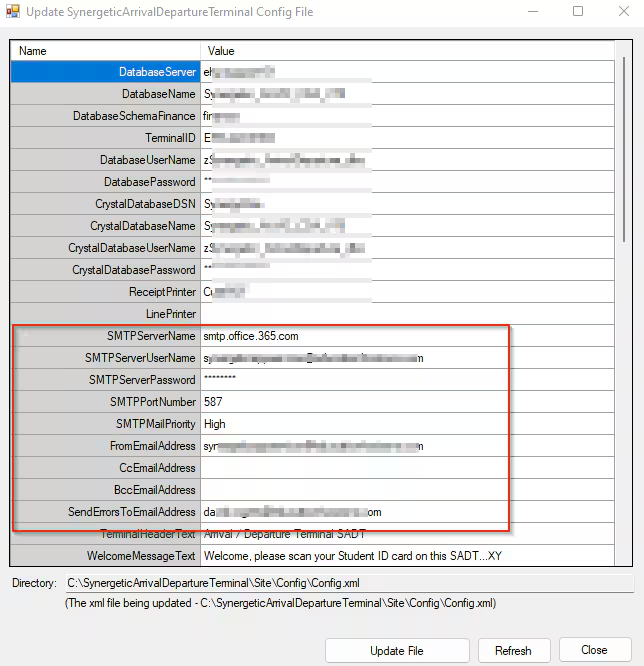
Email server settings are configured in this SADT Configuration file
Confirm/update the SMTP server settings
Ensure Email settings match your SMTP Exchange server settings
Email settings should be similar to Synergetic -> System -> Email/SMS/Configuration Maintenance
| SMTP ServerName | SMTP Server Name |
| SMTPServerUserName | SMTP User(If configured) |
| SMTPServerPassword | SMTP Password(If configured) |
| SMTPPortNumber | Port Number |
| SMTPMailPriority | Mail priority (Low, High) |
| FromEmailAddress | Enter valid Sender Address |
| CcEmailAddress | Ccemail (if applicable) |
| BccEmailAddress | Bcc email (if applicable) |
| SendErrorsToEmailAddress | Leave Empty |
Select [Update File] (if changes made) or [Close]
Was this article helpful?
That’s Great!
Thank you for your feedback
Sorry! We couldn't be helpful
Thank you for your feedback
Feedback sent
We appreciate your effort and will try to fix the article