SADT Error Messages
PRINTING ERRORS
Error message produced when student signs in/out and print option enabled
luAbsenceEventsTerminalDefinition : PrintReceiptFlag field enabled
luAbsenceEventsTerminalReasonDefinition :- EnableReceiptPrinter field enabled
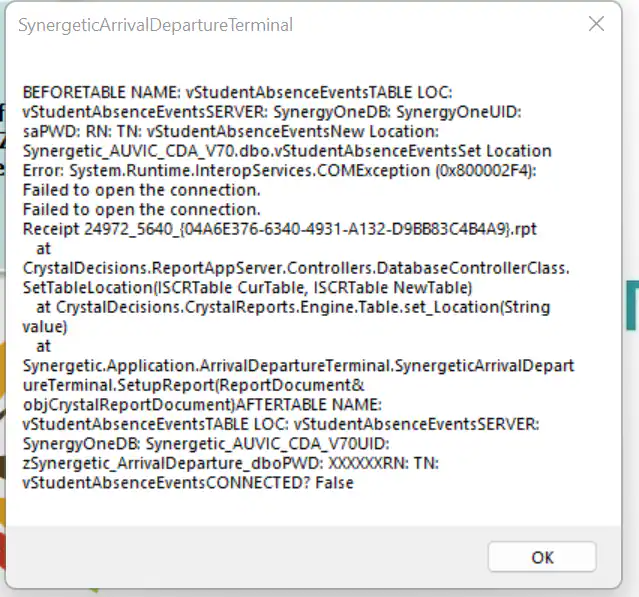
Summary of Error :
vstudentabsenceeventsTABLE LOC:vstudentAbsenceEventsSERVER: SynergyOneDB: SynergyOneUID:
saPWD:RN: TN vstudentAbsenceEventsNew Location
Error: System.Runtime.InteropServices.COMException
Failed to open the connection
Failed to open the connection
Troubleshooting suggestions :
1 - ODBC Settings
Check ODBC Settings :
NOTE this is on the actual SADT terminal
There must be an ODBC System and User DSN defined with name - SynergyOne. Please ensure that the ODBC connections are set up on the SADT computer as per these screen shots
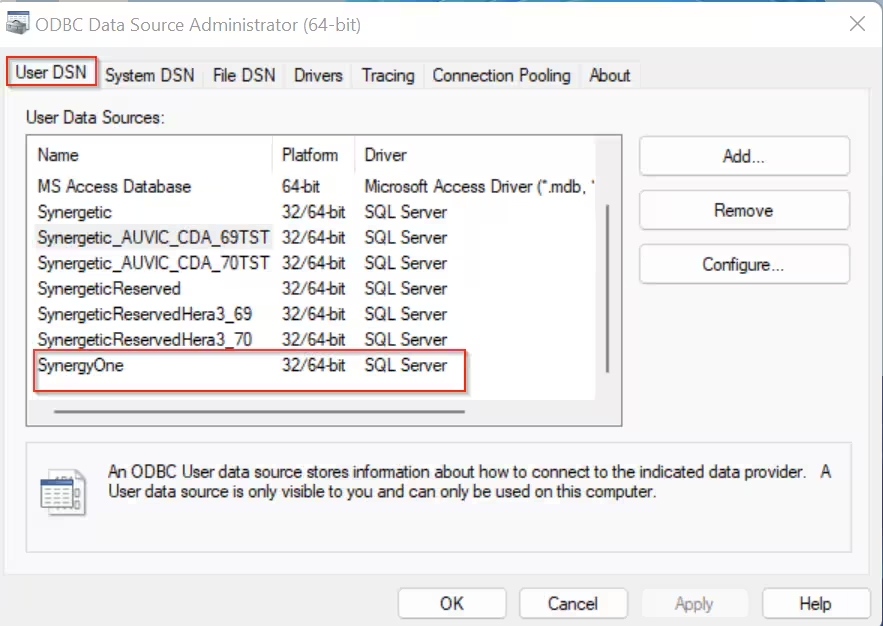
To create a SynergyOne ODBC setting select [Add..]
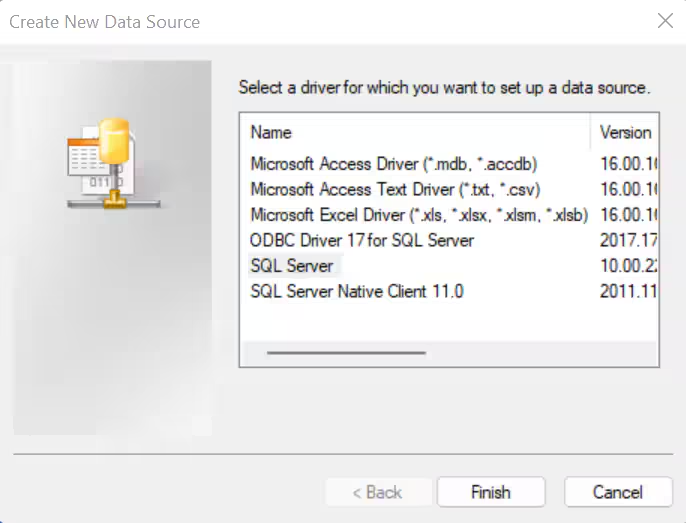
Select SQL Server and [Finish]
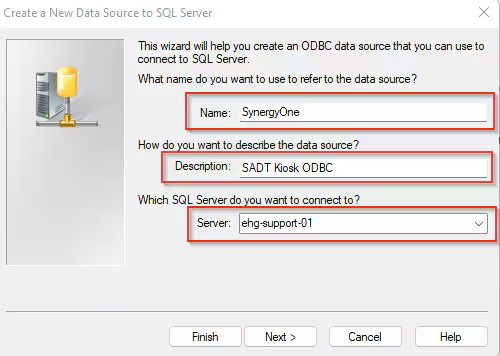
Name = SynergyOne
Description = any ODBC Description
Server = Synergetic Database Server
Select Next
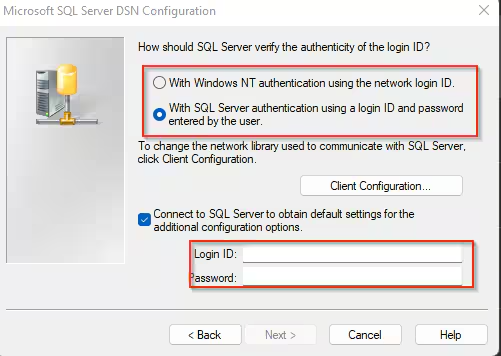
Select correct SQL Server authentication mode
Enter a valid Login ID and password
Select Next
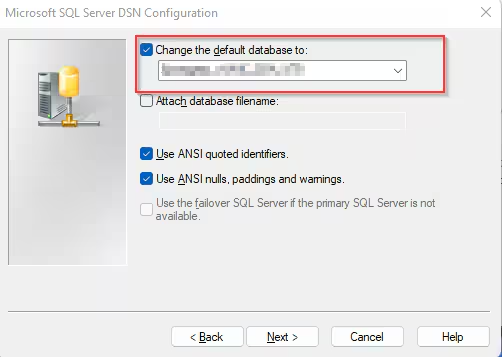
Enter your Synergetic Database and Next
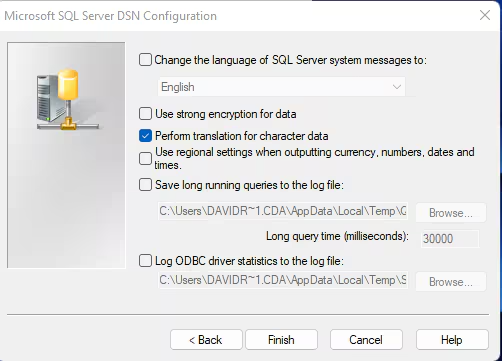
Select default settings and Finish
2 - SADT Version
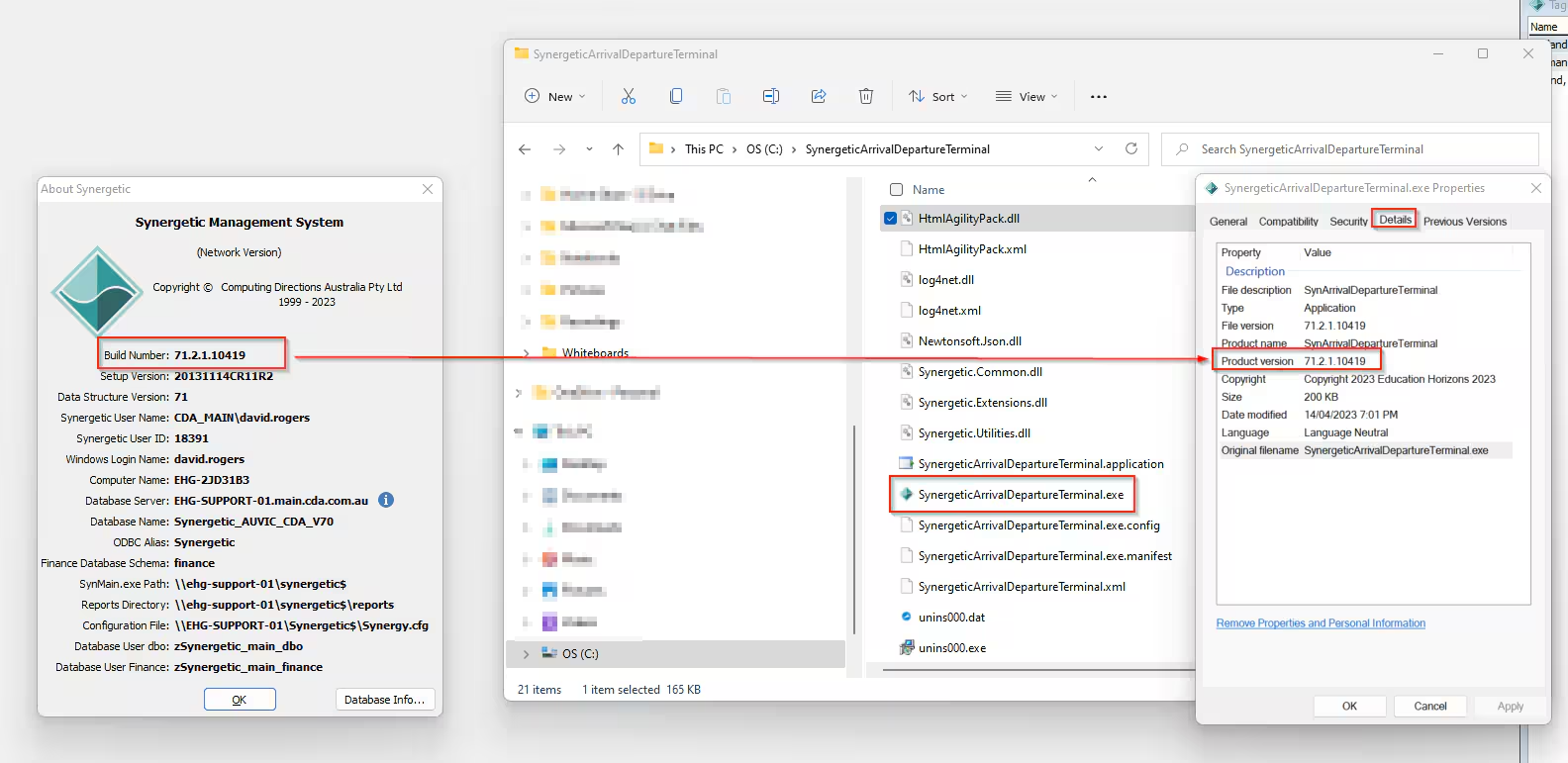
On the SADT terminal : check the SADT version
Navigate to the install directory usually c:\\SynergeticArrivalDepartureTerminal
check properties of C:\SynergeticArrivalDepartureTerminal.exe
The SADT version must match the Synergetic Version (v7X.X)
Request an upgrade if this is not the case
3 - Printer setup
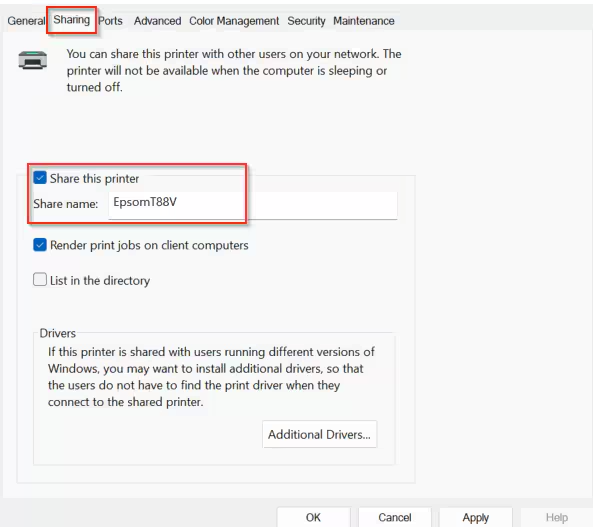
On the SADT terminal go to printer settings
Ensure the printer has a shared path configured
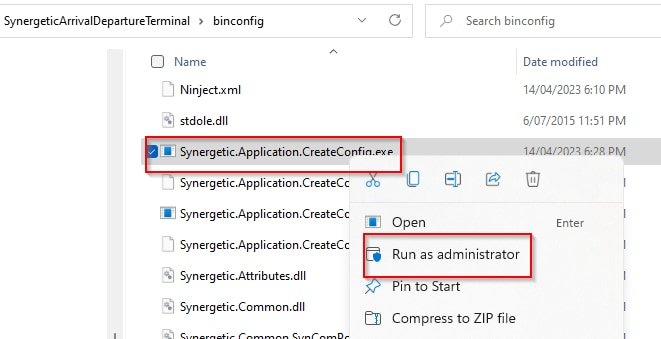
On the SADT Terminal go to the SADT install directory
Run (as Administrator) binconfig\Synergetic.Application.CreateConfig.exe
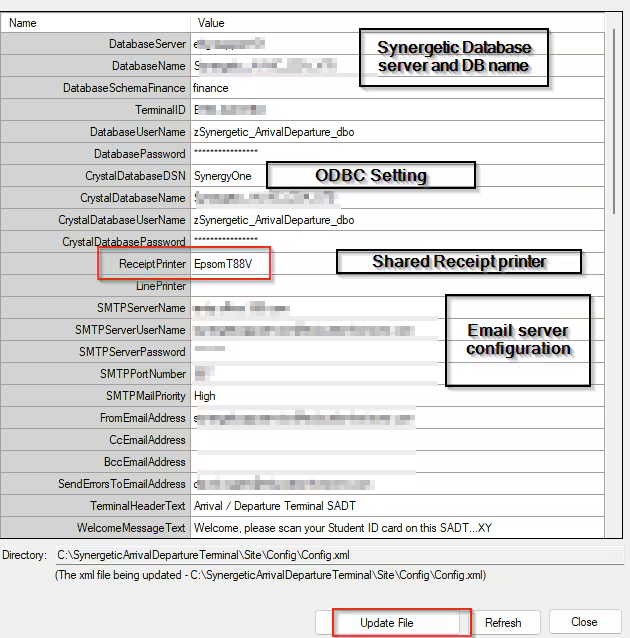
Navigate to the Receipt printer and enter the shared printer name
Select Update File
ERRATIC SCREEN REFRESH BEHAVIOR
When students are signing in or out the terminal screens will sometimes behave erratically. This may include :
- Screens refreshing inconsistently.
- Student ID entry field appearing in an unusual position or in the wrong screen
- Screen irregularly reverting to the sign in screen
1 - SADT Version
Check the SADT Version - refer Pt 2 above.
If there is a version mismatch request an upgrade
2 - Customized Site images
Are you using Customized Site Images
Check the SADT site folder location usually
C:\SynergeticArrivalDepartureTerminal\Site\Images\
Site images can sometimes impact SADT behavior so temporarily remove the images.
This will revert to the standard images in C:\SynergeticArrivalDepartureTerminal\Images
Run the SADT terminal during a busy period using the standard images and compare the behavior
There is no recommended image size however compare the site image composition to the standard images . (dimensions/width/height/size...etc)
Was this article helpful?
That’s Great!
Thank you for your feedback
Sorry! We couldn't be helpful
Thank you for your feedback
Feedback sent
We appreciate your effort and will try to fix the article