TABLE OF CONTENTS
- To apply for leave
- Approving and denying leave
- Entering Leave into Payroll
- Settings for Leave Applications
- Action Centre Messages
- Group User Security
- FAQ and Webinars
Synergetic has the capability for staff members to apply for leave.
These are the steps for entering Online Leave and processing it in Synergetic
For an instructional Video and FAQ refer this link : Video and FAQ's
To apply for leave
Login to Synweb as a staff member
Select Human Resources -> Staff Kiosk -> Leave button
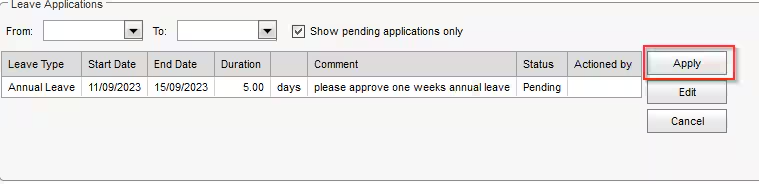
At the bottom there is a Leave Applications section
Note: Group User security permissions are required to view the Leave Application, refer instructions below.
Click Apply to make a new leave application -> enter dates, leave type and number of hours.
You can also attach a document and write a comment on this section.
Approving and denying leave
Once the employee has submitted the leave application from Synweb a notification will be sent to to their direct report or to the job position classified as dealing with confidential leaves (like the HR Department) if the leave type was setup as a Confidential Leave type.
If an employee does not have a direct reporting line then there should be a default approver setup in Synergetic and they will receive the leave application to review.
The reviewer will log into Synweb
In the top right they would receive an Action Centre Message about this leave submission
Reviewers can go to Human Resources -> Staff Kiosk-> Leave Tab. As a reviewer there should be a Staff Leave tab to navigate to.
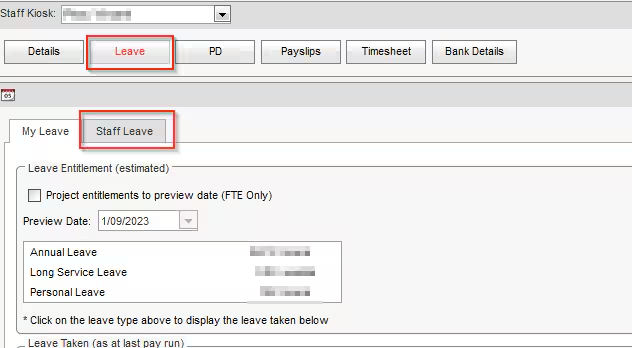
In the Staff Leave tab they will see all employees who report to them and their current leave requests. (You can select the View Button on one of these leave requests to view their details and attached documents)
In the Action Column on the right there is a drop down where the leave can be approved or rejected
If approved then a notification will send to the employee informing them of the approval

If the leave application is rejected, the approver can ad a comment, the status will change to rejected and the employee will receive a notification.
If there is a leave request where the employee does not have sufficient leave, a window will pop up warning the approver before they approve.
Entering Leave into Payroll
A report exists to assist with this process, Payroll Employee Leave Applications report (PAYLVAPP). See the flow chart below for the process of entering these leaves into pay.
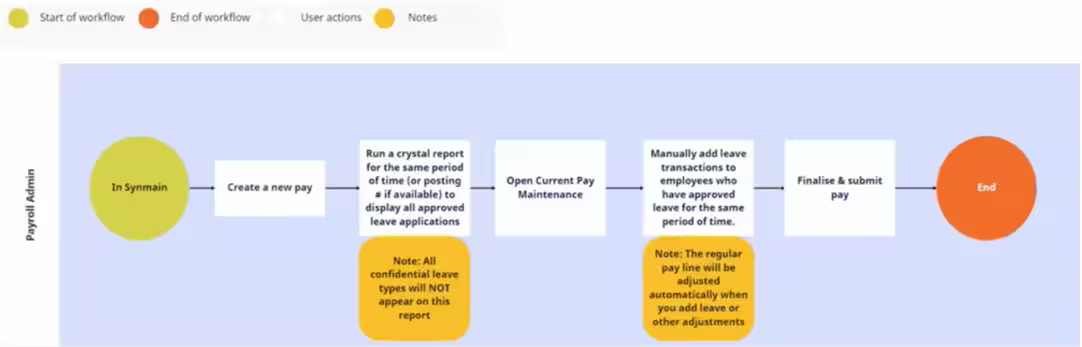
Open SynMain
Create a new current pay as normal (Payroll > Create New Pay)
Run the Payroll Employee Leave Applications report (PAYLVAPP) to see all the approved leaves (not including confidential ones) for the period of the pay run.
Select Payroll -> Current Pay Maintenance
Note : For Schools on Synergetic V71.03 or earlier then :
Add the leave from the report into the relevant employees current pay where the number of units for the normal wage paycode should adjust to minus the same number of units as you have entered for paid leave (eg 30 hours normal wage, then you enter 7 hours of leave and it will adjust wage units to 23 hours)
For Schools on Synergetic V71.04 or higher then :
You can then complete the pay run as normal.
Settings for Leave Applications
In SynMain select HR -> Job position Maintenance for the job positions and who they report to for leave applications (the Reports to Job Position box) and if the currently open job position is allowed to authorize leave applications (the Leave Application Approval Authority box).
Select System -> Lookup Table Finance > luPayrollLeave lookup table. There are 3 new columns:
- Elevated Leave Approval Required column that allows you to tick a leave type to needs higher level of approval.
- Confidential Flag column to tick if the leave type should be confidential.
- Document Classification column to set a default type of document classification for attached documents when doing leave applications on Synweb.
System > Finance Configuration Maintenance > Payroll tab has 4 new additions.
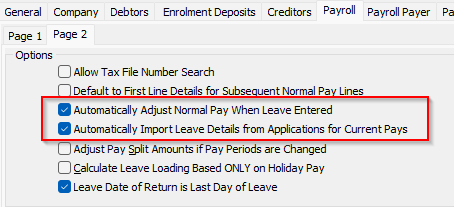
- Auto Adjust Normal Pay When Leave Entered tick box for having the wages units auto adjust when paid leave is entered on a pay run
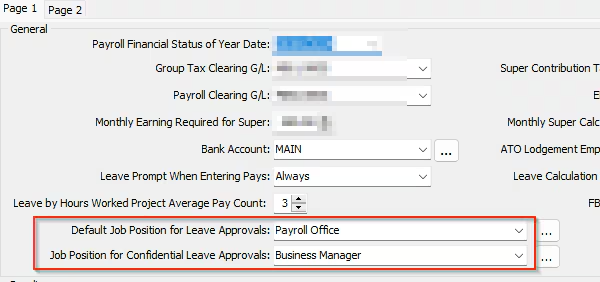
- Default Job Position for Leave Approvals box to set what job position is used for leave applications when there is no one set in Reports to Job Position in Job Position Maintenance.
- Job Position for Confidential Leave Approvals to set who can approve confidential leave types
- (V71.04 onwards) Automatically Import Leave details : For leave applications for current pays will create the leave lines into the pay automatically
Action Centre Messages
System > Settings Maintenance (Action Centre Message Types) > Staff > Leave applications has 2 action centre messages for notifying the manager of the leave application and notifying the employee of the outcome of the leave application.
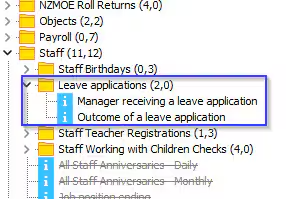
Manager Receiving a leave application : An informational message to notify the manager (who has leave approval authority) when a subordinate makes a leave application in SynWeb Staff Kiosk
Outcome if a leave application : An informational message to notify the staff member the outcome of their leave application. (approved or rejected)
Group User Security
Staff need to be in a group with the following permissions
System > Group/User Security Maintenance
Module : HUMKIOSK
Resource 1: StaffKiosk
Resource 2: Leave tick 4 options(Select, Update, Insert and Delete) ticked to apply for leave.

FAQ and Webinars
Listed below is the link to the Webinar videos used previously for explaining the Online Leave Application and the frequently asked questions from these webinars.
https://help.synergetic.net.au/s/article/Online-Leave-Application
Was this article helpful?
That’s Great!
Thank you for your feedback
Sorry! We couldn't be helpful
Thank you for your feedback
Feedback sent
We appreciate your effort and will try to fix the article