TABLE OF CONTENTS
Timesheets
Timesheets in SynWeb provide an alternative to using paper based timesheet submission. These go through an approval process by an employee's supervisor. Once approved the timesheets can be imported into current pays.
Before using timesheets there is some set up configuration that needs to be done:
System Administrator
System > Config File Maintenance
Search for 'timesheet'
Decide whether you want to include the weekend days in the timesheet and which time & date format you want to use.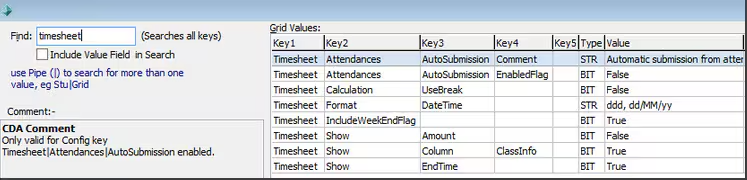
System > User/Group Permissions
To give a group access to the Staff Kiosk on SynWeb:
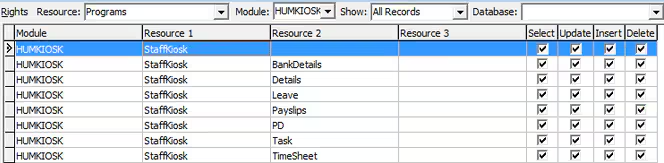
To allow a group to approve timesheets:

Payroll Officer
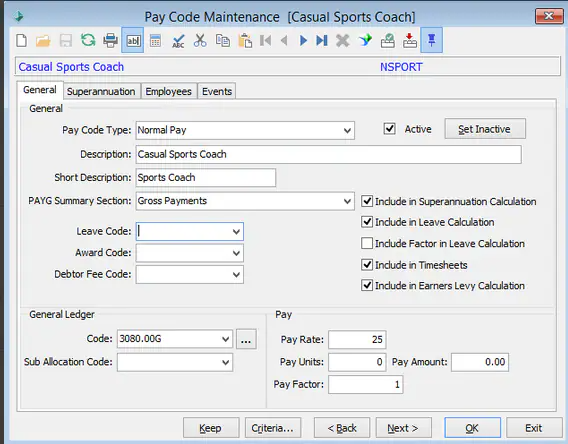
Each pay code that you want employees to be able to enter a timesheet, we need to tick "Include in Timesheets":
For each employee that we want to be able to enter a timesheet, we need to change the timesheet mode to 'enabled':
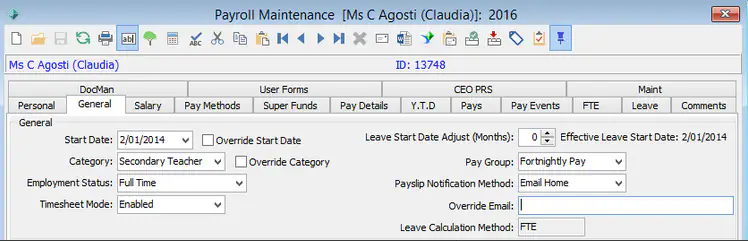
'Schedule only" can also be used however this requires a staff schedule to be set up in Staff Schedule Maintenance and each class to have a pay code noted in Class Maintenance.
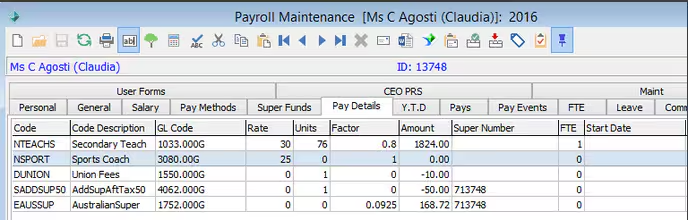
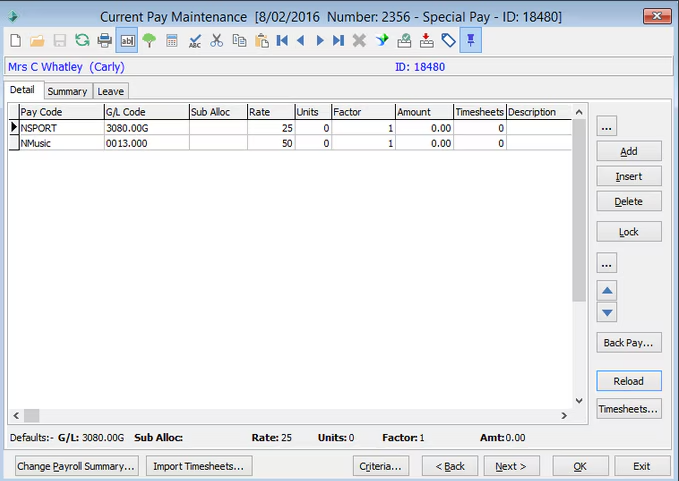
Include the pay codes on the employee's standard pay with the paid rate and zero units:
Staff member entering a timesheet
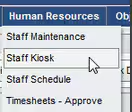
When the staff member logs onto SynWeb they will find the timesheet under Human Resources - Staff Kiosk - Timesheets User logs into SynWeb and goes to Human Resources, Timesheets
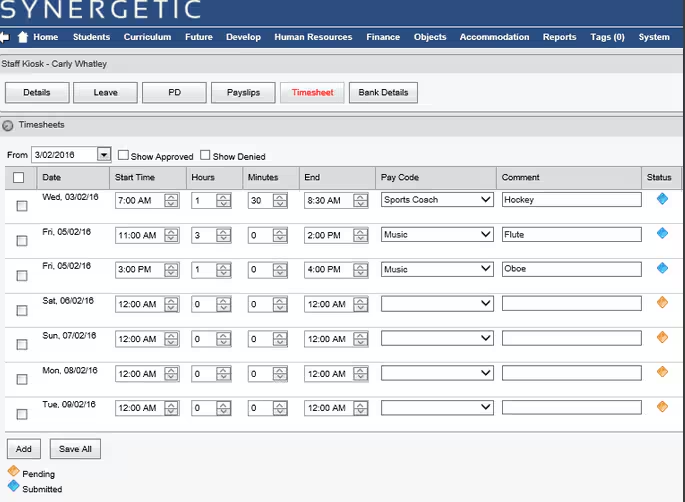
The staff member will see the last seven days:
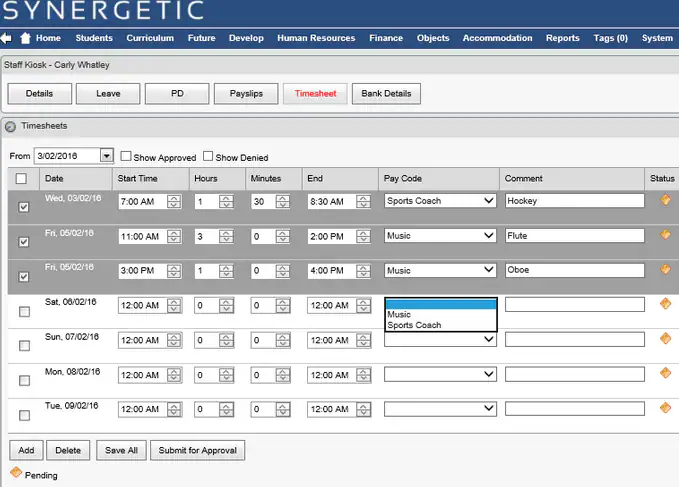
The pay code drop down box displays the pay codes that have been allocated to the current employees standard pay.
If 2 entries need to be made for the same day, tick the day that you need to create a second entry and click 'Add'.
Once the timesheet is ready, click 'Submit for Approval' and 'OK' to confirm:
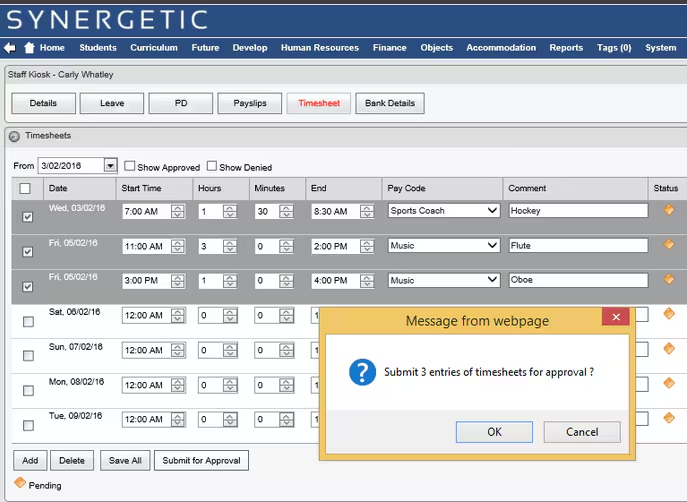
The status of these items will then appear as submitted:
Approving a timesheet
An approver can access submitted timesheets in SynWeb via Human Resources - Timesheets - Approve
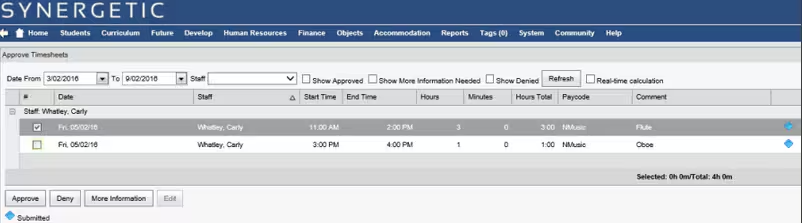
The approver can approve, deny or request more information on a particular line of the timesheet.

Payroll Officer importing timesheets into the current pay
Once timesheets have been approved they can be imported into the current pays via the Import Timesheets button located in Current Pay Maintenance on the Detail tab. You do not have to be on an employee who has submitted a timesheet to import the timesheets.
This brings up the import selection screen that will display ALL timesheets that have been approved:
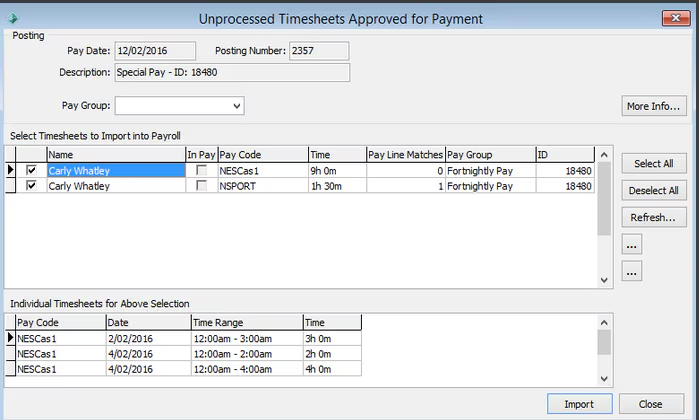
You can use 'Select All' and 'Deselect All' to decide which timesheets you want to import.
Once you have selected the timesheets that you want to import, select 'Import'.
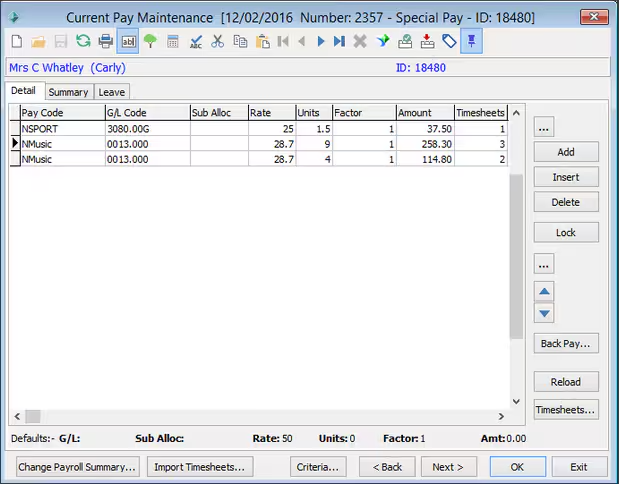
Synergetic will now populate the units column in the employee's current pay:
Was this article helpful?
That’s Great!
Thank you for your feedback
Sorry! We couldn't be helpful
Thank you for your feedback
Feedback sent
We appreciate your effort and will try to fix the article