Summary
How to amend/update employees leave balance and/or Leave accrual date
End Result
The employee’s leave balance will be updated with the new balance.
- Once the balance has been updated, it will ignore all previous transactions to that point and start calculating again from the date of the balance.
- You will no longer be able to add any transactions for that leave code prior to the date of the the new balance
Method
This functionality can be used when you realise there is an error in employee’s Leave Balance, would like to update the leave accrual date or make adjustments to the current leave balance
You need to work out what is the correct balance (number of units). Below are the steps to follow:
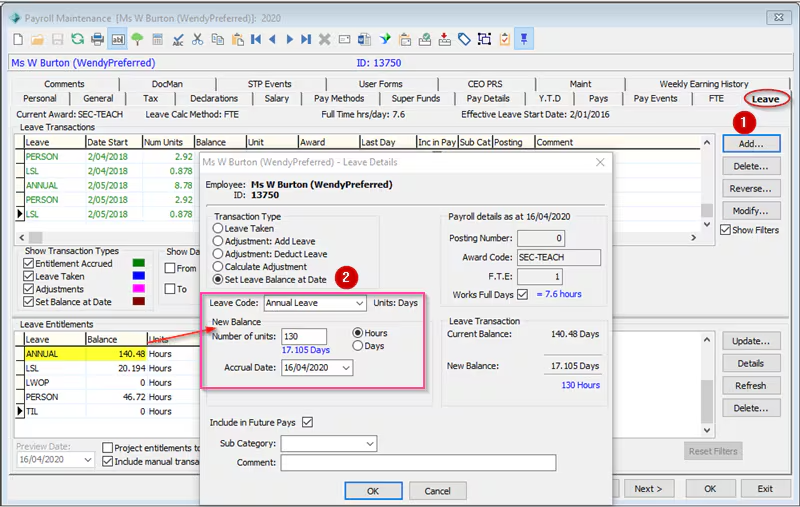
- Go to Payroll Employee Maintenance, Open Leave Tab
- Click on “Add” button
- Select the Leave Code to be updated
- Select new Balance number of units
- Select the date this change need to be recorded for (can be the same date as the change is being applied)
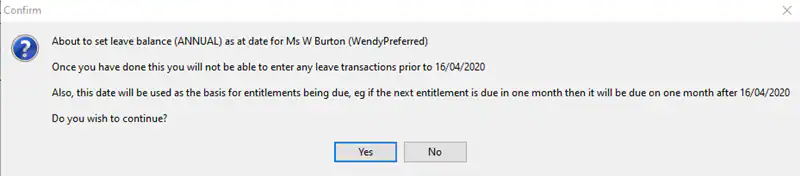
- An information box will be displayed for you to acknowledge and confirm that you will not be able enter any Leave Transaction prior to the new Accrued Date.
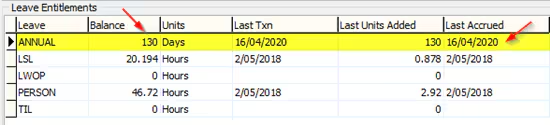
- By Clicking Yes, Employees leave code balance will be updated with new balance and date. From this date onwards the leave code will be accrued and added to this new balance.
Considerations
Make sure that you have correct calculations of the new balance, as after this change you will not be allowed to make changes prior to this date
Was this article helpful?
That’s Great!
Thank you for your feedback
Sorry! We couldn't be helpful
Thank you for your feedback
Feedback sent
We appreciate your effort and will try to fix the article