Please note, if you have Datatools Rapid Addressing Tool (RAT) enabled, this need to be disabled first!
You will have received an API token (something similar to 93417c4c-8ecf-42af-xxxx-xxxxxxxxxxxx) from our Sales team, please keep this safe as it is tied to your school.
- Log into the Synergetic Windows Application with a user who has System Administration rights.
- Go to System > Configuration Maintenance and search for 'AddressValidation'.
- Enable the following config values.
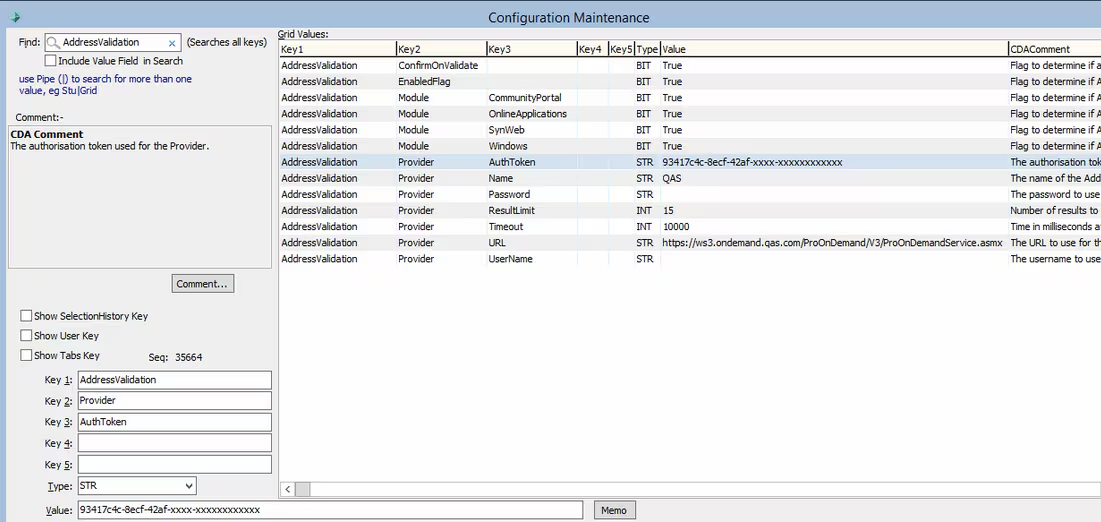
- AddressValidation|Provider|AuthToken will need to be set to the token given to you by our Sales Team.
- AddressValidation|EnabledFlag will need to be set to 'True'
- AddressValidation|Provider|URL should already be set to 'https://ws3.ondemand.qas.com/ProOnDemand/V3/ProOnDemandService.asmx'
- Optionally, you can also control the Address Validation feature to only operate in certain products by setting the flag to either True (Enabled) or False (Disabled). The defaults are as follows.
- AddressValidation|Module|CommunityPortal set to 'True'
- AddressValidation|Module|OnlineApplications set to 'True'
- AddressValidation|Module|SynWeb set to 'True'
- AddressValidation|Module|Windows set to 'True'
- In the end it should look something similar to the below screenshot.
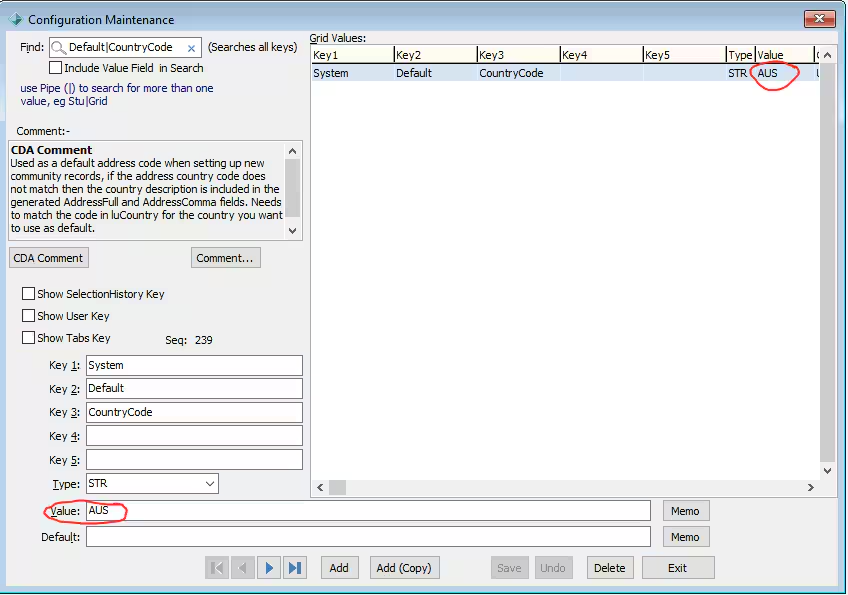
- Make sure that Default|CountryCode from Configuration Maintenance is populated with the right Code from luCountry - YOU WILL GET ERRORS IF THIS IS NOT CORRECTLY CONFIGURED!

For ws3.ondemand.qas.com, if you currently have a whitelist in place for outbound access, you will need to update your network configuration to allow communication with the IP addresses
- 205.174.45.23
- 45.60.31.210
- 45.60.32.212
- 45.60.33.210
- 45.60.34.212
- 45.60.35.210
- 45.60.36.212
- 45.60.37.210
- 45.60.38.212
- 45.60.39.210
SSL update
What's happening?
We are replacing certain SSL certificates which will affect those connecting to the above Experian Data Quality products over HTTPS. This change will occur on 14 April 2026.
What do you need to do?
You might need to install the new Experian certificate manually to ensure continued access to these products. We advise you to consult with your internal IT team to determine what the required process is for your business.
The certificates will be available for download from 5 March 2026 at: https://docs.experianaperture.io/more/download-certificates/
Was this article helpful?
That’s Great!
Thank you for your feedback
Sorry! We couldn't be helpful
Thank you for your feedback
Feedback sent
We appreciate your effort and will try to fix the article