Synweb
- Login to your school's Cloudwork dashboard
- Navigate to Single Sign On>Identity provider>Certificate>Download
- Download the certificate on that page.
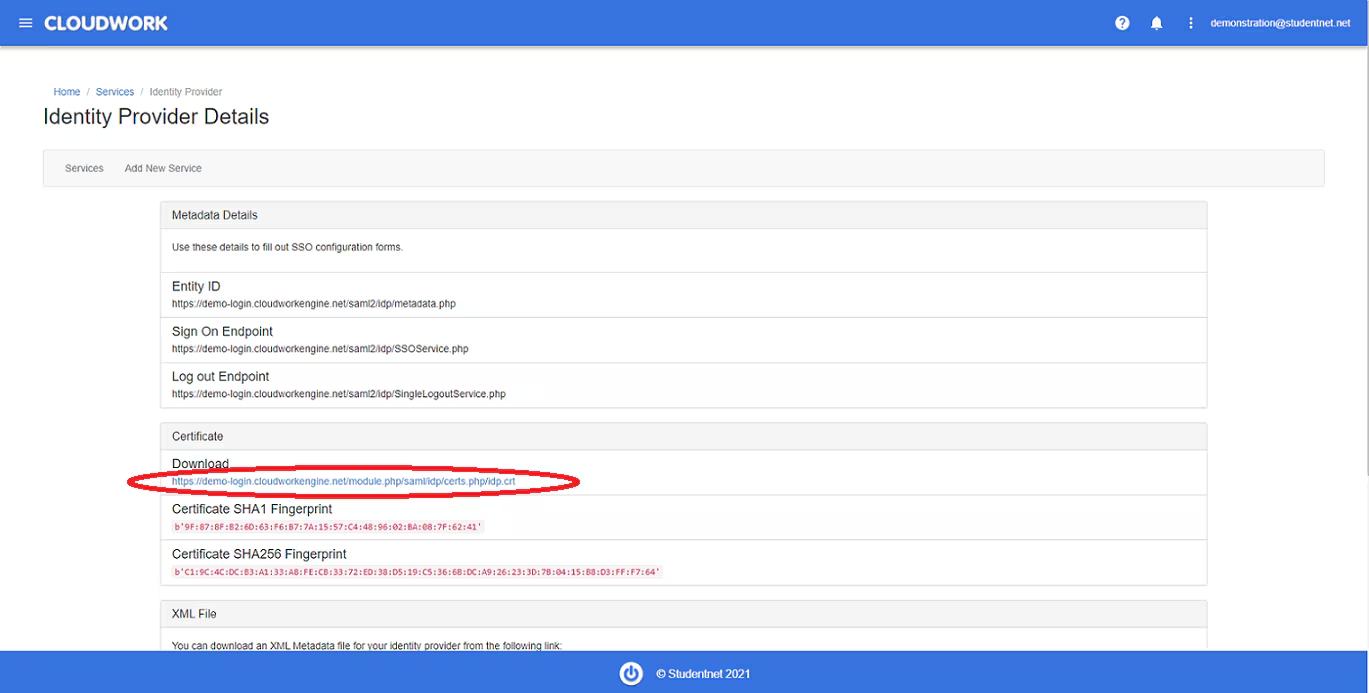 Example Certificate Download
 - Copy that certificate onto the Synergetic machine under <synweb>/Site/Certificates/idp.crt you may need to create this folder
- Log in to SQL Management Studio
- Run this query
SELECT SynergeticPassword FROM pvSynDatabases WHERE SynergeticUserName = 'zSynergetic_main_dbo'
- On your computer, find your Binconfig folder, where the SynWeb is installed
- Run Synergetic.Application.CreateConfig.exeas an administrator and add the following values to specified fields
AuthenticationMode = SAML
OverrideUserName = zSynergetic_main_dbo
SAMLLoginBinding = POST
SAMLLogoutBinding = REDIRECT
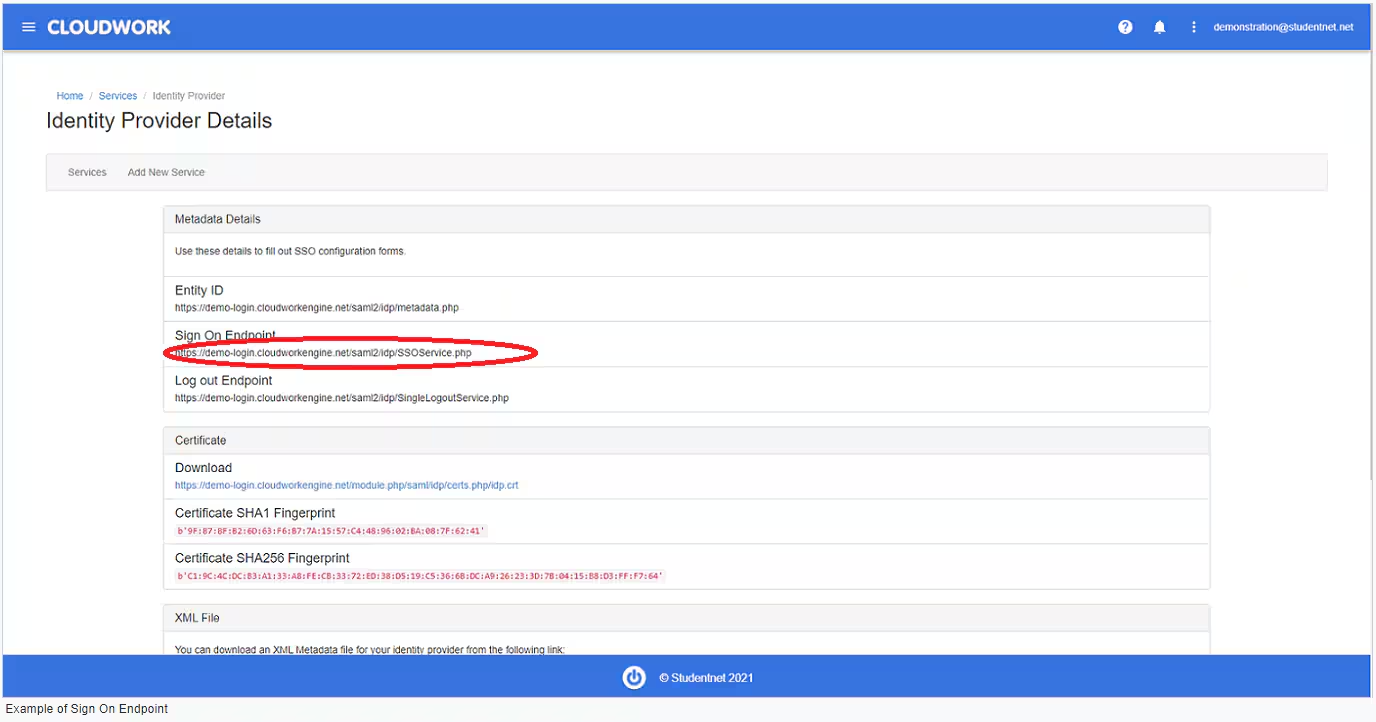
SAMLLoginDestination = put in the Sign On Endpoint from your school's dashboard(This is found under Cloudwork Dashboard>Single Sign On>Identity Provider>Metadata Details>Sign On Endpoint)Example of Sign On
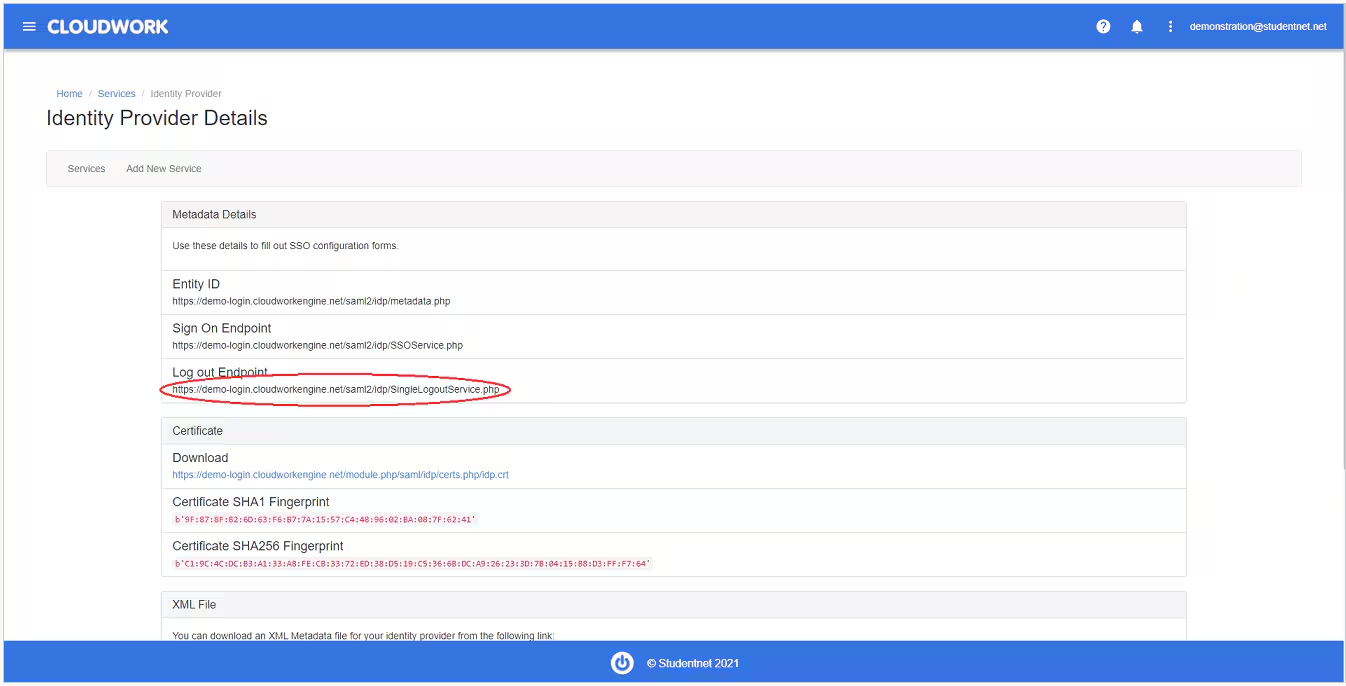
EndpointSAMLLogoutDestination = put in the Log Out Endpoint from your school's dashboard (This is found under Cloudwork Dashboard>Single Sign On>Identity Provider>Log out Endpoint)Example of Logout URLSAML
LoginX509CertificatePath = ~\Site\Certificates\idp.crtSAMLSPISsuer = <<synergetic URL>>/login.aspx
SAMLComparisonMode = minimum
SAMLClaimAttributeName = NameID
Once you have saved this configuration file, open it up in notepad (or Notepad++) and find the OverridePassword key, which should look like the below.
<OverridePassword /> You will now need to remove the close and enter the password, similar to the below.
<OverridePassword>Password from the query</OverridePassword>
SSO setup with Cloudwork
- Login to your school's dashboard
- Navigate to Single Sign On>Add New Service>Synweb
- Enter Your Synergtic URL
- Click Submit
Community Portal
SSO Setup with Synergetic Community Portal
- On your computer, find your Binconfig folder, where the Community Portal is installed
- Run Synergetic.Application.CreateConfig.exe as an administrator and add the following values to specified fields
AuthenticationMode = 14
SAMLLoginBinding = POST
SAMLLogoutBinding = REDIRECT
SAMLLoginDestination = put in the Sign On Endpoint from your school's dashboard(This is found under Cloudwork Dashboard>Single Sign On>Identity Provider>Metadata Details>Sign On Endpoint
- SAMLLogoutDestination = put in the Log Out Endpoint from your school's dashboard(This is found under Cloudwork Dashboard>Single Sign On>Identity Provider>Log out Endpoint)
- SAMLLoginX509CertificatePath = ~\Site\Certificates\idp.crt
- SAMLSPISsuer = <<synergetic URL>>/login.aspx
- SAMLComparisonMode = minimum
- SAMLClaimAttributeName = NameID
SSO setup with Cloudwork
- Login to your school's Cloudwork dashboard
- Navigate to Single Sign On>Add New Service>Synergetic Community Portal
- Enter Your Synergtic URL
- Click Submit
Was this article helpful?
That’s Great!
Thank you for your feedback
Sorry! We couldn't be helpful
Thank you for your feedback
Feedback sent
We appreciate your effort and will try to fix the article