TABLE OF CONTENTS
Setting up the ID Provider
Log into G-Suite Admin console as a user who has administrator rights.
Select Apps - 'Manage Apps and their Settings'
Click on SAML Apps
Click on the + to create a new SAML Application
In the Enable SSO for SAML Application pop-up, select 'Setup my own Custom App'
In this next window, make note of the SSO URL, Entity ID and Download the Certificate which we will use later, click Next.
Enter an Application Name - i.e. Community Portal, optionally enter a Description and upload a Logo, click Next.
Under the Service Provider Details, enter your Community Portal URL for the ACS (Assertion Consumer Service) URL, Entity ID and Start URL, similar to the below image.
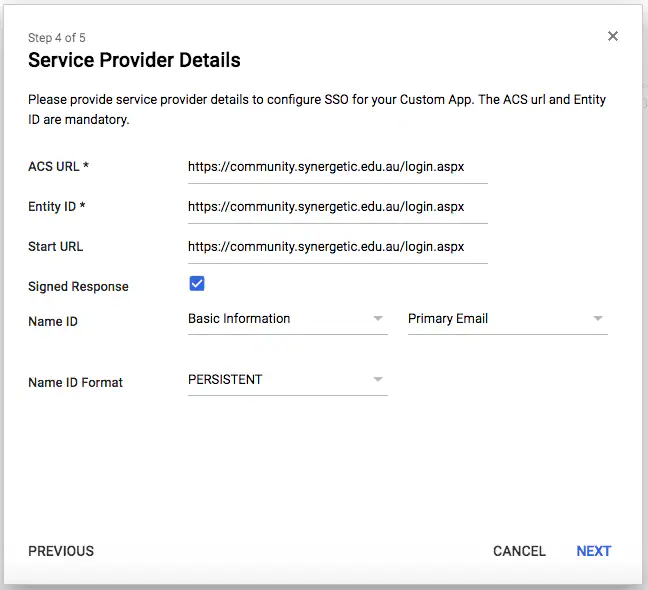
Ensure that Signed Response is ticked, Name ID is set to Basic information Primary Email and Name ID Format is Persistent, click Next.
Leave Attribute Settings as blank, we only need a Name ID which was set in the previous screen, so click Finish.
Setting up Community Portal
Copy the Certificate from G-Suite into ~/Site/Certificates/ and optionally rename it to GoogleIDPCertificate.crt.
Navigate to the BinConfig folder where ever Community Portal is installed, locate the Synergetic.Application.CreateConfig.exe, right-click and select Run as administrator. Once the tool opens, configure SAML in the following way.
| Key | Value |
|---|---|
| AuthenticationMode | 14 |
| SAMLLoginBinding | POST |
| SAMLLogoutBinding | REDIRECT |
| SAMLLoginDestionation | SSO URL from G-Suite - i.e. https://accounts.google.com/o/saml2/idp?idpid=XXXXXXXX |
| SAMLLogoutDestination | https://www.google.com/accounts/logout |
| SAMLLoginX509CertificatePath | ~/Site/Certificates/GoogleIDPCertificate.crt |
| SAMLLogoutX509CertificatePath | |
| SAMLLogoutX509CertificatePrivateKeyPassword | |
| SAMLSPIssuer | URL of CommPortal including login.aspx - i.e. https://community.synergetic.edu.au/login.aspx |
| SAMLIDPUserHomePageUrl | |
| SAMLComparisonMode | exact |
| SAMLClaimAttributeName | NameID |
Ensure that the NetworkLogin field has been populated for your Community members under Community > Other.
Setting up SynWeb
Copy the Certificate from G-Suite into ~/Site/Certificates/ and optionally rename it to GoogleIDPCertificate.crt.
Log into SQL Management Studio, create a New Query and run the following query against your Synergetic Databases.
| SELECT SynergeticUserName, SynergeticPassword FROM pvSynDatabases |
Make note of the zSynergetic_main_dbo User and Password, if there are multiple rows that contain a username, only one should contain a password.
Navigate to the BinConfig folder where ever SynWeb is installed, locate the Synergetic.Application.CreateConfig.exe, right-click and select Run as administrator. Once the tool opens, configure SAML in the following way.
| Key | Value |
|---|---|
| AuthenticationMode | SAML |
| OverrideUserName | zSynergetic_main_dbo |
| OverridePassword | Leave this blank for now. |
| SAMLLoginBinding | POST |
| SAMLLogoutBinding | REDIRECT |
| SAMLLoginDestionation | SSO URL from G-Suite - i.e. https://accounts.google.com/o/saml2/idp?idpid=XXXXXXXX |
| SAMLLogoutDestination | https://www.google.com/accounts/logout |
| SAMLLoginX509CertificatePath | ~/Site/Certificates/GoogleIDPCertificate.crt |
| SAMLLogoutX509CertificatePath | |
| SAMLLogoutX509CertificatePrivateKeyPassword | |
| SAMLSPIssuer | URL of SynWeb including login.aspx - i.e. https://synweb.synergetic.edu.au/login.aspx |
| SAMLIDPUserHomePageUrl | |
| SAMLComparisonMode | exact |
| SAMLClaimAttributeName | NameID |
Once you have saved this configuration file, open it up in notepad (or Notepad++) and find the OverridePassword key, which should look like the below.
| <OverridePassword /> |
You will now need to remove the close and enter the password, similar to the below.
| <OverridePassword>Password from the query</OverridePassword> |
Save that file (you may need to save it to the desktop and then copy it into the wwwroot\synwebcfg directory due to permissions).
Finally, ensure that the NetworkLogin field has been populated for your SynWeb users under Community > Other.
Was this article helpful?
That’s Great!
Thank you for your feedback
Sorry! We couldn't be helpful
Thank you for your feedback
Feedback sent
We appreciate your effort and will try to fix the article