TABLE OF CONTENTS
Azure Active Directory Configuration
This document will walk you through setting up Azure Active Directory for use as a SAML ID Provider with both SynWeb and Community Portal. This document assumes you have already provisioned Azure Active Directory and it contains Users/Groups (not covered).
| As Azure is constantly being updated, the information in this guide may become outdated over time. We will endeavor to update this guide with every major product release. |
Setting up the Application in Azure Active Directory
Log into https://portal.azure.com/ as a Tennant Administrator.
Click on the  Azure Active Directory Service to enter the Azure AD Overview blade.
Under Applications, select Enterprise Applications item.
Click on New Application on the top of the Application blade
Click on Create Your Own Application.
Enter a name - i.e. Synergetic Community Portal
Leave radial selection at Integrate then click create
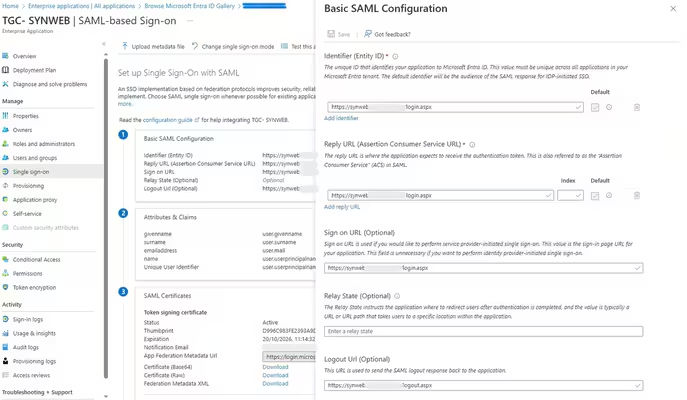
You will be presented with the Application > Select Single Sign on from options in right Window.
(See Below Image as a guide)
Add an Identifier (Entity ID) for your Community Portal - i.e. https://portal.synergetic.vic.edu.au/login.aspx
Add Reply URL (ACS URL) for your Community Portal - i.e. https://portal.synergetic.vic.edu.au/login.aspx
Add Sign on URL for your Community Portal URL - i.e. https://portal.synergetic.vic.edu.au/login.aspx
Logout URL - enter the logout destination, either the Portal URL or School Homepage - i.e. https://portal.synergetic.vic.edu.au/logout.aspx
The properties of the Registered Application should look like something similar below, once ready click Save.
Be aware when you re-enter the App registrations blade, the application we created will NOT appear there.
Go back to the App registrations blade and click on Endpoints.
Now make a note of the SAML-P SIGN-ON ENDPOINT and SAML-P SIGN-OUT ENDPOINT URLs
Assigning Permissions
Click on the Enterprise applications menu item and select All applications under the Manage tab. The application we registered in the previous steps will appear here.
Select our previously registered application and click on Users and Groups.
Add a Azure AD Group or users manually to the application which grants them login rights via the ID Provider.
Under properties, ensure Enabled for users to sign-in? is set to Yes.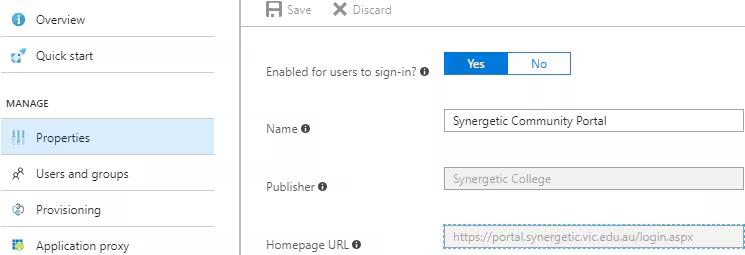
Setting up Community Portal
Navigate to the BinConfig folder where ever Community Portal is installed, locate the Synergetic.Application.CreateConfig.exe, right-click and select Run as administrator. Once the tool opens, configure SAML in the following way.
Synergetic have provided a default token signing certificate use by Microsoft Azure called AzureAAD.crt, this may not be used by your tenant and you may need to export it yourself.
| Key | Value |
|---|---|
| AuthenticationMode | 15 |
| SAMLLoginBinding | POST |
| SAMLLogoutBinding | POST |
| SAMLLoginDestionation | Your SAML-P SIGN-ON URL - i.e. https://login.microsoftonline.com/797852e9-43bd-471f-9226-a00000000000/saml2 |
| SAMLLogoutDestination | Your SAML-P SIGN-OUT URL - i.e. https://login.microsoftonline.com/797852e9-43bd-471f-9226-a00000000000/saml2 |
| SAMLLoginX509CertificatePath | ~/Site/Certificates/<CertName>.cer (eg. AzureSSO.cer) |
| SAMLLogoutX509CertificatePath | |
| SAMLLogoutX509CertificatePrivateKeyPassword | |
| SAMLSPIssuer | URL of CommPortal including login.aspx - i.e. https://community.synergetic.edu.au/login.aspx |
| SAMLIDPUserHomePageUrl | |
| SAMLComparisonMode | exact |
| SAMLRequestedAuthnContexts | unspecified |
| SAMLClaimAttributeName | http://schemas.xmlsoap.org/ws/2005/05/identity/claims/name |
Ensure that the NetworkLogin field has been populated for your Community members under Community > Other.
Setting up SynWeb
Synergetic have provided a default token signing certificate use by Microsoft Azure called AzureAAD.crt, this may not be used by your tenant and you may need to export it yourself.
Log into SQL Management Studio, create a New Query and run the following query against your Synergetic Databases.
| SELECT SynergeticUserName, SynergeticPassword FROM pvSynDatabases |
Make note of the zSynergetic_main_dbo User and Password, if there are multiple rows that contain a username, only one should contain a password.
Navigate to the BinConfig folder where ever SynWeb is installed, locate the Synergetic.Application.CreateConfig.exe, right-click and select Run as administrator. Once the tool opens, configure SAML in the following way.
| Key | Value |
|---|---|
| AuthenticationMode | SAMLAAD |
| OverrideUserName | zSynergetic_main_dbo |
| OverridePassword | Leave this blank for now. |
| SAMLLoginBinding | POST |
| SAMLLogoutBinding | POST |
| SAMLLoginDestionation | Your SAML-P SIGN-ON URL - i.e. https://login.microsoftonline.com/797852e9-43bd-471f-9226-a00000000000/saml2 |
| SAMLLogoutDestination | Your SAML-P SIGN-OUT URL - i.e. https://login.microsoftonline.com/797852e9-43bd-471f-9226-a00000000000/saml2 |
| SAMLLoginX509CertificatePath | ~/Site/Certificates/<CertName>.cer (eg. AzureSSO.cer) |
| SAMLLogoutX509CertificatePath | |
| SAMLLogoutX509CertificatePrivateKeyPassword | |
| SAMLSPIssuer | URL of SynWeb including login.aspx - i.e. https://synweb.synergetic.edu.au/login.aspx |
| SAMLIDPUserHomePageUrl | |
| SAMLComparisonMode | exact |
| SAMLRequestedAuthnContexts | unspecified |
| SAMLClaimAttributeName | http://schemas.xmlsoap.org/ws/2005/05/identity/claims/name |
Once you have saved this configuration file, open it up in notepad (or Notepad++) and find the OverridePassword key, which should look like the below.
| <OverridePassword /> |
You will now need to remove the close and enter the password, similar to the below.
| <OverridePassword>Password from the query</OverridePassword> |
Save that file (you may need to save it to the desktop and then copy it into the wwwroot\synwebcfg directory due to permissions).
Configuration via SynMain
- Ensure that the NetworkLogin field has been populated for your SynWeb users under Community Maintenance > Other tab, or
- To avoid duplicate matches, the following configuration key can be used (System|Web|Authentication|MatchField) which maps the SAML attribute to the specified Synergetic field
- See Comment within this key for further information
Was this article helpful?
That’s Great!
Thank you for your feedback
Sorry! We couldn't be helpful
Thank you for your feedback
Feedback sent
We appreciate your effort and will try to fix the article