Summary
This article explains how to reinstate and employee who was previously marked as terminated in Payroll.
End Result
The employee will be marked as active and can be included in future pay runs.
Method
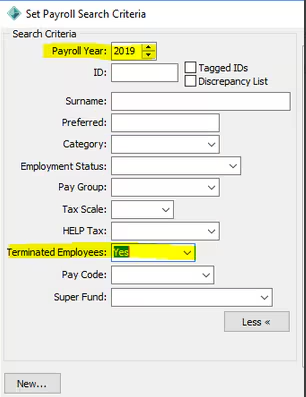
- Locate the employee in Payroll Maintenance. If the employee has not worked in the currently Payroll Year they will need to be created in Payroll again using their existing Community ID. Do not create a new ID for a returning employee. To do this click the New option in the bottom left hand corner, and then tick the "Use Existing ID" Box and enter the Community ID and follow the prompts to create the record.
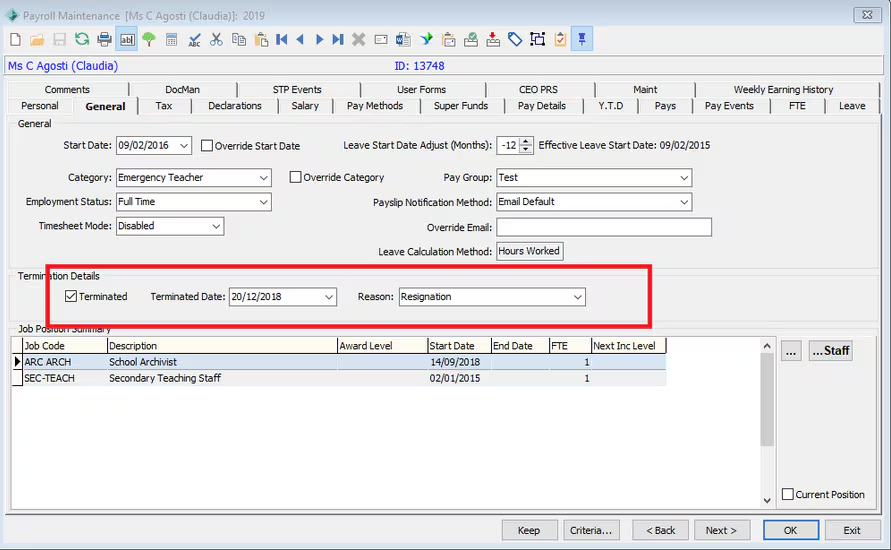
Once you have a payroll record in the current payroll year you will need to go to Payroll Employee Maintenance > General Tab and remove the terminated Flag, Terminated Date and Reason
For historical purposes you may wish to put a comment on the Comments Tab to record these details that you are removing.
You should now be able to set up the employees Pay Details and then include them in your next pay.
Considerations
If the employee was terminated in the 2019 Payroll year but before you commenced using STP you may need to contact Synergetic Service Desk to put an ETP reason against their termination pay via script.
Was this article helpful?
That’s Great!
Thank you for your feedback
Sorry! We couldn't be helpful
Thank you for your feedback
Feedback sent
We appreciate your effort and will try to fix the article