TABLE OF CONTENTS
Summary
Display Yard Duty in the Teacher/Staff MembersTimetable.
End Result
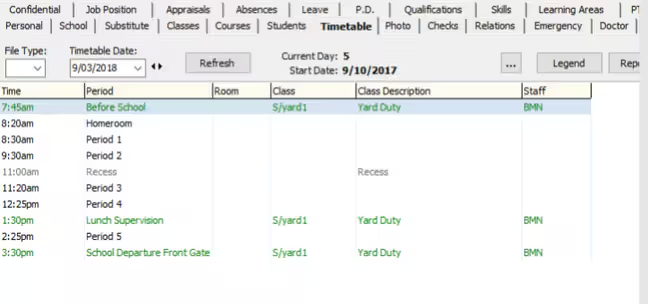
The scheduled Yard Duty will display in the Staff Members Timetable
Method
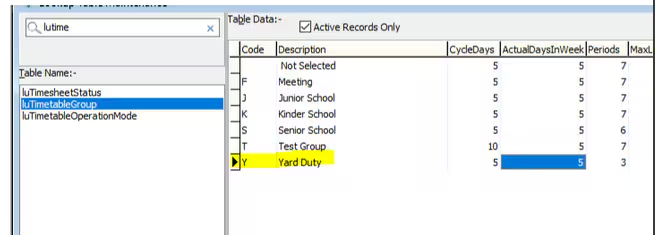
- Create a time table group.
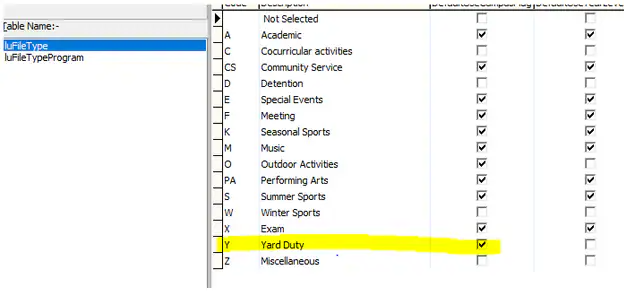
- Create a File Type in luFileType
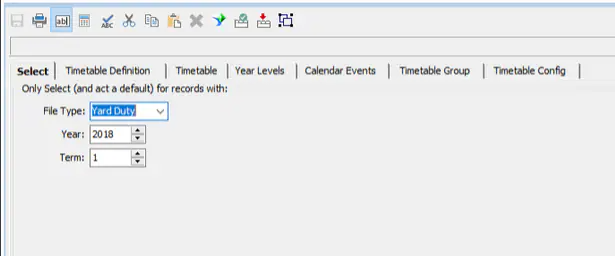
- In Students > Timetable Maintenance > Select the Yard Duty file type.
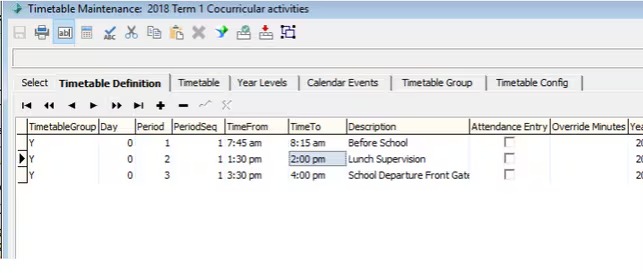
- In Students > Timetable Maintenance > Timetable Definition Tab Create the new Timetable Definition
- You will now need to create the Yard Duty Class. Go to Students > Class Maintenance and select File Type Yard Duty and click New...
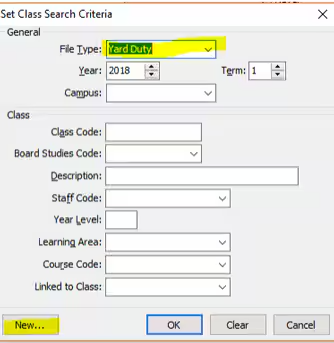
- Follow the prompts to create the class
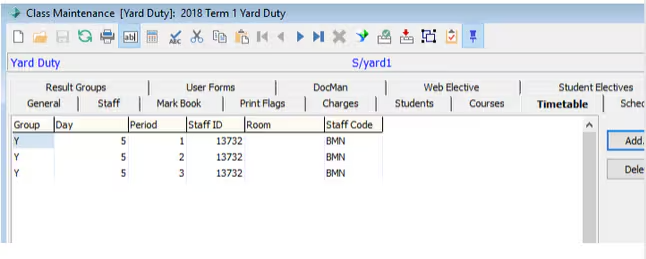
- Once the Class is created you will need to add in the timetable entries via the Timetable Tab in Class Maintenance.
Considerations
The entries will display in green on the staff members timetable as there are no students in the class
Was this article helpful?
That’s Great!
Thank you for your feedback
Sorry! We couldn't be helpful
Thank you for your feedback
Feedback sent
We appreciate your effort and will try to fix the article