Summary
This article explains how to make an adjustment in a previous payroll year and resubmit the finalisation event in STP
End Result
The adjustment will be made and the employees end of year will again be ready for the ATO
Method
For the purpose of this KB the examples are in the 2020 year
- Open Payroll Employee Maintenance in the year that needs to be adjusted
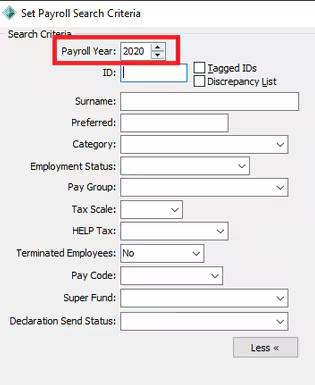
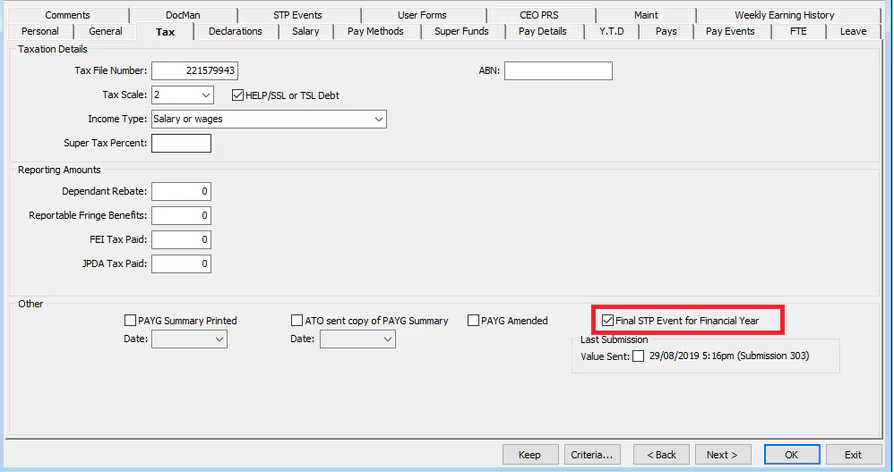
- Go to the employee/s that need to be updated and open the TAX Tab
- On the Tax TAB un-tick the 'Final STP Event for Financial Year' indicator
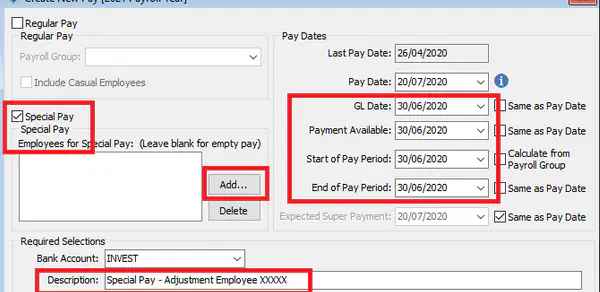
- Create a new 'Special Pay' for the employee.
You will need to date this pay 30th June so that it records in the correct Financial Year - Complete the special pay including the STP event.
- You can then process the Bulk Finalise Event - This is the same as would be completed for End of Year.
Payroll > Bulk Set Final Event Indicator > Choose the previous Payroll Year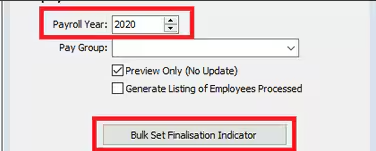
- Initiate the Update Event
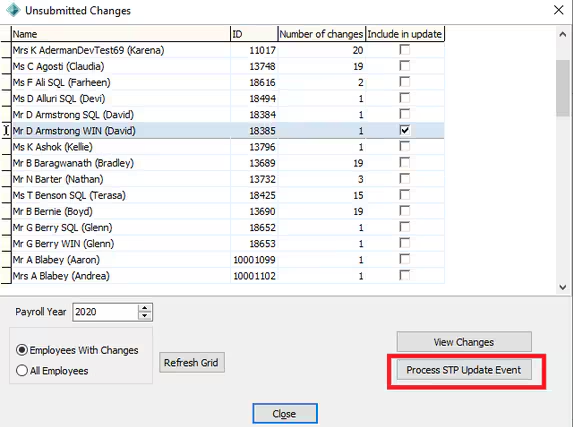
- The Unsubmitted Changes Screen will appear - Deselect all employees, then go through and tick those who the adjustment has been completed for, also cross check the Payroll year is set to the previous year.
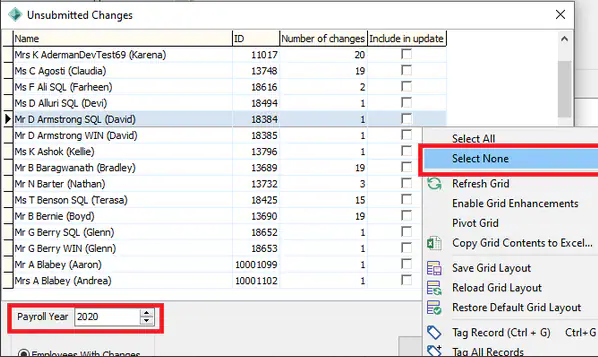
- Once the employee/s has been selected you can the Process the STP event - This will take you to the STP screen that you should be familiar with from your standard Payroll processing.
Finally, after the STP has been processed, cross check the Tax Table In Payroll Employee Maintenance in the previous Payroll to ensure the 'Final STP Event for Financial Year' indicator is now ticked again.
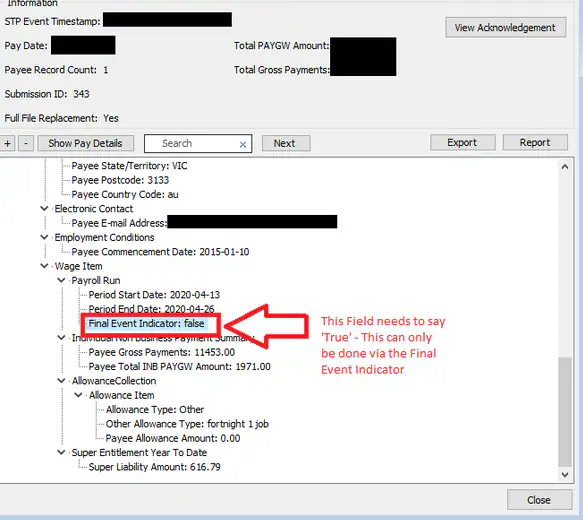
You can confirm the 'Final STP Indicator has been successful before sending to the ATO, as it will say 'True' in the STP Event screen.
Considerations
As this can be a time consuming process. consider adding multiple employees to the Special Pay / Bulk Set Indicator if you have multiple amendments to complete.
Also please seek guidance from the ATO in regards to any uncertainties around the exact figures and pay codes to be used in amendments.
Was this article helpful?
That’s Great!
Thank you for your feedback
Sorry! We couldn't be helpful
Thank you for your feedback
Feedback sent
We appreciate your effort and will try to fix the article