Use the NZQA tab to:
import the standards file
export student details to the New Zealand Qualifications Authority
export student addresses to the New Zealand Qualifications Authority.
Update: Please ensure the Value field is not using 00XX, it must be just XX

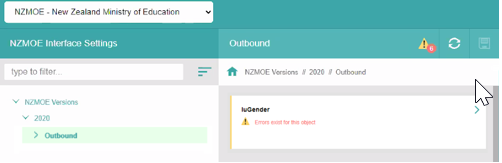
Note: You must map outbound Synergetic lookup table values to New Zealand values using the NZMOE - New Zealand Ministry of Education external system settings on the Interface Settings window. Using the Interface Settings window.
To open the NZQA tab:
Select Module > Students > Student Data Import/Export from the main menu.
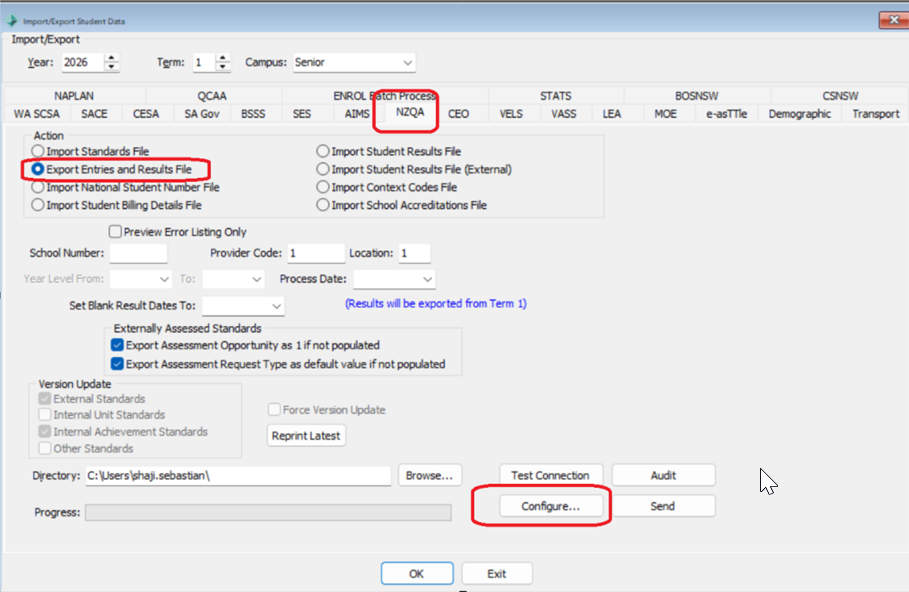
The NZQA tab of the Import/Export Student Data window is displayed.Click the NZQA tab.
The NZQA tab is displayed..
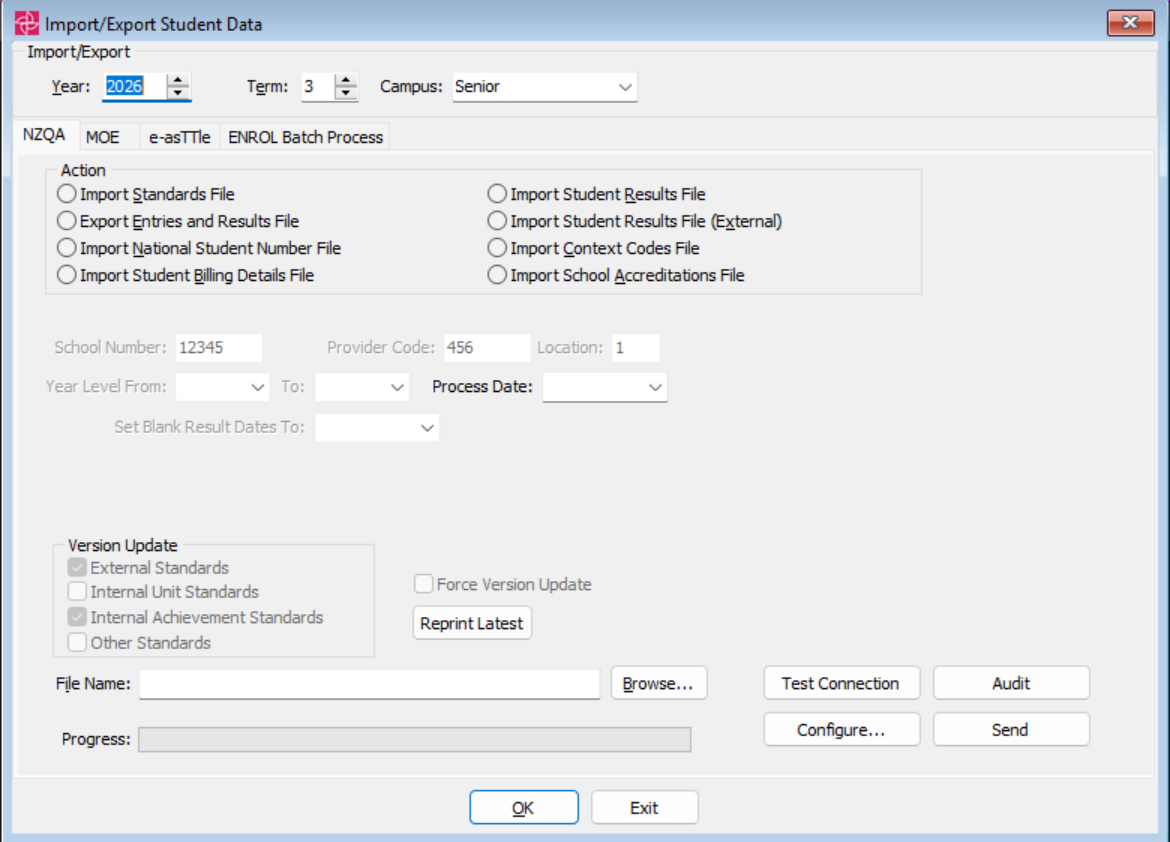
Import/Export Student Data - NZQA tab key fields and buttons
Actions
Select an Import/Export Action to perform.
Action | Description | |||||||||||||||||||||||||||||||||||||||||||||
|---|---|---|---|---|---|---|---|---|---|---|---|---|---|---|---|---|---|---|---|---|---|---|---|---|---|---|---|---|---|---|---|---|---|---|---|---|---|---|---|---|---|---|---|---|---|---|
Import standards file | Import a standards file. This file is supplied by NZQA to School software providers and contains a full list of current standards on the Directory of Assessment Standards (DAS) and the current Scholarship standards. This file is sent to software providers at the beginning of each year with several monthly updates also sent during the year. File conventions - The file is a variable length ASCII text file terminated by carriage return and line feed, with fields delimited by “*”. - The file is named “standard.txt” First Record - The first record has a special format to record the date generated at NZQA. - Standardfiledate = YYYYMMDD where “YYYYMMDD” is the date created.
| |||||||||||||||||||||||||||||||||||||||||||||
Export an entries and results file | Export an entries and results file Inclusion Criteria: Student is enrolled in a standard in a Year and Campus that is reported to NZQA as indicated in luYearLevelExternalLink by ExternalLinkCode being 'NCEA' for a given Campus and Year Level, (being enrolled includes where student has a result with a result classification of 'withdrawn'). 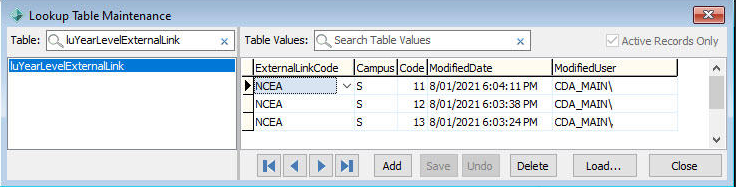
Configurations and Setup: Add API credentials into Synergetic screens as below Click on NZQA tab -> select Export Entries and Results File -> click on configure button
To enter API key value, simply click on the check box ‘update API Key’. When the check box is enabled the field API key field will be enabled to enter new value. Now enter the new API key and click on OK button to Save the changes. To change the Passphrase value, follow the same approach 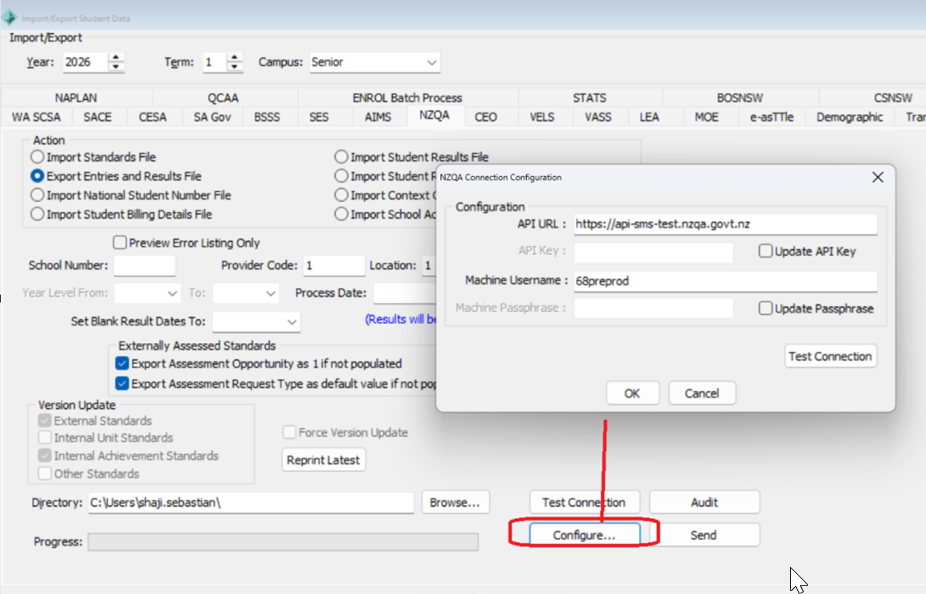 API URL : Enter the NZQA API URL: https://api-sms.nzqa.govt.nz API Key : Tes sends this info to schools. Machine Password: NZQA sends this info to schools Send data to NZQA: When user clicks ‘Send’, Synergetic checks for validation errors and advises user that errors have been encountered (eg. adjustments to be made so that data meets NZQA requirements before file is submitted) 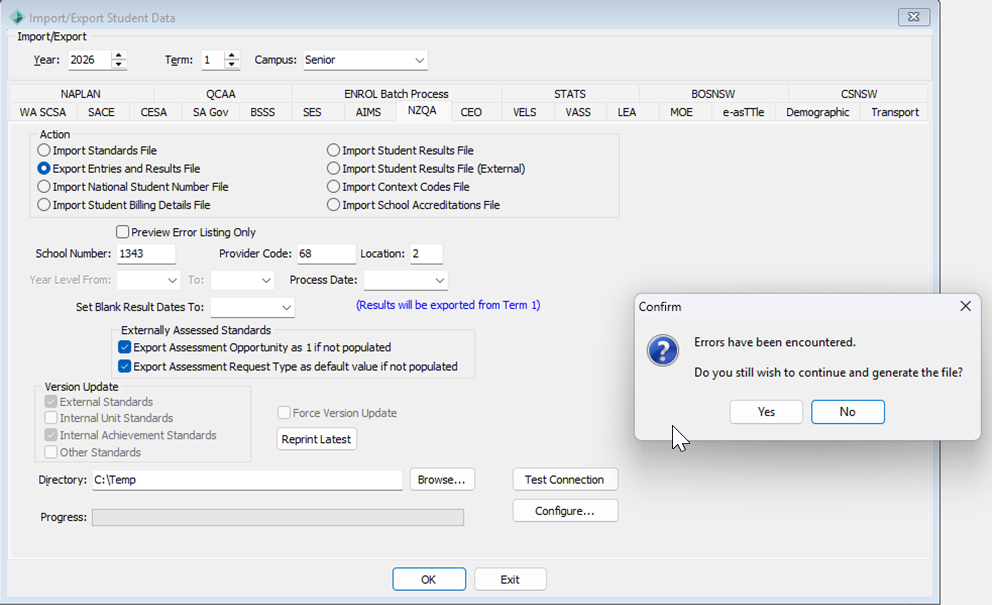
- If any errors are found, users can review them using the ‘NZQA Entries and Results File Error Listing’ report View, which will pop up on the screen - Users can also access the ‘NZQA Entries and Results File Error Listing’ report by selecting the ‘Preview Error Listing Only’ checkbox and clicking ‘Send’ (note that no actual send action will occur when selecting this option) 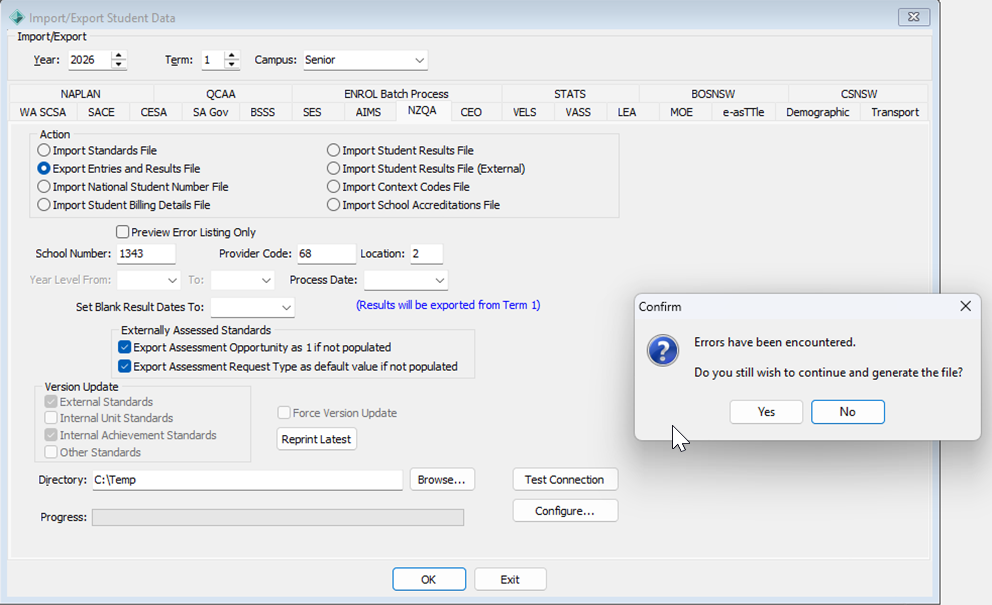
- Once data errors have been corrected, User use the send button on screen to action data transfer 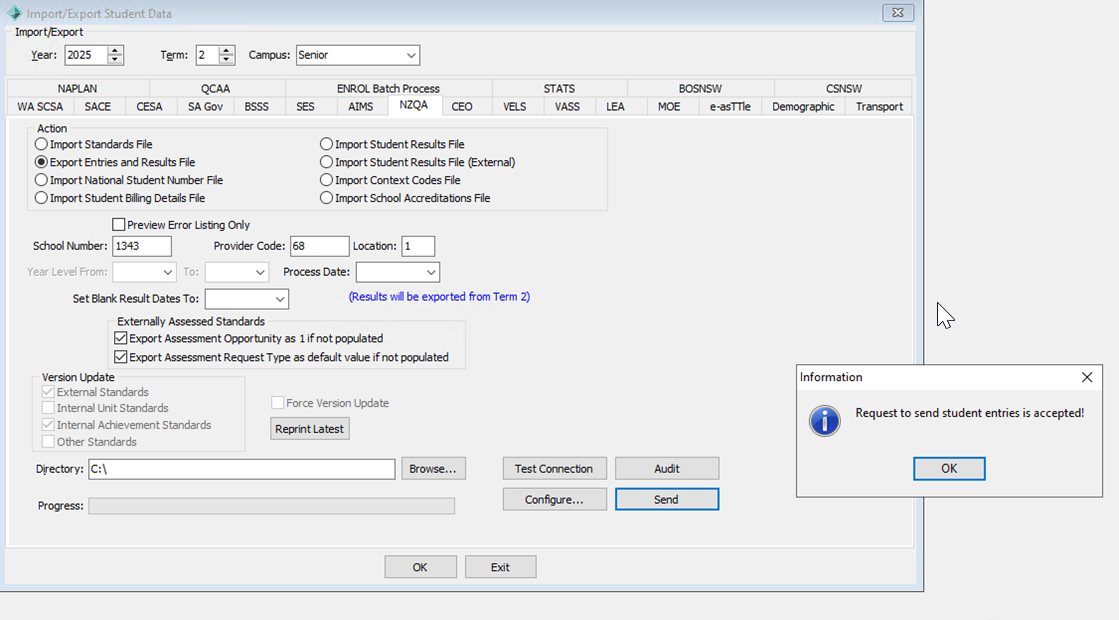
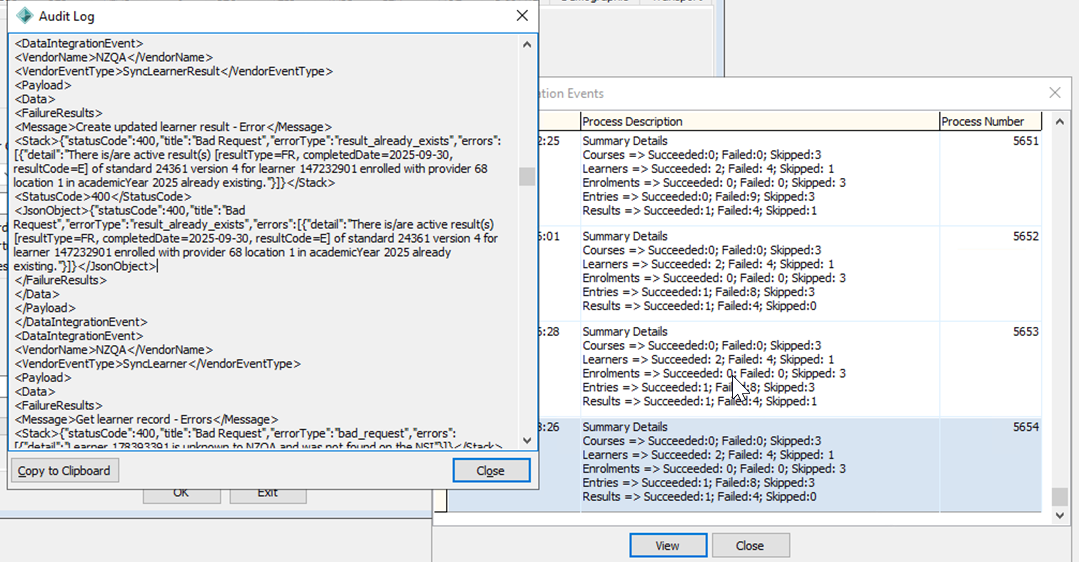
- This replaces the need to export the Student Results file report and upload to the MyNZQA school portal - This begins a background process to sync the Student Results File. If NZQA returns any validation errors one the file has been submitted, they are shown to user on the screen shown when the “Audit” button is clicked, so the relevant data can be adjusted in Synergetic 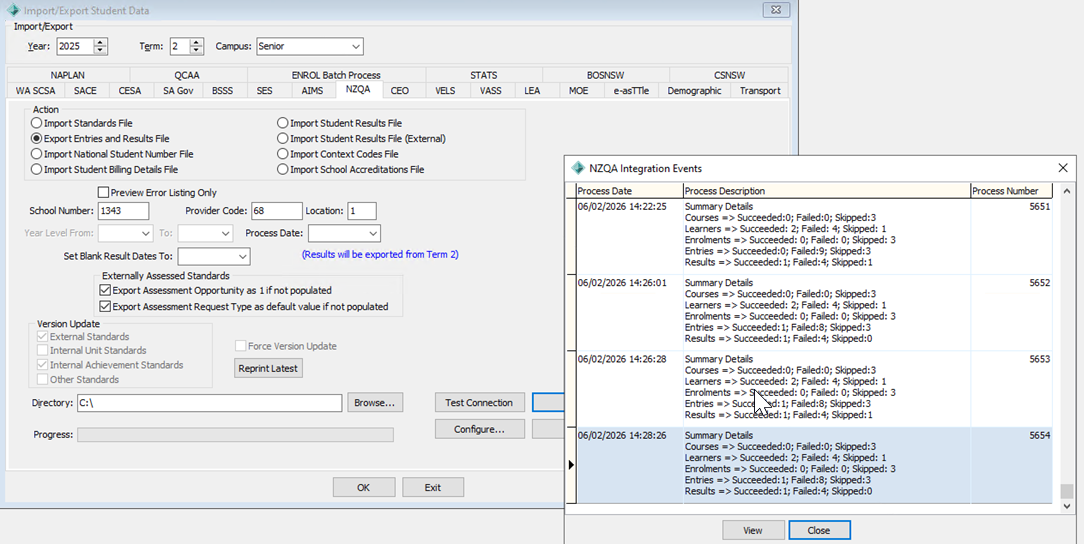
- The Audit screen shows an overview of each run, and the View button can be clicked to view detailed errors, which can also be provided to Synergetic Support or NZQA in the case of any issues that cannot be resolved by the user.
| |||||||||||||||||||||||||||||||||||||||||||||
Import National Student Number File | This import file is no longer provided by NZQA. NZQA stopped providing this file to schools in February 2011. | |||||||||||||||||||||||||||||||||||||||||||||
Import Student Billing Details File | This import file is no longer provided by NZQA. NZQA stopped providing this file to schools in April 2010. | |||||||||||||||||||||||||||||||||||||||||||||
Import Student Results File | Import a Student Results File From - '01 - Secondary Schools Data Exchange - 2024 Specifications V4.3' Paragraph 5. Student Entries - dated 15 March 2024: Overview This file is supplied by NZQA to the requesting school and contains results for their students for the specified academic year. This file is available as a downloadable file from the Schools’ secure website as a dynamic results file for a school for the academic year selected. This will not import standards and results from schools other than the requesting (importing) school.
| |||||||||||||||||||||||||||||||||||||||||||||
Import Student Results File (External) | A similar file to the Import Student Results File above, which can be downloaded from NZQA under “Candidate Results from Other Providers”. This will not import standards and results for the requesting (importing) school, or standards and results for the current Academic Year. This is downloaded when a school is attempting to import information held previously by other schools for students moving to their school.
File detail to be added. | |||||||||||||||||||||||||||||||||||||||||||||
Import Context Codes File | This import file is no longer provided by NZQA. NZQA stopped providing this file to schools in February 2011. The context code is now part of the standards file import.
| |||||||||||||||||||||||||||||||||||||||||||||
Import School Accreditation File | Import school accreditations. From - '01 - Secondary Schools Data Exchange - 2024 Specifications V4.3' Paragraph 7. Student Entries - dated 15 March 2024: This file is supplied by NZQA to the requesting school and contains a list of the standards in which the school currently has Consent to Assess. This file is available as a dynamically generated downloadable file from the school’s secure website or on request to NZQA. File conventions
|
Fields
Field | Description | |
|---|---|---|
Preview Error Listing Only | Select this field to preview the error listing without processing the export. Note: This field is only displayed when the Export Entries and Results File action is selected. | |
School Number | Unique school number assigned to your school by the NZQA. Note: This field is only editable when the Export Entries and Results File action is selected. | |
Provider Code | Unique provider number assigned to your school by the NZQA. Note: This field is only editable when the Export Entries and Results File action is selected. | |
Location | Unique location number assigned to your school by the NZQA. Note: This field is only editable when the Export Entries and Results File action is selected. | |
Year Level From/To | Range of year levels to export. | |
Process Date | Date the export was completed. | |
Set Blank Result Dates To | Select a date to populate blank result dates with the selected date. Note: This field is only editable when the Export Entries and Results File action is selected. | |
Default Assessment Opportunity for Externally Assessed Standards to 1 | Externally assessed standards must have an assessment opportunity. If entering this information manually (see Current Student Maintenance - NCEA tab) or setting it in bulk (see Setting NCEA standards in bulk) is too time consuming, so you can select this field to default the value of the Assessment Opportunity field to 1 for all externally assessed standards. | |
Create Assessment Area for Secondary Course Endorsements | Select to create a subject assessment area for subject assessments with codes that match secondary course numbers in the import. The created subject assessment area will have:
See Subject Assessment Area Maintenance - Area bar - Area tab. Note: This subject assessment area is only created when the subject assessment does not already have a subject assessment area with a SynergyMeaning of NCEASCE. Note: This field is only displayed when the Import Student Results File action is selected. | |
Force Version Update | Used to force updating of Standard's version numbers during 'Import Standards File'. Select to enable editing of the Version Update check boxes (see below). | |
Version Update | Select which Standards to update during 'Import Standards File'. (Updates Standards unique version numbers which get updated by NZQA on a regular basis.)
See Force Version Update above. | |
File Name | Name of the import file. | |
Progress | Progress of the import. | |
Buttons
Button | Description |
|---|---|
 | Select the file location. |
 | Reprint the latest standard version. |
Was this article helpful?
That’s Great!
Thank you for your feedback
Sorry! We couldn't be helpful
Thank you for your feedback
Feedback sent
We appreciate your effort and will try to fix the article