NOTE: Up until 2026, under the previous manual XML upload process, NZQA performed a batch reconciliation when processing the uploaded XML file. During this process, NZQA identified differences between the uploaded XML data and the records already held in their system, and processed the necessary updates, including removing or withdrawing entries that were no longer present in the XML. With the introduction of the new SMS APIs, this batch reconciliation is no longer performed by the NZQA.
TABLE OF CONTENTS
- luReportResultType
- Showing Enrolled and Classification
- Default Print Flags – Enrolled checkbox
- Non-accepted results
- Assessable flag
- Withdrawn students
- Failed exam
- Duplicate standards for a student
- A standard is no longer taught and your site does not want it to exist in Assessment Area Maintenance
- Configuration Keys
- Previewing error report
- Data is not syncing
- Producing the original file from Synergetic
luReportResultType
Per the NZQA website results publication advice for students the following are accepted results
- 'N' for Not achieved
- 'A' for Achieved
- 'M' for Achieved with merit
- 'E' for Achieved with excellence.
Other possible result codes
- 'ABS' for Absent
- 'SNA' for Standards not assessed
- 'RNA' for Results not available.
These results can be maintained via luReportResultType lookup table
Showing Enrolled and Classification
Within Subject Assessment Maintenance > Summary tabs, check
- Print Selectable for Result
- Show Result Classification
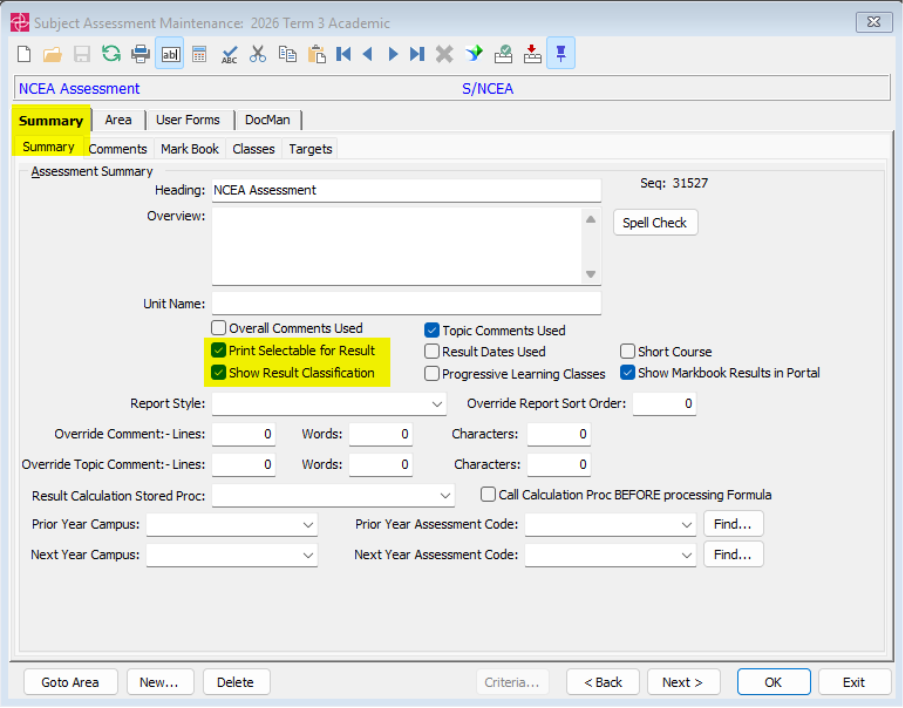
By enabling these, the following fields are shown in Results Maintenance and users can select the Enrolled checkbox and Classification code
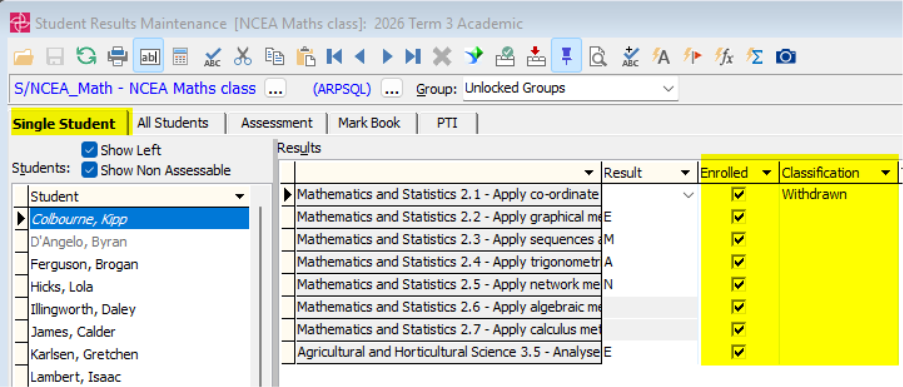
Note: You may not want to enable the ‘Print Selectable for Result’ (Enrolled checkbox) so that teachers do not accidently enrol/unenroll a student
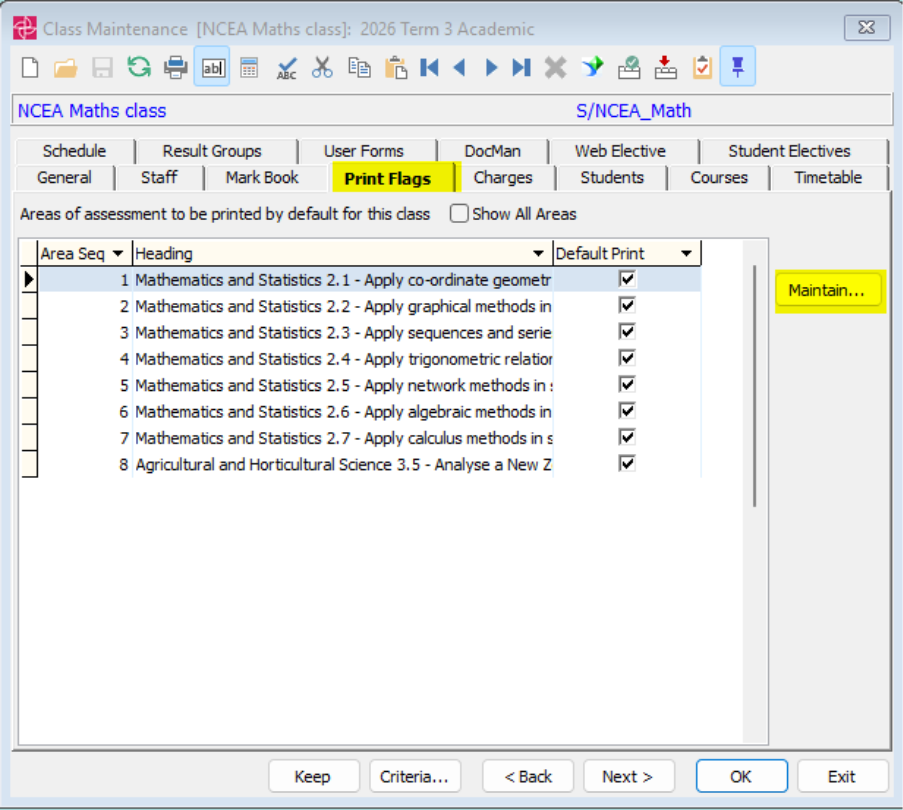
Default Print Flags – Enrolled checkbox
By default, Synergetic usually sets the Enrolled checkbox to checked/true, however if you wish to set these per your own defaults, they can be set at the class level via Class Maintenance > Print Flags tab
Non-accepted results
While there are the accepted results (per above) some sites wish to use other results. E.g. to show an estimated grade.
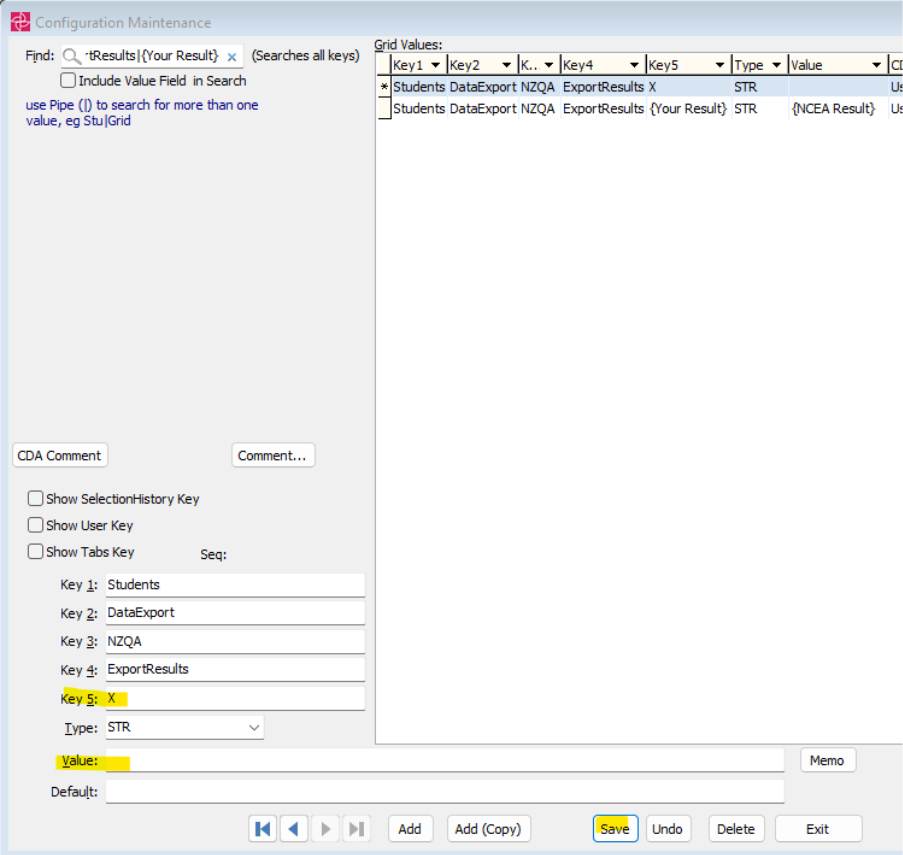
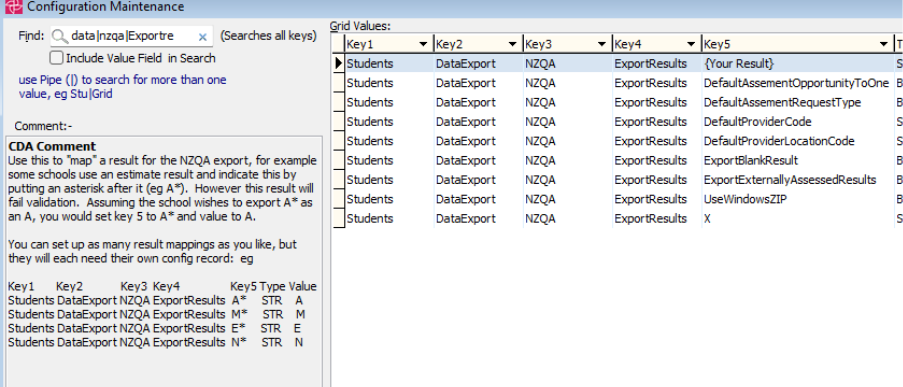
If results outside of the accepted ones are used, these need to be mapped to something NZQA will accept. Within Configuration File Maintenance, search for the following key:
Students|DataExport|NZQA|ExportResults|{Your Result}
NOTE: The above key is an example and is not required to exist. If it does not, you can select the Add button to include the information yourself
For example, you may use X result to make it easier for teachers to identify students who have withdrawn and this will be mapped to a blank result when sending to NZQA
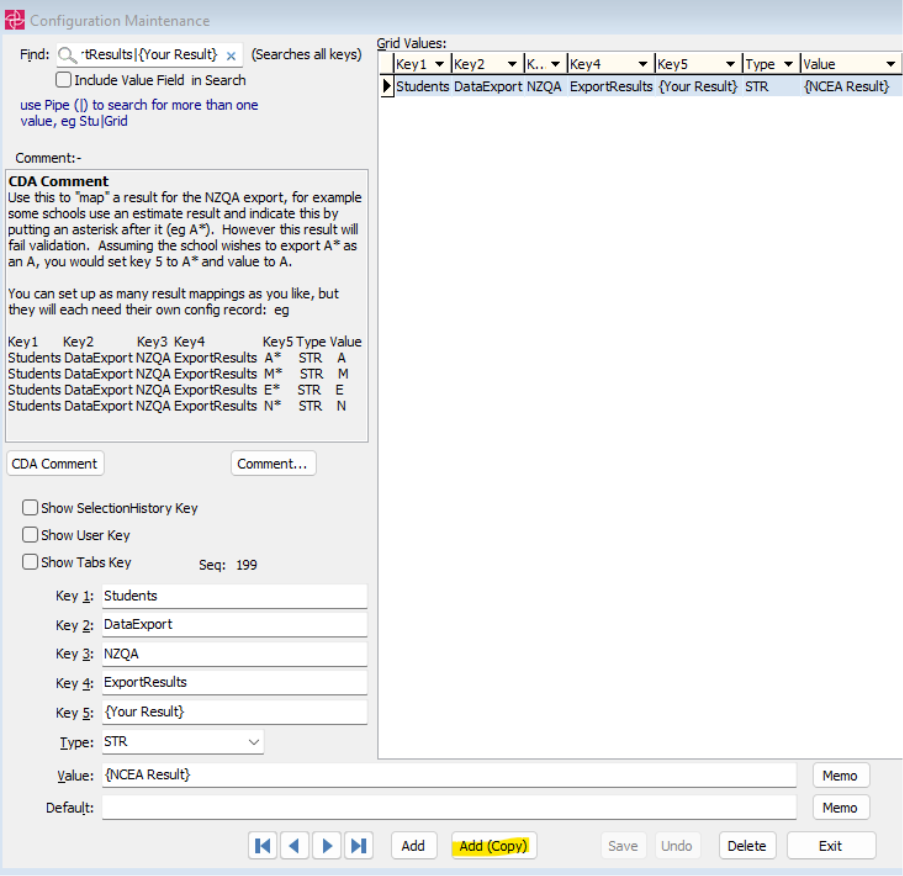
Select the “Add (Copy)” button
Modify Key5 and Value fields to match your requirement
Save the changes
Assessable flag
In order for results to be sent, students should remain Assessable
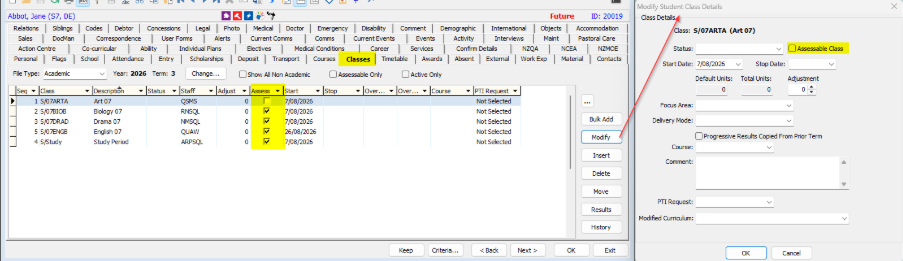
Note that processes like Timetable imports can automatically modify this. Once a students data has been synchronized between NZQA and Synergetic, they can then remain non-assessable if you wish.
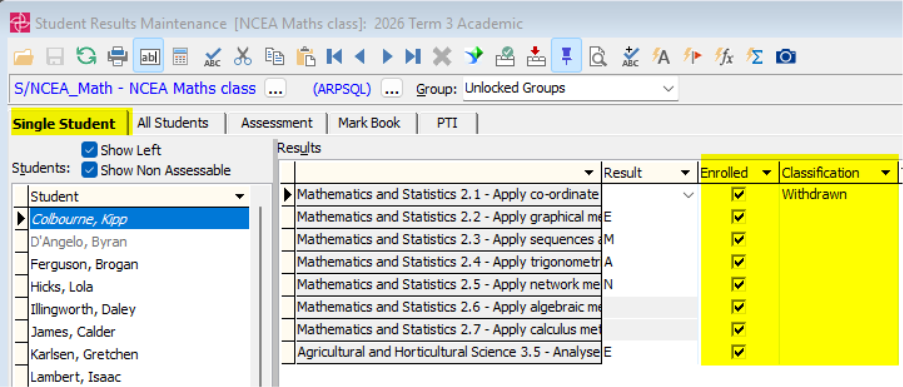
Withdrawn students
- Assessable flag needs to be checked/true
- Enrolled print flag needs to be checked/true
- Classification = Withdrawn
E.g.
Failed exam
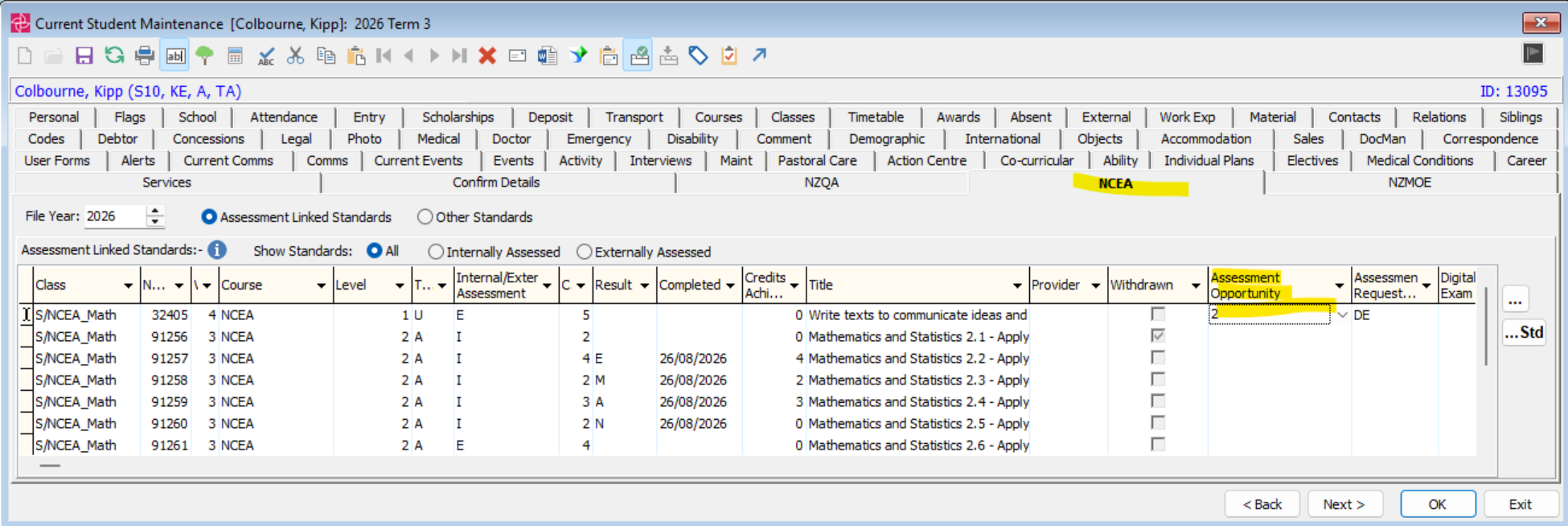
If a student has failed an exam and the standard allows for a resit.
All current data, e.g. Result, Dates, etc can remain as is. When the student resits the exam, the Assessment Opportunity can be updated (e.g. to 2 or 3) and any other relevant information, i.e. Result, Date etc.
Duplicate standards for a student
E.g. in General Mathematics and Specialist Mathematic classes both assessing the same standard.
This would require a discussion with both teachers of each class, where only one will submit their assessment result. The other staff member will uncheck the ‘Enrolled’ checkbox (just for this specific standard for the specific child) from their class so that it will not submit to NZQA.
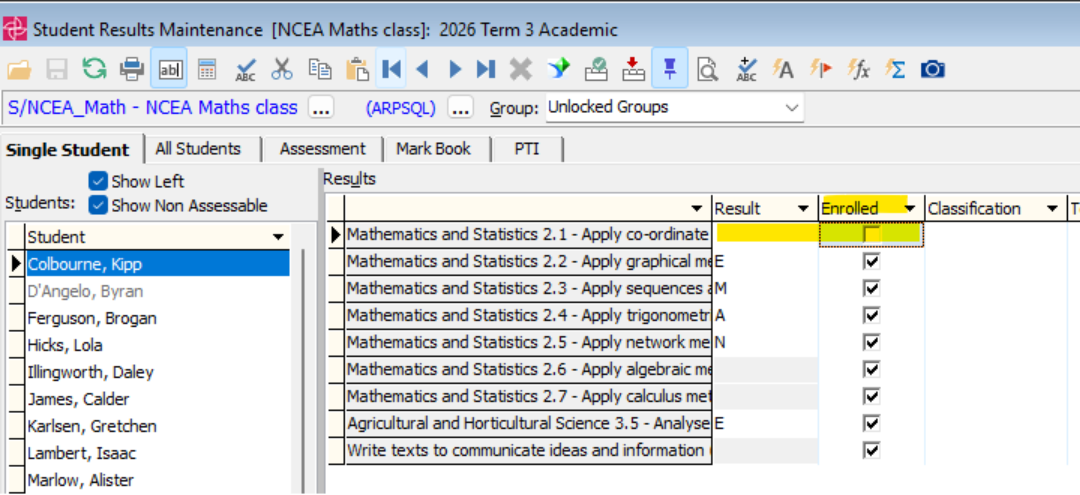
A standard is no longer taught and your site does not want it to exist in Assessment Area Maintenance
Follow the process to Withdraw Students
Once syncronised with NZQA website (i.e. student is noted as withdrawn from your school) then you may then remove the assessment area
Configuration Keys
Take note of other keys. While they may not be specifically for NCEA, they may be standard Synergetic configurations for results maintenance.
E.g.
Previewing error report
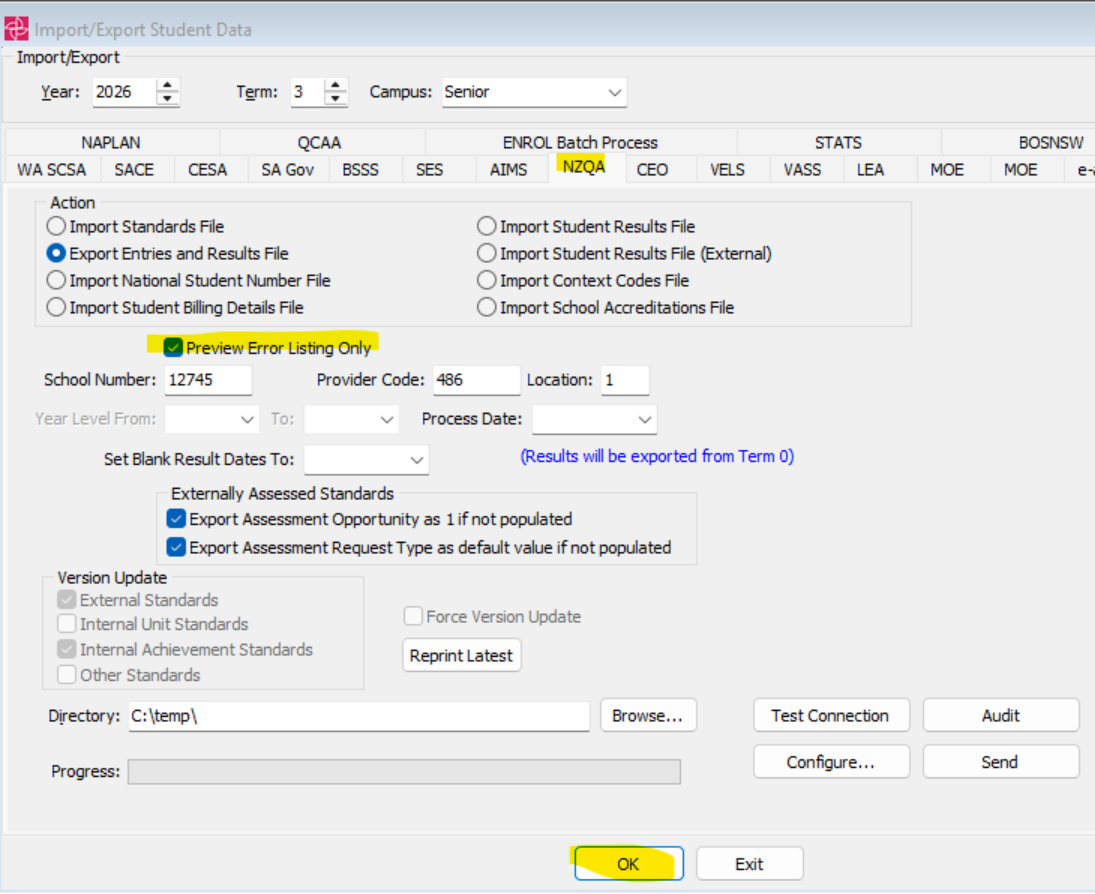
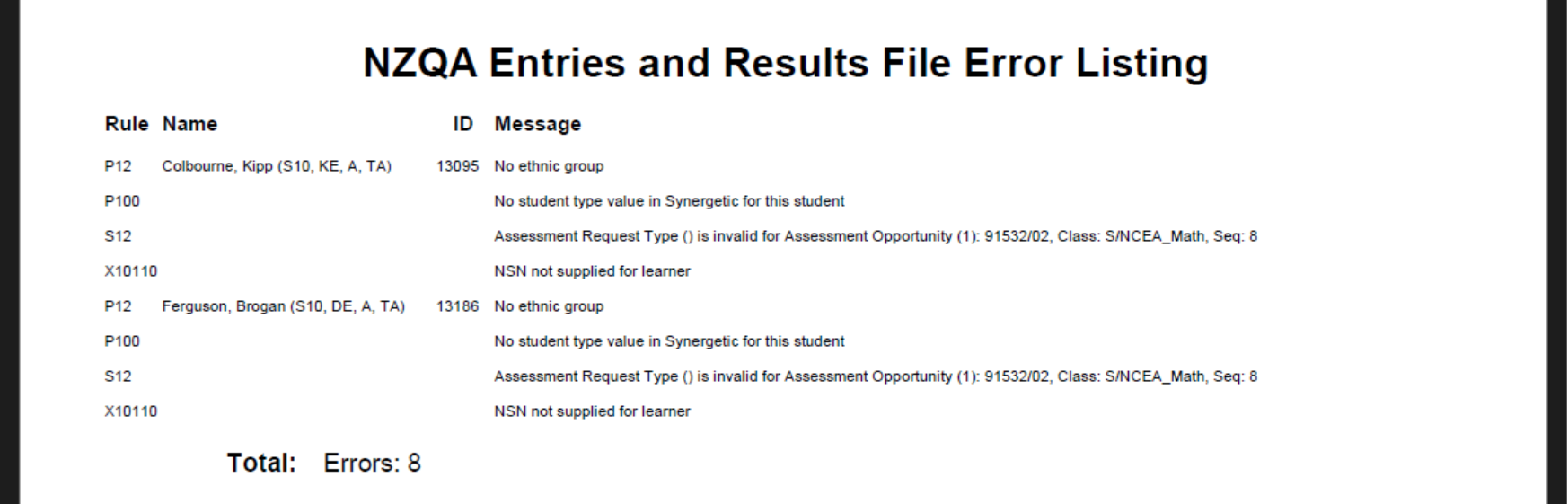
Prior to sending to NZQA, the Error Listing report can be previewed. This will list any possible errors identified so that you can resolve.
Check the ‘Preview Error Listing Only’ and select the OK button.
E.g.
Data is not syncing
If data is not uploading to the NZQA website from Synergetic, ensure that the assessable flag and enrolled and classifications are set correctly. Without these the specific standards will not be sent.
Producing the original file from Synergetic
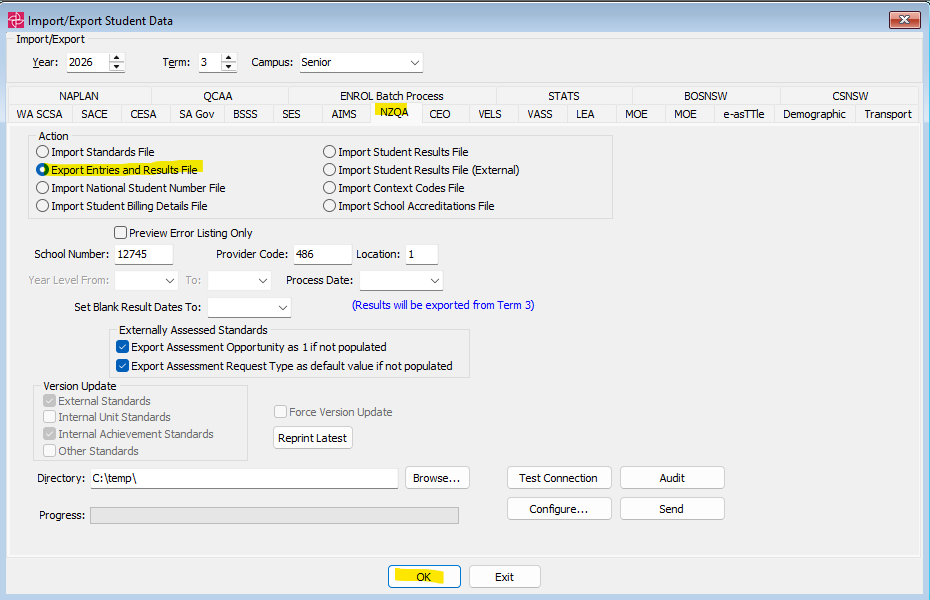
To see what data will be sent via the API, the original .xml file can still be produced. Within Student Data Import/Export > NZQA tab. Selecting the OK button will produce the file in the selected Directory.
Was this article helpful?
That’s Great!
Thank you for your feedback
Sorry! We couldn't be helpful
Thank you for your feedback
Feedback sent
We appreciate your effort and will try to fix the article