To export superannuation details:
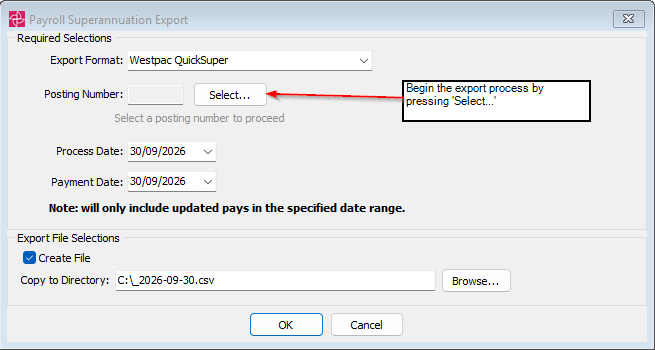
- Select Module > Payroll > Payroll Superannuation Export from the main menu.
The Payroll Superannuation Export window is displayed.
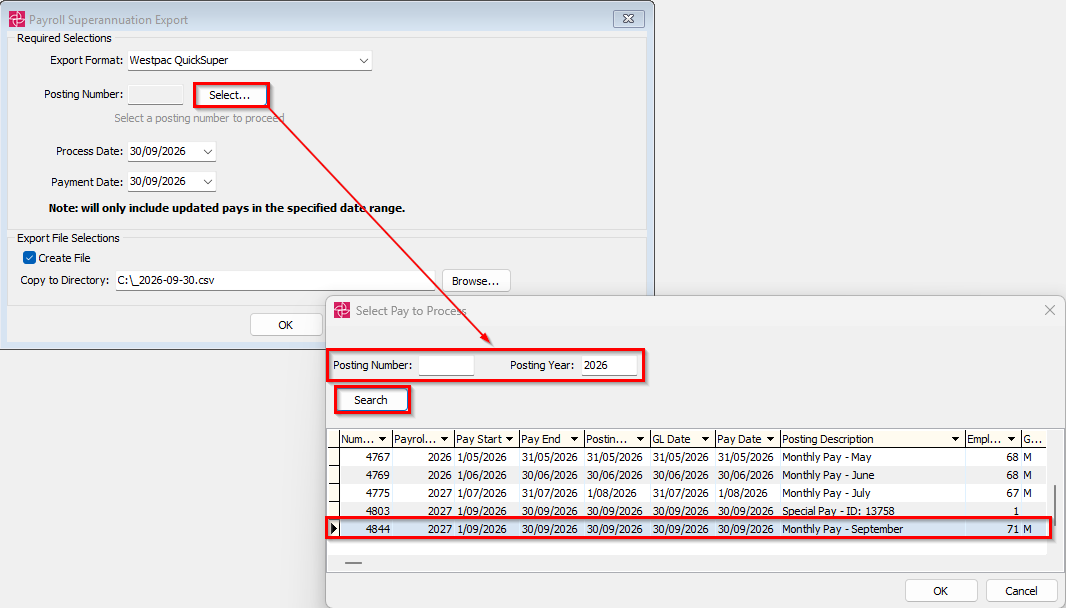
2. In the Select Pay to Process window enter a Posting Number or Posting Year and Click on Search.
The grid will populate with fully executed closed pay runs.
Select the Posting and Click
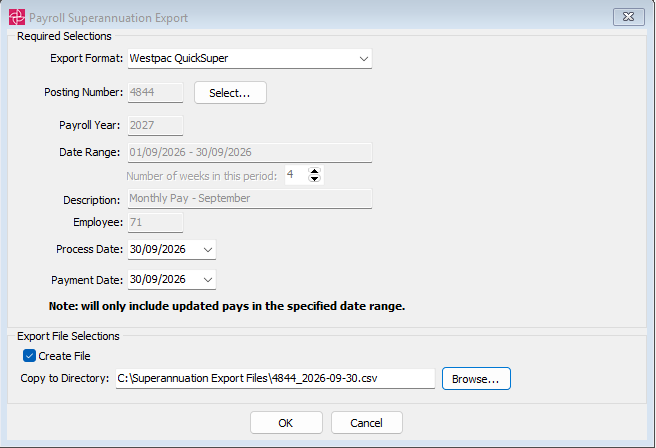
The details of the Posting Number will now be visible on the Payroll Superannuation Export window.
3. Enter the Process Date and Payment Date, browse to where the file is to be saved and Click OK
The Payroll Superannuation Export Summary Report will populate to the screen and the export file created

You can now upload the export file to your superannuation clearing house.
Payroll Superannuation Export window key fields and buttons
Fields
Field | Description |
|---|---|
Export Format | Select the format of the export file:
|
| Date Range | Will be populated from Pay Posting selected |
Number of weeks in this period | Will be populated from Pay Posting selected |
Description | Will be populated from Pay Posting selected |
Process Date | If required, override the processing date |
Payment Date | Date of the superannuation payment |
Create File | Clear this field if you do not want to create a file, for example if you only want to have a quick look at the figures. The report displays on the screen. If everything is OK you can then select this field and reprocess. |
Copy to Directory | Override the file and directory last used to export the superannuation details to. |
Buttons
Button | Description |
|---|---|
Browse for the directory and file to export the superannuation details to. |


Was this article helpful?
That’s Great!
Thank you for your feedback
Sorry! We couldn't be helpful
Thank you for your feedback
Feedback sent
We appreciate your effort and will try to fix the article