TABLE OF CONTENTS
- Custom Student Search
- Creating a New User Search
- Searching by Country of Birth
- Searching by Dietary Requirement
- Searching by Religion (Lookup Table)
- Searching by Religion (Description)
- Searching by Parish (Lookup Table)
- Searching by Parish (Description)
- Searching by Year Level Range
- Creating a New User Search
- Group Box for Timetable Criteria
- Selecting Classes from a Single Day
- Selecting Classes from a Range of Days
- Selecting Classes from a Single Period
- Selecting Classes from a Range of Periods
- Selecting Classes that Operate in a Single Room
- Selecting Classes that Operate in Rooms with a Common Description Fragment
- Group Box for Normal Year Level Criteria
- Selecting Classes for a Given Normal Year Level
- Selecting Classes from a Range of Normal Year Levels
- Drop Downs from Other Sources
- Searching with a Checkbox
- Boolean Selection
Search Criteria windows in Synergetic allow users to search for records based on various criteria.
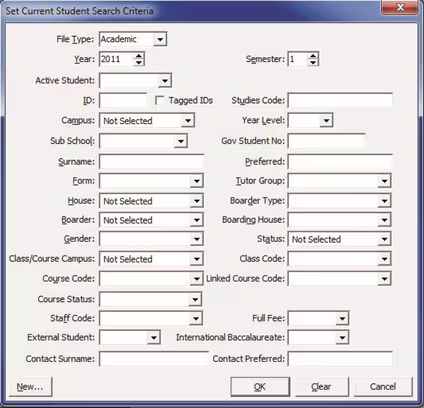
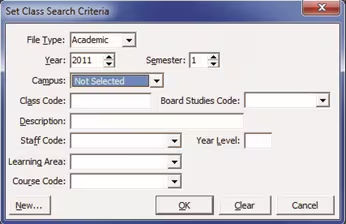
Sometimes users would like to be able to search based on values that do not appear on the standard Search Criteria windows. Schools may add custom criteria to the standard search criteria with User Search screens. These add a [Custom...] button at the bottom of the Search Criteria screen which links to another window to which the School can add their own criteria.
For example, custom criteria in Current Student Maintenance:
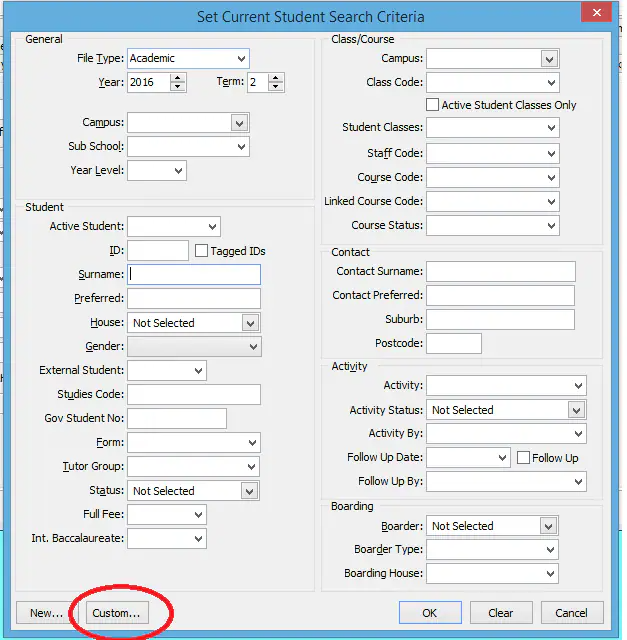
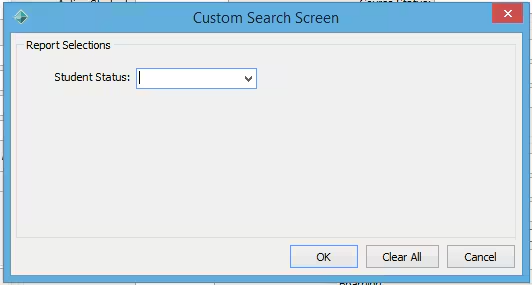
There are two main steps in doing this:
1) Design the custom criteria screen
2) Give the appropriate users permissions to use the custom criteria screens
Limitation: For each maintenance program the organisation may only have one custom search screen.
Custom Student Search
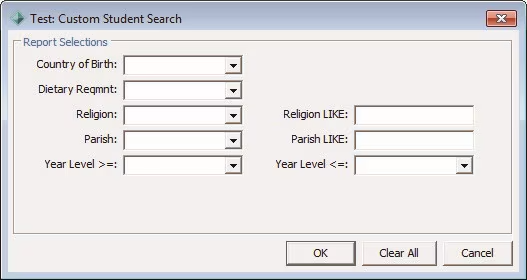
Schools will want their own set of criteria but the ones in the example here are designed to demonstrate a number of different ways of searching and how to add those to User Search screens.
Getting Started
The first steps in setting up a custom user search screen are to identify:
1) Which maintenance program you will add the custom search criteria to.
2) Which field uniquely identifies the records in that maintenance program.
In the case of Current Student Maintenance the ID of the student uniquely identifies the records that appear in the Grid Selector:
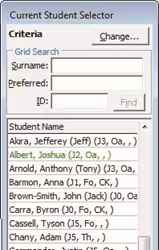
We need to know this as when creating the custom criteria we will have to create an SQL statement that returns values of that unique field.
Creating a New User Search
To create a new User Search screen select the User/Report Form Editor:
System > User/Report Form Editor
This will show entries for Crystal Reports and User Forms as well as any User Search screens that have been set up.
You can filter the list to show just the User Search screens using the ResourceType: filter at the top of the Report Selector.

Do this first as you will not be able to add a new User Search for any maintenance program that already has a User Search screen. In that case you could add additional criteria to the existing search criteria instead.
Assuming you have no existing User Search for the module STU we can add a new one now. To do this:
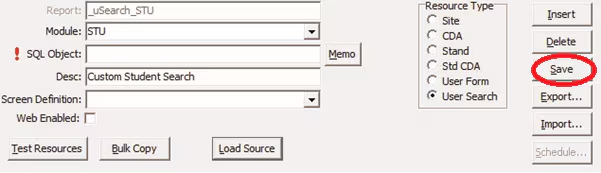
1) Click on the Insert button at the bottom of the Report Selector window
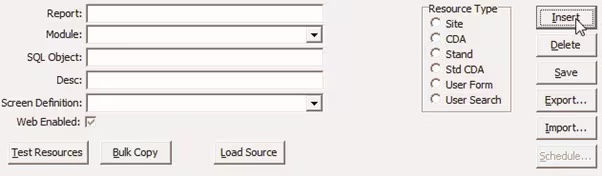
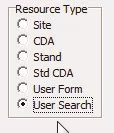
2) Select User Search in the Resource Type area:
3) Select Module: STU
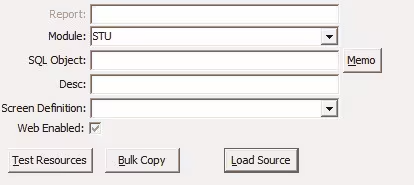
4) You can also add a description in the Desc field though it is not necessary:

5) Click on the Save button on the Report Selector window:
6) The next important consideration is to determine which fields you want to search on and where that information can be found in the database.
Consider the custom criteria screen we are creating:
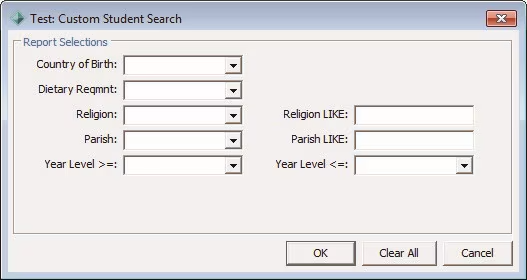
| The fields of interest are: | ||
| Table: | Field Name: | |
| Country of Birth | Community | CountryOfBirthCode |
| Dietary Requirement | Community | DietaryRequirementCode |
| Religion (from a drop down) | Community | ReligionCode |
| Religion (searching the description) | luReligion | Description |
| Parish (from a drop down) | Community | ParishCode |
| Parish (searching the description) | luParish | Description |
| Year level >= | StudentYears | YearLevel |
| Year level <= | StudentYears | YearLevel |
The SQL Object field in the Report Selector will require an SQL statement that returns student/community IDs. It will also have to include the tables which contain the fields we wish to limit the search on.

Searching by Country of Birth
Country of Birth is found in the Community Table. Therefore we will need to include it in the SQL statement.
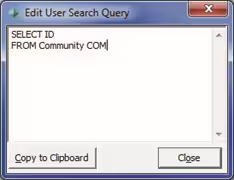
SQL Statement
Click on the [Memo] button next to the SQL Object field and add the following select statement.
Group Box
On the User Form Designer click on [Insert]
This will add a group box and a sample custom criteria:

The group box allows us to group thematically related items into one area on the screen.
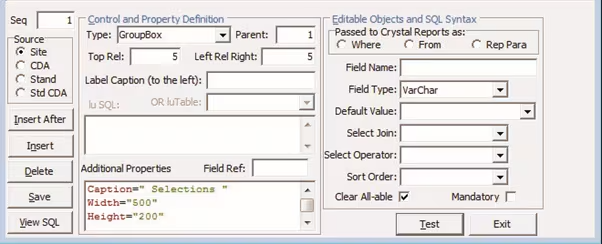
You can change the label and the dimensions of the box in the Additional Properties area. Change the Width value to 500.
Criteria Using a Lookup Table
Select the Sample field row and, down the bottom of the User Form Designer window, change the entry to:
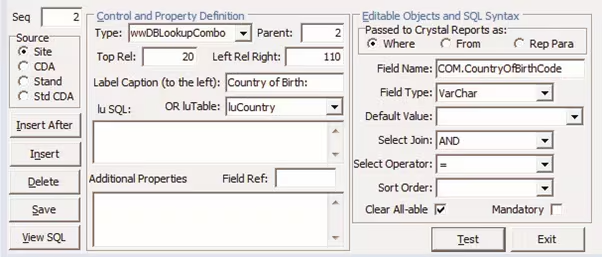
| Type: wwDBLookupCombo This field is going to be a dropdown box populated by values from a lookup table. |
| Parent:2 This means that this field is contained in the Group Box defined above. |
| Top Rel: 20 Top Rel determines how far down the window this item will appear in relation to the previous entry. |
| Left Rel Right: 110 Left Rel Right determines how far across the page this item will appear. If Top Rel is 0 then the distance is in relation to the previous item. If this is the first item on a new row then the count starts from the left of the screen. The value specifies the start of the entry field (edit box or drop down). The label appears to the left of this point so you need to ensure you have left enough space for the label. |
| Label Caption (to the left): Country of Birth: This is the label appearing on the left of the drop down |
| luTable: luCountry Populate the drop down from this lookup table. |
| Passed to Crystal Reports as: Where |
| Field Name: COM.CountryOfBirthCode |
| Field Type: VarChar · Select Join: AND · Select Operator: = |
The cumulative result of these last 5 fields are that the SQL statement will be filtered with:
WHERE COM.CountryOfBirthCode = <the value selected in the drop down>
Note we have aliased the community table as COM and referred to the field using the table and field name. At this point it is not strictly necessary. It will become useful later when we are joining tables where field names may occur in both tables.
Save and Test
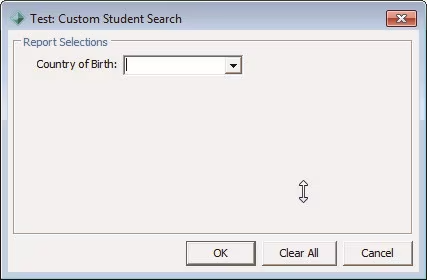
Click on [Save] on the User Form Designer Window. You can then use the [Test] button to see how the selection screen will look.
Searching by Dietary Requirement
The field for Dietary Requirement is found in the Community table. Therefore, as it is in the same table as before, we will not need to add a new table to the SELECT statement.
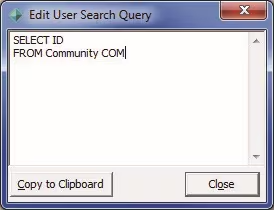
SQL Statement
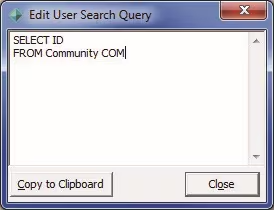
The SQL Statement remains as before.
Adding a New Criteria
Select the Country of Birth criteria line in the User Form Designer and click on the [Insert After] button in the bottom section of the screen.
Criteria Using a Lookup Table
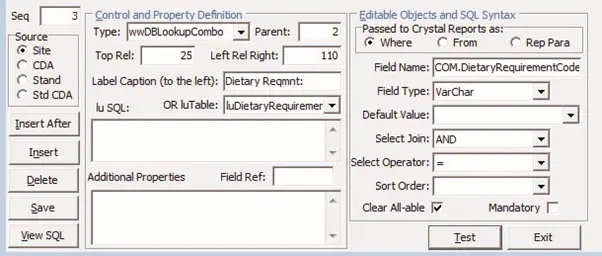
| Type: wwDBLookupCombo This field is going to be a dropdown box populated by values from a lookup table. |
| Parent:2 This means that this field is contained in the Group Box defined above. |
| Top Rel: 25 This appears below the line for Country of Birth. |
| Left Rel Right: 110 As this is below Country of Birth using the same value for Left Rel Right aligns the start of the 2 drop down boxes. |
| Label Caption (to the left): Dietary Reqmnt: This is the label appearing on the left of the drop down |
| luTable: luDietaryRequirement Populate the drop down from this lookup table. |
| Passed to Crystal Reports as: Where |
| Field Name: COM.DietaryRequirementCode |
| Field Type: VarChar · Select Join: AND · Select Operator: = |
Save and Test
Click on [Save] on the User Form Designer Window. Click on the [Test] button to see how the selection screen will look.
Searching by Religion (Lookup Table)
ReligionCode is found in the Community table. Therefore, as it is in the same table as before, we will not need to add a new table to the SELECT statement.
SQL Statement
The SQL Statement remains as before.
Adding a New Criteria
Select the Dietary Requirement criteria line in the User Form Designer and click on the [Insert After] button in the bottom section of the screen.
Criteria Using a Lookup Table
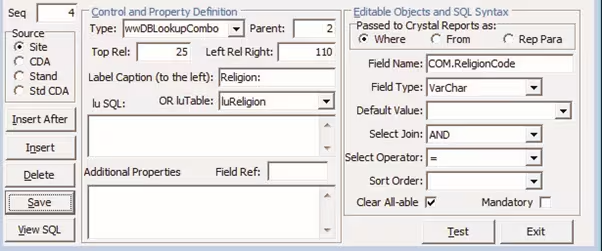
| Type: wwDBLookupCombo |
| Parent:2 |
| Top Rel: 25 This appears below the line for Dietary Requirement. |
| Left Rel Right: 110 |
| Label Caption (to the left): Religion: |
| luTable: luReligion |
| Passed to Crystal Reports as: Where |
| Field Name: COM.ReligionCode |
| Field Type: VarChar |
| Select Join: AND |
| Select Operator: = |
Save and Test
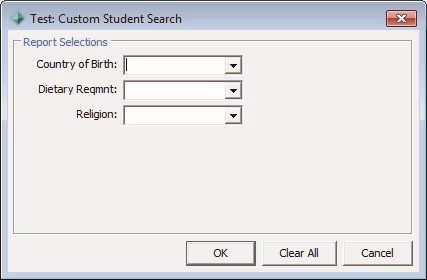
Click on [Save] on the User Form Designer Window. Click on the [Test] button to see how the selection screen will look.
Searching by Religion (Description)
In the Community table there is a field for ReligionCode which we filtered on in the previous section. There is not a field for Religion Description however so to filter on Religion
Description we will have to join the Community table to the lookup table luReligion and obtain the Description column from there instead.
SQL Statement
The SQL Statement becomes:
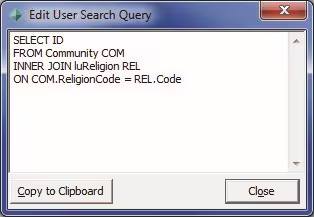
Adding a New Criteria
Select the Religion criteria line in the User Form Designer and click on the [Insert After] button in the bottom section of the screen.
Criteria Using an Edit Box
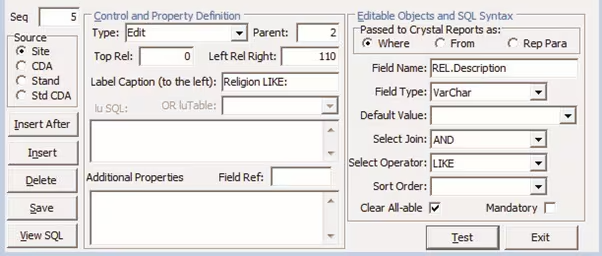
| Type: Edit This allows the user to type in part or all of the religion description and use wildcards (% and _) when they search the religion description. |
| Parent:2 |
| Top Rel: 0 This appears on the same line as Religion. |
| Left Rel Right: 110 |
| Label Caption (to the left): Religion LIKE: |
| Passed to Crystal Reports as: Where |
| Field Name: REL.Description |
| Field Type: VarChar |
| Select Join: AND |
| Select Operator: LIKE |
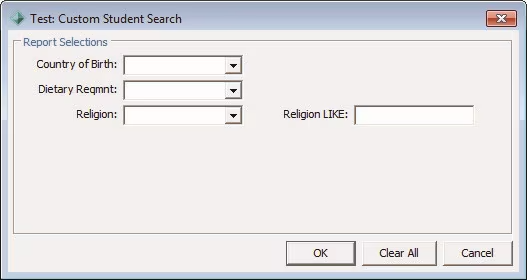
Save and Test
Click on [Save] on the User Form Designer Window. Click on the [Test] button to see how the selection screen will look.
Searching by Parish (Lookup Table)
ParishCode is found in the Community table. Therefore as it is in the same table as before we will not need to add a new table to the SELECT statement.
SQL Statement
The SQL Statement remains as before.
Adding a New Criteria
Select the Religion LIKE criteria line in the User Form Designer and click on the [Insert After] button in the bottom section of the screen.
Criteria Using a Lookup Table
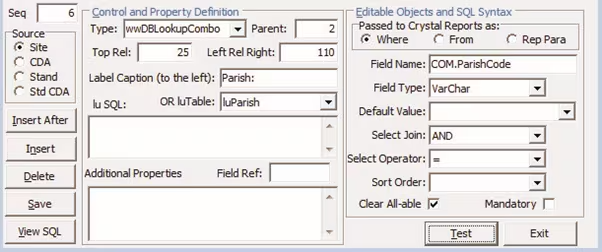
| Type: wwDBLookupCombo |
| Parent:2 |
| Top Rel: 25 This appears below the line for Religion and Religion LIKE. |
| Left Rel Right: 110 |
| Label Caption (to the left): Parish: |
| luTable: luParish |
| Passed to Crystal Reports as: Where |
| Field Name: COM.ParishCode |
| Field Type: VarChar |
| Select Join: AND |
| Select Operator: = |
Save and Test
Click on [Save] on the User Form Designer Window. Click on the [Test] button to see how the selection screen will look.
Searching by Parish (Description)
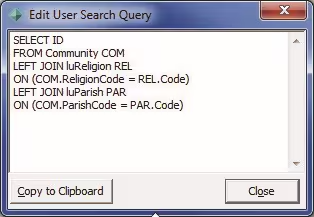
In the Community table there is a field for ParishCode which we filtered on in the previous section. There is not a field for Parish Description however so to filter on Parish Description we will have to join the Community table to the lookup table for Parish and obtain the Description column from there instead. We did this previously for Religion Description.
SQL Statement
The SQL Statement becomes:
Adding a New Criteria
Select the Parish criteria line in the User Form Designer and click on the [Insert After] button in the bottom section of the screen.
Criteria Using an Edit Box
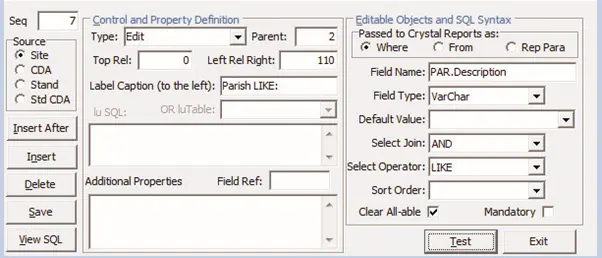
| Type: Edit This allows the user to type in part or all of the parish description and use wildcards (% and _) when they search the parish description. |
| Parent:2 |
| Top Rel: 0 This appears on the same line as Parish. |
| Left Rel Right: 110 |
| Label Caption (to the left): Parish LIKE: |
| Passed to Crystal Reports as: Where |
| Field Name: PAR.Description |
| Field Type: VarChar |
| Select Join: AND · Select Operator: LIKE |
Save and Test
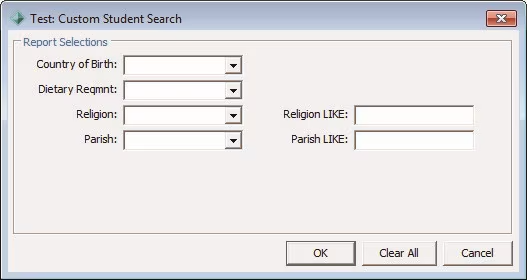
Click on [Save] on the User Form Designer Window. Click on the [Test] button to see how the selection screen will look.
Searching by Year Level Range
The Year Level of a student is stored in the StudentYears table so in order to search for the Year Level of a student we will need to join the Community table to the StudentYears table. Additionally, as the StudentYears table contains a record for each calendar year that the student is at the school we will need to limit the records to those from the file semester selected on the main Search Criteria screen.
SQL Statement
The SQL Statement becomes:
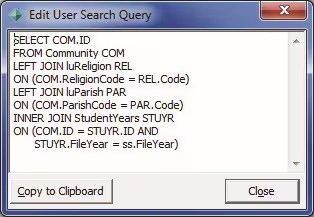
Notes:
1) We have to change the first line from SELECT ID to Select COM.ID (or STUYR.ID) as there are now ID fields in two of the joined tables and we have to specify which one to return or we get an error about there being ambiguity about ID.
2) We INNER JOIN to StudentYears.
3) The ON clause for the join to StudentYears links StudentYears to Community on ID. It also links the StudentYears table to the selected FileYear by referring to ss.FileYear. ss is the alias given to a table in the surrounding SELECT statement for the standard custom screen. The name is set in the code for the program.
Criteria Using a Lookup Table
First field for greater than or equal to a year level:
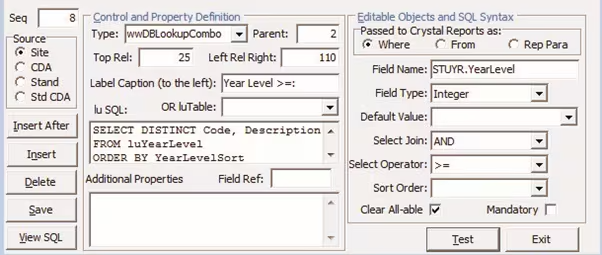
| Type: wwDBLookupCombo. |
| Parent:2 |
| Top Rel: 25 |
| Left Rel Right: 110 |
| Label Caption (to the left): Year Level >=: |
| lu SQL: SELECT DISTINCT Code, Description FROM luYearLevel ORDER BY YearLevelSort You can use an SQL Statement rather than be limited to just an luTable to appear in the dropdown. |
| Passed to Crystal Reports as: Where |
| Field Name: STUYR.YearLevel |
| Field Type: Integer |
| Select Join: AND |
| Select Operator: >= |
Second field for less than or equal to a year level:
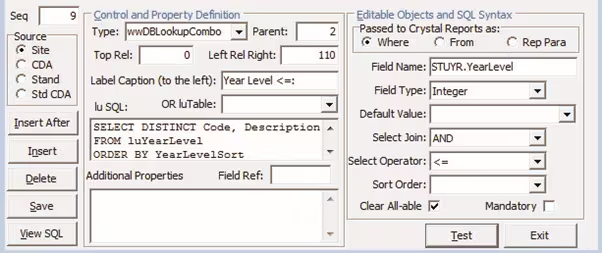
| Type: wwDBLookupCombo. |
| Parent:2 |
| Top Rel: 0 |
| Left Rel Right: 110 |
| Label Caption (to the left): Year Level <=: |
| lu SQL: SELECT DISTINCT Code, Description FROM luYearLevel ORDER BY YearLevelSort |
| Passed to Crystal Reports as: Where |
| Field Name: STUYR.YearLevel |
| Field Type: Integer |
| Select Join: AND |
| Select Operator: <= |
Save and Test
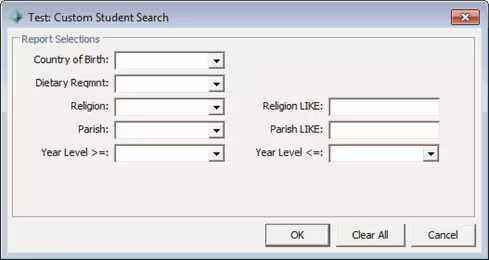
Click on [Save] on the User Form Designer Window. Click on the [Test] button to see how the selection screen will look.
Custom Class Search
The main difference with the custom Class User Search in this section is that rather than an ID, the query has to return the SubjectClassSeq number. It also demonstrates separating the User Search into different areas.
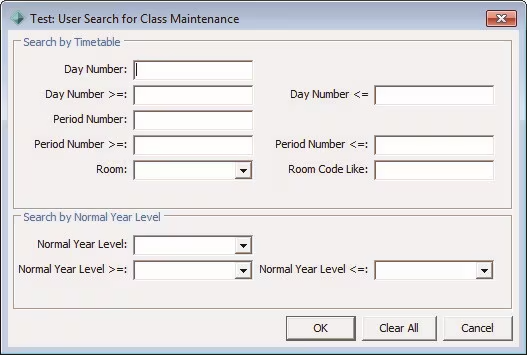
Creating a New User Search
To add a new User Search for Classes ensure that you are in the User/Report Form Editor Program:
System > User/Report Form Editor
Assuming you have no existing User Search for the module REPCLS we can add a new one now. To do this:
1) Click on the Insert button at the bottom of the Report Selector window
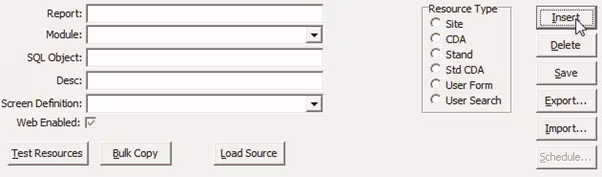
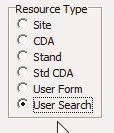
2) Select User Search in the Resource Type area:
3) Select Module: REPCLS
4) You can also add a description in the Desc field though it is not necessary:
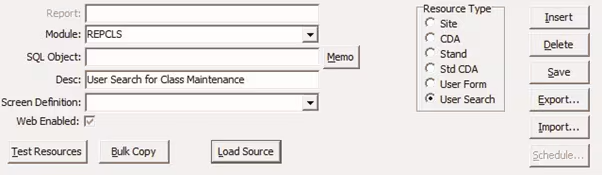
5) Click on the [Save] button on the Report Selector window.
SQL Statement
The next important consideration is to determine which fields you want to search on and where that information can be found in the database.
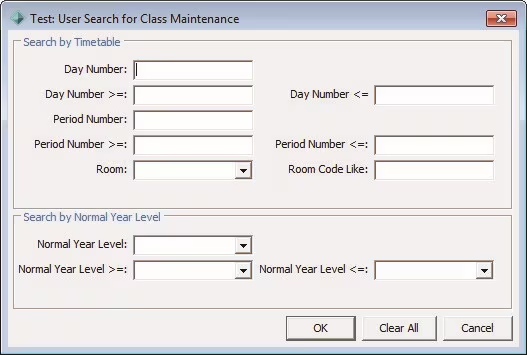
Consider the custom criteria screen we are creating.
The fields of interest are:
| Table: | Field Name: | |
| Day Number | Timetable | DayNumber |
| Day Number >= | Timetable | DayNumber |
| Day Number <= | Timetable | DayNumber |
| Period Number | Timetable | PeriodNumber |
| Period Number >= | Timetable | PeriodNumber |
| Period Number <= | Timetable | PeriodNumber |
| Room | Timetable | Room |
| Room Code Like | Timetable | Room |
| Normal Year Level: | SubjectClasses | NormalYearLevel |
| Normal Year Level >=: | SubjectClasses | NormalYearLevel |
| Normal Year Level <=: | SubjectClasses | NormalYearLevel |
The SQL Object field in the Report Selector will require an SQL statement that returns class sequence numbers which are found in the SubjectClasses table. Even if we did not have criteria from SubjectClasses we would still need to join to it to obtain the sequence number. It will also have to include the tables which contain the fields we wish to limit the search on.

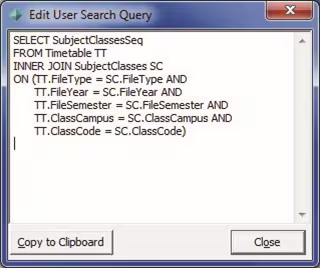
Notes:
1) We could specify that the returned value is SC.SubjectClassesSeq or simply SubjectClassesSeq as this column name only appears in one of the joined tables and leaving out the table name does not cause any ambiguity.
2) Joining the Timetable table to the SubjectClasses table involves matching those records from the two tables where the ClassCode, FileYear, FileSemester, ClassCampus and FileType are all the same.
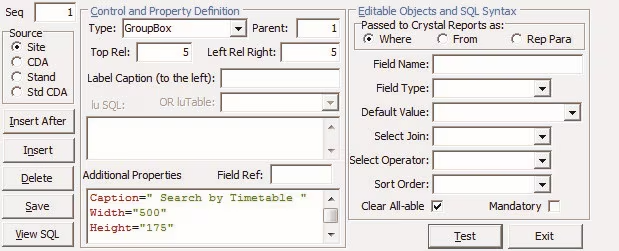
Group Box for Timetable Criteria
Note the Caption, Width and Height changes.
Selecting Classes from a Single Day
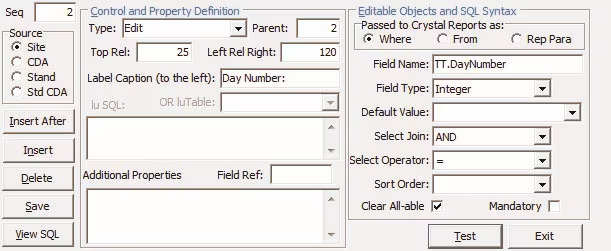
Selecting Classes from a Range of Days
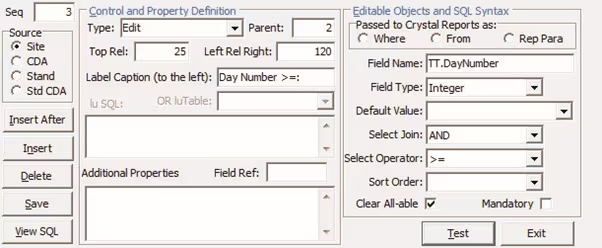
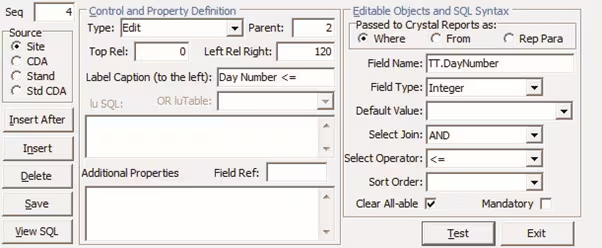
Selecting Classes from a Single Period
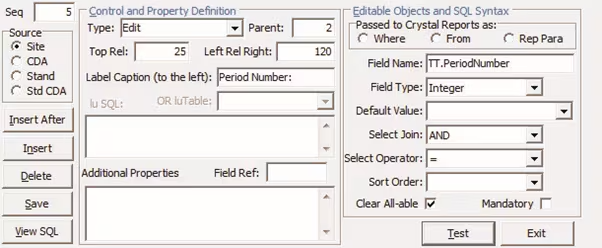
Selecting Classes from a Range of Periods
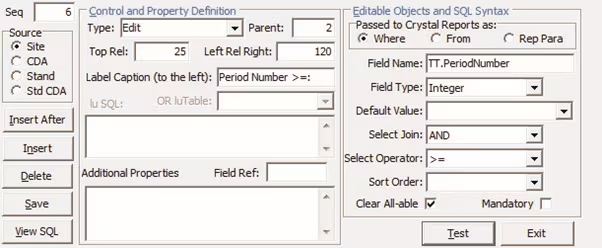
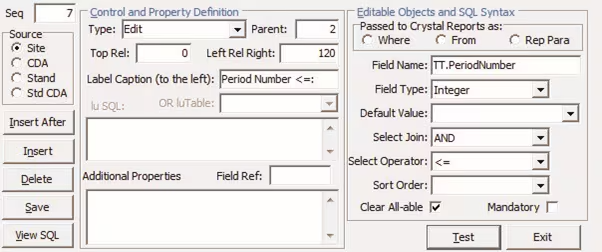
Selecting Classes that Operate in a Single Room
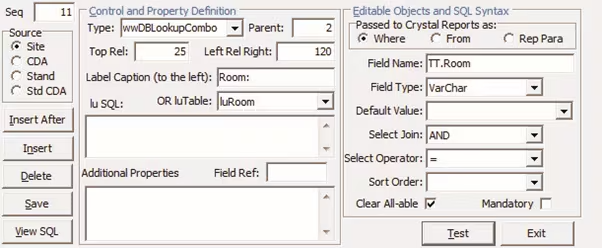
Selecting Classes that Operate in Rooms with a Common Description Fragment
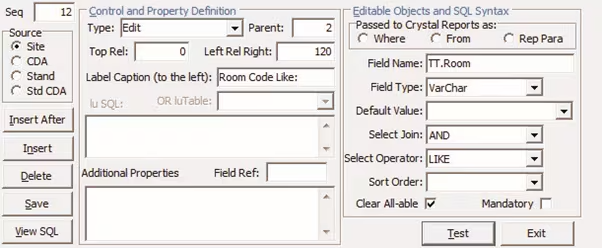
Group Box for Normal Year Level Criteria
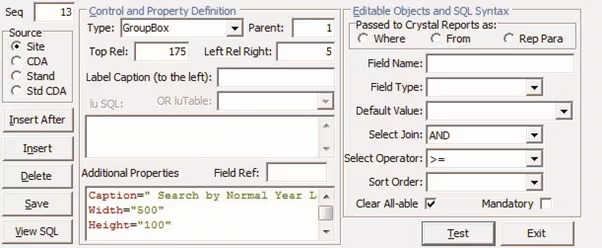
Selecting Classes for a Given Normal Year Level
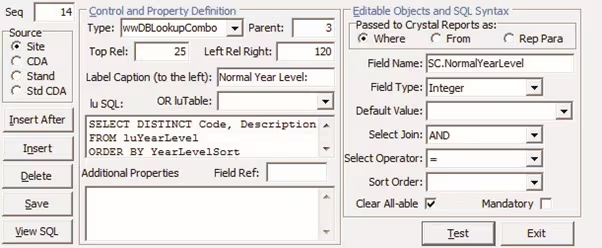
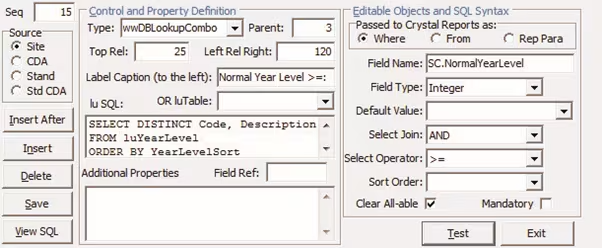
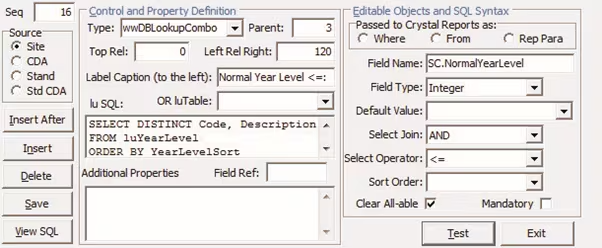
Selecting Classes from a Range of Normal Year Levels
Drop Downs from Other Sources
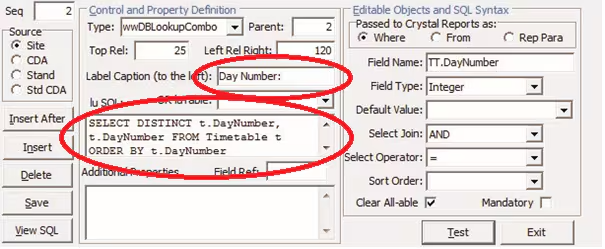
In the above example we have used Edit boxes for Day and Period number. This means that the user could enter invalid values into the edit area. You can make your own drop down boxes manually or as below, from a query in order to limit their choices to the valid values.
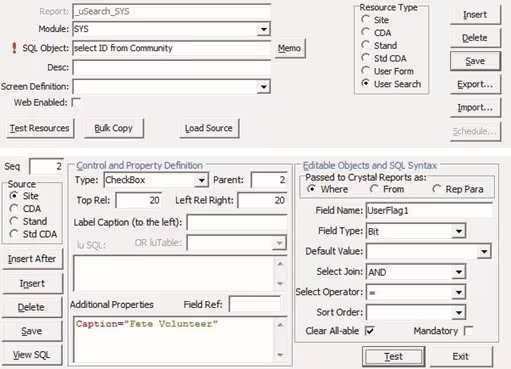
Searching with a Checkbox
Example: Set up a Community User Flag for Fete Volunteers:
This is done in Configuration File Maintenance:

Set up a custom search box to search by the first community user flag.
Permissions
In order for users to be able to use the Custom Search Criteria that you have set up, give them permission to do so in Group/User Security Maintenance.
System > Group/User Security Maintenance
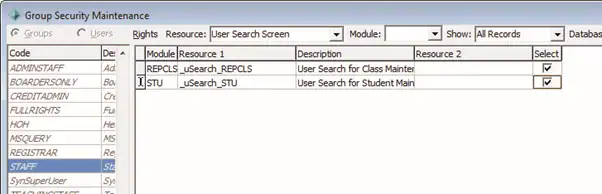
1) Select the group to give permissions to.
2) Select 'User Search Screen' under Resource.
3) Give Select permissions.
Boolean Selection
Where you wish to be able to search by a Boolean value including retrieving people who do not have the value set we can create a drop down which has a blank and a True and False option which map to 1 and 0.
For example: Anaphylaxis
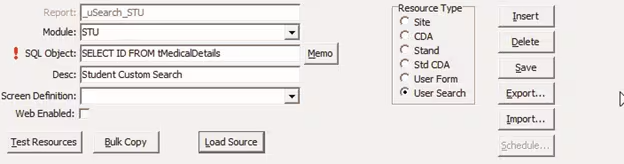
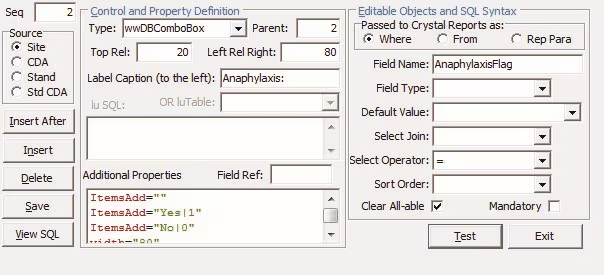
We add the drop down items explicitly in Additional Properties:
ItemsAdd=""
ItemsAdd="Yes|1" ItemsAdd="No|0"
width="80"
Was this article helpful?
That’s Great!
Thank you for your feedback
Sorry! We couldn't be helpful
Thank you for your feedback
Feedback sent
We appreciate your effort and will try to fix the article