TABLE OF CONTENTS
Overview
Synergetic test environments provide a 'sandbox' where you can experiment with Synergetic using your own data. This could be to trial new Synergetic products, develop customisations, try out new workflows or test a newer Synergetic version before bringing in to production. It takes some work to build but can be rewarding. If you would prefer Synergetic to build the test environment for you, please contact the Synergetic Systems team.
Prerequisites
All that is needed is a fresh installation of Windows server with dotNET 3.5 and access to the SQL Server installation media either as an ISO image or a mounted disc for use with the Database role.
- Windows Server 2012 / 2012R2 / 2016 64 bit installed (as many servers are required by your server design)
- dotNET 3.5 server feature installed.
- SQL Server installation media available for Database role - SQL 2012 / 2014 / 2016, Standard or Enterprise edition, 64-bit. (The SQL version for the test server must be the same or newer than production)
- Synergetic server installation toolkit - download from the files section of this page
- Download the latest installer 'Synergetic_server_installer_XXXX.zip'. Also download the optional installer if you need to install SQL Server Management Studio.
- Download and fill out the Synergetic Server Installation Questionnaire - this will help with some of the installation options. from files section of this page
- Optional: SQL Server Management Studio installer. If available, copy to 'Installers' folder and will be installed automatically. The installer can be downloaded direct from Microsoft from here: http://go.microsoft.com/fwlink/?LinkID=822301 Otherwise it will need to be installed manually afterwards.
Step-by-step guide
The installer is a powershell script that will configure the server for each of the roles (database, application & web roles), validate the information and preferences provided and then perform the installation for you. A typical test server environment will incorporate all roles in a single server. If you would like to separate the roles (ie: database & web), then you will need to repeat the process and select the appropriate roles to install.
- Log in to the new Windows Server which is going to host the Synergetic server role(s). Make sure to use a domain account that is also a local administrator.
- Unzip the Synergetic server installation toolkit to a temporary folder (ie: 'C:\Temp').
- If required, unzip the optional installer into the 'Installers' folder inside the temporary folder above. The optional installer includes the latest SQL Server Management Studio.
- Right-click ‘install - run as admin.bat’ and select ‘Run as administrator’.
The installer will start and display a basic menu to guide you through the process.
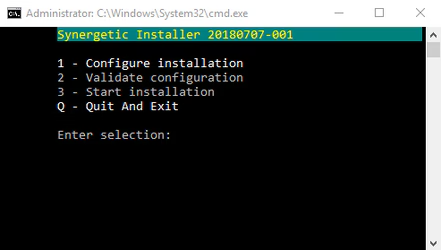
Press '1' and 'Enter' for the Configuration options. 'Validate' will not be available until the configuration is complete and 'Start installation' will not be available until validation is complete and successful.
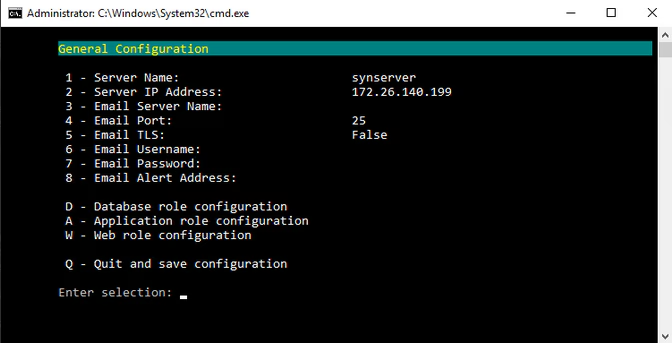
The General Configuration menu will be presented allowing you to configure the general server options. These options are not related to the more specific server roles. The installer will lookup the server name and IP address automatically. Please enter the outbound email server settings:
- Email Server Name: This is name of the email server. This could be your internal Exchange server or even an external server such as Gmail or Office 365.
- Email Port: This is the port number the email server accepts incoming email. By default this is set to port '25'. If you use authentication or encryption, this may be another port such as '587'.
- Email TLS: Set this to 'True' if the email server requires encryption turned on, otherwise leave as 'False'.
- Email Username & Password: If your email server requires authentication to connect, enter the username and password. This should not be a regular email account.
- Email Alert Address: This is the email address of the person who will receive alerts from SQL Server if issues arise. This would typically be your IT helpdesk email address.
Once the general configuration options are set, select the server role you would like to configure next. Please note that all three server roles are enabled by default and roles not required will need to be disabled.
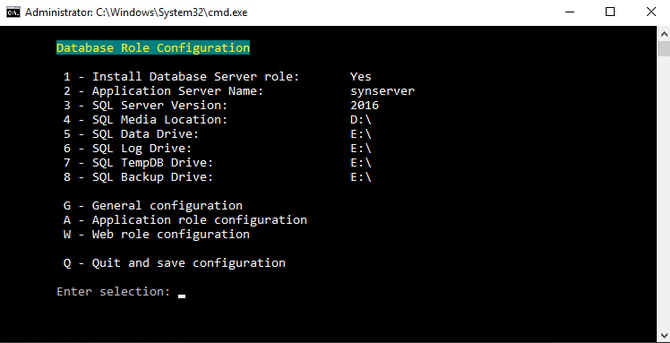
The Database Role Configuration menu will be presented allowing you to configure options for SQL Server. The installer will perform some investigations to provide meaningful default values for you.
- Install Database Server role: Select 'Yes' or 'No'. If 'No', the rest of the options will be disabled. and you can safely select another role to configure.
- Application Server Name: This is the name of the server servicing the Application role. Enter another server name if this is hosted on a different server.
- SQL Server Version: This is the version of SQL Server that will be installed. The version number will be populated automatically if the SQL Server installation media is mounted and ready to install.
- SQL Media Location: This is where the SQL Server installation media is located. This would typically be a drive letter of the media when it's mounted.
- SQL Data Drive: This is the drive where the SQL user databases will be stored.
- SQL Log Drive: This is the drive where SQL user transaction logs will be stored.
- SQL TempDB Drive: This is the drive where the TempDB database is stored.
- SQL Backup Drive: This is the drive where the backups will be written to.
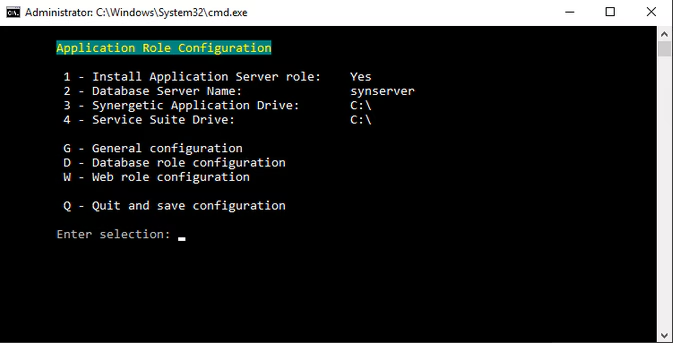
The Application Role Configuration menu will be presented allowing you to configure options for the Synergetic applications. The installer will perform some investigations to provide meaningful default values for you.
- Install Application Server role - select 'Yes' or 'No'. If 'No', the rest of the options will be disabled. and you can safely select another role to configure.
- Database Server Name: This is the name of the server servicing the Database role. Enter another server name if this is hosted on a different server.
- Synergetic Application Drive: This is the drive where the Synergetic folder and network share and will be stored.
- Service Suite Drive: This is the drive where the Synergetic Service Suite will be stored.
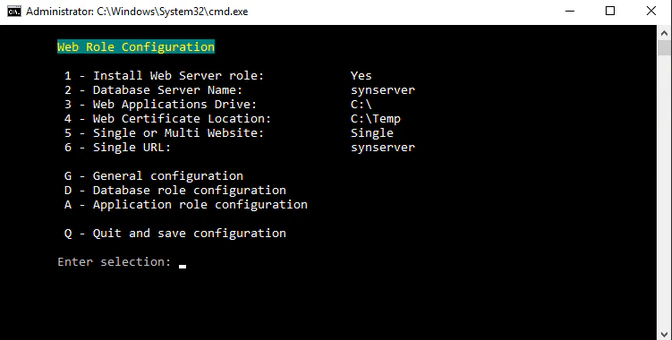
The Web Role Configuration menu will be presented allowing you to configure options for the Synergetic web applications.
- Install Web Server role - select 'Yes' or 'No'. If 'No', the rest of the options will be disabled. and you can safely select another role to configure.
- Database Server Name: This is the name of the server servicing the Database role. Enter another server name if this is hosted on a different server.
- Web Applications Drive: This is the drive where the web site folders will be stored.
- Web Certificate Location: This is the location where the certificate is temporarily stored and ready to import.
- Single or Multi Website: Select whether to group all of the Synergetic web applications into a single URL or use a separate URL for each.
- Single URL: This is the single URL to use for all of the web applications.
Single Website layout example:
- Portal: https://synserver.school.net.au/SynergeticCommunityPortal
- SynWeb: https://synserver.school.net.au/SynWeb
- SynCore: https://synserver.school.net.au/SynergeticCore/CoreAPI
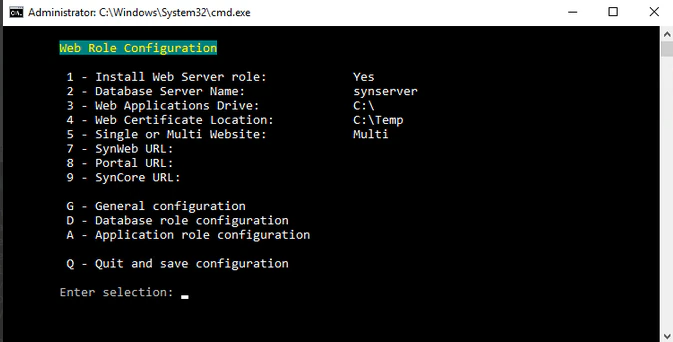
- Single or Multi Website: Select whether to group all of the Synergetic web applications into a single URL or use a separate URL for each.
- Synweb URL: This is the separate URL to use for SynWeb.
- Portal URL: This is the separate URL to use for Community Portal.
- SynCore URL: This is the separate URL to use for Synergetic Core.
Multi Website layout example:
- Portal: https://portal.school.net.au
- SynWeb: https://synweb.school.net.au
- SynCore: https://syncore.school.net.au/CoreAPI
Once all of the roles have been configured, select 'Q' to quit and save the configuration. This will return to the main menu.
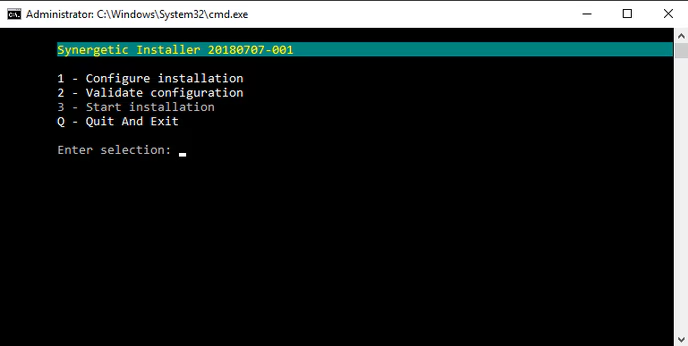
The 'Validate configuration' option will now be available. Select '2' to start the validation process.
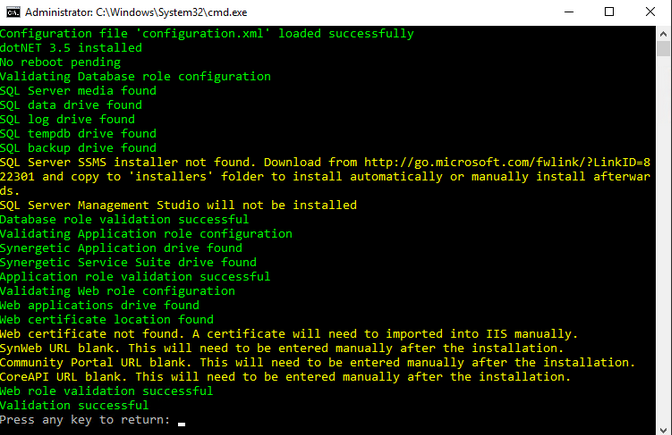
The process will validate the configuration of each of the roles that have been enabled. If a role has not been enabled, the validation for this role will be skipped.
- Notes in green are informational only and no action is required.
- Notes in yellow indicate warnings and display additional information or actions that need to be taken.
- Notes in red indicate errors and the validation will fail. This will require correcting the configuration before re-validating.
Once the validation is completed, press any key. This will return to the main menu.
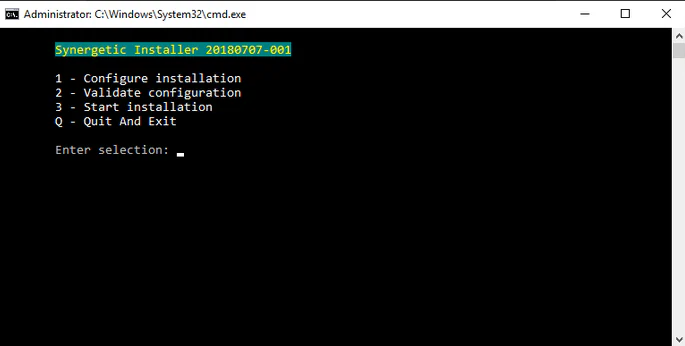
If the validation is successful, The 'Start installation' option will now be available. Select '3' to start the installation process.
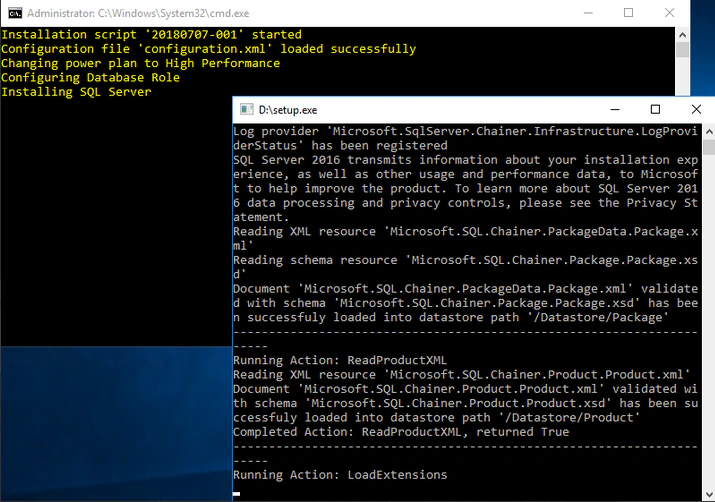
The installation process will take a while to complete. Information messages will be displayed as well as several windows will open temporarily as the installation takes place.
The installation process will perform the following:
- Changes Windows power plan to 'High Performance'
- Database role:
- Install SQL Server default instance with Reporting Services and SQL Server Management Studio if available.
- Enable firewall rules for TCO 1433 & UDP 1434
- Install SQL Server configuration scripts for Synergetic
- Configures SQL Server DBmail.
- Creates SQL Server Agent jobs for SQL Server backup and maintenance, Load Synergetic Database and Refresh Test from Production.
- Application role:
- Install Windows Server roles and features for SMTP service
- Creates Synergetic application folder, configures network share and folder permissions.
- Web role:
- Installs prerequisite runtimes for Crystal Reports, Adobe Reader, SQL Server CLR and Microsoft Report Viewer.
- Install Windows Server roles and features for IIS
- Creates web sites, application pools and web applications for Synergetic web applications
- Updates website folder permissions for Synergetic web applications
The Synergetic Server installation is now complete. Validation and installation information is written to a log file located in the installation files folder and is a good place to start if any errors were displayed during installation.
Post installation Tasks
After the installation is complete there are a number of additional tasks that will need to be completed manually.
Database Role:
- Install SQL Server Management Studio manually if required. The installer can be downloaded direct from Microsoft from here: http://go.microsoft.com/fwlink/?LinkID=822301
- Alter the SQL server service account using a domain account such as 'domain\sql_srv'
- Using SQL Server Configuration Manager, Add -T272 startup parameter to the SQL Server instance.
- Run SQL Server Management Studio and log in as 'sa' administrator. The default password is 'labsql#5'
- Under 'Server Properties' > 'Memory', set 'Maximum server memory' to (Memory-4GB: ie: 16GB-4GB = 12GB)
- Manually configure test database 'Syn Refresh From Production' SQL Agent job with correct database names and path
- Change the 'sa' password and record this.
Once complete, contact Synergetic Systems Team to provide a quote and book in to finalise the test server provisioning.
- Install and configure the database fresh SQL Agent job
- Install the Synergetic applications.
- Install Screen Connect (remote access) & Octopus Deploy (upgrades)
Was this article helpful?
That’s Great!
Thank you for your feedback
Sorry! We couldn't be helpful
Thank you for your feedback
Feedback sent
We appreciate your effort and will try to fix the article