Create a Synergetic account with administrator access to Synergetic. SynWeb and Community Portal.
- Run SQL Server Management Studio
- Create SQL database user
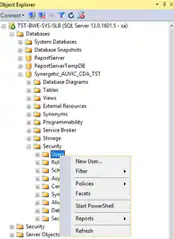
3. Run Synergetic Windows application
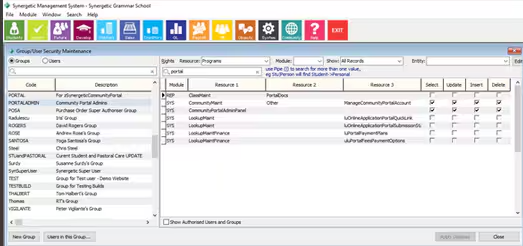
4. Under System menu, select Group / User Maintenance, click ‘New Group’ button.
5. Create a Community Portal Admin group ‘PortalAdmin’ and assign full rights to ‘SYS – CommunityPortalAdminPanel’ and ‘SYS – CommunityMaint – Other – ManageCommunityPortalAccount’.
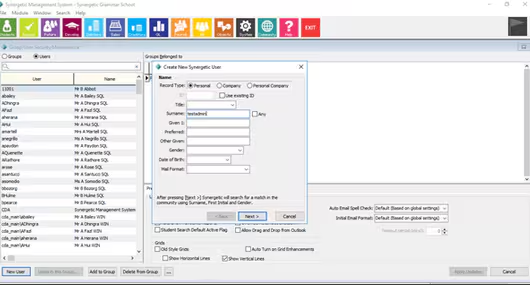
6. Under System menu, select Group / User Maintenance, click ‘New User’ button.
7. Create Synergetic user with the same name as the SQL database user.
8. Click ‘Add to Group’ button. Select ‘SynSuperUser’ & ‘PortalAdmin’.
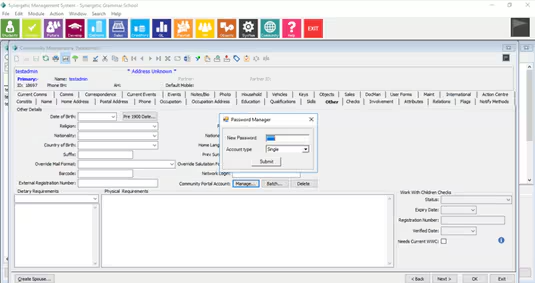
9. Under System menu, select Group / User Maintenance, select the user, right-click and select ‘Launch Community Maintenance’.
10. Under the ‘Other’ tab, click on ‘Community Portal Account – Manage’ button and set a password for Community Portal.
The user should now be able to log in to Synergetic Windows application, SynWeb and Community Portal as an administrator.
Community Portal will display the Administrator menu options
Was this article helpful?
That’s Great!
Thank you for your feedback
Sorry! We couldn't be helpful
Thank you for your feedback
Feedback sent
We appreciate your effort and will try to fix the article