We sometimes see issues after a School has advertised PTI or released reports and a large number of users log into the Community Portal but this then crashes or becomes unstable.
The following are advanced settings and should not be adjusted unless fully aware of the implications. The settings affect memory usage, the number of concurrent queries and therefore overall performance of SynWeb and Community Portal. Using connection pooling is best practice from Microsoft, allows shared use of SQL server connections and reduces overheads required to establish and remove connections to the SQL Server for every query.
These settings can be configured in both Community Portal and SynWeb via the CreateConfig tools. Defaults/recommendations for a standard size environment are as follows.
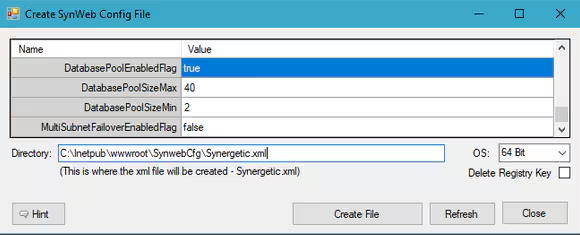
Database Pool Enabled Flag | True | Utilises a pool of reusable SQL Server connections rather than having overheads of creating a new connection for every query performed and closing off the connection. |
| Database Pool Size Max | 100 | The maximum number of connections allowed in the pool for concurrent SQL queries. The default setting of 100 should be ample for a standard healthy environment however if queries are slower running due to SQL Server or query performance issues, then pool size may need to be increased to allow for more queries however the SQL Server could become a bottleneck. Inefficient queries and SQL Server health issues should be investigated if the pool size if seen as insufficient. |
| Database Pool Size Min | 2 | When the web application starts or is recycled, this number of connections will be established to SQL Server from the outset so they are ready to use from when the first set of SQL queries are processed. |
| Multi Subnet Fallover Enabled Flag | False | Significantly improves initial connection performance when SQL Server Availability Group is used across two IP subnets. This should only be set to True if the client has an Availability Group across two different IP subnets. |
Your settings should be similar to the below config window.
Was this article helpful?
That’s Great!
Thank you for your feedback
Sorry! We couldn't be helpful
Thank you for your feedback
Feedback sent
We appreciate your effort and will try to fix the article