Configuration and setup of SQL Database Mail
Database Mail is a solution for sending e-mail messages from the SQL Server Database Engine to users.
Synergetic uses Mail Profile for some transactions which generate email prior to being processed by the schools Email exchange server.
This page contains tips to set up, configure and check Database Mail output.
Accessing Database Mail configuration
Send a Test Email
Log into SQL Server Management Studio (SSMS) as an Administrator
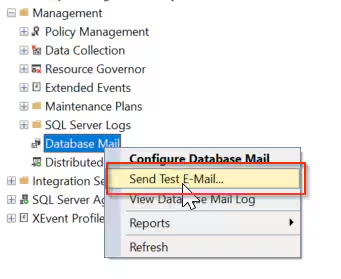
Select Management
Right Click Database Profile
Select Send Test E-Mail
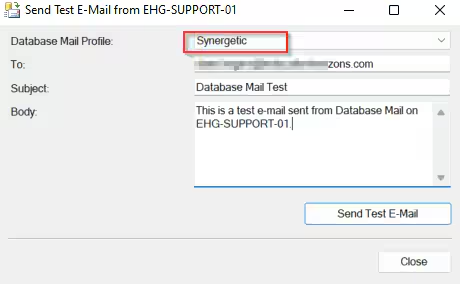
On the Send Test E-Mail from [Synergetic_Server] window
Select the Mail profile you are testing
Enter a valid To: Email Address
Note: Ensure you are testing an external email if the issue is related to parents, SMS, suppliers...etc
Subject and Body is Freeform
Select Send Test E-Mail
Query Test Email
Test Emails from Database Mail are not stored in Synergetic Database tables. They are store in the msdb (master database)
Run the following query to extract the mail record
select * from msdb..sysmail_allitems
where sent_date > getdate() -1
(this returns records for the past 24 hours so adjust accordingly)
Confirm the Test Email is displayed
Check Sent Status
If sent status = Failed then the issue is with the Database Mail Profile setup or Exchange Server Setup

Check Database Mail Accounts
In SSMS
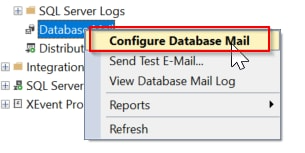
Select Management
Right Click Database Mail
Select Configure Database Mail
Select [Next] (Welcome to Database Mail Configuration Wizard)
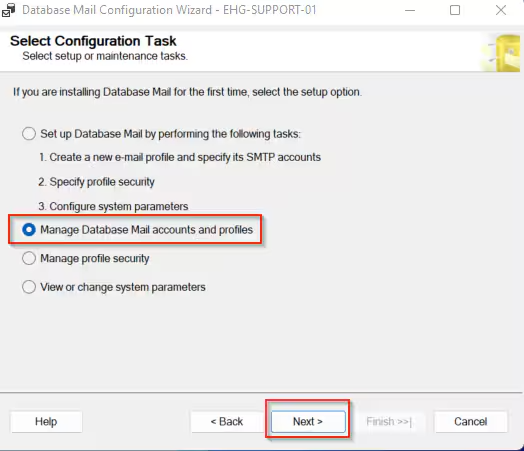
Select Manage Database Mail accounts and profiles and [Next]
Select View, change or delete an existing profile and [Next]
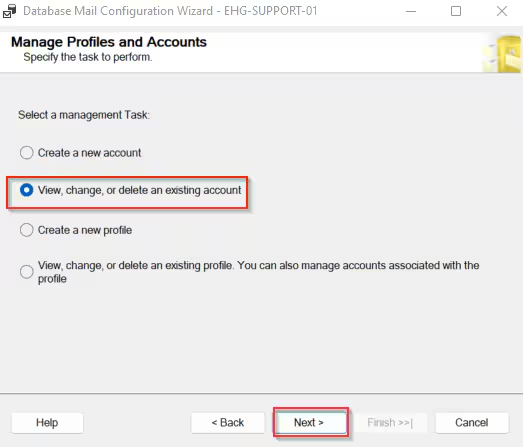
In the Manage Existing Account screen ensure your Email server settings are correct. These usually match your Synergetic Email settings. THis example uses Proxy authentication. Your Email Server may differ.
Take note of the Account Name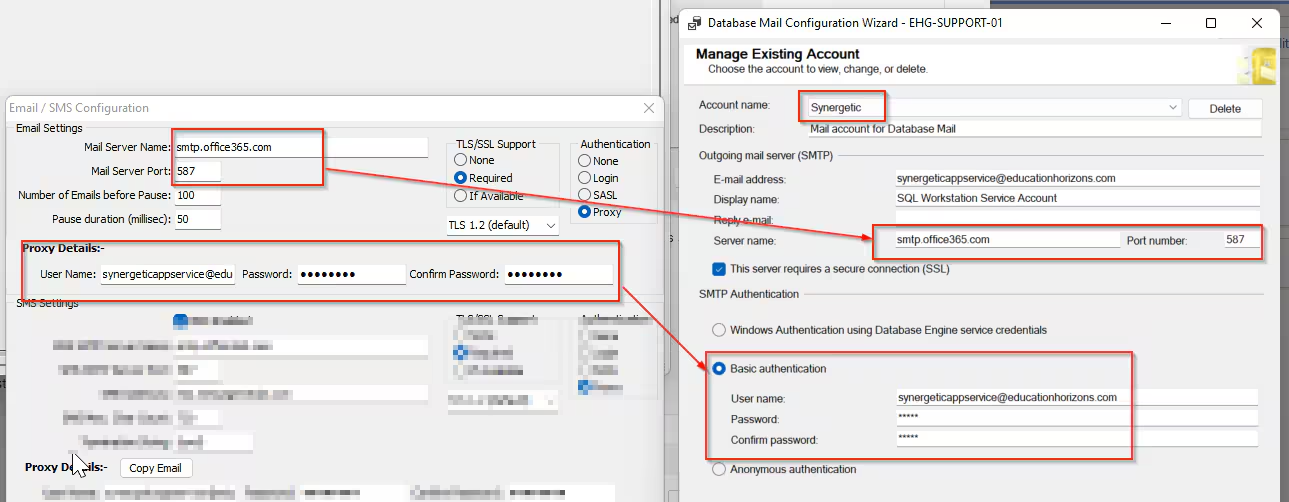
Select [Finish] (if changes have been made or [Cancel].
Check Mail profile
Return to the Manage Profiles and accounts window
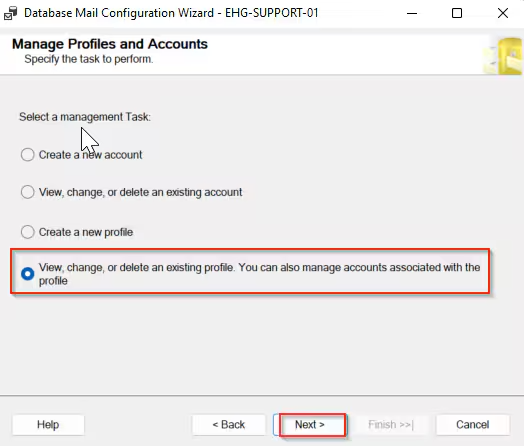
In the Manage Profiles and accounts window select View, change or delete an existing profile and [Next]
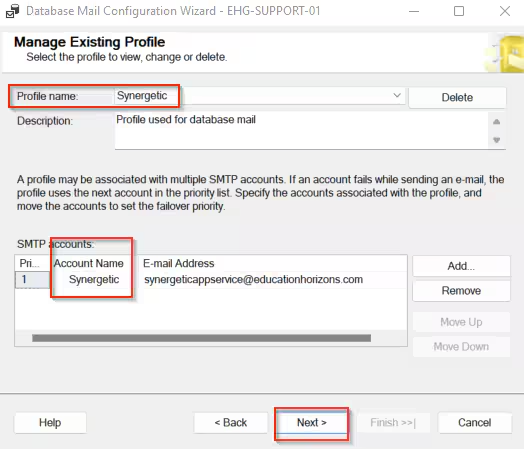
In the Manage Existing Profile window ensure the Profile Name is linked to the correct Account (from above)
Select Next and Finish(if changes have been made) or [Cancel]
Check security
Return to the Select Configuration Task Window
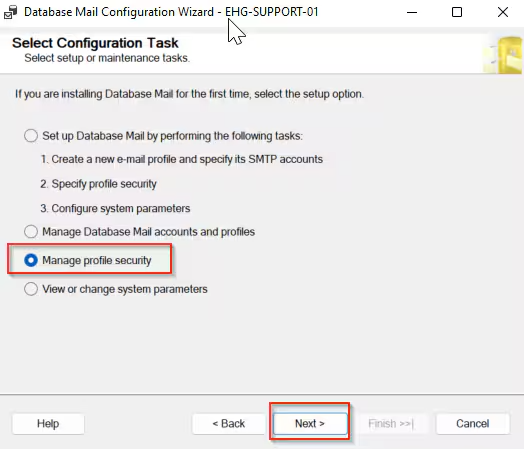
In the Select Configuration Task Window Select Manage Profile Security and [Next]
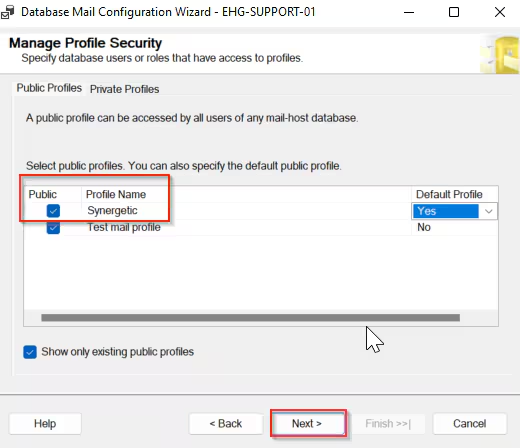
In the Manage Profile Security Window Ensure public is selected
Select [Next] and [Finish] (if changes have been made or [Cancel]
If all settings are correct and Emails are still not being received or written to the msdb..sysmail_allitems table then the next step is to check your Exchange Server logs for any error message.
Only a School System Administrator can action this.
Was this article helpful?
That’s Great!
Thank you for your feedback
Sorry! We couldn't be helpful
Thank you for your feedback
Feedback sent
We appreciate your effort and will try to fix the article