How to use DocMan Bulk Loader
This is essentially a standalone program which is used to bulk import files into synergetic and is executed on your server.
The Docman Bulk Load program is in the downloads section of the Synergetic Customer Portal
Click on the attachment for 'DocMan Bulk Load Program' at the bottom of this page and select 'Save Link as'.
INSTALLATION
- The files in this folder must be copied to the workstation that you wish to use the Docman bulk loader program from and then the executable run from that location.
You may need to copy and paste the .DLL files into the 'System32' folder (C:\Windows\System32) on this workstation
OPERATION
When the program is launched a window will be displayed where you will need to:
- Select your server and enter in your username and password details (only used if not using windows authentication)
** NOTE ** Use the test connect button to make sure a remote connection to the SQL server can be established. - Create and Select a source folder from where you want to grab the files from (sub folders option checked if required).
Each of the file names should have the 'Community\Student ID' in them as this program will import all the files from the selected folder into the 'DocMan' tab for each of the respective students records based on the ID in the file name.
Example: C:\Documents and Settings\UserName\Desktop\DocManBulkLoader\StudentReport2008\TermTwo\Bloggs_Joe_12345.pdfIf not using this method you can utilise a separate folder for each of the relevant students which MUST have the students ID as the folder name as well as 'Community ID is in the File Name' unselected.
- Once you have filled in the remaining settings which correspond to the columns within DocMan IE; description, document type, document classification etc, CLICK execute and you should find that the relevant documents IE; school reports, photo etc, have being transferred into the DocMan section within the relevant modules program IE; current student, community maintenance etc.
PERMISSIONS
As this is a .Net application, it doesn't use the SYNMAIN app role that normally accesses Synergetic data when a user logs into the Windows Application. For a user to be able to use the DocMan Bulk Loader, they need to be granted some rights specifically.
- Select rights to ConfigUsers
- Execute rights to LookupDocumentSourceCode
- Execute rights to LookupDocumentType
- Execute rights to LookupDocumentClassification
This is done via Management Studio with a Database Role in the Synergetic Database. You may need to:
- Create a Database Role called SynDocmanBulkLoader (Databases > 'Synergetic Database'> Roles > DatabaseRoles).
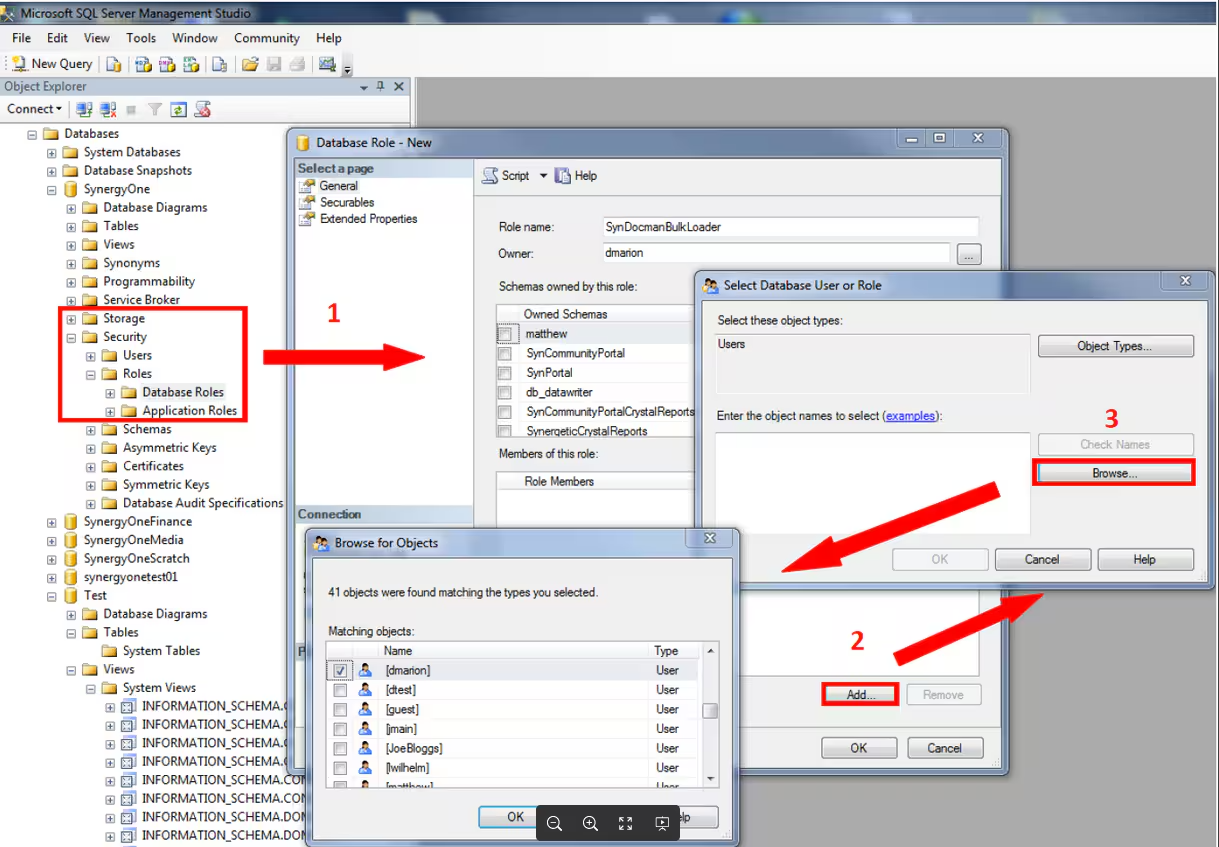
- Add users to that role
- Run the script as follows
-- Run against your single database instanceEXECdbo.sp_addrole @rolename ='Synergetic_DocManBulkLoader_dbo_ReservedDBRole'GOGRANTSELECTONdbo.ConfigUserstoSynergetic_DocManBulkLoader_dbo_ReservedDBRoleGRANTEXECUTEONdbo.LookupDocumentSourceCodetoSynergetic_DocManBulkLoader_dbo_ReservedDBRoleGRANTEXECUTEONdbo.LookupDocumentTypetoSynergetic_DocManBulkLoader_dbo_ReservedDBRoleGRANTEXECUTEONdbo.LookupDocumentClassificationtoSynergetic_DocManBulkLoader_dbo_ReservedDBRoleGRANTEXECUTEONmedia.spiDocumentstoSynergetic_DocManBulkLoader_dbo_ReservedDBRoleGOEXECsp_addrolemember'Synergetic_DocManBulkLoader_dbo_ReservedDBRole','?username?'GO
If using SQL Authetication then replace the person's username where it says ?username? in the script
If using Windows Authentication then replace the username by the active directory group.
Was this article helpful?
That’s Great!
Thank you for your feedback
Sorry! We couldn't be helpful
Thank you for your feedback
Feedback sent
We appreciate your effort and will try to fix the article