Payroll encryption
There is an option in the Payroll module that allows you to encrypt your employee's financial and banking information within the Payroll module. Only the financial details are encrypted, other nonsensitive details can still be viewed.
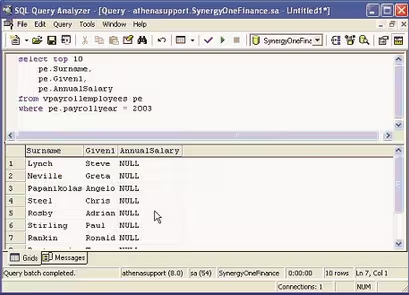
If a user who is not authorised to view the encrypted payroll data uses Crystal Reports or Microsoft Query to view payroll data, they will be able to view non-sensitive information such as employee names, but all financial amounts, tax file numbers and bank details will be displayed as NULL.
To initiate payroll encryption, you need two different payroll users, one to initiate the process and the other to confirm the details. The Synergetic system's administrator cannot be one of these users; they must both be standard Synergetic payroll users.
How to:
- Initiate the encryption process.
- Confirm the encryption process.
- Use payroll when it is encrypted.
- Access encrypted payroll data.
Initiating the encryption process
To initiate the encryption process:
- Log on to Synergetic as the first payroll user.
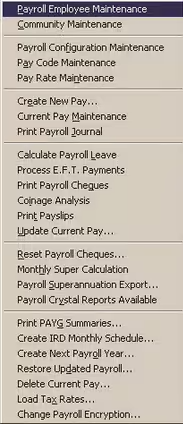
- Select Module > Payroll > Change Payroll Encryption.
The Payroll Encryption window is displayed.
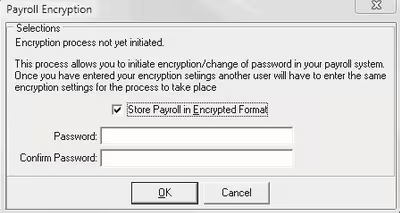
- Select Store Payroll in Encrypted Format.
Note: Clear this flag to turn payroll encryption off at any time.
- Type in the password that will be used for payroll encryption in the Password and Confirm Password fields.
- Click OK.
The following dialog window is displayed.
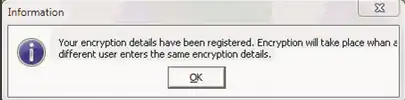
- Click OK
- Log out of Synergetic.
Confirming the encryption process
To confirm the encryption:
- Log into Synergetic as the second payroll user.
- Select Module > Payroll > Change Payroll Encryption.
The Payroll Encryption window is displayed.
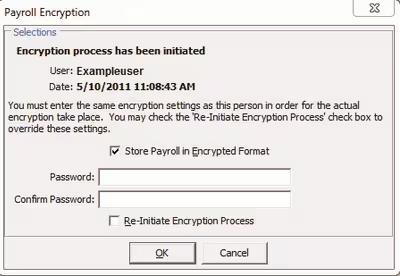
The comment in the window indicates that the encryption process has been initiated by another user. You must enter the same password as the first user.
- Select Store Payroll in Encrypted Format.
Note: Clear this flag to turn payroll encryption off at any time.
- Type in the password that will be used for payroll encryption in the Password and Confirm Password fields.
- Click .
- Log out of Synergetic.
The financial details in the payroll system are now encrypted. Only an authenticated payroll user can now view these financial details.
Tip: If you want to change the payroll encryption password at any stage, select Re-Initiate Encryption Process on the Payroll Encryption window.
Using payroll when the payroll is encrypted
Once your payroll data is encrypted, you use the payroll system in the normal way. The only difference is that you have to enter your payroll authentication password before you can use the payroll system.
Note: When you log on to the payroll system, the access to the payroll data is restricted to the workstation that you are logged on to. So, another user logging on as you on a different workstation at the same time CANNOT access the payroll data.
The Payroll Authentication window is displayed.
- Enter the payroll authentication password.
- Click PAYROLL

- Click Authenticate.
The usual payroll menu is displayed.
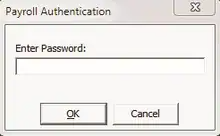
You will be able to access all payroll functions until you either log out of Synergetic or select Lock Payroll from the payroll menu.
Example of accessing encrypted payroll data
To demonstrate the difference payroll encryption makes, the:
- first screen below shows the results from a query where the user has not authenticated that they can access sensitive payroll data
- following screen shows the results of the same query after the user has authenticated their use of sensitive payroll data.
Encrypted payroll data not available in queries
Financial data is displayed as NULL if the user:
- is not authenticated to access sensitive payroll data .
- locks the Payroll function
- exits from Synergetic.
Encrypted payroll data available in queries, after authentication
When a user has authenticated to access sensitive payroll data, Crystal Reports and Microsoft Query can be designed on that workstation with real data.
Was this article helpful?
That’s Great!
Thank you for your feedback
Sorry! We couldn't be helpful
Thank you for your feedback
Feedback sent
We appreciate your effort and will try to fix the article