Sports Co-Curricular Overview

Modified on Tue, 21 Apr at 4:15 AM

The Co-curriculum module allows you to configure and manage co-curricular activities and programs at your school or organisation. Examples of activities this module could cater for are:

  • Sports
  • Music
  • Performing Arts/Drama
  • Cadets

Each co-curricular program has the same basic structure and this training course will mainly focus around the Sports program.

The co-curricular program is available in SynWeb.
 

This guide explains how to set up Co-Curricular Learning Areas and Learning Area Positions in SynMain.  Learning area positions allow the user to define different positions in teams (ie soccer goalie, forward etc)


Creating Learning Areas

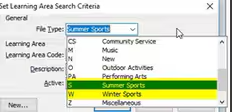
Go to Module > Students > Learning Area Maintenance

  1. File Type - Summer Sports
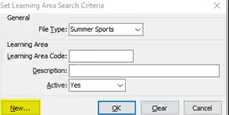
  2. Click New
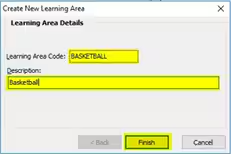
  3. Learning Area Code - name of sport (eg Basketball)
  4. Description - description (eg Basketball)
  5. Click Finish
  6. Repeat steps 1-5 to create Winter Sports

image.png

image.png

image.png


Creating Learning Area Positions 

Go to Module > System Maintenance > Lookup Table Maintenance

  1. Search - luLearningAreaPosition
  2. Click ADD
  3. Code - eg rank 1, Goalie
  4. FileType - Summer Sport / Winter Sport
  5. LearningAreaCode - The sport you are adding positions to
  6. Click Save


How to create Terms, Semesters and Reporting Periods

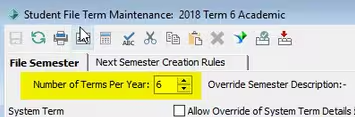
Go to Module > Student > File Term Maintenance

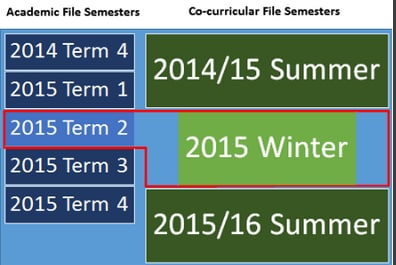
Change number of terms per year - depends on number of co-curricular programs and the number of terms within each period

image.png

image.png

  1. Click Add
     
  2. Type the current year
     
  3. Type the term number in semester field
     
  4. Type the actual semester
     
  5. Type a start date and end date
     
  6. Type a description e.g Summer 2018
     
  7. Click OK
     
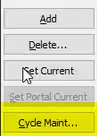
  8. Click on Cycle Maintenance

image.png


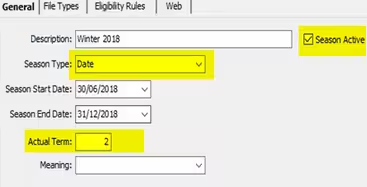
Cycle Maintenance > General Tab

  1. Season Type - Date (for seasons based on a date range)
     
  2. Season Active - You can only have one numbered season active at any stage, but any number of active date-based seasons
     
  3. Season Start Date - Date the Season Starts
     
  4. Season End Date - Date the Season Ends
     
  5. Actual Term - Note: The actual term may not match the reporting period, which may be known as the term, report number, half-term or semester, depending on your organisation.
     
  6. Season Active - Whether Season is active
     
  7. Click OK

image.png


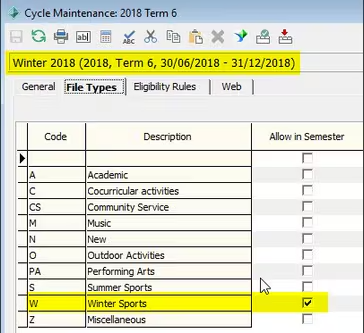
Cycle Maintenance > File Types Tab

  1. Code - Unique code for the file type.
     
  2. Description - Description of the file type
     
  3. Allow in Semester - Select to make the file type available for the selected cycle

image.png


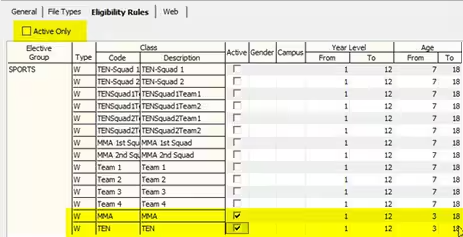
Cycle Maintenance > Eligibility Rules

Go to Modules > Lookup Table Maintenance (this step is necessary otherwise there will be no entries appearing in the eligibility rules tab)

  1. Search - luElectiveGroup
     
  2. Code - Sports
     
  3. Description - Sports Electives
     
  4. YearLevelFrom - Minimum year level allowed
     
  5. YearLevelTo - Maximum year level allowed
     
  6. AgeFrom - Minimum age allowed
     
  7. AgeTo - Maximum age allowed
     
  8. MinSelection - Minimum number of selections allowed
     
  9. MaxSelection - Maximum number of selections allowed
     
  10. SelectMode - Type of selection mode for the electives

image.png

image.png


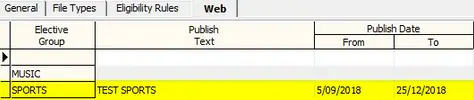
Cycle Maintenance > Web Tab

  1. From – Date the elective group is published on the portal
     
  2. To – Date the elective group is removed from portal
     
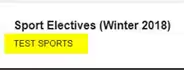
  3. Publish Text - Description displayed on community portal

image.png

image.png


Creating Next Term Details

Go to Module > Students > Create Next Term details

Next Semester Creation Rules Tab

  1. File Type - S (Summer)
     
  2. Term - Actual term associated with co-curricular semester
     
  3. Year - Set the next year

Repeat Steps for Winter Sports

Considerations

If you aren’t seeing all available options untick Active Only

Make sure that elective groups have been set up in luElectiveGroup

Scroll down and tick Active for Sports you wish to see in SynWeb


This is a guide on how to create Sports / Squads / Teams in SynWeb


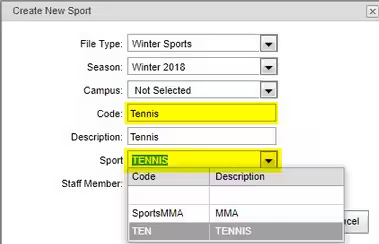
Creating Sports

In SynWeb go to Curriculum > Sports Maintenance

  1. Click New
  2. Code - Type a code for the sport (eg Tennis)
  3. Description - This field will autofill
  4. Sport - This field is determined by the LearningAreaOverride field in luFileTypeProgram
  5. Staff Member - Assign a staff member to oversee the sport

image.png


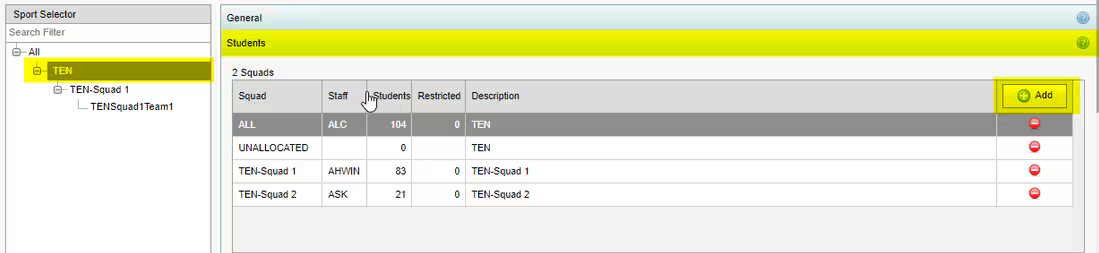
Creating Squads

Go to Curriculum > Sports Maintenance

Co-Curricular Maintenance menu item is determined by the MenuText field in the luFileTypeProgram lookup table

The windows in the Sports Maintenance use the words Sport Squad and Team, these descriptions are set using the SubjectClassCategoryLevel fields in the luFileTypeProgram lookup

image.png

  1. Select a Sport in the Sports Selector
  2. Click the Students Bar
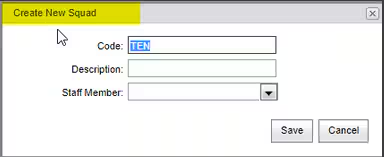
  3. Click ADD
  4. Code - Select the code of the sport where squads are being added
  5. Description - name of the squad ie Squad 1 
  6. Staff Member - assign a staff member to the squad

image.png


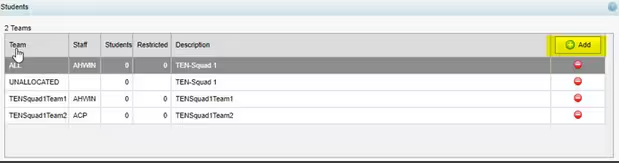
Creating Teams

  1. Go to Curriculum > Sports Maintenance
  2. Select a Squad in the Sports Selector
  3. Click the Add Students Bar
  4. Click Add in the Teams Area
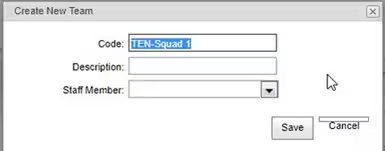
  5. Create New Team Window will appear
  6. Code - select the code of the squad you are adding team to
  7. Description - enter a description of the team
  8. Staff - Select a staff member to oversee the team

image.png

image.png 


Creating Sports Co-Curricular Programs 

Guide how to create co-curricular file type programs in SynMain

Method

  1. Go to Module > System Maintenance > Lookup Table Maintenance
     
  2. Search for luFileTypeProgram
     
  3. Click ADD
     
  4. Code - Sportsmaint
     
  5. Description - Sports Maintenance
     
  6. Module Code - SPTCOCUR (Sports Co-Curricular)
     
  7. SubjectClasssCategory1 - Sports
     
  8. SubjectClasssCategory2 - Squad
     
  9. SubjectClasssCategory3 - Team
     
  10. ActiveFlag - Ticked
     
  11. SemesterOverrideText - Season
     
  12. LearningAreaOverrideText - Sport


image.pngimage.png


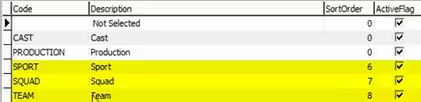
To then need to assign the category levels in  luSubjectClassCategory


This is used to define the category levels for co-curricular programs (for example there are many Sports > Sports have many Squads > Squads have many Teams)

  1. Set SortOrder
     
  2. Sport - 6
     
  3. Squad - 7
     
  4. Team - 8
     
  5. ActiveFlag - Make sure Sport/Squad/Team are all set as active (ticked)

image.png

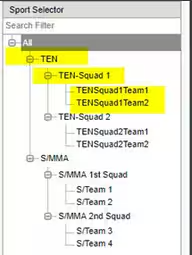
In SynWeb the structure will look like this

image.png

In  luFileType you may also need to define Summer and Winter Sports

image.png

If Summer and Winter Sports aren't defined then create them following the below steps

  1. Click ADD
     
  2. Code - S
     
  3. Description - Summer Sports
     
  4. DefaultUseCampusFlag - Ticked
     
  5. DefaultUseYearLevelFlag - Ticked
     
  6. FileTypeProgramCode - SPORTS
     
  7. SecuritingMeaning - Group

Repeat these steps and add Winter Sports using the same method.


Customizing Community Portal for Co-Curricular Electives

Guide how to set up Sports electives

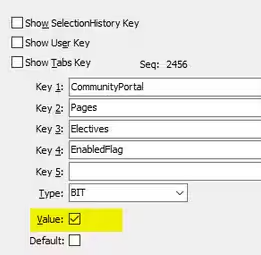
  1. Module > System > Configuration File Maintenance
  2. In the search field enter: CommunityPortal|Pages|Electives|EnabledFlag
  3. Select the Value field and set it to true (tick)

image.png

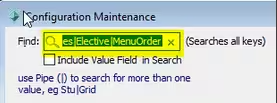
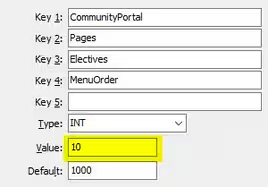
  1. Module > System > Configuration File Maintenance
  2. In the search field enter: CommunityPortal|Pages|Elective|MenuOrder
  3. Set the Value field to 10

image.png

image.png

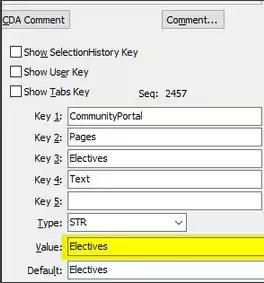
  1. Module > System > Configuration File Maintenance
  2. In the Search field type: CommunityPortal|Pages|Electives|Text

image.png

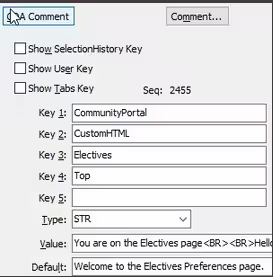
  1. Module > System > Configuration File Maintenance
  2. In the Search field type: CommunityPortal|CustomHTML|Electives|Top

image.png

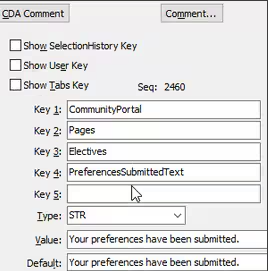
  1. Module > System > Configuration File Maintenance
  2. In the search field type: CommunityPortal|Pages|Electives|PreferencesSubmittedText

image.png

Log in as portal administrator

image.png

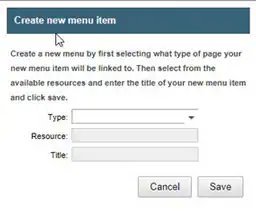
Click New Menu Item button

image.png

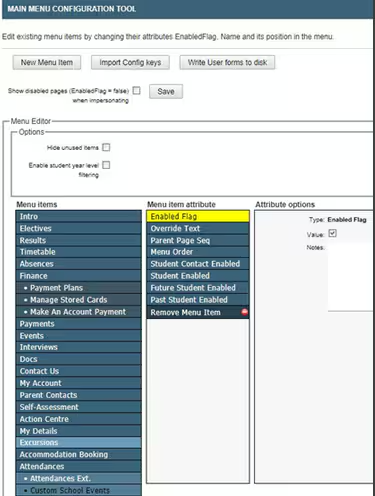
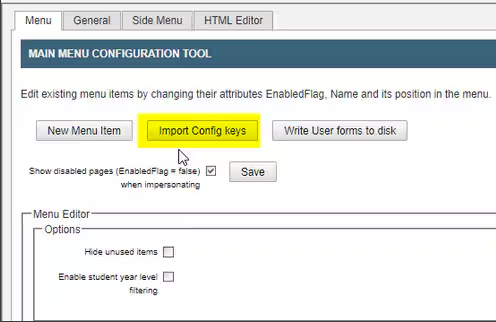
To convert Portal 6 method configuration keys into Portal 7 method attributes:

  1. Log in as a portal administrator
  2. Click on Configuration in the Admin Panel
  3. Click on Import Config File

image.png

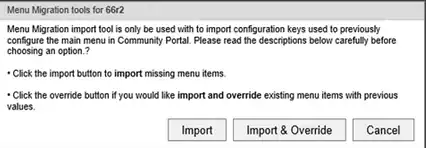
Click:

  1. Import to import missing items or, 
  2. Import & Override to import and override existing item menu items with the previous values
  3. Import Complete message should be displayed

image.png

The Community Member Only Flag attribute determines whether community members with no constituencies can view the selected tab. For example, when creditors log into the Community Portal any tabs with this attribute selected are displayed

  1. Either:
     select the Value field of the Attribute options window to only display the selected tab to community members
     clear the Value field of the Attribute options window to display the selected tab to all Community Portal users.
  2. Click image.png.

Was this article helpful?

That’s Great!

Thank you for your feedback

Sorry! We couldn't be helpful

Thank you for your feedback

Let us know how can we improve this article!

Select at least one of the reasons
CAPTCHA verification is required.

Feedback sent

We appreciate your effort and will try to fix the article