Summary
This article explains how to Bulk Cancel classes
End Result
Classes are cancelled in bulk an absence type explaining why the students are not in the normal classes
Method
The method below uses the example of a Year 9 cohort
For Example:
The school wants to cancel all classes after lunch for year 9 students as they are attending a school arranged activity
First we will create the absences via Absence Events Bulk Entry.
- Go to Students > Absence Events Bulk Entry and make the selections for the required classes
- Select OK which will generate a list of possible students
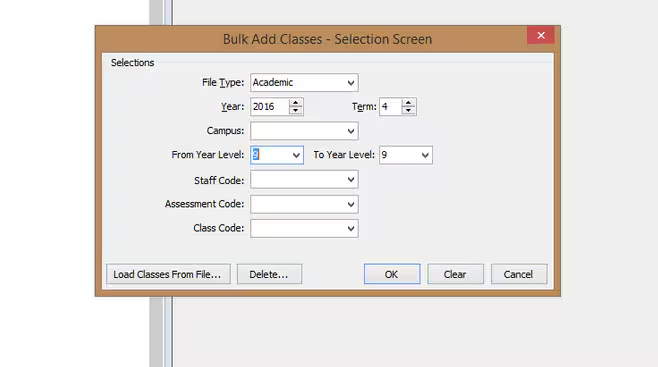
3. Once we have this list select Accept and Create Absence Events.
4.With these selections the students are recorded as being out of class with an Absence Type that is not counted as an absence for reporting purposes. The count as absence flag for the absence type should not be ticked and click OK
5. Now go to Students > Student Classes Bulk Cancel. Select Bulk Add Classes and select the classes
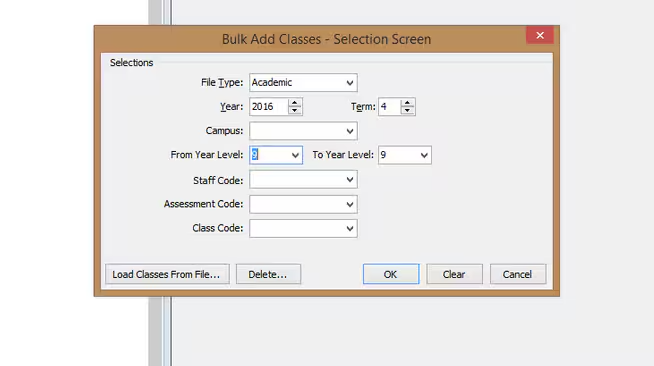
6. Select Accept and Create Cancellation
The classes should now be cancelled.
Was this article helpful?
That’s Great!
Thank you for your feedback
Sorry! We couldn't be helpful
Thank you for your feedback
Feedback sent
We appreciate your effort and will try to fix the article