Introduction
Many Synergetic clients require some staff to have access to database objects.
These usually include views, but may also include tables and more complex objects such as stored procedures.
In order to provide this, security groups must be created and given the appropriate access to relevant objects.
This knowledge base article is to clarify how this process works with respect to the setup and management of users, groups, SQL Server permissions and subsequent access to database objects via third-party tools such as MS Query and Crystal Reports.
Setting up Group Permissions
While Group permissions are described in documentation at Group_User Security Maintenance - Groups View, further clarification is required around how this works in the context of SQL objects.
Log into Synergetic with a user who has Sys Admin Rights to Synergetic and SQL Server
Go to System > Group/User Security Maintenance.
- Under Groups, create a group that will contain the users for MS Query (i.e. MS Query Users)
Once created, select that group and under Resources select SQL Server Objects, then click on 'Create SQL Group/Permissions'. If you receive an error, ensure you are logged in with an Sys Admin account for SQL Server.
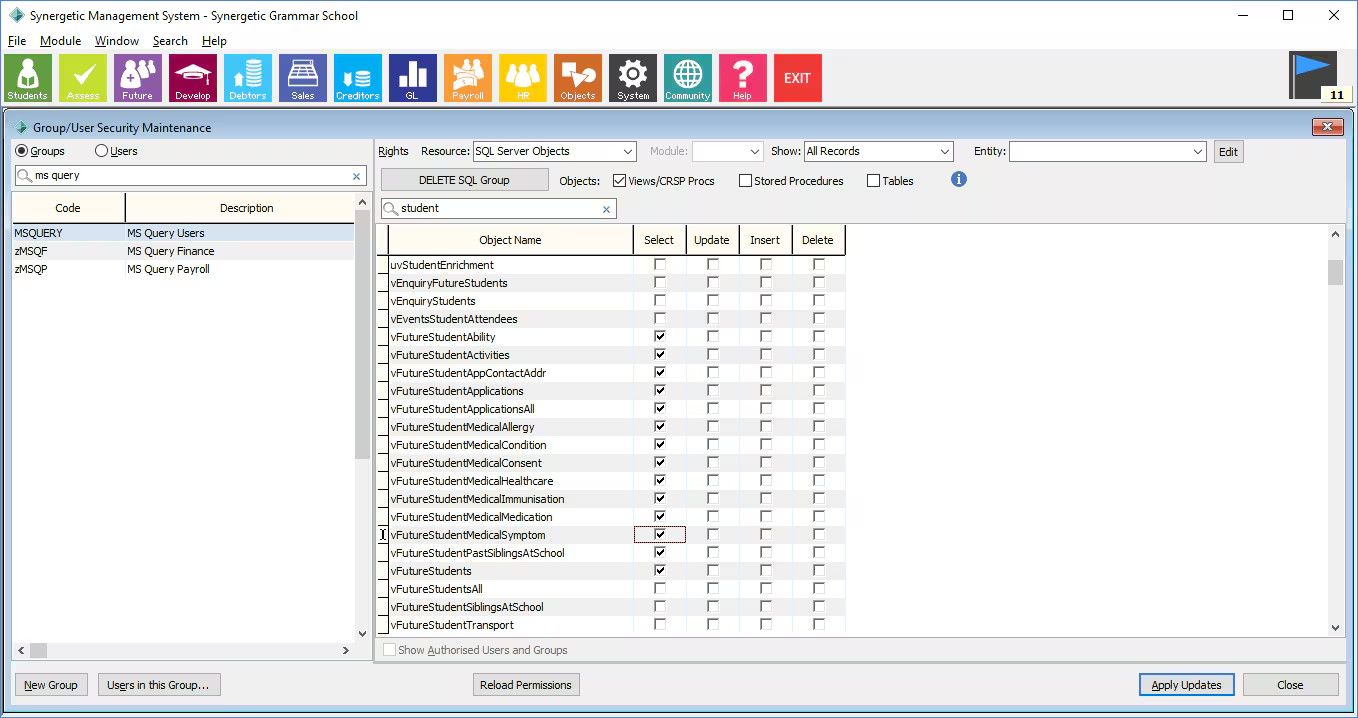
If you do not have Sys Admin Rights as detailed in step 1 this option will be disabled
Only select permission is required to read from views and it is important to not grant update, insert or delete permissions unless specifically required.
Deleting or data via a view can cause a cascade update/delete of data across other tables linked in the view.
If this MS Query needs Finance access, ensure you also create permissions inside the appropriate entity name (i.e. finance) via the Entity drop down box.
- Now select the appropriate permission for views, tables and stored procedures (you can use the tick-boxes to filter against different objects). If needed ensure you replicate these permissions to the finance entities.
- Once done, hit Apply.
When determining what objects to give users access to, Synergetic recommends that only views be used. Synergetic reserves the right to modify base table structures which may result in dependant queries not working at a later date. |
The process of creating SQL Server object groups generates database roles in the applicable contained database, prefixing 'Syn_' and suffixing the applicable schema name.
If you are creating groups specifically for MS Query access, prefix them with 'MSQuery' (or similar) to distinguish them from other groups. |
ie. if your security group is called MSQueryStudents then the database group will be called Syn_MSQueryStudents_dbo,
or if you have a 'main finance' entity group called MSQueryFinance, then the database group will be called Syn_MSQueryFinance_finance
You can create specific Synergetic security groups for SQL Object permissions, or you can use any other existing Synergetic security group. Please note that any Synergetic users in Synergetic security groups will NOT inherit access to the related SQL Objects - This has to be done in SQL Server as described in the next section. |
Linking to SQL Server permissions
Now log into SQL Management Studio as a Sys Admin and add the users into the Database Role/s that have been created.
They can either be either:
- Contained users (these are the logins for v68 and live inside the Database under Security Drop Down), or
Server level users (if you need access to other non-Synergetic databases) or Windows Active Directory Groups (recommended).
If you have AD groups this is a one off process as you will usually have a one-to-one link from your AD group to one or more associated group permissions.
It is recommended to add users to Windows AD groups, then add the group as a member of the new SQL Role in order for the required users to gain access to SQL objects for direct query purposes.
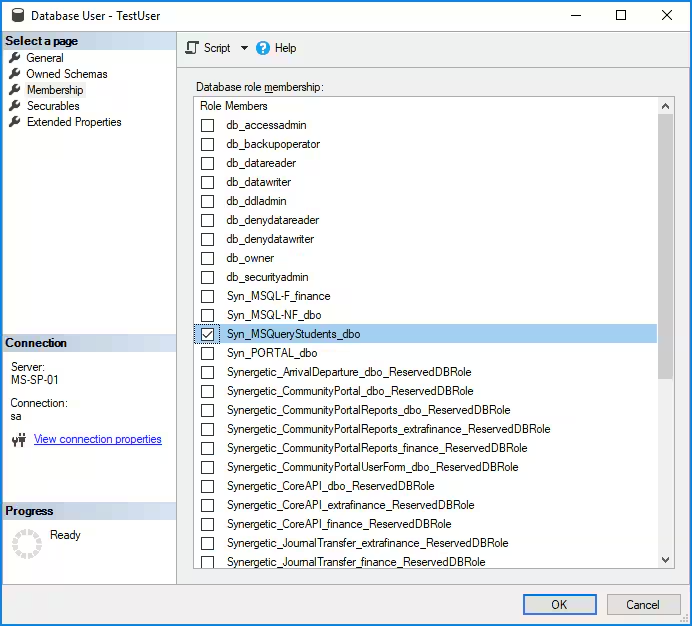
Alternatively you can go in to the Database Role and add users via that interface. You will also be able to see 'Securables' (the object granted permissions from within Synergetic) there.
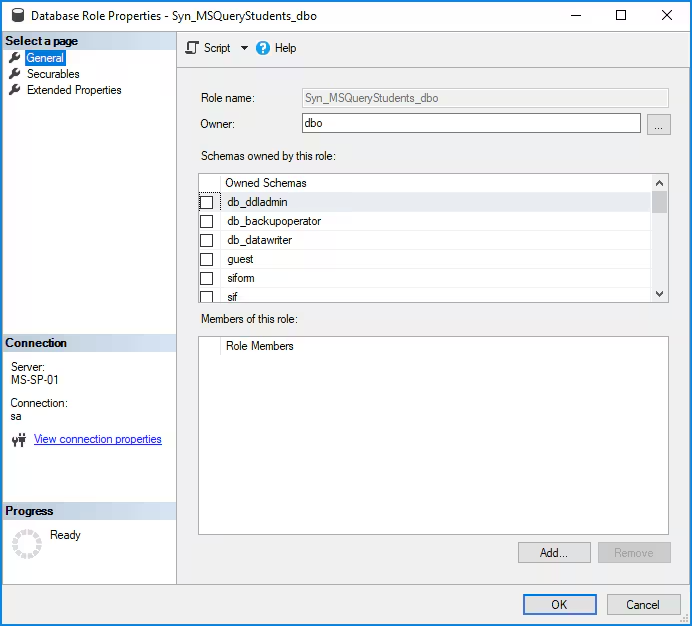
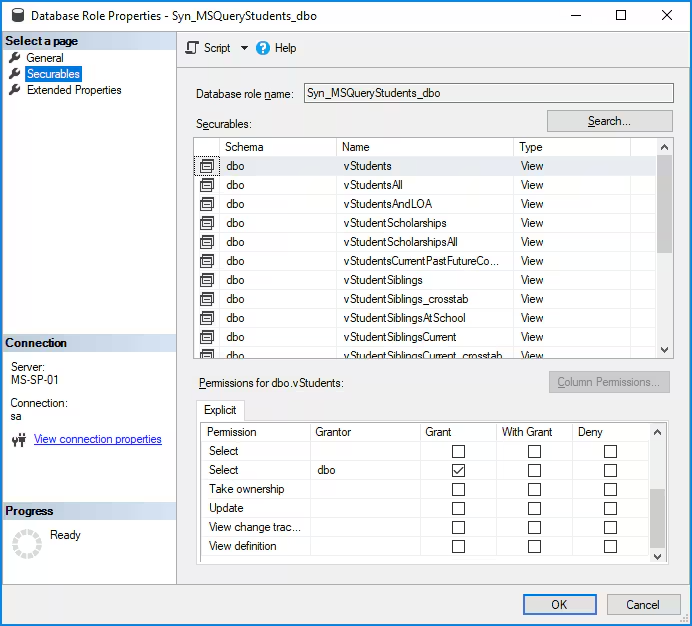
New Users
SQL Users
When creating a new user, you do not need to grant access to the MSQueryStudents group in Synergetic (unless you are using existing groups), but you will against the Syn_MSQueryStudents_dbo role in SQL Management Studio.
AD Users
When creating a new user in AD, associate the relevant groups with the user there.
If you encounter any issues, please contact Synergetic Support.
Common Mistakes to Avoid
The following are common mistakes seen in the field that compromise database security and can prove difficult to maintain.
- Granting access to fixed server or fixed database roles unnecessarily: for example adding users or third party service accounts into the SQL 'sysadmin' or Synergetic db_owner roles.
- Granting full access to a schema: for example dbo, finance or media.
- Granting individual user accounts access when Windows Active Directory Authentication is used: always use AD groups.
- Granting users or Active Directory Groups direct access to SQL objects: always create a a SQL role with restricted permissions and add an AD group to the role.
- Using SQL accounts instead of Windows Active Directory accounts: this proves difficult to maintain and increases security risk.
- Over use of direct database access: consider who actually needs direct database access outside of Synergetic, the type of data and number of records that can be accessed via SQL views. Consider additional data protection policies and guidelines to provide staff who have access to extract data in bulk from the SQL database.
If in doubt of what a user can see at the database level then create a test account and add it to the same Active Directory groups/roles as the required sample user then test access to the database via either SQL Management Studio or MS Query. Then list the available tables, views and procedures to see what the user can view.
Was this article helpful?
That’s Great!
Thank you for your feedback
Sorry! We couldn't be helpful
Thank you for your feedback
Feedback sent
We appreciate your effort and will try to fix the article