Synergetic has been designed to be used in all types of schools and organisations. In some cases, you may want to change the labels for fields that appear on the screen to suit your needs or fine-tune the system.
We recommend that you consult with Synergetic prior to modifying the default field labels in the Synergy.RL file. Synergetic uses the default field labels when developing standard features, and changing these labels can negatively impact the functionality of Synergetic. Ownership of any changes to the Synergy.RL file lies with your organisation and as such Synergetic Management Systems accepts no responsibility for data or design issues that arise from changes to the Synergy.RL file. |
Note: Changing the names of common fields will result in all fields changing names eg: Changing the field 'Comment' in the rl file will change the name for every area the word 'Comment' exists.
Using this approach is a work-around for the Synergetic Windows application only and should only be done if there is no other option available. A better solution may be to create a user table and surface any additional information in a new user tab. There is no way to have this work in the Synergetic web applications. |
Example of renaming fields
In this example, we change two default values to reflect a different option as we don't need to use the 'Receives Mail' and 'Receives Magazine' fields withing Community Maintenance.
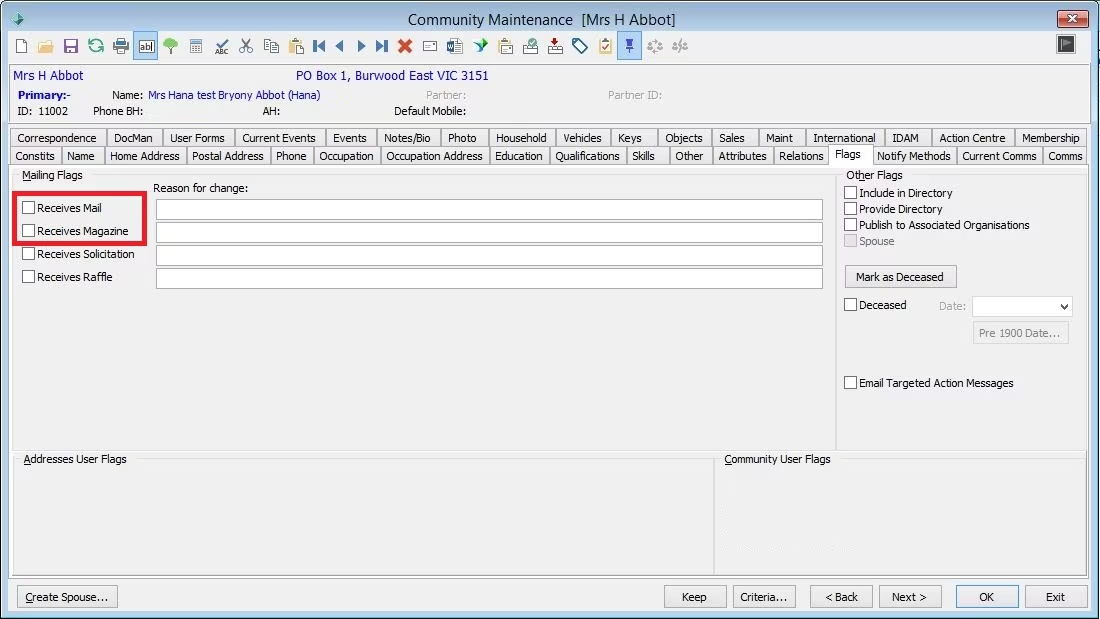
The two fields have been renamed to reflect a more useful set of flags.
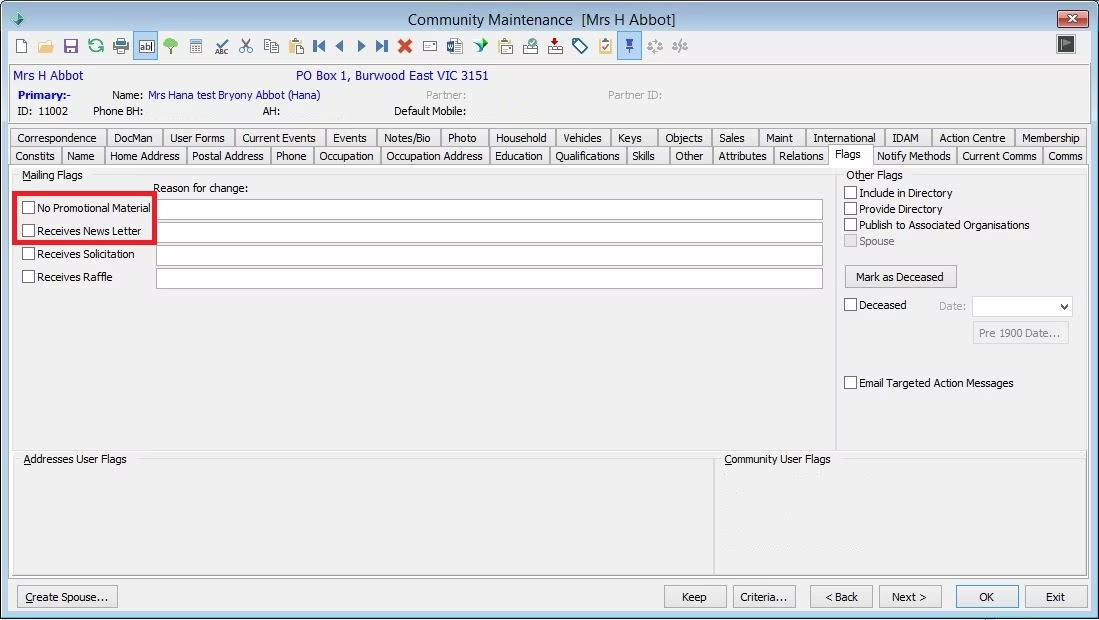
Renaming fields
The following process involves the modification of the Synergy.rl file that is located in your Synergetic directory. You can edit this file with any text editor, such as Notepad.
If you do not have a Synergy.rl file by default, there is a blank rl file available to download
To modify field names:
- Start Windows Explorer
- Locate the Synergetic root directory (eg: C:\ Synergetic)
- Right click the file named Synergy.rl
- Select 'Open With' and then select Notepad (or another appropriate text editor)
- Alternatively, Select Properties from the menu and change the Opens with field to Notepad (or another appropriate text editor)
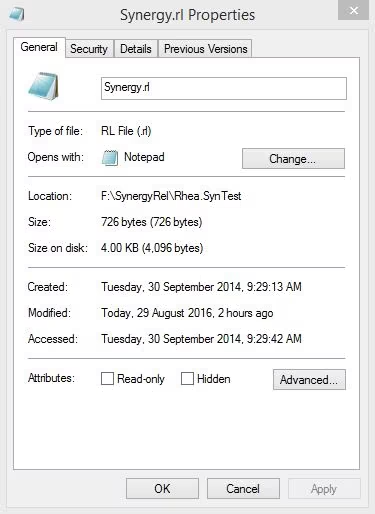
- Open the Synergy.rl file
- You will see a document similar to the below image
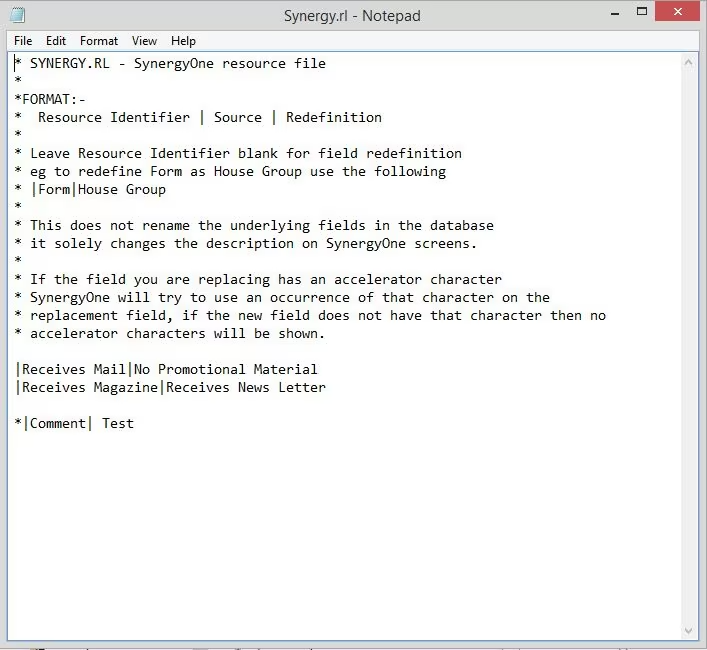
- In order for the file to work correctly, the exact field name must be entered and then given a name that will fit into the available space, this must also follow the same format as the above screenshot. For example, changing 'Comment' to 'We would like to add a comment here please' will result in the field name being cut off when viewed in Synergetic
- For reference, adding the following lines to the rl file will achieve the same result as the first example in this article
|Receives Mail|No Promotional Material
|Receives Magazine|Receives News Letter - Once you have added some lines to change the field, save the file (administrator permissions may be required to save the file here)
- Completely exit from Synergetic, reloading config will not apply the changes.
- Start Synergetic
- Synergetic uses the new Synergy.rl file to update the field labels.
Note: This process will NOT change the backend field names, this is only a cosmetic change (explained further below).
Additional information
This facility renames the labels in all areas that the original label appears in Synergetic. It does not, however, rename the field labels within printed Crystal Reports. Also important to note, the RL file simply renames field labels as they appear on the screen, not the actual database fields. So when you are extracting data you must use the original field names. Ensure that your staff members know this if they need to customise any Crystal Reports or run database queries using the changed labels.
There may come a point where you will need to restore the original field names, either delete or comment out the new lines in the Synergy.rl file by prefixing them with asterisks.
If the file already exists but has not yet been used, it contains the following brief notes on how to use the file effectively:
SYNERGY.RL - Synergetic resource file |
FORMAT:- |
A Blank Synergy.rl file can be found here:
Blank Synergy.rl File
Additional considerations:
- Some fields will not be changeable with the Synergy.rl file, this is because they are fields made specifically for certain tasks.
- Asterisks at the beginning of the above code denote that the following text on that line is a comment. The code that you enter must be below this text and must not have an asterisk at the beginning of the line unless it is also a comment.
- To insert a Pipe (vertical bar) between each field name, use Shift plus the relevant key on your keyboard, the pipe is normally above the backslash on your keyboard.
- Changing the names of common fields will result in all fields changing names eg: Changing the field 'Comment' in the rl file will change the name for every area the word 'Comment' exists.
Was this article helpful?
That’s Great!
Thank you for your feedback
Sorry! We couldn't be helpful
Thank you for your feedback
Feedback sent
We appreciate your effort and will try to fix the article