TABLE OF CONTENTS
Problem
You are unable to establish a ScreenConnect Remote Support session or the Connection to your Synergetic Server is not available.
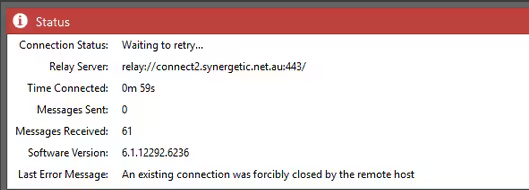
If you view the status window you will find one of the following errors:
An existing connection was forcibly closed by the remote host
Unable to read beyond the end of the stream
Waiting for retry
Solution
Ensure your School's firewall has our IP address 40.82.213.163 (previously 203.29.67.211) and domain connect.educationhorizons.com (previously connect.synergetic.net.au) entered into a Policy that bypasses any HTTPs or Deep Packet Inspection.
For Cyberhound you may find that you need to also add this as a Global Exclusion under under Configuration > Web Proxy > Destination IP address HTTPS exclusions
Additional Troubleshooting
You can enable logging for the ScreenConnect Client or Agent
- Log into the machine and go to C:\Program Files (x86)\ScreenConnect Client (guid).
- Make a copy and paste of ScreenConnect.WindowsClient.exe.config (call it .bak) so that we can easily roll back the debug change.
- Open the configuration file ScreenConnect.WindowsClient.exe.config in notepad (right-click and select Edit).
Copy and paste the following xml config into the file.
<configuration> <system.diagnostics> <trace autoflush="true" /> <sharedListeners> <add name="Listener" type="System.Diagnostics.TextWriterTraceListener" initializeData="trace.log" /> </sharedListeners> <sources> <source name="ScreenCapturer" switchValue="All"><listeners><add name="Listener" /></listeners></source> <source name="Exception" switchValue="All"><listeners><add name="Listener" /></listeners></source> <source name="EndPointManager" switchValue="All"><listeners><add name="Listener" /></listeners></source> </sources> </system.diagnostics> </configuration>- To save the file, you will need to save it to another location (as notepad won't have admin rights) so save to the desktop (don't forget to add the .config to the end of the filename.)
- You can now cut/copy and paste it back into the ScreenConnect Client folder in Program Files (x86)
- Go into the Services Management Console and restart the ScreenConnect service, you will temporarily loose connection while the restart occurs.
There will now be a trace.txt file located in the same folder that will store all of the information you need to debug the issues with ScreenConnect. These can then be sent through to Synergetic for further assistance.
Additional notes
- CyberHound - Add connect.educationhorizons.com (40.82.213.163) to the HTTPS Exclusions under Configuration > Web Proxy > Destination IP address HTTPS exclusion
- Remote access needs outgoing ports 80 & 443 opened to 40.82.213.163 ‘connect.educationhorizons.com’. Firewall ‘deep packet inspection’ may also interfere with connections and recommend whitelisting ‘connect.educationhorizons.com’.
Was this article helpful?
That’s Great!
Thank you for your feedback
Sorry! We couldn't be helpful
Thank you for your feedback
Feedback sent
We appreciate your effort and will try to fix the article