TABLE OF CONTENTS
Linking Payroll to Debtors
Purpose
One of the biggest advantages of using Synergetic Payroll is its ability to integrate with the Debtors module. This enables automating salary sacrificing a portion of staff members pay (pre or post tax) to credit their (or their spouses) Debtor account. This guide outlines the process of setting it up.
Set up Debtor Fee Codes
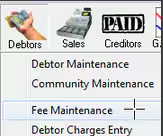
Under Debtors, Fee Maintenance, create a new Debtor Fee Code
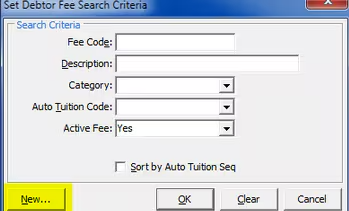
Select the New button
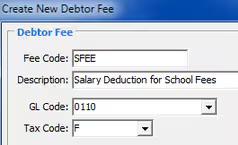
Ensure the Fee code has a GL code defined against it, this account will have a journal created against it as well as the debtors control account when the Pays are updated.

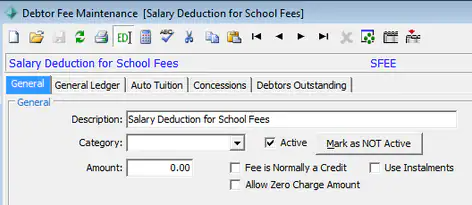
If you are using Debtor Sub Ledgers, a Fee category must be defined and be pointing to the sub ledger accounts that you want to credit from Payroll.
Set up Payroll Pay code
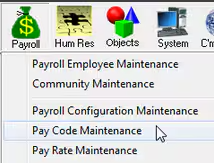
Under Payroll, Pay Code Maintenance, create a new Payroll Pay Code
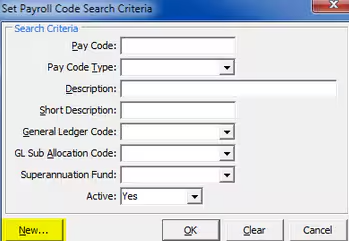
Select the New button
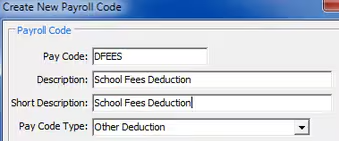
Pay Code Type will be depending on if it is a pre or post tax code, if needing both types you will set up two Pay Codes one as Other Deduction and the other as a Salary Sacrifice.
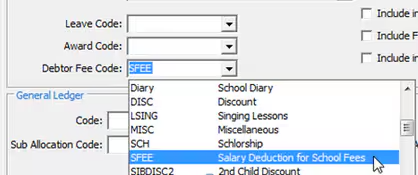
From the Debtor Fee Code selection find the Fee Code created in the last step.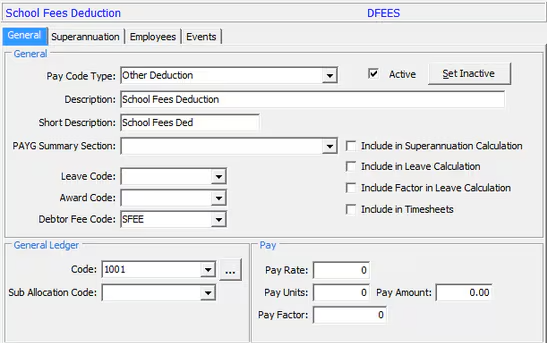
Set the regular defaults for the fee code if applicable.
Add to Employees Standard Pay
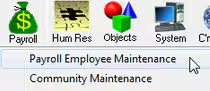
In Payroll, Payroll Employee Maintenance
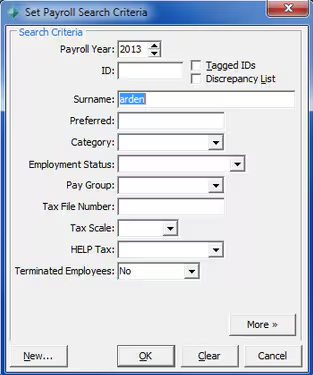
Search for the staff member's record who is making debtor account contributions
On their Pay Details tab add the debtors linked Pay code, deductions and salary sacrifices are entered in with negative values.
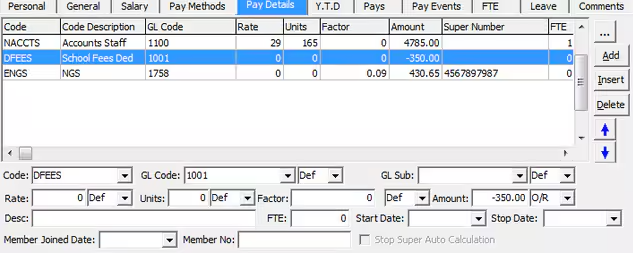
Make any appropriate overrides necessary.
Process Pays
Create a new pay as normal
Process EFT & Payslips as normal
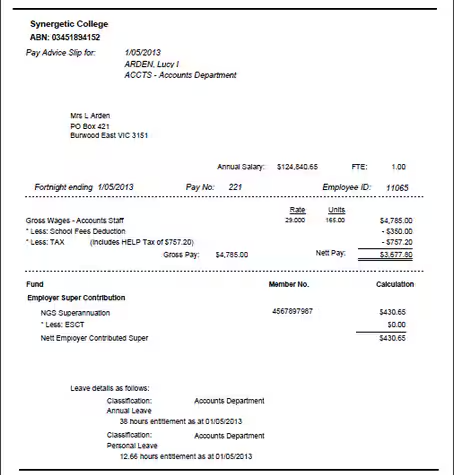
Finally update payroll
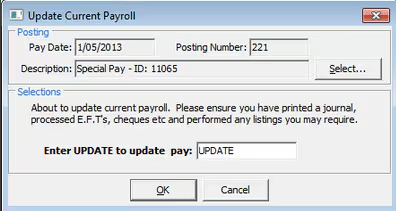
Payroll Close off report
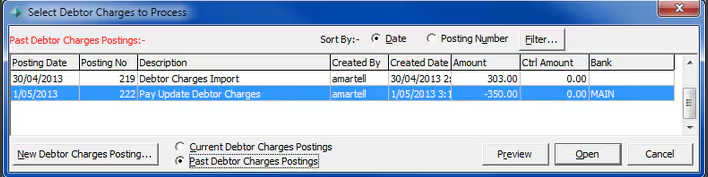
As well as the normal payroll close off report, Synergetic will also produce a Debtor Charges Entry Close off report

Confirming the Credit to Debtor Accounts
You can then check the debtor account in Debtor, Debtor Maintenance
Search for the debtor account record (the staff member or their spouse.
Then on the history tab, you should be able to locate the credit charges.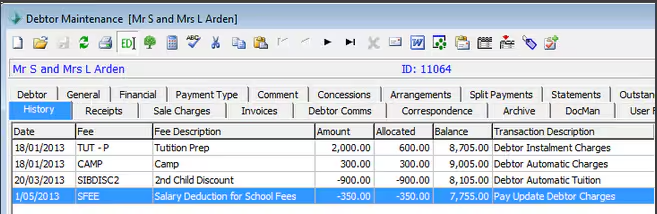
Was this article helpful?
That’s Great!
Thank you for your feedback
Sorry! We couldn't be helpful
Thank you for your feedback
Feedback sent
We appreciate your effort and will try to fix the article