TABLE OF CONTENTS
Summary
This article explains How to refund specific Debtors in one posting.
End Result
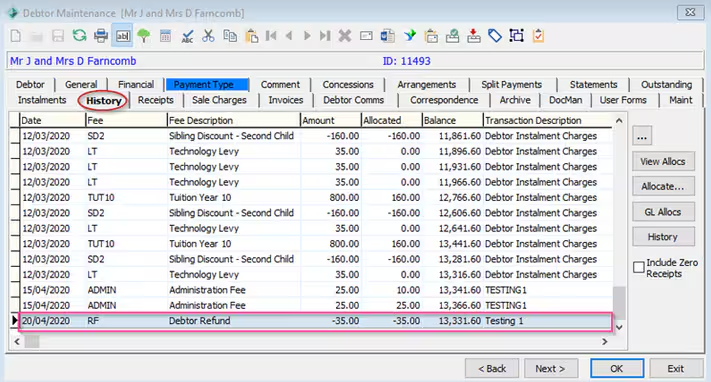
A negative charge will be created under debtors records in bulk
Method
In order to make a refund to the debtors you need to have a specific Fee code for this reason,
If required the Refund Fee code can be set up as follows:
- Open Debtor > Debtor Fee Maintenance
- Click the ‘New’ button
- Assign a ‘Fee Code’; for example ‘Refund’
- Give a ‘Description’; for example, Debtor Refund
- The G/L Code’ is the Bank Account G/L Code
- Tax Code’ leave blank
- On the General Ledger tab you select what you want to print on the Statement
Then you can use Debtor Automatic Charges program to create a posting. Below are the steps:
- Go to Debtors> Debtor Automatic Charges
- Click on “Bulk Add Students”
- Select the range of students by year level, campus, House, Tutor Group, etc … or simply load form an Excel Spread sheet, list of students will appear on righthand side of the screen to be processed.
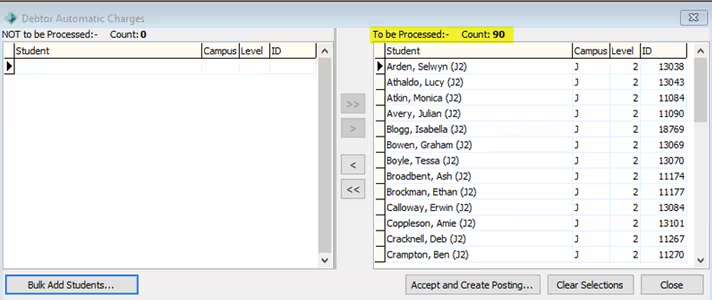
4. Click on “Accept and Create Posting”
5. Select the Refund fee code in charge selections section and enter the amount to be refunded and click OK (Note this amount is a negative amount).
6.Change the descriptions to reflect the charge
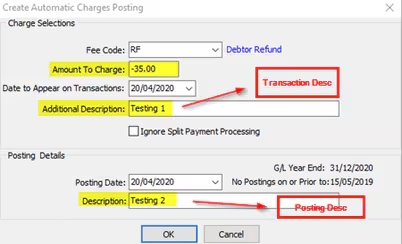
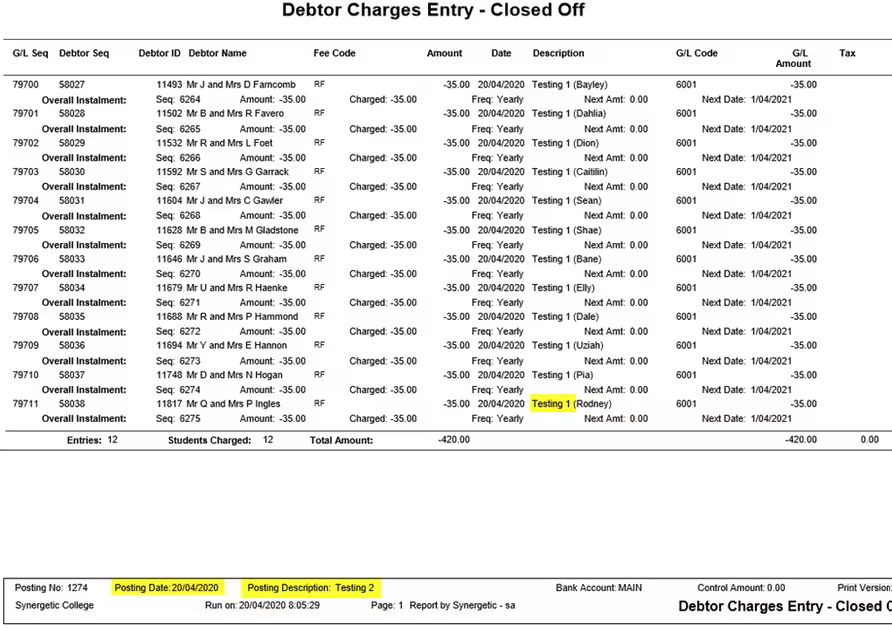
7. Click OK and Print the Debtor Charges Entry- Closed off report to a PDF file or printer.
Was this article helpful?
That’s Great!
Thank you for your feedback
Sorry! We couldn't be helpful
Thank you for your feedback
Feedback sent
We appreciate your effort and will try to fix the article