Purpose:
SC1 Contacts and Relations details have been created correctly, but the student has been created with their own address, not their parent's address, this can mean that the student record will not be correctly associated with their parent's record/ID.
Resolution:
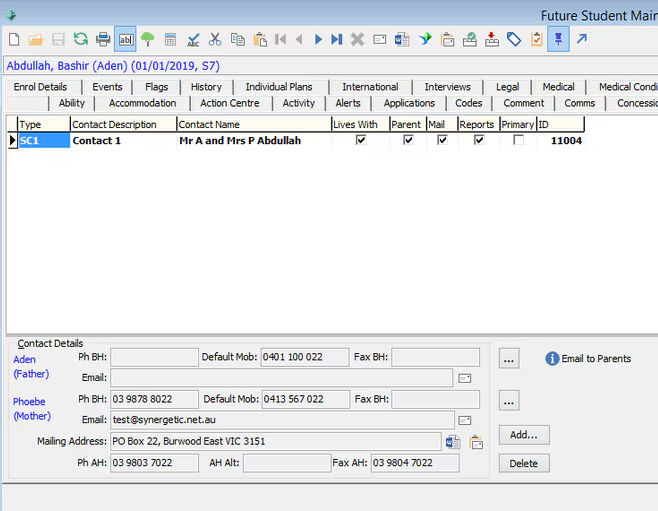
1. Take note of the parent's contact ID (Primary).
2. In the Future Student Contacts Tab, Delete the SC1 Contact.
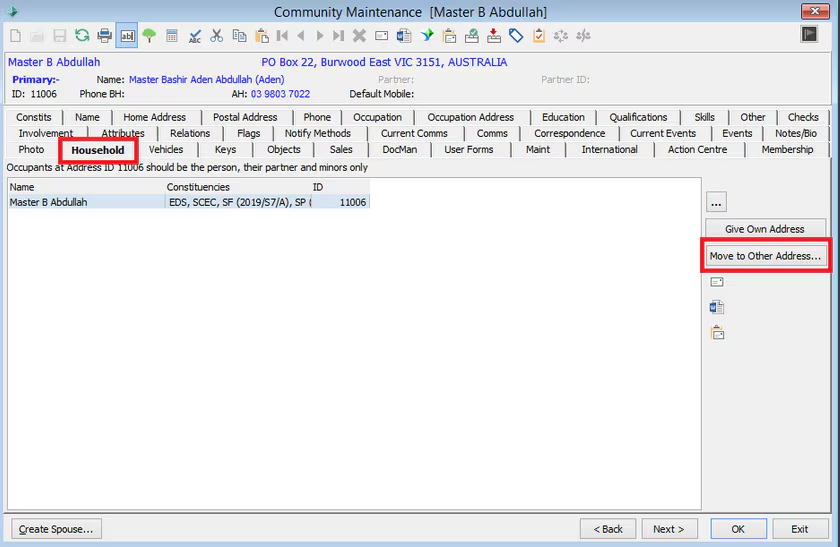
3. In the students Community Record - Household Tab, Select the "Move to Another Address" button
4. In the Find Name in Community pop-up, use the parent ID, and select Find. (The parent should be displayed in the selection grid.)
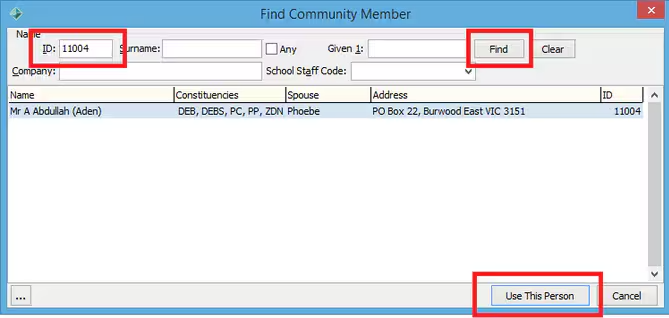
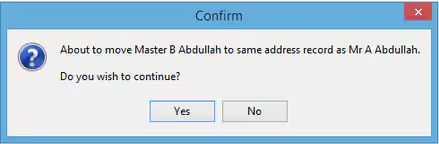
5. Select the "Use this Person" button and a confirmation screen should be displayed, indicating the move to the parent's address.
6. Select Yes. There should be a prompt to display the student's Community record.
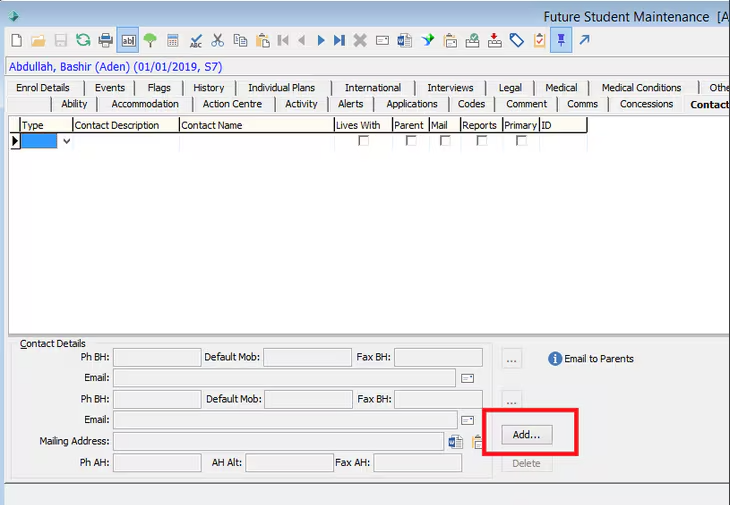
7. In the Future Students record, reassign the parents as the SC1 contact by choosing Add
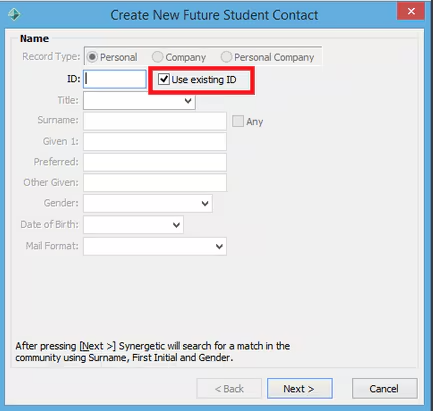
8. Choose "Use Existing ID" and key in the Parent's ID - Select Next
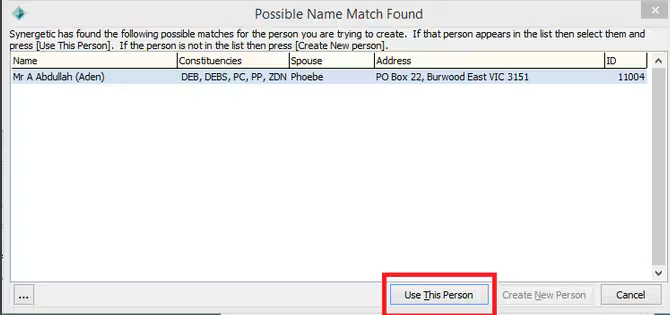
9. Choose "Use this Person" from the selector grid.
10. Assign the SC1 as the contact type, and check the relevant selection boxes for the parent's preferences.
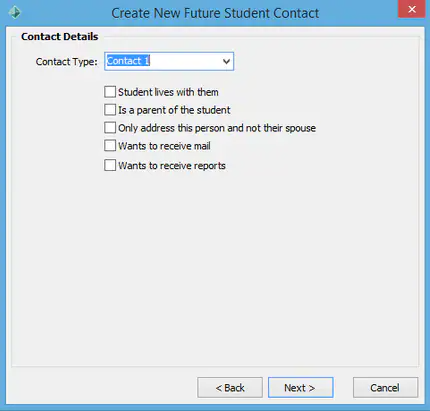
11. Select Next to complete the action.
Was this article helpful?
That’s Great!
Thank you for your feedback
Sorry! We couldn't be helpful
Thank you for your feedback
Feedback sent
We appreciate your effort and will try to fix the article