TABLE OF CONTENTS
Issue:
A statement/invoice run has been interrupted and the process did not complete correctly leaving some debtors un-notified. This is a common issue that can happen during any statement run but is easy to rectify.
Cause:
Interruptions to statement notifications can be caused by a variety of different issues the most common of which are:
- Incorrect, blank or invalid debtor email addresses
- Mail server settings blocking a bulk send
- Background processes interfering during a notification run
- The user closing the program (force closing/killing the process) during the notification run (usually because they believe Synergetic has locked up/froze)
Any one of the above scenarios could be to blame for the run not going through correctly, but the fix is the same regardless.
Identifying The Issue
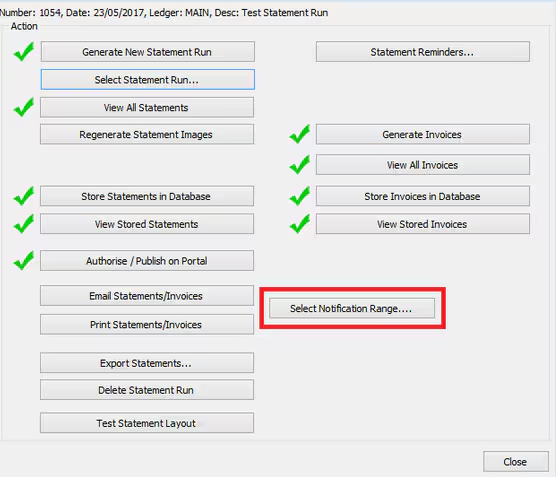
Go to Debtors > Debtor Statements > Select Statement Run > Select Notification Range
If affected by this, you will likely have a number of Debtors that have had an email sent to them successfully before the process was stopped, this is indicated by the date in the 'Notified' column
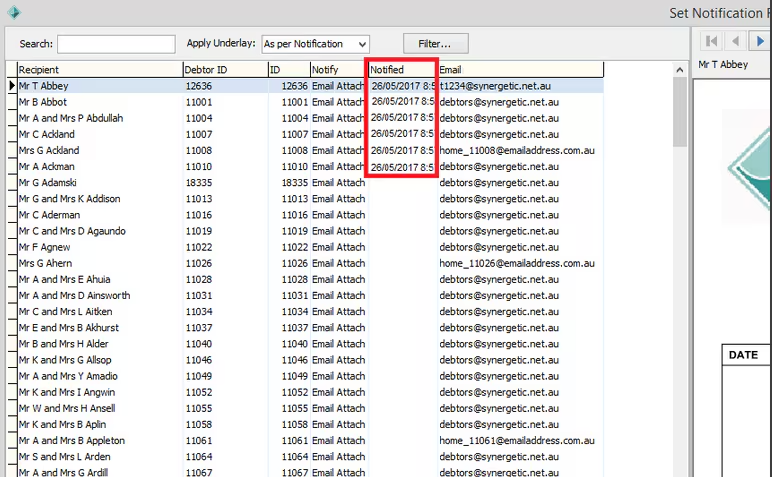
The remaining debtors will not have a notified date. This clearly indicates that they have not received their statements yet.
Resolution:
Looking through the 'Notified' column will tell you at which point the process failed and stopped processing. This can also indicate where the issue lies:
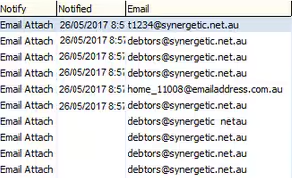
An example of what the process can look like on a failure because of an invalid email.
Once you have identified what caused the issue and have corrected the problem, you can restart the process from the point of failure this will send the remaining emails to debtors without a 'Notified' date entry.
To Restart:
- Go to the 'Select Notification Range' screen (Debtors > Debtor Statements > Select Statement Run > Select Notification Range)
- Check the remaining Debtors (without a 'Notified' date) to ensure that email addresses are valid.
If you have debtors who receive a printed statement, ensure that their Notify Method (shown in the 'Notify' column) is set to 'Print' and not 'Email Attach'
- Bring up only the debtors who have not received an email or had a statement printed by using a filter:

- Here is an example of what you might filter by to set your range:
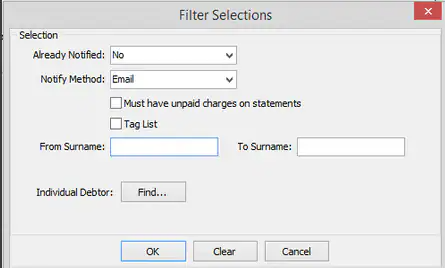
- Once a range has been set, close the Select Notification Range window and go back to the Debtor Statement window
- You should now see some text which indicates that a range is active
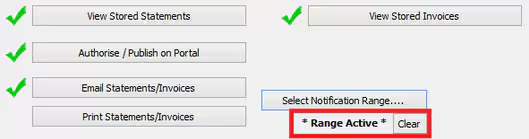
- Email or print your statements again for the selected range
If you encounter the issue again, follow the same steps as above. This process may stop continuously if more invalid emails exist, or if the process is interrupted.
Was this article helpful?
That’s Great!
Thank you for your feedback
Sorry! We couldn't be helpful
Thank you for your feedback
Feedback sent
We appreciate your effort and will try to fix the article