Please see below for different methods of installing the Synergetic Windows client onto your workstations.
Manual Installation
The installation files should reside in the 'install' folder located in the Synergetic network share. (ie: \\SERVER\Synergetic$\install).
Installation files can also be downloaded form the downloads section of this Customer Portal (You must be logged in)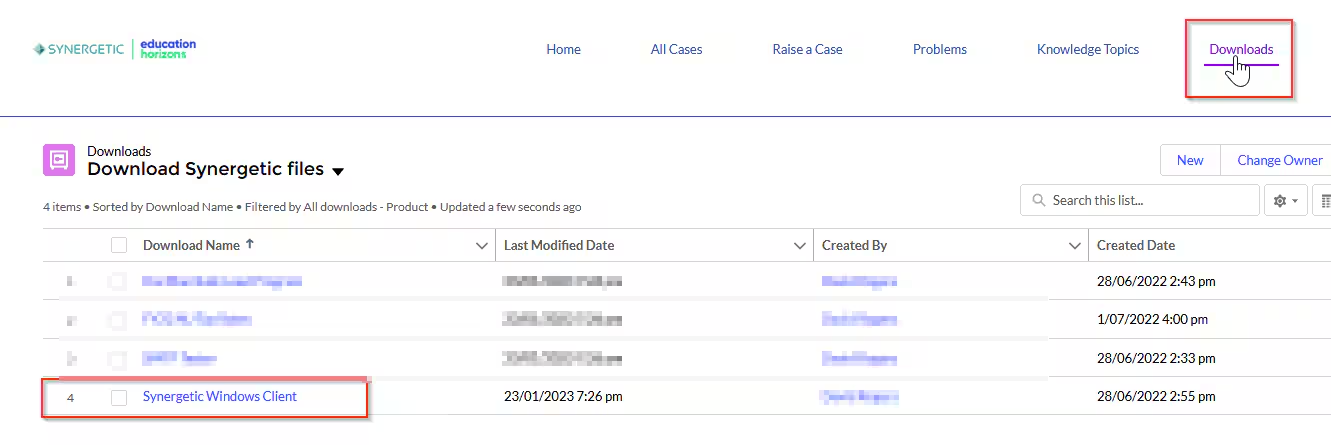 Run 'setup.exe' and follow the prompts.
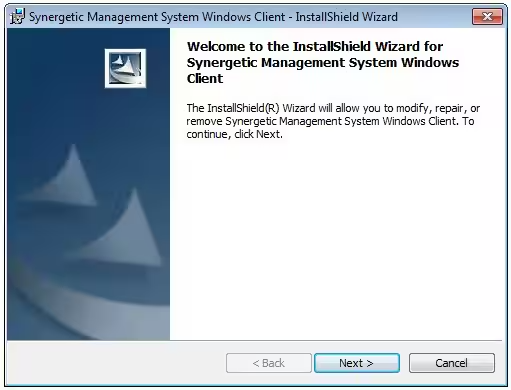
Click 'Next'.
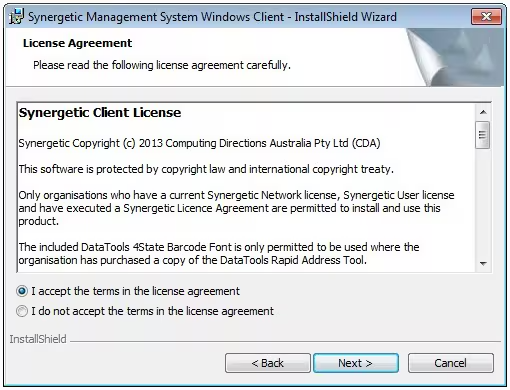
Please read through the terms in the license agreement and click 'Next'.
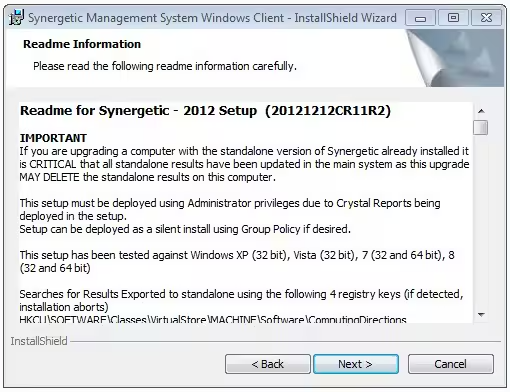
Please read through the information and click 'Next'.
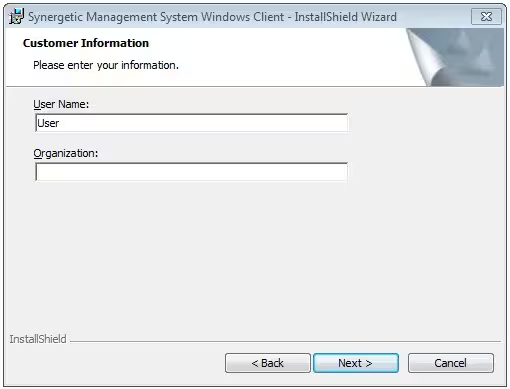
Enter in the customer information and click 'Next'.
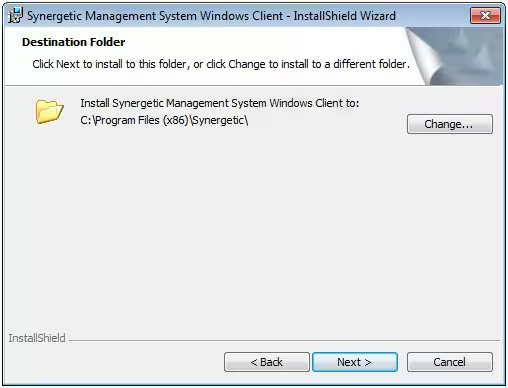
Accept the default destination and database folders and click 'Next'.
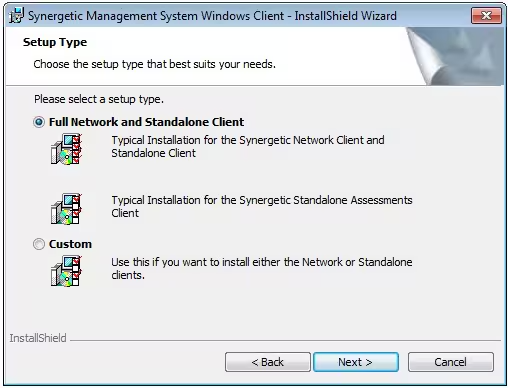
Accept the default setup type and click 'Next'.
The client will then install. Once the installation is complete, click 'Finish'.
Double-click the 'Synergetic' icon located on the desktop.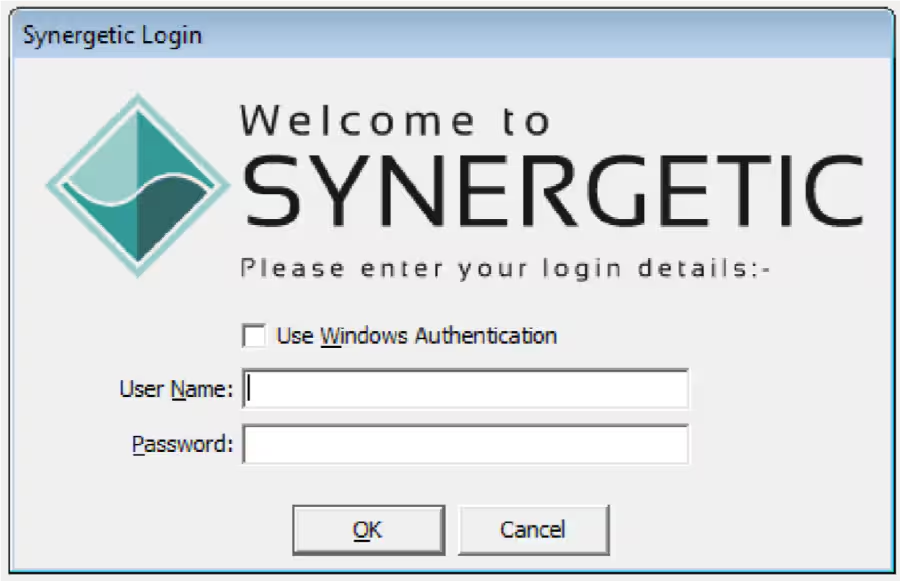
Log into Synergetic using a valid username and password.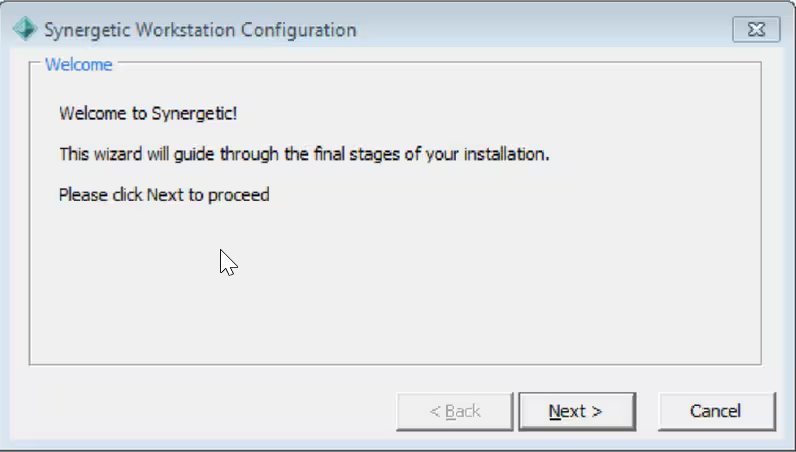 The first time Synergetic runs it will request to be configured.
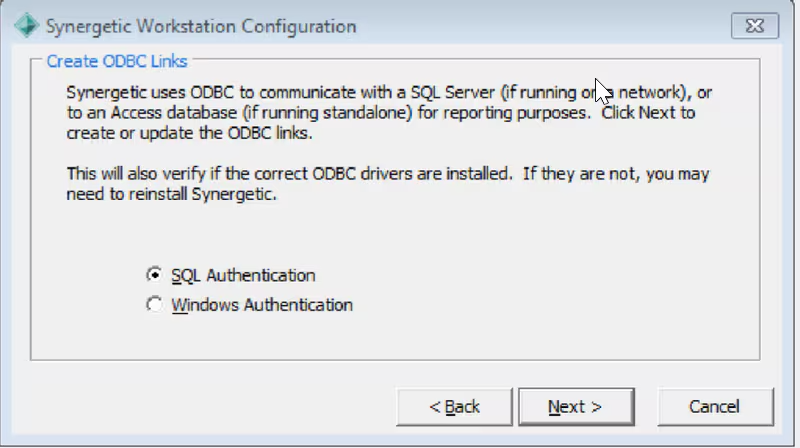 Select the authentication method and connection protocols. Click 'Next'.
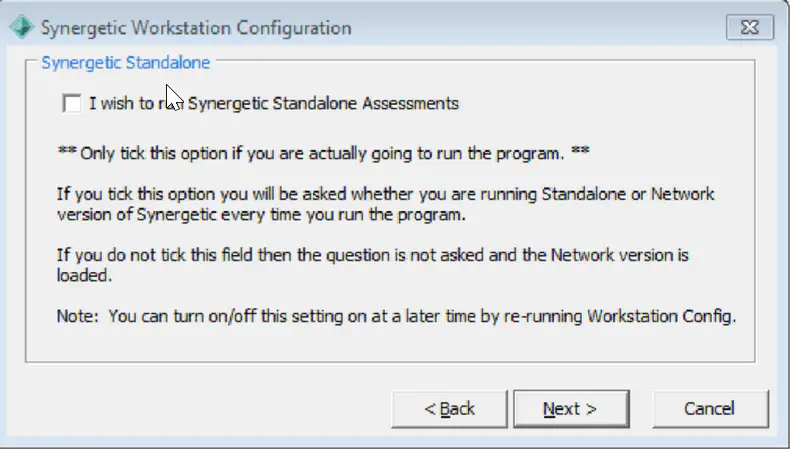
Select 'Standalone Assessments' if required and click 'Next'.
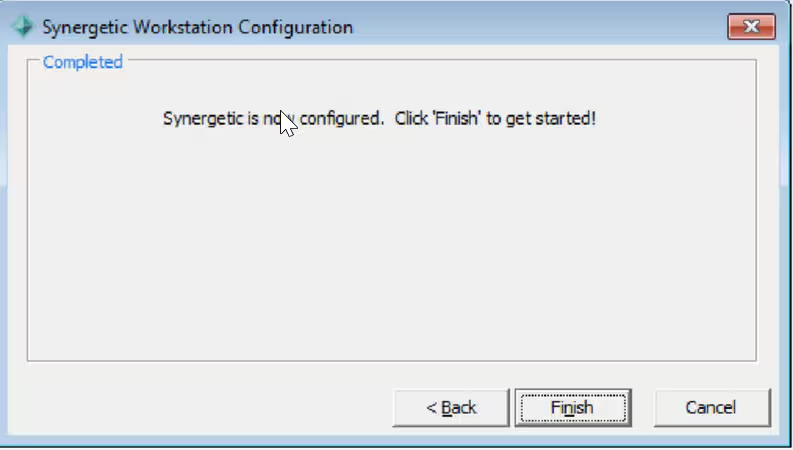
Click 'Next' and then 'Finish.
Group Policy Deployment
The Synergetic Windows Client can also be deployed via Group Policy.
The installation files should reside in the 'install' folder located in the Synergetic network share (ie: \\SERVER\Synergetic$\install) and should be accessible by the workstation computer account.
- Modify the 'synergy.reg' as below
- Log in to the Domain Controller and run 'Group Policy Management'.
- Under Group Policy Objects, right-click and select 'New'.
- Enter a name for the GPO and click 'ok'.
- Right click on the new GPO and select 'edit' to launch 'Group Policy Management Editor'
- Under 'Computer Configuration' -> 'Policies' -> 'Software Settings', right-click on 'Software installation' and select 'New' -> 'Package'
- Browse to the network share where the Synergetic client files are stored and select the 'Synergetic Management System Windows Client.msi' installer.
- Select 'Assigned' as the deployment method and click 'ok'.
- Close 'Group Policy Management Editor'.
- In 'Group Policy Management', browse to the Computers container where the workstations are located that you would like the Policy to be applied.
- Right-click on the container and select 'Link an Existing GPO'.
- Select the new GPO and click 'OK.
The policy should now be active for all workstations in the container. A restart may be required for the workstations before the policy is downloaded and applied.
Synergy.reg
------------------------------------
REGEDIT4
[HKEY_CURRENT_USER\SOFTWARE\ComputingDirections\SynergyOne]
"Installed"=dword:00000002
"SynergyOnePath"="\\\\server\\sharename\\SynMain.exe"
"ODBCAutoConfig"=dword:00000001
[HKEY_CURRENT_USER\SOFTWARE\ComputingDirections\SynergyOneLocal]
"Installed"=dword:00000000
[HKEY_CURRENT_USER\Software\Business Objects\Suite 11.5\Crystal Reports\Export\PDF]
"ForceLargerFonts"=dword:00000001
--------------------------------------
System Center Configuration Manager Deployment
The Synergetic Windows Client can also be deployed via Configuration Manager, using a similar method to Group Policy.
The installation files should reside in the 'install' folder located in the Synergetic network share (ie: \\SERVER\Synergetic$\install) and should be accessible by Configuration Manager.
- Modify the 'synergy.reg' as below
- Connect to Configuration Manager Console.
- Create a new application and when prompted, point to the MSI file as the installer.
- Accept the defaults for everything else.
- Distribute to your distribution points 6. Deploy to the device or user collections.
Synergy.reg
------------------------------------
REGEDIT4
[HKEY_CURRENT_USER\SOFTWARE\ComputingDirections\SynergyOne]
"Installed"=dword:00000002
"SynergyOnePath"="\\\\server\\sharename\\SynMain.exe"
"ODBCAutoConfig"=dword:00000001
[HKEY_CURRENT_USER\SOFTWARE\ComputingDirections\SynergyOneLocal]
"Installed"=dword:00000000
[HKEY_CURRENT_USER\Software\Business Objects\Suite 11.5\Crystal Reports\Export\PDF]
"ForceLargerFonts"=dword:00000001
--------------------------------------
Was this article helpful?
That’s Great!
Thank you for your feedback
Sorry! We couldn't be helpful
Thank you for your feedback
Feedback sent
We appreciate your effort and will try to fix the article