TABLE OF CONTENTS
The following instructions will go through the process of creating the next year's General Ledger using the Create Next Year General Ledger tool within Synergetic.
This process will copy all active G/L Codes from the current year, into the next year and render the previous year entirely.
Note: Synergetic lets you work with two years of data. For example, if you create 2015, you can work in 2014 and 2015. Creating a general ledger year closes off another. For example, 2015 is closed and general ledger journals can no longer be posted to it, but journals can be posted in 2016 and 2017.
Considerations:
You may choose to create the next year's general ledger when you are ready to move on with your GL postings for the next year, this process will move or change the following things for the next year:
Budgets will be copied to the next year (if applicable)
- General Ledger Codes that aren't marked as inactive will transfer to the next year
- Balances of G/L Codes marked as 'Balance Sheet' will be transferred
- The process will also clear the balances of any Profit and Loss G/L Codes for the next year, but will leave the balance of the current year intact.
- Will set the default/current G/L year to the next year (if desired)
Before creating next year's general ledger, you should take care of the following maintenance tasks:
- Mark all unwanted/unneeded G/L codes as Inactive
- Ensure that the previous year is completely closed off (for example, if you create 2016, you can work in 2015 and 2016, but 2014 becomes closed off for editing)
- Advise other staff members (particularly finance staff) that the default G/L year will be changing (if applicable) to avoid staff posting transactions to the incorrect year.
Process:
- Go to: GL > Create Next Year General Ledger
- The Create Next Year General Ledger window will open
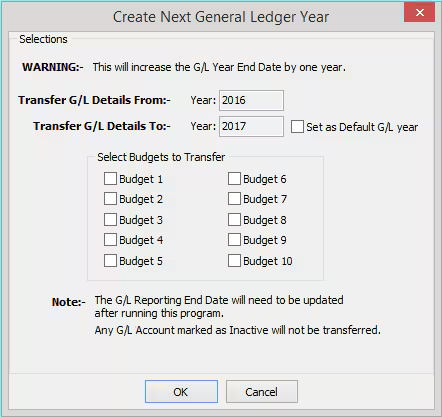
- Ensure that all details are correct
- Continue by clicking OK
- The Confirmation screen will appear
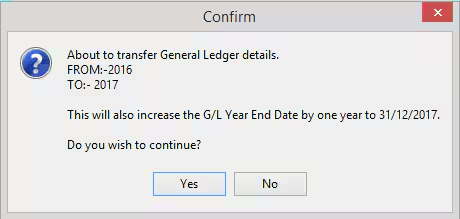
- Confirm that the details are correct
- Click Yes
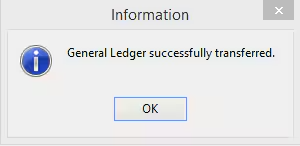
- After a short time, you should receive a success message (If you did not receive the success message, click Here for a troubleshooting guide).
- Go to System > Finance Configuration Maintenance and make sure that the G/L End of Year Date and the G/L Default Year is showing the correct year for your organisation
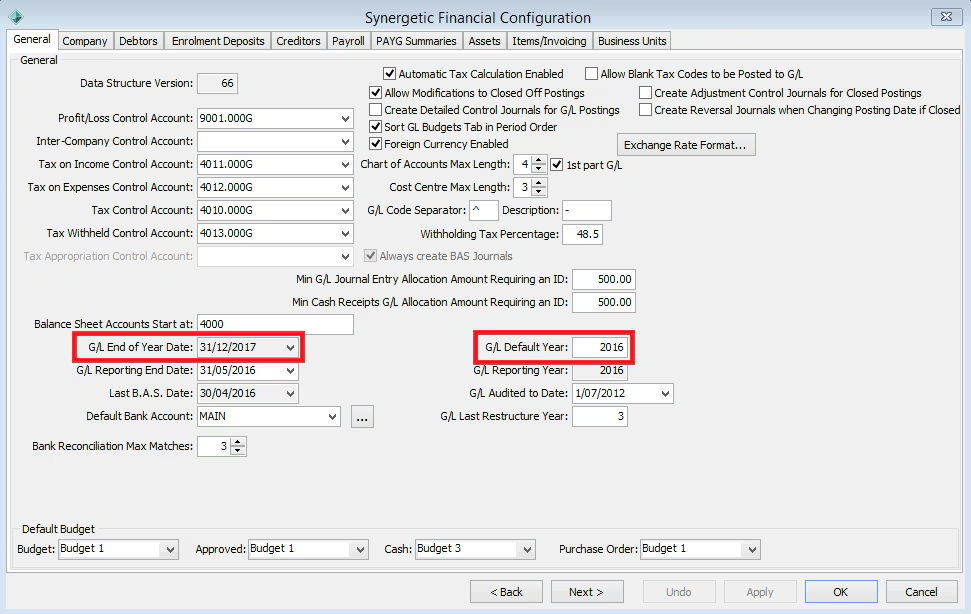
- The process is now complete and you should have all active G/L Codes in your current and next G/L years.
Was this article helpful?
That’s Great!
Thank you for your feedback
Sorry! We couldn't be helpful
Thank you for your feedback
Feedback sent
We appreciate your effort and will try to fix the article