TABLE OF CONTENTS
Summary
This article explains how to write off or remove incomplete debtor instalment charges.
End Result
The debtor will no longer have the instalments against their account with an amount owing.
Method
In order to manually remove charges, follow these steps:
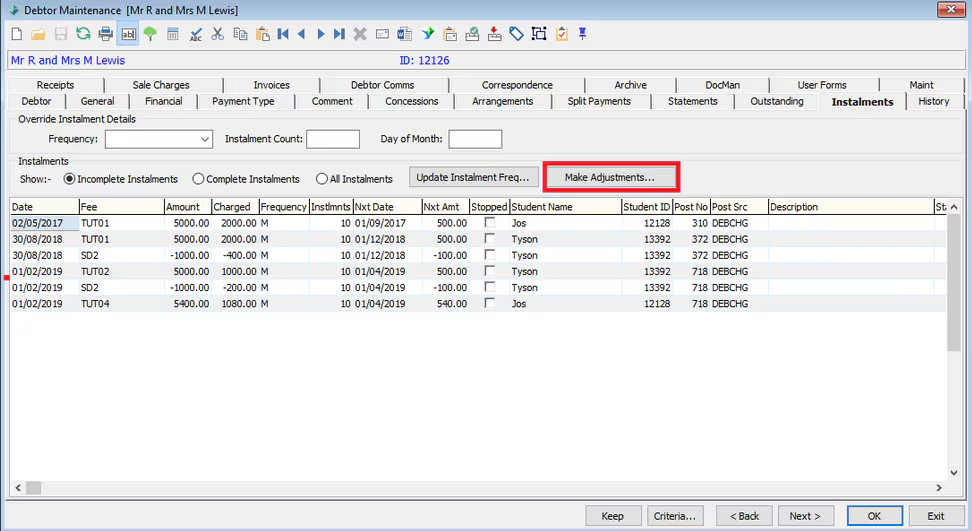
- Go to Debtors > Debtor Maintenance > Select Debtor > Instalments (Tab)
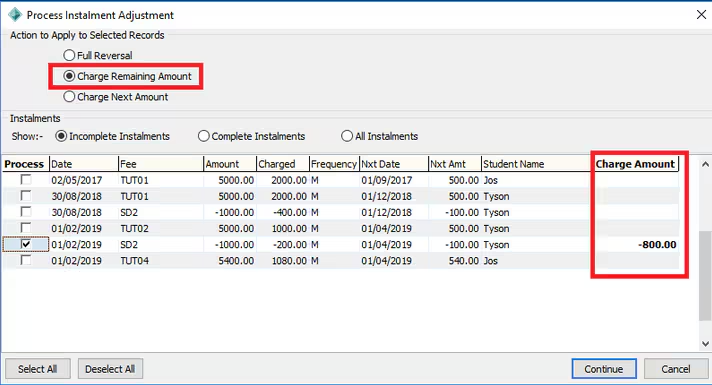
- Select ''make adjustments" and on the screen that pops up, select "Charge Remaining Amount"
- Ensure that the full amount appears in 'Charge Amount' when processing all applicable charges
This will create a new charge in the 'Outstanding' tab which may be your desired end result. If this now looks good, there is no need to continue with the following steps.
If you wish to wipe the charges entirely, please follow the next steps:
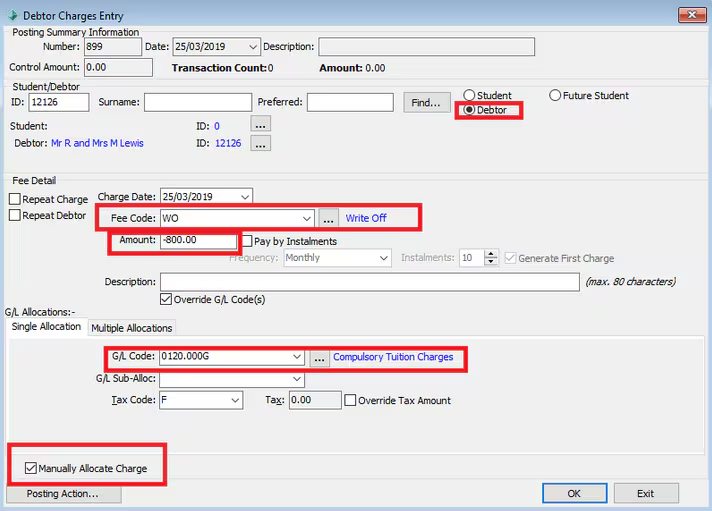
- Create a new Debtor Charge (Debtors > Debtor Charges Entry)
- Select the Debtor you wish to write the installment off from
- Select appropriate dates
- Select a Fee Code suitable for writing off amounts.
- If you are a CEO school this fee code needs to have a fee category that uses the Synergy Meaning of WriteOffs (this can be checked in System > Lookup Table maintenance Finance > Search: 'luDebtorFeeCategory' and then ensure that this fee category is applied to an appropriate 'Write Off' fee code in Debtors > Fee Maintenance > General (Tab) > Category) This fee code should not have a G/L associated with it The reason for this is that the write off transaction will pull through to your CEO reporting.
- For all other schools the fee code selected can the fee code to be reversed which will automatically pick up the relevant G/L associated with it or a write off fee code which you will then need to add the G/L code to.
- Enter the negative amount corresponding to the current outstanding amount that you wish to write off. I.e. in order to write off $80 you would enter -$80.
- Select the appropriate G/L code to allocate the negative charge to. This G/L code will likely be the same one used for the charge that is being written off.
- Allocate this negative amount to the amount that needs to be written off, if this did not take place automatically. To manually allocate the charge (recommended) tick the 'Manually Allocate Charge' tick box at the bottom of the screen.
When manually allocating the charge, upon clicking 'OK' you will see a box pop up that will prompt you to allocate the negative amount as desired.
If you need to charge amounts after this is completed, this can be done in a normal Debtor Charge posting manually.
Considerations
You will need consider if the charges need to be wiped completely or left as outstanding charges. This may vary depending on the debtors circumstances.
Was this article helpful?
That’s Great!
Thank you for your feedback
Sorry! We couldn't be helpful
Thank you for your feedback
Feedback sent
We appreciate your effort and will try to fix the article