The Study Period Maintenance program allows attendances to be recorded for a study period. Students are able to sign in a study period by typing in their name or swiping their ID card against a bar-code reader.
The Study Period Maintenance program is only available on the Synergetic Web application.
Student Sign In Function
- Log on to Synergetic Web application
Students type in name (surname or given) into the Sign In field and select the \[Sign In\] button or enter key
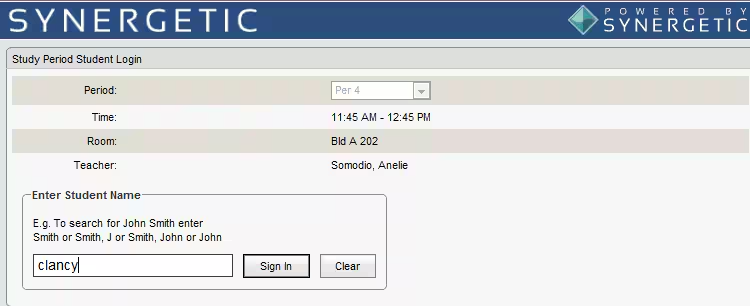
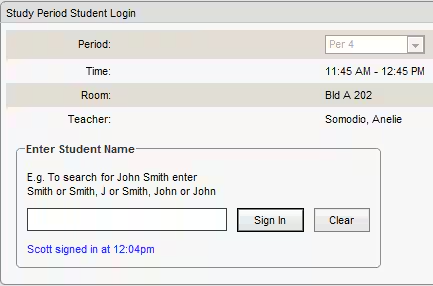
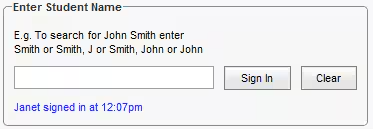
- The following sign in statement appears when the student record is found and successful.
- If more than one student record meets the search criteria., The following search screen appears:
Students can select their record from the list by clicking the 'Select' option beside their name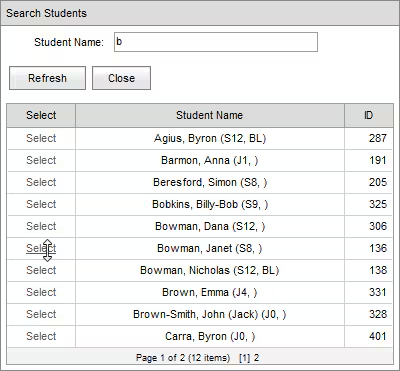
- The student is then signed in successfully
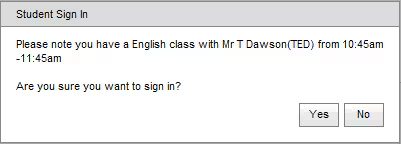
- If the student has a timetabled class or scheduled co-curricular activity (or 'clash'), the following message appears.
The student will need to select \[Yes\] to continue to sign in to the Study period or \[No\] to attend the timetables/scheduled class or activity. |
Teacher Admin Function
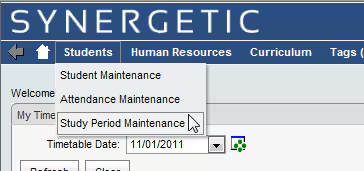
The Study Period teacher can maintain the student sign in by selecting Students menu > Study Period Maintenance.
Teachers can view the students who have signed into their study period and delete from the list.
- Select Admin in the Admin column against the period to view and maintain the study period list.
This will give teachers a list with/without photos of students who have signed in.
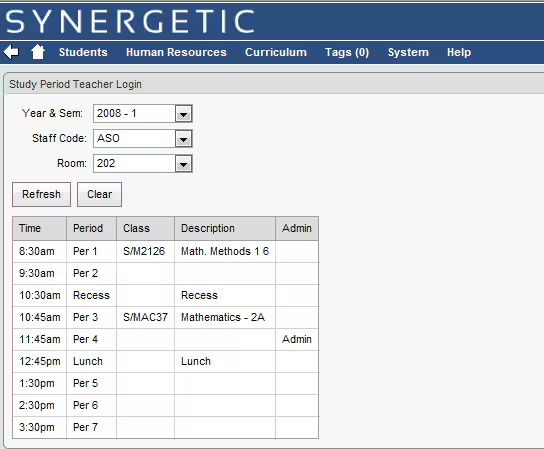
Teachers can view the students who have signed into their study period and delete from the list.
2. Select Admin in the Admin column against the period to view and maintain the study period list.
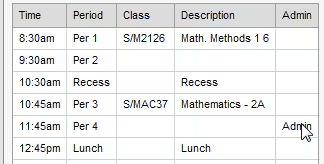 This will give teachers a list with/without photos of students who have signed in.
The \[Refresh\] button can be used to refresh the page and give an up-to-date list. |
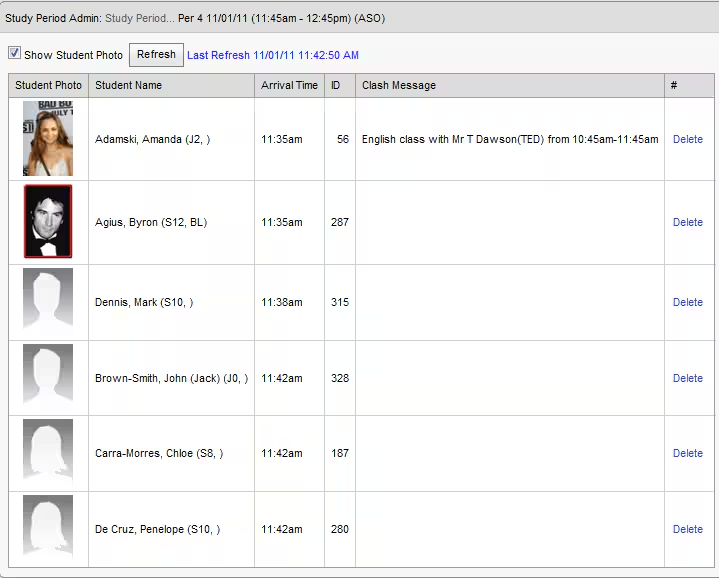
3. Clash messages appear if a student has a timetabled or scheduled class/activity.
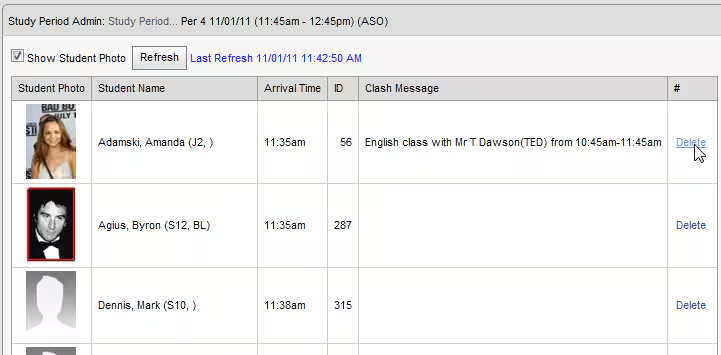
4. The Delete option can be used to delete a student record from the study period if they have accidentally signed in (or signed in another student).
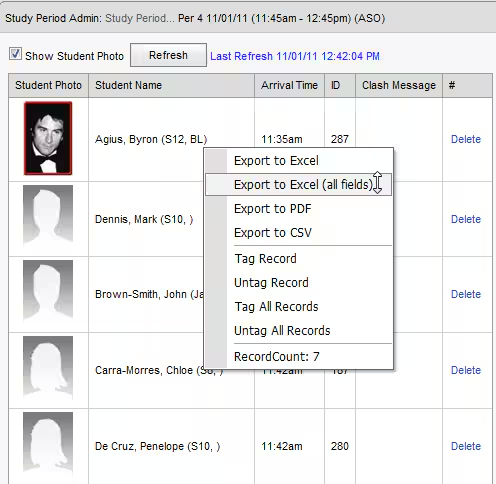
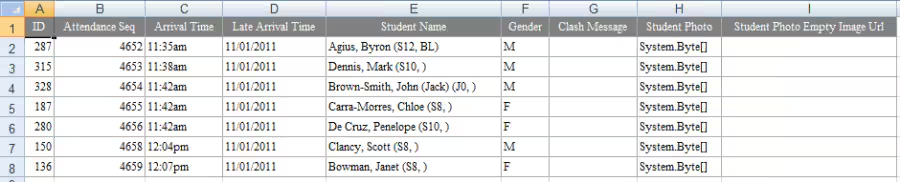
5. Teachers can export their study period student list into excel by right-clicking on the grid and selecting Export to Excel (all fields) menu option
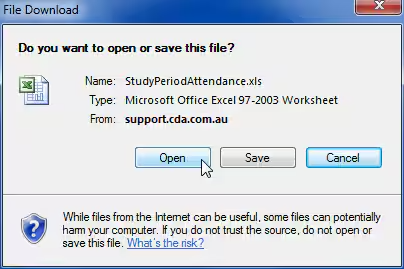
6. The export will result in the following list in Excel.
Was this article helpful?
That’s Great!
Thank you for your feedback
Sorry! We couldn't be helpful
Thank you for your feedback
Feedback sent
We appreciate your effort and will try to fix the article