Assessment Report Live PDF's can be published to the Community Portal Results Page via selecting the PDF Icon
This is configured in lookup table luReportStyle
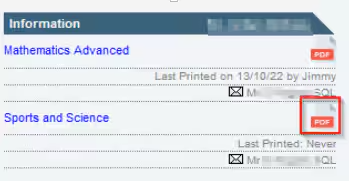
Here are some trouble shooting steps if the following error appears when running the LIVE PDF report Fatal Error. Error message : Failed to retrieve data from the database. Details: [Database Vendor Code: 229 ] Failed to retrieve data from the database. Error in File AssessmentRep7 {1DCBCDA6-E82D-43CB-98B6-4D7F6E9EF083}.rpt: Failed to retrieve data from the database. Details: [Database Vendor Code: 229 ](D:\Synergetic\Reports\AssessmentRep7.rpt)
Failed to retrieve data from the database. Details: [Database Vendor Code: 229 ] Failed to retrieve data from the database. Error in File AssessmentRep7 {1DCBCDA6-E82D-43CB-98B6-4D7F6E9EF083}.rpt: Failed to retrieve data from the database. Details: [Database Vendor Code: 229 ]
In Synmain :
Select System -> Lookuptable maintenance
Select luReportStyle
For the associated AssessmentCode Report
Ensure PrintOverrideViewName is the main View used for that Assessment Crystal Report

Select System -> Group User Security Maintenance
Select Users
Search for User zSynergetic_CommunityPortal_dbo
Note the Group that user belongs to (This user must be in its own group)

Select Groups
Select the Group Code from previous step
Select SQL Server Objects (Note : only a SysAdmin with the correct SQL Server permissions can do this)
Select Views, Stored Procs, Tables
For all objects (Views, stored procs, Tables) the Assessment Report needs access tick the Select option
This is every db object referenced in the Crystal Report
Note : This requires SQL Server and Crystal Report writer knowledge as all objects must be granted select access.
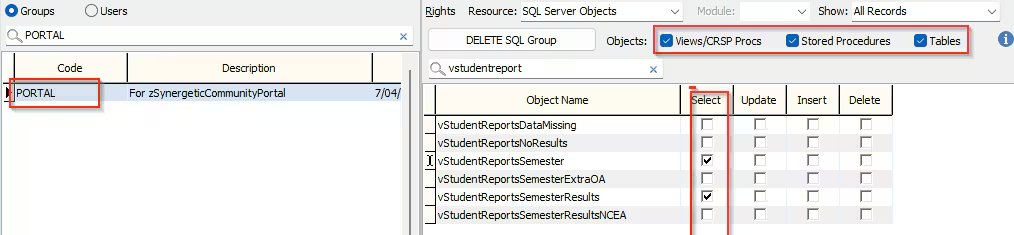
Select save and run the LIVE PDF Report in Community Portal
Was this article helpful?
That’s Great!
Thank you for your feedback
Sorry! We couldn't be helpful
Thank you for your feedback
Feedback sent
We appreciate your effort and will try to fix the article