You are here because you have received an email with directions to download and apply a compliance export hotfix for a specific data submission. This will be related to a recent enhancement or bug.
These are step by step instructions to complete the Hotfix installation. The Email will contain a link to the relevant hotfix download.
This link is the main download directory - Hotfixes
Note : Ensure you are logged into your Synergetic SQL Server (ie Remote Desktop)- You cannot run the hotfix from your local workstation/laptop as it won't contain the expected installer files.
Also ensure you download the Hotfix version which matches your local Synergetic version (v69, V70 or v71). There may be a unique hotfix for V69, v70 or v71 or a combined v69/v70/v71 Hotfix.
Download the Zip file to a local directory on the SQL Server. Default is the download directory

Open the zip file and extract the included exe file onto your SQL server
The file name will be in a similar name format to this

Run the hotfix exe program
The first step is to extract the hotfix to a folder. The suggested folder name is the previous time a DB patcher was executed so change this destination folder to match the submission type.
Select Next
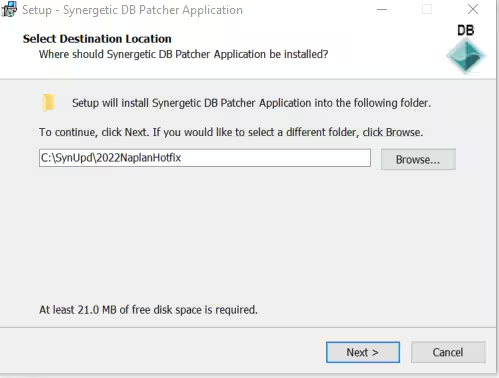
Next step is to confirm the destination Location and begin the installation
Select Install
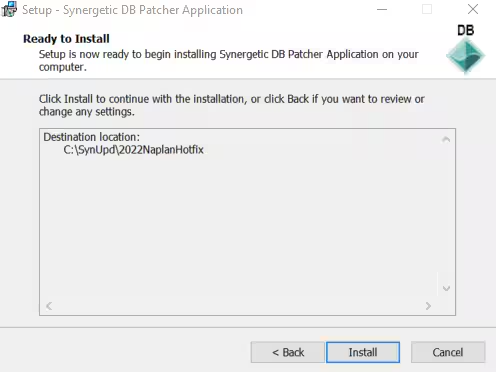
ERROR : If you receive the following message, you are not logged into the SQL Server. Select [No] and [Finish]. Log into the SQL server and restart the hotfix steps
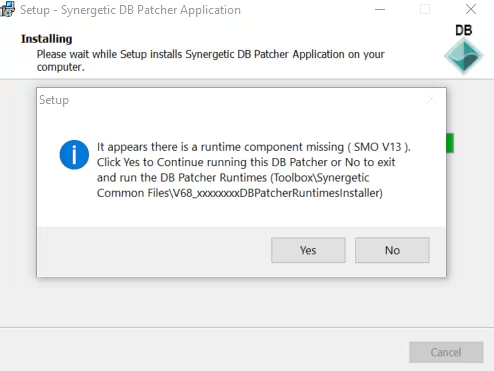
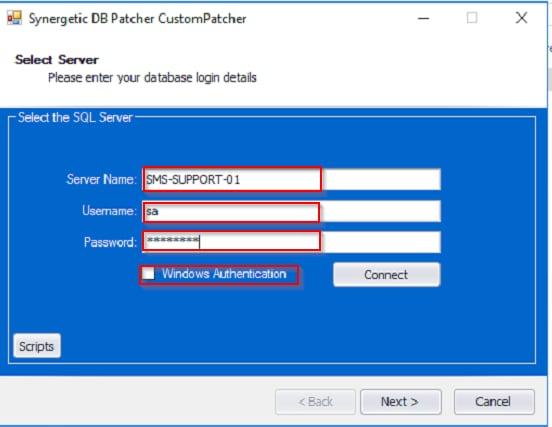
The next screen asks for login details for your SQL server. Your Synergetic System Administrator will have this information
Enter your Synergetic SQL Server Name
Enter
UserName and Password which must be a SQL Server Administrator
OR
Select Windows Authentication if your AD account is a SQL Administrator
Select Next
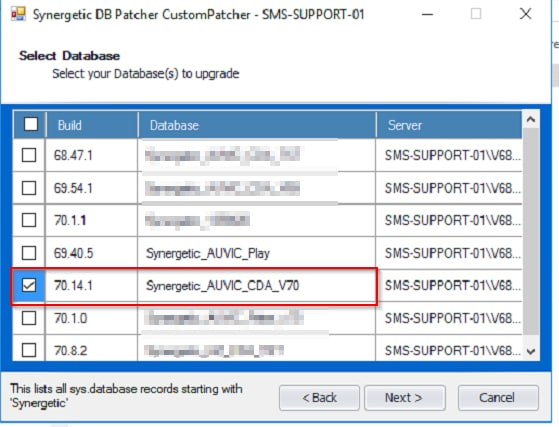
The Next screen displays a list of databases to update. You may have multiple databases on the same SQL Server instance (PROD, TEST, ...other)
Select the database you want to upgrade (this will be your LIVE/PROD database)
If you wish to upgrade another database then when this is complete rerun the Hotfix selecting the 2nd DB.
Also note each Database may be a different version so run the Hotfix which applies to that v69, V70 or v71.
Select Next
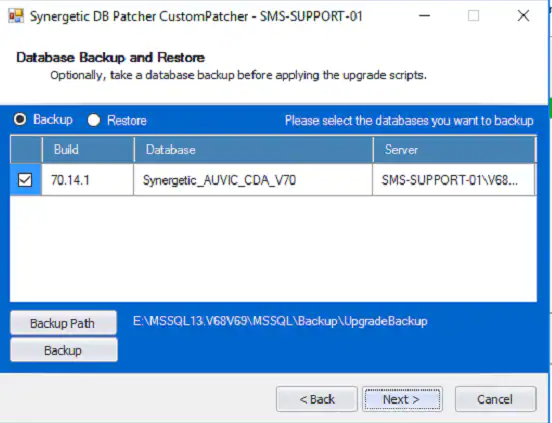
The Next screen suggests backing up the Database
Select a Backup path and Select Backup
Note : Depending on database size a backup may take an hour or more to complete.
It is not mandatory to run a backup as a hot fix is a minor change to the Synergetic database.
Select Next
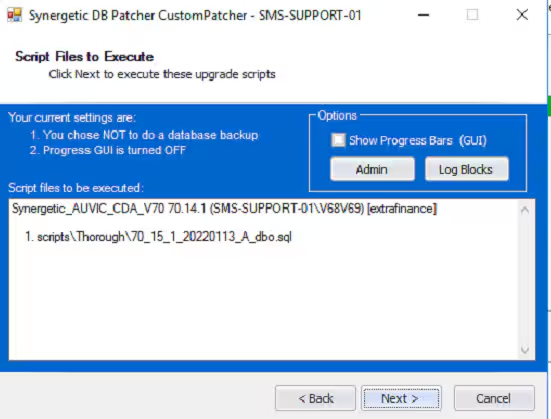
If you did not run a backup you will get this message
Select Next

The Next step is a confirmation step to execute the upgrade Steps
Select Next
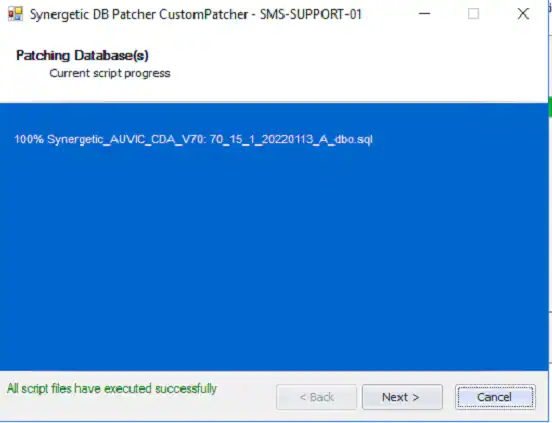
The Next step is the result of the upgrade - ensure All scripts have executed successfully is displayed
Select Next
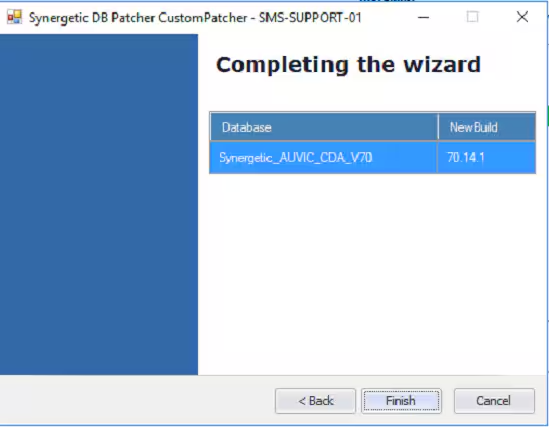
Congratulations : The hotfix Database patcher is now complete
Select Finish (X2)
Rerun the DB Patcher if you wish to upgrade a 2nd database
Was this article helpful?
That’s Great!
Thank you for your feedback
Sorry! We couldn't be helpful
Thank you for your feedback
Feedback sent
We appreciate your effort and will try to fix the article