TABLE OF CONTENTS
Publishing results to the Community Portal
It is possible to publish Assessment results to the Community Portal in the Results page
There are two different modes to publish results to the Community Portal
- Results Date Mode = True
- Results Date Mode = False
Go to System-> Configuration FileMaintenance to set the required mode. (CommunityPortal|Students|Results|UseResultDates)
If True then the School is using 'Results Date Mode'. These are the configurations required.
RESULTS DATE MODE = TRUE
Students -> File Term Maintenance
Set the Publish Date to the date on the File Year/Term you wish to publish the results

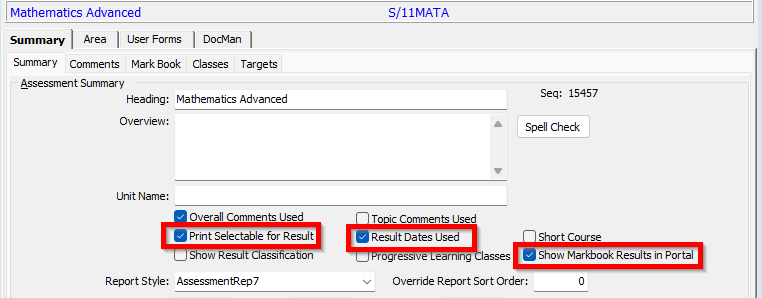
Assessment -> Subject Assessment Area Maintenance
Select [Result Dates Used]
Select [Print Selectable for Results]
Select [Show MarkBook Results in Portal] (if applicable)
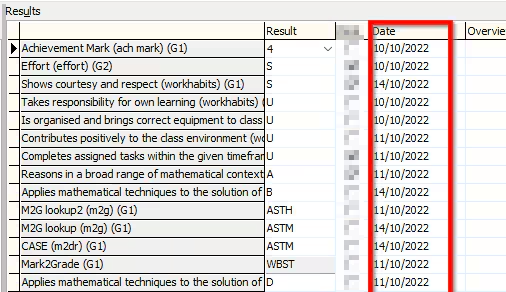
Assessment -> Student Results Maintenance
The date column will display. To display the result in the Community portal
If date is less than or equal to the File term maintenance publish date the result will display
If date is greater than the File term maintenance publish date it not will display until that date is met.
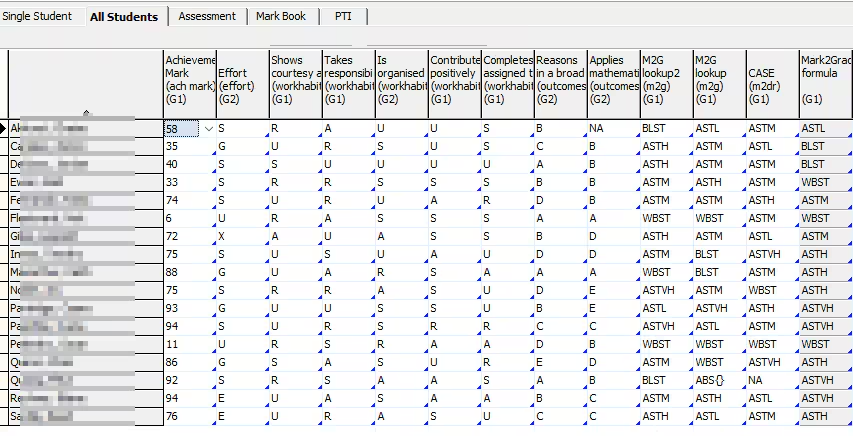
In the All Students Tab a Blue Triangle in each cell will signify a Result has been entered and a Publish date has been set.
RESULTS DATE MODE = FALSE

This is the equivalent to 'Publish All Mode' and all applicable Assessment results are shown after the publish date in Student -> File Term Maintenance
If the publish date is blank then results will be published with no date constraint

Other Considerations
These configurations are applicable for both True and False Results Date modes.
Print Flags
There are two different print flag modes to publish results to the Community Portal
- Print Flag Mode = True
- Print Flag Mode = False
Go to System-> Configuration FileMaintenance to set the required mode.
CommunityPortal|Students|Results|UsePrintFlags = True or False
If True then the School is using 'Print Flag Mode'. These are the configurations required.
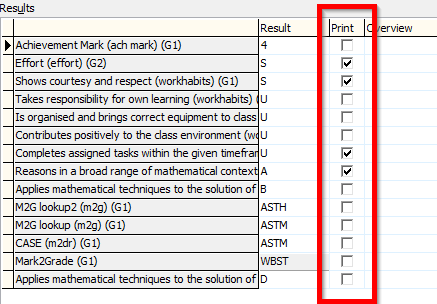
Assessment -> Student Results Maintenance
The Print Flag column will display. Only Results with the Print flag checked will display in the Community Portal
luReportResultGroup
Select System -> LookupTable Maintenance
Select luReportResultGroup
Only results in groups with CommPortalPublishFlag = True will be published to the Community Portal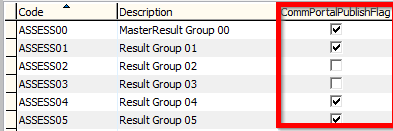
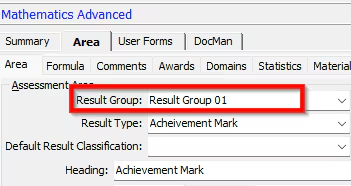
Refer Assessment -> Subject Assessment Area Maintenance -> Result Group field for the associated Result group
luYearlevel
Select System -> LookupTable Maintenance
Select luYearlevel
Only results in yearlevels with CommPortalPublishFlag = True will be published to the Community Portal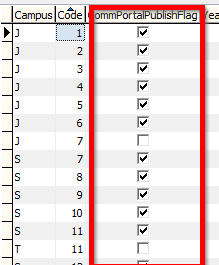
CommPortalMeaning
TIP : This is the fastest way to turn on/off results being displayed to the Community Portal
Use Results Date Mode = False
Set CommPortalMeaning = Classes to turn off Results
Set CommPortalMeaning = Classes + Results to turn on Results
luFileType
Select System -> LookupTable Maintenance
Select luFileType
The CommPortalMeaning field can be
Classes
Classes +Results
Classes +Results +Dates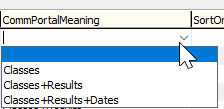
CommPortalMeaning = Classes : Only Class Information is displayed (no results)
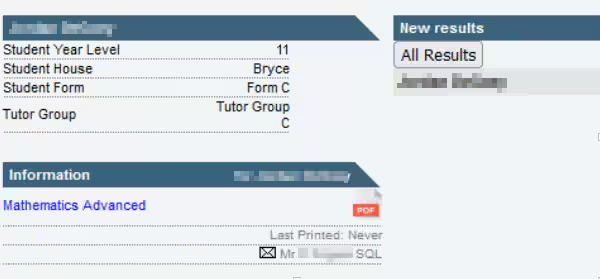
CommPortalMeaning = Classes + Results : Class and Result Information is displayed
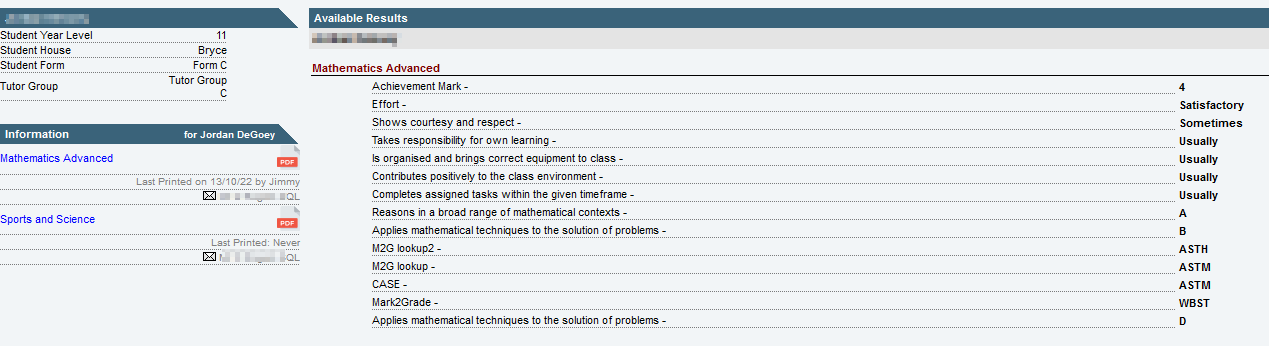
CommPortalMeaning = Classes + Results +Dates : Class, Result and Date(if using date mode) Information is displayed
LIVEPDF
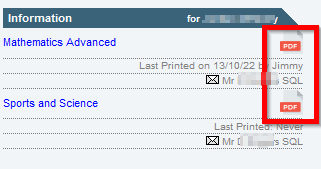
Results can be viewed in PDF format by displaying a link to the associated live Assessment report
luReportStyle
Select System -> LookupTable Maintenance
Select luReportStyle
PrintOverrideViewname is the main Synergetic database view used in the Assessment report
CommPortalMeaning – Select LivePDF to display the report against the class in the Community Portal. Selecting the report will open up in a new browser or PDF reader.
Was this article helpful?
That’s Great!
Thank you for your feedback
Sorry! We couldn't be helpful
Thank you for your feedback
Feedback sent
We appreciate your effort and will try to fix the article